-
-
-
Launcher configuration device policy
This content has been machine translated dynamically.
Dieser Inhalt ist eine maschinelle Übersetzung, die dynamisch erstellt wurde. (Haftungsausschluss)
Cet article a été traduit automatiquement de manière dynamique. (Clause de non responsabilité)
Este artículo lo ha traducido una máquina de forma dinámica. (Aviso legal)
此内容已经过机器动态翻译。 放弃
このコンテンツは動的に機械翻訳されています。免責事項
이 콘텐츠는 동적으로 기계 번역되었습니다. 책임 부인
Este texto foi traduzido automaticamente. (Aviso legal)
Questo contenuto è stato tradotto dinamicamente con traduzione automatica.(Esclusione di responsabilità))
This article has been machine translated.
Dieser Artikel wurde maschinell übersetzt. (Haftungsausschluss)
Ce article a été traduit automatiquement. (Clause de non responsabilité)
Este artículo ha sido traducido automáticamente. (Aviso legal)
この記事は機械翻訳されています.免責事項
이 기사는 기계 번역되었습니다.책임 부인
Este artigo foi traduzido automaticamente.(Aviso legal)
这篇文章已经过机器翻译.放弃
Questo articolo è stato tradotto automaticamente.(Esclusione di responsabilità))
Translation failed!
Launcher configuration device policy
Citrix Launcher lets you customize the user experience for Android devices deployed by XenMobile. Citrix Launcher and the Launcher Configuration device policy aren’t compatible with Android Enterprise.
You can add a Launcher Configuration policy to control these Citrix Launcher features:
- Manage Android devices so that users can access only the apps that you specify.
- Optionally specify a custom logo image for the Citrix Launcher icon and a custom background image for Citrix Launcher.
- Specify a password that users must enter to exit the launcher.
While Citrix Launcher enables you to apply those device-level restrictions, the launcher grants users the operational flexibility they need through built-in access to device settings such as Wi-Fi settings, Bluetooth settings, and device passcode settings. Citrix Launcher isn’t intended as an extra layer of security over what the device platform already provides.
After you deploy Citrix Launcher, XenMobile installs it, replacing the default Android launcher.
To add or configure this policy, go to Configure > Device Policies. For more information, see Device policies.
Android settings
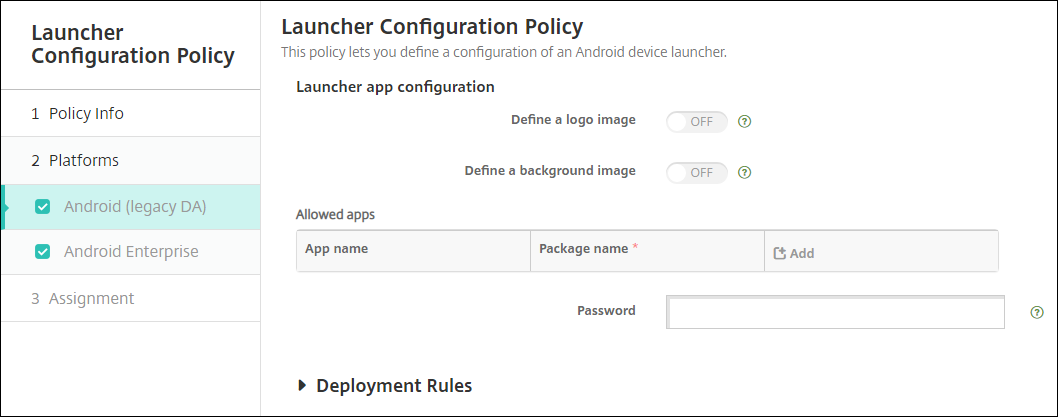
- Define a logo image: Select whether to use a custom logo image for the Citrix Launcher icon. The default is Off.
- Logo image: When you enable Define a logo image, select the image file by clicking Browse and navigating to the file’s location. Supported file types are PNG, JPG, JPEG, and GIF.
- Define a background image: Select whether to use a custom image for the Citrix Launcher background. The default is Off.
- Background image: When you enable Define a background image, select the image file by clicking Browse and navigating to the file’s location. Supported file types are PNG, JPG, JPEG, and GIF.
-
Allowed apps: For each app that you want to allow in Citrix Launcher, click Add and then do the following:
- New app to add: Enter the full name of the app to add. For example, com.android.calendar for the Android calendar app.
- Click Save to add the app or click Cancel to cancel adding the app.
- Password: The password a user must enter to exit Citrix Launcher.
Android Enterprise settings
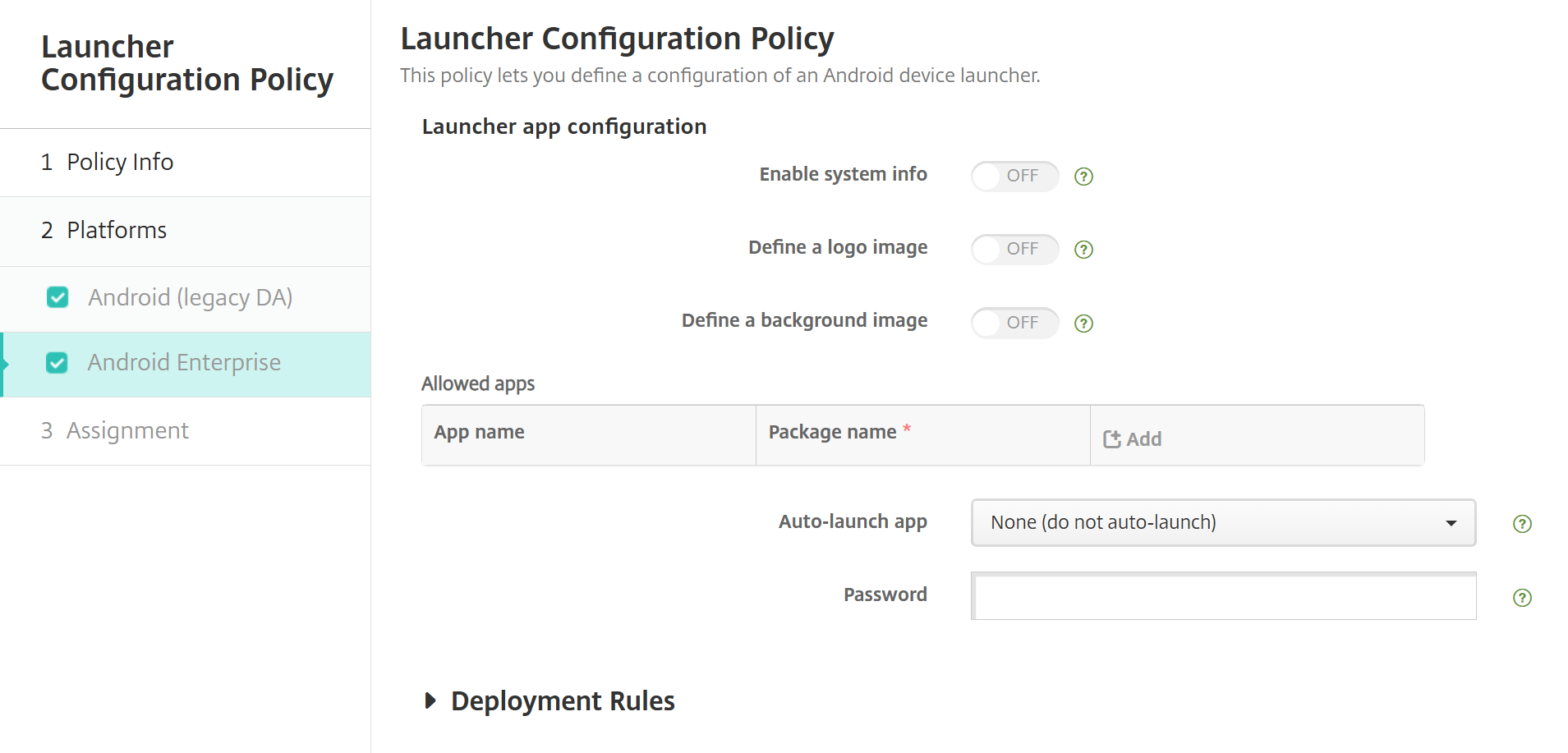
- Enable system info: Select whether to display the system info in the Citrix Launcher status bar. The default is Off. Requires Secure Hub 26.8 or later.
- Define a logo image: Select whether to use a custom logo image for the Citrix Launcher icon. The default is Off.
- Logo image: When you enable Define a logo image, select the image file by clicking Browse and navigating to the file’s location. Supported file types are PNG, JPG, JPEG, and GIF.
- Define a background image: Select whether to use a custom image for the Citrix Launcher background. The default is Off.
- Background image: When you enable Define a background image, select the image file by clicking Browse and navigating to the file’s location. Supported file types are PNG, JPG, JPEG, and GIF.
-
Allowed apps: For each app that you want to allow in Citrix Launcher, click Add and then do the following:
- New app to add: Enter the full name of the app to add. For example, com.android.calendar for the Android calendar app.
- Click Save to add the app or click Cancel to cancel adding the app.
- Auto-launch app: Select one of the Allowed apps to start automatically when the Citrix Launcher starts. The default is None (do not auto-launch). Requires Citrix Launcher 26.8 or later.
- Password: The password a user must enter to exit Citrix Launcher.
Share
Share
In this article
This Preview product documentation is Citrix Confidential.
You agree to hold this documentation confidential pursuant to the terms of your Citrix Beta/Tech Preview Agreement.
The development, release and timing of any features or functionality described in the Preview documentation remains at our sole discretion and are subject to change without notice or consultation.
The documentation is for informational purposes only and is not a commitment, promise or legal obligation to deliver any material, code or functionality and should not be relied upon in making Citrix product purchase decisions.
If you do not agree, select I DO NOT AGREE to exit.