Microsoft Entra single sign-on
You can leverage single sign-on (SSO) when using Microsoft Entra ID credentials to access virtual applications and desktops on Microsoft Entra joined or Microsoft Entra hybrid joined session hosts.
Supported infrastructure
The following is an overview of the infrastructure components supported for Microsoft Entra single sign-on:
| Machine identity | Citrix DaaS | Citrix DaaS Local | Citrix StoreFront Cloud | Citrix StoreFront | Citrix Gateway Service | NetScaler Gateway |
|---|---|---|---|---|---|---|
| Microsoft Entra joined | Yes | No | Yes | No | Yes | Yes |
| Microsoft Entra hybrid joined | Yes | Yes | Yes | Yes | Yes | Yes |
NOTE:
- For details on configuring Microsoft Entra single sign-on with Citrix DaaS Local, refer to the Citrix DaaS Local documentation.
- For details on configuring Microsoft Entra single sign-on with StoreFront, refer to the StoreFront documentation.
Supported identity providers
The following is an overview of the Workspace identity providers supported for Microsoft Entra single sign-on:
| Machine identity | Entra ID | Active Directory | Active Directory + Token | Okta | SAML | NetScaler Gateway | Adaptive Authentication |
|---|---|---|---|---|---|---|---|
| Microsoft Entra joined | Yes | No | No | No | Yes | No | No |
| Microsoft Entra hybrid joined | Yes | No | No | No | Yes | No | No |
NOTE
If you are planning to use SAML as your IdP, you must ensure your SAML provider is configured properly to support Entra based authentication. See SAML using Microsoft Entra ID and Microsoft Entra identities for workspace authentication.
Supported access methods
The following are the access methods available in a Citrix environment:
- Native access: You use the native Citrix Workspace app client to access your store and establish the session connection.
- Browser access: You access your store through a browser and connect to the virtual app or desktop session using the Citrix Workspace app for HTML5 client.
- Hybrid access: You access your store through a browser and connect to the virtual app or desktop session using the native Workspace app client.
The following is an overview of the access methods supported for Microsoft Entra single sign-on:
| Access Method | Windows | Linux | Mac | Chrome OS | Android | iOS |
|---|---|---|---|---|---|---|
| Native | Yes | Yes | Yes | Yes | Yes | Yes |
| Browser | Yes | Yes | Yes | Yes | Yes | Yes |
| Hybrid | Yes | Yes | Yes | No | No | No |
System requirements
The following are the system requirements for using Microsoft Entra single sign-on:
- Control plane: Citrix DaaS
- Citrix Cloud Commercial (US, EU, and APS)
- Citrix Cloud Japan
- User portal: Citrix® StoreFront Cloud
- Virtual Delivery Agent (VDA)
- Windows: version 2507 or newer
- Citrix Workspace app
- Windows: version 2507 or newer
- Linux: version 2508 or newer (version 2601 or newer required for hybrid access)
- Mac: version 2508 or newer (version 2511 or newer required for hybrid access)
- HTML5: version 2511 or newer
- Chrome OS: version 2511 or newer
- Android: version 2511 or newer
- iOS: version 2511 or newer
- Citrix Web Extension
- Session host OS:
- Windows 11, version 24H2 with 2025-09 Cumulative Updates for Windows 11 (KB5065789) or later installed (build 26100.6725)
- Windows Server 2025 with 2026-01 Cumulative Updates for Windows Server 2025 (KB5073379) or later installed (build 26100.32230)
NOTE
The Citrix Web Extension is only needed if your users will be leveraging hybrid access in Windows, Linux, or Mac devices. If your users leverage native or browser access, the Citrix Web Extension is not needed.
Considerations
- If your users will be leveraging hybrid access, they must use either Microsoft Edge or Google Chrome, and install the Citrix Web Extension. Microsoft Entra single sign-on with hybrid access is not supported with other browsers.
- Auto Client Reconnect is not supported when Microsoft Entra single sign-on is used to log into the session. This feature is automatically disabled when this logon method is used. Session Reliability is still available for automatic reconnection in case of network disruptions.
- When a virtual desktop is locked, the default behavior is to display the Windows lock screen. Depending on your authentication requirements, you might need to change the session lock behavior. See Session lock behavior for more details.
- If using Microsoft Entra hybrid joined session hosts, single sign-on does not work by default for members of privileged groups such as Domain Admins. To enable it, add the group or user to the Read-Only Domain Controller (RODC) allowlist for Microsoft Entra Kerberos access. See Microsoft Entra Kerberos TGT and Active Directory access control for details.
- Microsoft Entra External ID is not supported at this time. If you need to provide access to guest users, refer to SAML using Entra ID for Guest and B2B identities for workspace authentication.
- Microsoft Entra single sign-on requires the Windows setting Allow Custom SSPs and APs to be loaded into LSASS to be enabled (default). Note that if you deploy the Security Baseline for Windows 10 and later template via Microsoft Intune, this setting is automatically disabled and will block SSO, so you must update your Intune device configuration policy to keep it enabled.
How to configure Microsoft Entra single sign-on
Overview
The configuration of Microsoft Entra single sign-on consists of the following steps:
- Azure and Microsoft Entra ID configuration
- Register the Citrix resource and client applications.
- Enable the Microsoft Entra ID Remote Desktop Services authentication protocol for the Citrix resource application.
- Hide the user consent prompt.
- Approve the client application.
- Create a Kerberos server object (Microsoft Entra hybrid joined environments only).
- Review Microsoft Entra Conditional Access policies.
- Citrix configuration
- Provision session hosts with the required OS version, identity type, and VDA version.
- Configure Citrix® StoreFront Cloud:
- Configure an appropriate Identity Provider.
- Enable Microsoft Entra single sign-on
- Configure your Delivery Groups’ logon type if needed.
Details of each configuration step are provided in the sections that follow.
Azure and Microsoft Entra ID configuration
In order to leverage Microsoft Entra single sign-on, you must first allow Microsoft Entra authentication for Windows in your Microsoft Entra ID tenant, which enables issuing the required authentication tokens that allow users to sign in to the Microsoft Entra joined and Microsoft Entra hybrid joined session hosts.
The person making the Azure configuration must be assigned one of the following Microsoft Entra built-in roles or equivalent at a minimum:
The configuration can be completed through Azure Portal, using Microsoft Graph PowerShell SDK, or Microsoft Graph API. The following sections provide details for completing the configuration through Azure Portal. If you prefer to use Microsoft Graph PowerShell SDK or Microsoft Graph API, refer to Microsoft Entra single sign-on Azure configuration.
Register Citrix applications
Microsoft Entra single sign-on requires an Entra ID Resource Application and an Entra ID Client Application. The Resource Application represents the Windows OS when requesting the RDP Access Token. The Client Application represents the Citrix Workspace app.
You can register the Citrix Resource and Citrix Client applications through the Citrix Cloud portal:
-
Open the menu on the upper left corner and select
Identity and access management. -
In the
Authenticationpage, look for the Microsoft Entra ID identity provider for which you want to enable Microsoft Entra single sign-on. -
Open the options menu and select
Set up Microsoft Entra SSO.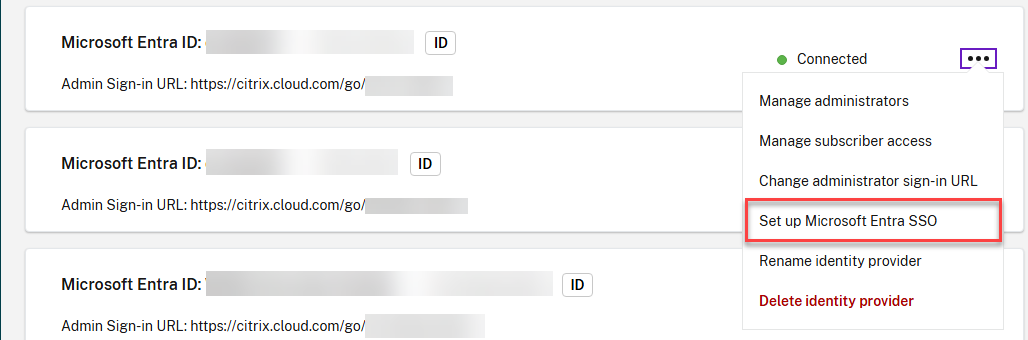
-
Click on
Registernext to Register resource application.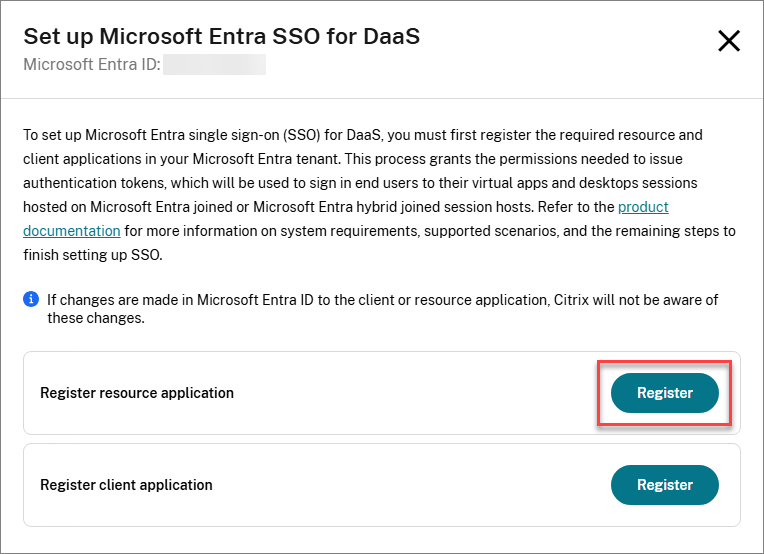
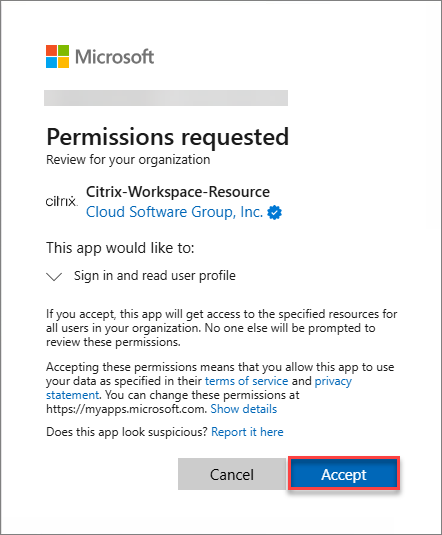
-
Accept the permissions requested for the Citrix Resource application.
-
Click on
Registernext to Register client application.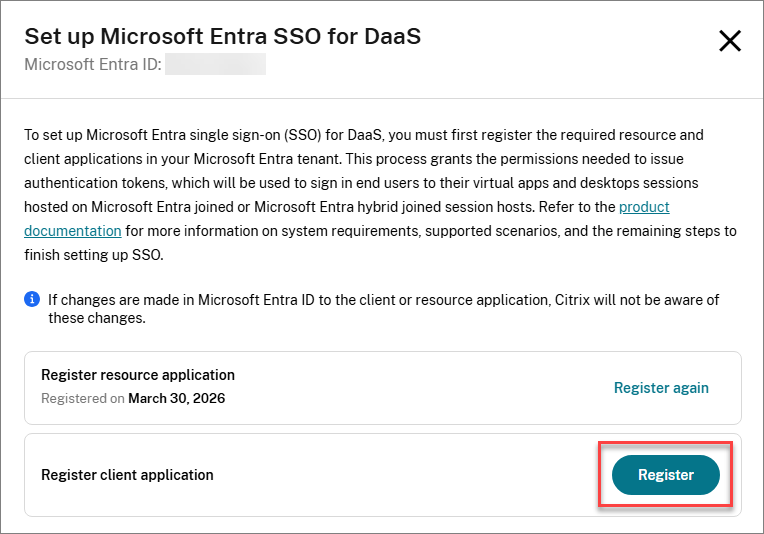
-
Accept the permissions requested for the Citrix Client application.
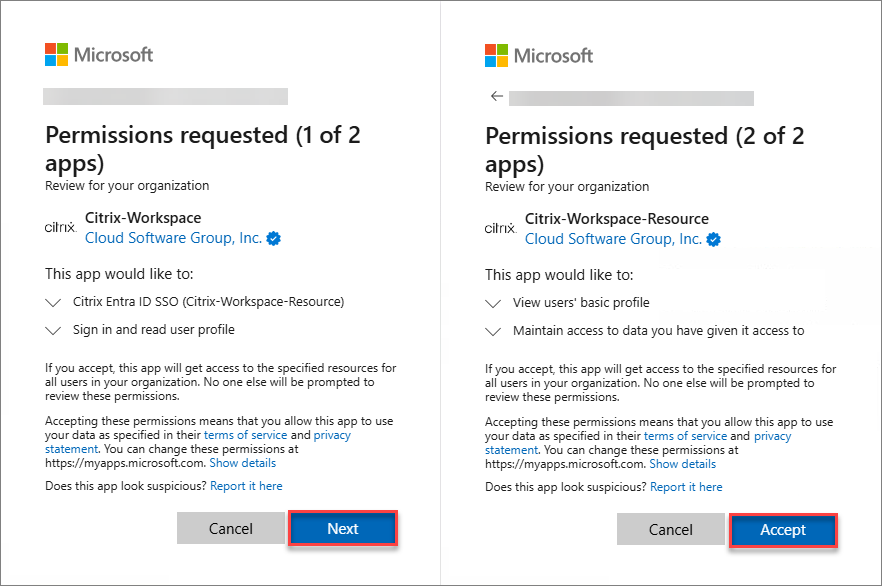
Alternatively, you can use the following consent URLs to register the applications. Please make sure to register the Resource app first, followed by the Client app.
- Citrix Cloud US, EU, APS
- Resource app:
https://login.microsoftonline.com/common/adminconsent?client_id=3a510bb1-e334-4298-831e-3eac97f8b26c - Client app:
https://login.microsoftonline.com/common/adminconsent?client_id=85651ebe-9a8e-49e4-aaf2-9274d9b6499f
- Resource app:
- Citrix Cloud Japan
- Resource app:
https://login.microsoftonline.com/common/adminconsent?client_id=0027603f-364b-40f2-98be-8ca4bb79bf8b - Client app:
https://login.microsoftonline.com/common/adminconsent?client_id=0fa97bc0-059c-4c10-8c54-845a1fd5a916
- Resource app:
The following are the applications’ permissions:
Citrix Resource application
A service principal is created with the following permissions:
| API name | Claim value | Permission | Type |
|---|---|---|---|
| Microsoft Graph | User.Read | Sign in and read user profile | Delegated |
For Citrix Cloud US, EU, and APS, the application is called Citrix-Workspace-Resource (application ID 3a510bb1-e334-4298-831e-3eac97f8b26c).
For Citrix Cloud Japan, the application is called Citrix-Workspace-Resource-JP (application ID 0027603f-364b-40f2-98be-8ca4bb79bf8b).
Citrix Client application
A service principal is created with the following permissions:
| API name | Claim value | Permission | Type |
|---|---|---|---|
| Citrix-Workspace-Resource
Citrix-Workspace-Resource-JP |
user_impersonation
|
Citrix Entra ID SSO
|
Delegated
|
| Microsoft Graph | User.Read | Sign in and read user profile | Delegated |
For Citrix Cloud US, EU, and APS, the application is called Citrix-Workspace (application ID 85651ebe-9a8e-49e4-aaf2-9274d9b6499f).
For Citrix Cloud Japan, the application is called Citrix-Workspace-JP (application ID 0fa97bc0-059c-4c10-8c54-845a1fd5a916).
Enable Microsoft Entra ID Remote Desktop Services authentication protocol
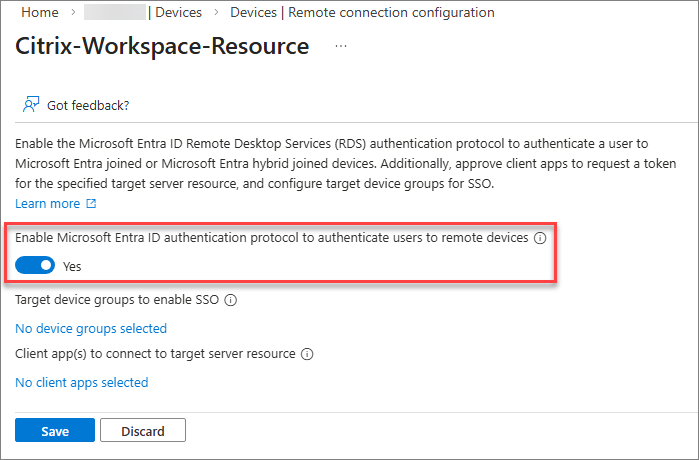
You must enable the Microsoft Entra ID Remote Desktop Services authentication protocol in the Citrix Resource application. To do so:
-
In Azure Portal, navigate to
Microsoft Entra ID>Devices>Manage>Remote connection configuration.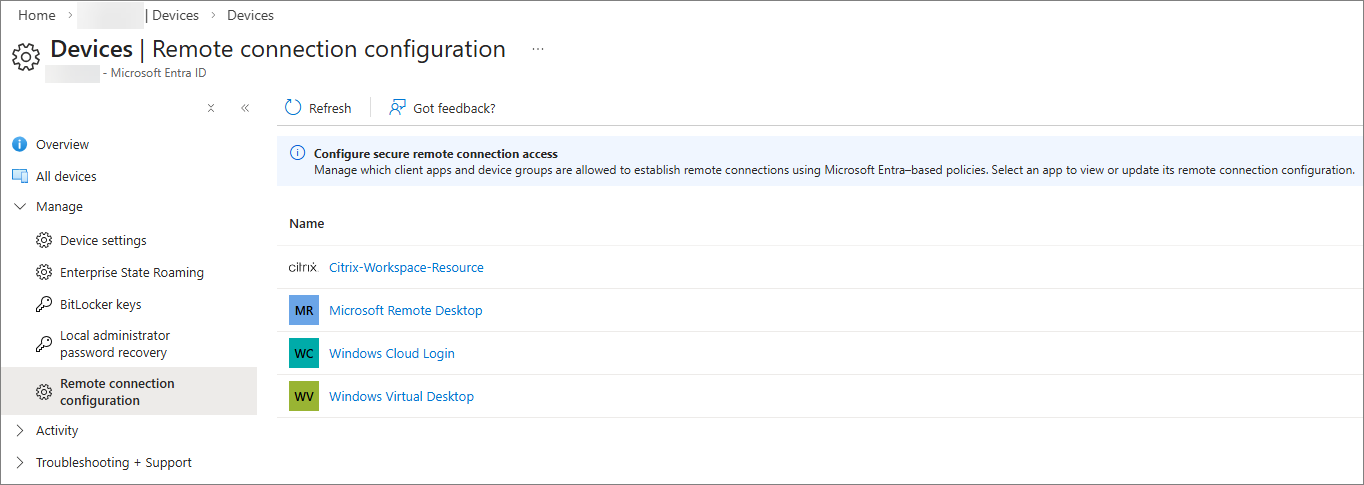
-
Select Citrix-Workspace-Resource.
-
Enable Microsoft Entra ID Remote Desktop Services authentication protocol.
-
Proceed to hide the user consent prompt.
Hide the user consent prompt dialog
By default, users are prompted to allow the Remote Desktop connection when connecting to a Microsoft Entra joined or Microsoft Entra hybrid joined session host with Microsoft Entra single sign-on enabled, in which they must select Yes to allow single sign-on. Microsoft Entra will remember up to 15 unique session hosts for 30 days before prompting again.
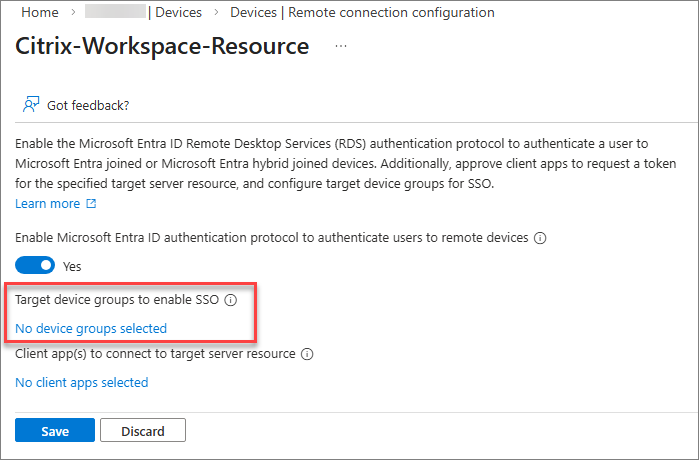
You can hide this dialog by configuring a list of target devices. To configure the list of devices, you must create one or more groups in Microsoft Entra ID that contain the Microsoft Entra joined and/or Microsoft Entra hybrid joined session hosts and then authorize the groups in the resource application, up to a maximum of 10 groups.
Once you have enabled the Microsoft Entra ID Remote Desktop Services authentication protocol and the groups have been created:
-
Click on the link to add the target device groups and select the appropriate groups.
NOTE
It is highly recommended to create a dynamic group to simplify the membership management for the group. While dynamic groups normally update within 5-10 minutes, large tenants can take up to 24 hours.
Dynamic groups requires the Microsoft Entra ID P1 license or Intune for Education license. For more information, see Dynamic membership rules for groups.
Approve the client application
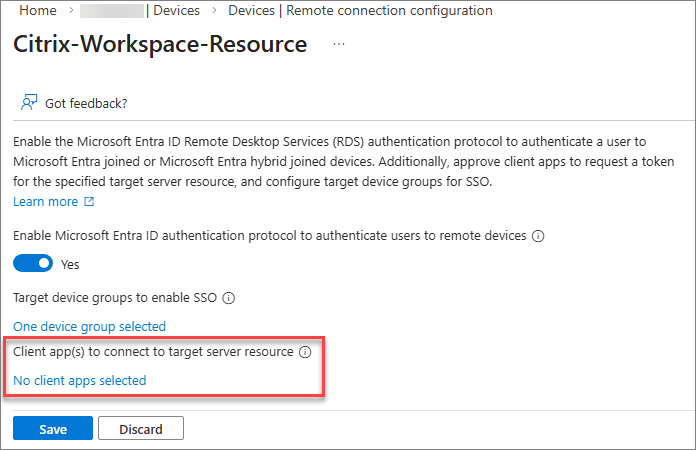
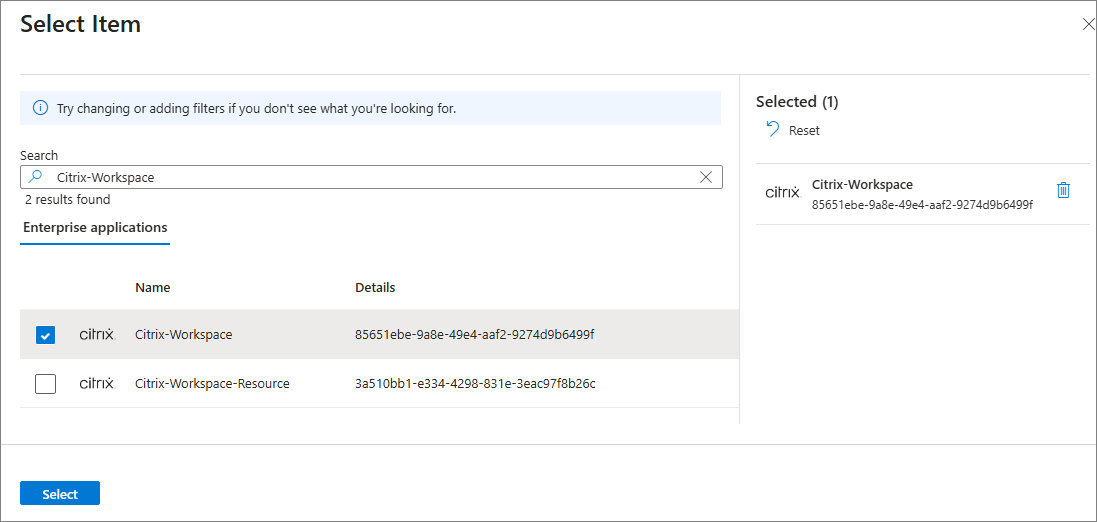
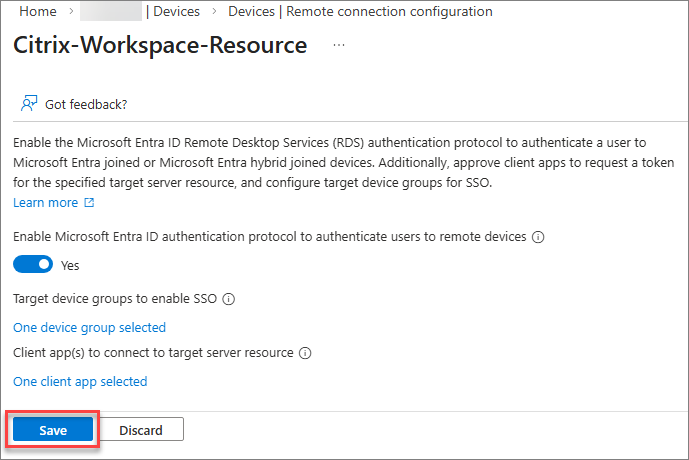
You must explicitly add the Citrix Client application as an approved client in the Citrix Resource application:
-
Click on the link to add your trusted client applications.
-
Select the Citrix Client application.
-
Select Save to apply the configuration changes to the Citrix Resource application.
Create a Kerberos server object
If your session hosts are Microsoft Entra hybrid joined, you must configure a Kerberos server object in the Active Directory domain where the user and computer accounts reside. See Create a Kerberos Server object for details.
Review Microsoft Entra Conditional Access policies
If you use or plan to use Microsoft Entra Conditional Access policies, these need to be applied to the Citrix Resource application.
For detailed guidance on configuring Conditional Access when using Microsoft Entra single sign on for DaaS, refer to the Microsoft documentation. Remember that the required Conditional Access settings must be applied to the Citrix Resource application, not the Citrix Client application or Microsoft applications.
Citrix configuration
Citrix Session Hosts
Ensure the system requirements for the session hosts are met:
- Ensure the session hosts are either Microsoft Entra joined or Microsoft Entra hybrid joined.
- Install the required operating system version and build as specified in the system requirements.
- Install the required VDA version as specified in the system requirements.
Microsoft Entra hybrid joined session hosts
If you are deploying Microsoft Entra hybrid joined session hosts with Citrix Machines Creation Services, Citrix Provisioning, or Windows 365, you can proceed to the next section. If you are provisioning Microsoft Entra hybrid joined hosts using any other tool or method, you must add the following registry value to your session hosts:
- Key:
HKLM\SYSTEM\CurrentControlSet\Control\Citrix - Value type: DWORD
- Value name:
AzureADJoinType - Data:
1
Session lock behavior
When a virtual desktop is locked, the default behavior is to display the Windows lock screen. At this point, the supported authentication methods for unlocking the desktop are username and password or smart card.
NOTE
Citrix web sign-in (preview) allows you to unlock your desktop using web-based Entra authentication. See Web sign-in for details.
If you have a passwordless deployment where users don’t know their passwords, it’s recommended to configure the session lock behavior to disconnect the session instead of showing the lock screen.
-
Multi-session session hosts
You can configure this behavior by enabling the Disconnect remote session on lock for Microsoft identity platform authentication setting through Intune or Group Policy. For detailed steps, see Configure the session lock behavior for Azure Virtual Desktop.
-
Single-session session hosts
If you are using VDA version 2603 or newer, you can configure this behavior by enabling the Disconnect remote session on lock for Microsoft identity platform authentication setting through Intune or Group Policy. For detailed steps, see Configure the session lock behavior for Azure Virtual Desktop.
If you are using VDA version 2511 or older, the Disconnect remote session on lock for Microsoft identity platform authentication setting is not supported. However, you can achieve the same behavior by creating a Windows scheduled task.
The following example script creates a scheduled task on single-session hosts that runs
cmd.exe /c tsdisconwhen the desktop is locked:# Create the TaskService COM object $service = New-Object -ComObject "Schedule.Service" $service.Connect() # Get the root folder and create a new task definition $rootFolder = $service.GetFolder("\") $taskDef = $service.NewTask(0) # Registration info $taskDef.RegistrationInfo.Description = "Disconnect session when workstation is locked" # Principal (Users group, least privilege) $principal = $taskDef.Principal $principal.GroupId = "S-1-5-32-545" $principal.RunLevel = 0 # 0 = LeastPrivilege # Settings $settings = $taskDef.Settings $settings.Enabled = $true $settings.AllowDemandStart = $true $settings.DisallowStartIfOnBatteries = $false $settings.StopIfGoingOnBatteries = $false $settings.AllowHardTerminate = $false $settings.StartWhenAvailable = $false $settings.RunOnlyIfNetworkAvailable = $false $settings.IdleSettings.StopOnIdleEnd = $true $settings.IdleSettings.RestartOnIdle = $false $settings.Hidden = $false $settings.RunOnlyIfIdle = $false $settings.DisallowStartOnRemoteAppSession = $false $settings.UseUnifiedSchedulingEngine = $true $settings.WakeToRun = $false $settings.ExecutionTimeLimit = "PT0S" # Unlimited $settings.Priority = 7 $settings.MultipleInstances = 1 # IgnoreNew # Trigger: SessionLock $trigger = $taskDef.Triggers.Create(11) # 11 = TASK_TRIGGER_SESSION_STATE_CHANGE $trigger.StateChange = 7 # 7 = SessionLock $trigger.Enabled = $true # Action: tsdiscon $action = $taskDef.Actions.Create(0) # 0 = Exec $action.Path = "cmd.exe" $action.Arguments = "/c tsdiscon" # Register the task $rootFolder.RegisterTaskDefinition( "Disconnect on Lock", # Task name $taskDef, 6, # TASK_CREATE_OR_UPDATE $null, $null, # No specific user/password 3 # TASK_LOGON_GROUP ) | Out-Null <!--NeedCopy-->If you later need to remove the scheduled task, you can run the following command:
 Unregister-ScheduledTask -TaskName "Disconnect on Lock" -Confirm:$false
 <!--NeedCopy-->
Citrix Access and Control Plane
Workspace authentication
You must configure Citrix® StoreFront Cloud to use Microsoft Entra ID or SAML as the IdP. Please refer to the Citrix® StoreFront Cloud documentation for details.
NOTE
If you are planning to use SAML as your IdP, you must ensure your SAML provider is configured properly to support Entra based authentication. See SAML using Microsoft Entra ID and Microsoft Entra identities for authentication.
Managing Workspace access
If your users will be accessing their store through a web browser, no additional configuration is required. If you want to enforce native access, you can configure Citrix® StoreFront Cloud to Require end users to access their store from the Citrix client app under the store’s access configuration.
Enabling Microsoft Entra single sign-on in Workspace
After authentication is configured, you must enable the use of Microsoft Entra single sign-on:
- Create a Service principal in Citrix Cloud:
- Go to Identity and access management > API access > Service principals.
- Click on Create service principal.
- Enter a name for the service principal and click Next.
- Set Access for the service principal:
- Select Full access, or
- Select Custom access > General > Citrix® StoreFront Cloud, then click Next.
- Set the secret expiration time and click Next.
- Click Complete.
- Save both the secret and ID.
- Download and extract the Citrix® StoreFront Cloud PowerShell module to your workstation, or any machine you can use for administrative purposes.
- Open PowerShell in the machine in which you downloaded the Citrix® StoreFront Cloud PowerShell module.
-
Run the following commands:
Import-Module -Name “<extractedPath>\Citrix.Workspace.StoreConfigs.psm1”
Set-StoreConfigurations -StoreUrl "https://<yourPrimaryStore>.cloud.com" -ClientId "<clientId>" -ClientSecret "<clientSecret>" -AzureAdSsoEnabled $True
<!--NeedCopy-->
NOTE:
This is a global setting that will be applied to all the stores in your Citrix Cloud tenant. At this time, it is not possible to enable or disable this setting on specific stores based on the store URL provided in the command.
-
Run the following command to verify the setting was configured properly:
Get-StoreConfigurations -StoreUrl "https://<yourPrimaryStore>.cloud.com" -ClientId "<clientId>" -ClientSecret "<clientSecret>"
<!--NeedCopy-->
Delivery group configuration
- If your session hosts are Microsoft Entra hybrid joined, assign the virtual apps and/or desktops to the appropriate Microsoft Entra users or groups. Any existing assignments to Active Directory users or groups may be removed, but it is not required.
- If you are provisioning your Microsoft Entra joined session hosts with anything other than Citrix Machine Creation Services, Citrix Provisioning, or Windows 365, you will need to configure the logon type for the Delivery Groups. If you are using Microsoft Entra hybrid joined session hosts, the logon type for the delivery group must be configured regardless of provisioning method.
- If you do not already have the Citrix Remote PowerShell SDK installed, download it and install it on your workstation, or any machine you can use for administrative purposes.
- Open a PowerShell prompt in the machine in which you installed the Citrix Remote PowerShell SDK.
-
Run the following commands:
Microsoft Entra joined
asnp citrix*
Get-XDAuthentication
Get-BrokerDesktopGroup -Name <dgName> | Set-BrokerDesktopGroup -MachineLogOnType "AzureAd"
<!--NeedCopy-->
Microsoft Entra hybrid joined
asnp citrix*
Get-XDAuthentication
Get-BrokerDesktopGroup -Name <dgName> | Set-BrokerDesktopGroup -MachineLogOnType "HybridAzureAd"
<!--NeedCopy-->
Configuring Microsoft Entra single sign-on on the VDA
By default, Microsoft Entra single sign-on is enabled on the VDA. To enable or disable this capability for a subset of session hosts, use the Microsoft Entra single sign-on policy setting.
Client Device
Ensure the system requirements for the client devices are met:
- Install the required Citrix Workspace app version as specified in the system requirements.
- If your users will be leveraging hybrid access, make sure the Citrix Web Extension is installed. If your users will be using native or browser access, the Citrix Web Extension is not needed.
Troubleshooting
Known issues
- After enabling Microsoft Entra single sign-on, users may encounter the Microsoft error AADSTS293005 when launching their virtual desktop, indicating
RDP protocol is not enabled for the requested resource application. Please configure the RemoteDesktopSecurityConfiguration property on resource service principal to enable RDP protocol.To resolve this issue, restart Citrix Workspace app. - Users may encounter a 30-second delay when launching sessions if their Citrix Workspace app does not support Microsoft Entra single sign-on or if they use hybrid access without the Citrix Web Extension.
- Users may encounter a 30-second delay when launching sessions if Microsoft Entra single sign-on is enabled on Citrix® StoreFront Cloud and the required Azure configuration has not been completed.
- If the Auto client reconnect authentication setting is enabled, single sign-on will fail. As a workaround, disable this setting on the relevant session hosts.
- If Keep me signed in (KMSI) is disabled in Entra ID, single sign-on fails on Linux and macOS client devices.
When single sign-on fails
If single sign-on fails when accessing virtual desktops or applications, proceed as follows:
-
Confirm that Microsoft Entra single sign-on is enabled in Citrix® StoreFront Cloud.
-
Confirm that the access method leveraged by the user is supported.
-
If the user is leveraging hybrid access, confirm that the Citrix Web Extension is installed.
-
Confirm that the client device is running the required Citrix Workspace app version.
-
Confirm that your session hosts are running the required Windows build.
-
Confirm that your session hosts are running the required VDA version.
-
Ensure that the Windows setting
Always prompt for password upon connectionis not enabled on the session hosts.This setting is disabled by default, and can be configured through Group Policy or Intune under
Computer Configuration\Administrative Templates\Windows Components\Remote Desktop Services\Remote Desktop Session Host\Security.You can check in the registry if the setting is enabled by looking for the value
fPromptForPasswordunderHKLM\SOFTWARE\Policies\Microsoft\Windows NT\Terminal Services. If the value is set to1, the setting is enabled and single sign-on will not be available. If the value is missing or set to0, the setting is disabled. -
Ensure that the Windows setting
Allow Custom SSPs and APs to be loaded into LSASSis enabled on the session hosts. This setting is enabled by default, and can be configured through Group Policy or Intune underComputer Configuration\System\Local Security Authority. - Confirm that the
AzureADJoinTypesetting is configured correctly in the session hosts:- Key:
HKLM\SYSTEM\CurrentControlSet\Control\Citrix - Value type: DWORD
- Value name:
AzureADJoinType - Value data:
1(Microsoft Entra hybrid joined);2(Microsoft Entra joined)
- Key:
-
Ensure that the virtual desktops or applications are assigned to Microsoft Entra identities instead of Active Directory identities in Citrix Studio.
-
Confirm that the Delivery Groups’ logon type is configured correctly by running the following PowerShell command:
Get-BrokerDesktopGroup -Name <deliveryGroupName>
<!--NeedCopy-->
For Microsoft Entra joined session hosts,
MachineLogOnTypemust be set toAzureAd. For Microsoft Entra hybrid joined session hosts,MachineLogOnTypemust be set toHybridAzureAd. -
If you are using a SAML IdP, confirm that the necessary configuration was implemented.
-
Confirm that the Citrix Resource and Client applications are registered in the Microsoft Entra tenant.
-
Confirm that the Microsoft Entra ID RDS authentication protocol is enabled on the Citrix Resource application.
-
Confirm that the Citrix Client application was added as an approved client application in the Citrix Resource application.
-
If your session hosts are Microsoft Entra hybrid joined, confirm that a Kerberos server object was created in the Active Directory domain where the user and computer accounts reside.
- Review your Microsoft Entra Conditional Access policies. Ensure no policies are being applied to the Citrix Client application and that any policies applied to the Citrix Resource application or the session hosts are configured properly so they don’t affect the single sign-on experience.