Citrix Advisor
Citrix Advisor is a service that helps you optimize DaaS deployment and enhance its overall health and readiness. It automates environment checks and delivers actionable recommendations, empowering you to proactively identify configuration issues, inefficiencies, resource wastes, deviations from best practices, and more.
Note:
- This service is available exclusively to Full Administrators.
- We recommend submitting your feedback using the feedback icon in the top-right corner of the page.
Benefits
With Advisor, you can:
- Proactively identify and resolve issues: Detect potential problems, configuration drift, and deviations from best practices before they impact users, disrupt business operations, or compromise security.
- Optimize environment performance and stability: Fine-tune configurations, optimize resource allocation, and implement best practices to enhance the stability, security, and performance of your Citrix deployments.
- Streamline operations and reduce overhead: Automate routine checks, simplify complex remediation tasks, and receive guided assistance, thus reducing operational overhead and freeing up administrative resources.
- Optimize costs and resource utilization: Identify areas of overspending, uncover opportunities for resource optimization, and ensure efficient utilization of Citrix technologies to minimize the total cost of ownership.
- Maintain compliance and adherence to best practices: Ensure that your Citrix deployments adhere to Citrix best practices, security standards, and industry regulations, reducing risk and improving overall governance.
- Simplify complex tasks: Simplify administrative tasks to support a healthy, optimized environment.
Check for recommendations
Advisor automatically runs site checks on a recurring weekly schedule (Sundays at 2:00 AM UTC), giving you a regularly updated view of your environment health. Each run generates a report retained for up to 90 days and then automatically purged. Recommendations from the most recent scheduled run appear on the Advisor page and in the Advisor widget on the Home page.
You can also run a site check manually at any time. A manual check updates recommendation immediately regardless of the scheduled run cycle.
To run a manual site check, follow these steps:
- Sign in to Citrix Cloud using an account with the Full Administrator role.
- Click the DaaS tile.
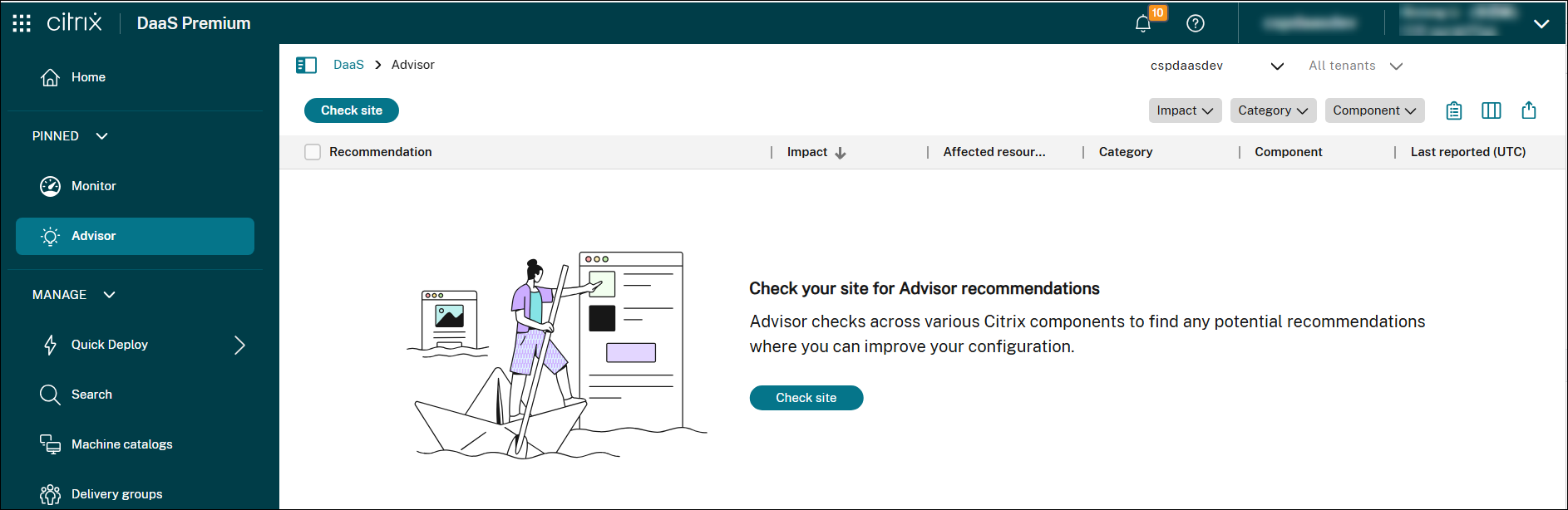
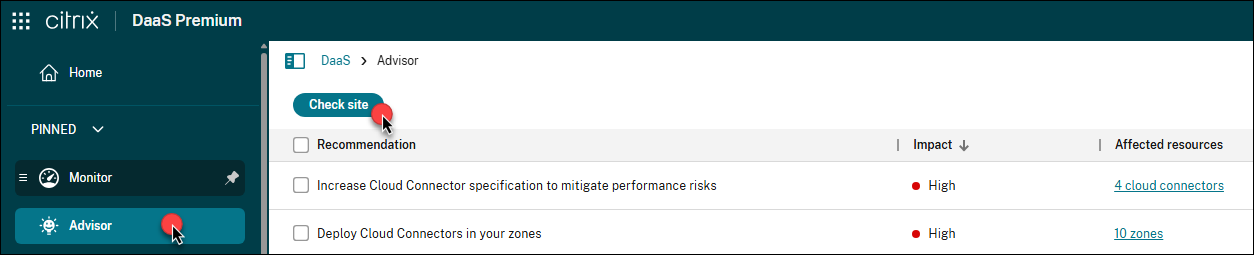
- In the left pane, select Advisor.
- Click Check site.
-
On the Check site page, select the categories you want Advisor to check.
Category Description Reference Security Recommendations for detecting threats and vulnerabilities that might lead to security breaches. Security recommendations Reliability Recommendations for ensuring and improving the continuity of your business-critical applications. Reliability recommendations Performance Recommendations for enhancing performance across applications and desktops to deliver faster, more responsive experiences for end users. Performance recommendations Operational excellence Recommendations for helping you achieve process and workflow efficiency, resource manageability, and deployment best practices. Operational excellence recommendations Cost optimization Recommendations for reducing overall spending by right-sizing resources, minimizing waste, and aligning capacity with actual usage needs. Cost optimization recommendations -
Click Run check to run a site check and generate updated recommendations based on the current configuration.
All recommendations appear in the list.
Filter recommendations
You can filter recommendations by Impact, Category, or Component to focus on the information most relevant to your deployment.
-
In Advisor, locate the filters at the top right of the recommendation list.

-
Click a filter (for example, Category) to view available options.
-
Select one or more checkboxes to apply the filter. The list updates automatically to display only the recommendations that match your selections.
-
Use multiple filters together to narrow down the list.

Review and act on recommendations
Use the recommendations list to understand configuration issues and improvement opportunities in your deployment. You can take the following actions on recommendations:
- View recommendation details
- Implement recommended actions
- Dismiss recommendations
- Dismiss specific affected targets in a recommendation
- Customize check rules
- View the full site check report
View recommendation details
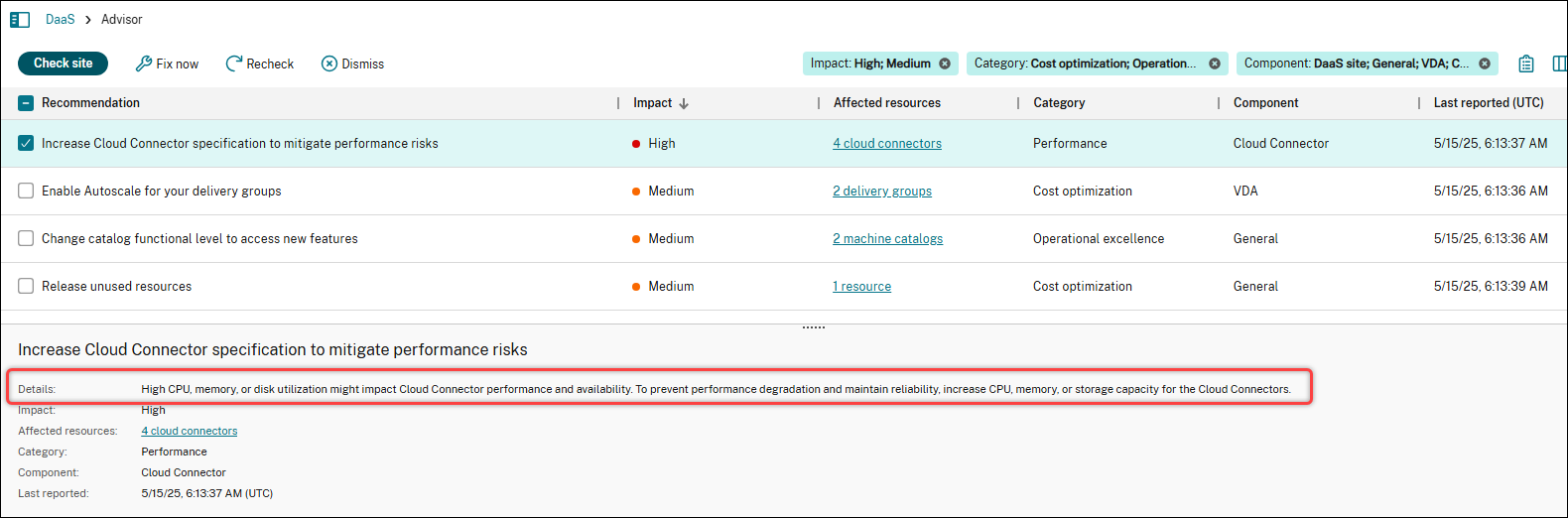
To review a recommendation, select a recommendation to view its details in the lower pane.
Implement recommended actions
To implement the recommended actions for a recommendation, follow these steps:
- Select a recommendation.
- Click Fix now in the action bar.
-
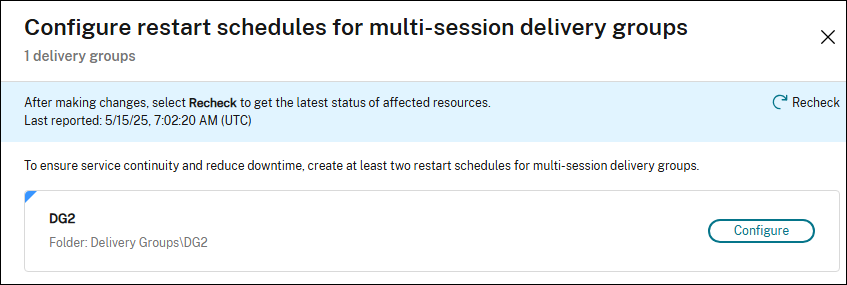
Follow the recommended steps to make the necessary updates.
Sometimes, you’re directed to supporting documentation when automated configuration isn’t supported or feasible. We want to make sure that Advisor is designed to provide automated actions directly within the UI wherever possible, minimizing the need for manual setup.
- After making updates, click Recheck to update the status of the affected targets.
Note:
The UI and steps vary depending on the recommendation. The screenshot shown is for illustration purposes only.
Dismiss recommendations
If a recommendation isn’t relevant to your deployment or doesn’t require action, you can remove it from the current list and future check results:
- Select the recommendation.
- Click Dismiss in the action bar.
Tip:
To restore a dismissed target in a recommendation, click the Gear icon in the upper-right corner above the recommendation list, and select Manage dismissed items
Dismiss specific affected targets in a recommendation
If a recommendation includes affected targets that are intentionally non-compliant with best practices (for example, test, validation, or temporary resources), you can remove them from this recommendation (granular dismissal).
Note:
Granular dismissal is supported only for the following targets: machine catalogs, delivery groups, application groups, and zones.
Detailed steps are as follows:
- Select the recommendation.
- Click the Affected targets field of the recommendation. The recommendation page displays all affected targets.
-
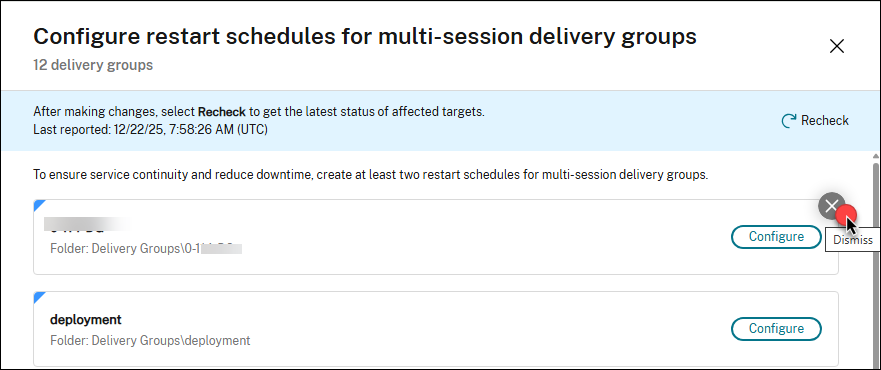
Hover over the affected target that you want to dismiss. A Dismiss icon appears in the top-right corner of the target.
-
Click the Dismiss icon. A dismissal confirmation dialog box appears.
- Enter a note for the dismissal if needed, and then click Dismiss. The affected target is removed from the recommendation page.
Tip:
To restore a dismissed target in a recommendation, click the Gear icon in the upper-right corner above the recommendation list, and select Manage dismissed items.
Customize check rules
You can customize Advisor check rules for the following recommendations:
- Enhance Cloud Connector hardware: Adjust thresholds for CPU, memory, and disk usage, and exclude specific disks.
- Release unused resources: Define custom unused time thresholds for machines and applications.
- Optimize GPO configuration for VDAs: Modify the GPO processing time threshold.
To customize the check rule for a single recommendation, follow these steps:
-
Select a recommendation and click Customize in the action bar.

- On the Customize page, update the check settings as needed.
- Click Save. Changes take effect the next time you run the check.
To customize check rules for all three recommendations from a central location, follow these steps:
- Click the Gear icon in the upper-right corner above the recommendation list, and select Customize rules. The three recommendations appear.
- Click the Edit icon next to a recommendation.
- Update the check settings as needed.
- To update check rules for the remaining recommendations, repeat steps 2–3.
- Click Save. Changes take effect the next time you run the check.
View the full site check report
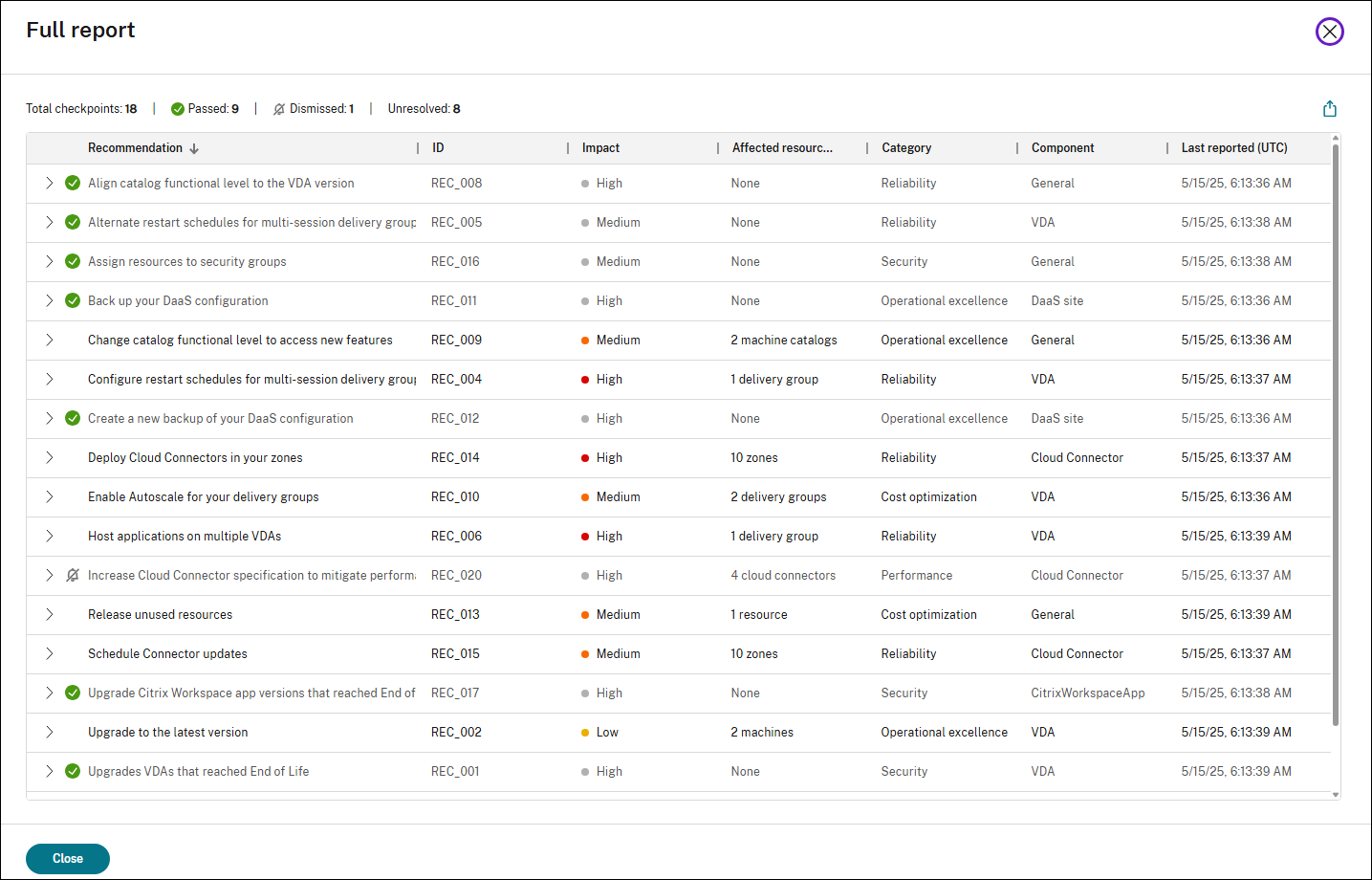
The full report provides a summary of all Advisor recommendations from the latest site check. It includes passed, dismissed, and unresolved checkpoints, helping you assess the overall health and optimization opportunities in your DaaS site.
To view the full report, click the View full report icon at the top right of the recommendation list.
Set up StoreFront for Advisor check
StoreFront-related recommendations in Citrix Advisor require additional setup. To set up StoreFront for Advisor checks, complete the following steps:
- Add your StoreFront servers to Infrastructure Monitoring by creating corresponding connections. For more information, see Infrastructure Monitoring setup.
-
If you configure a StoreFront connection in Manual connection mode, ensure that Citrix Infrastructure Monitoring version 2603 or later is downloaded and installed. To verify a required version is installed:
- Go to Monitor > Settings.
- Locate the connection where Type equals
StoreFront. - Confirm that the Version field displays
7.47or greater.
Important:
After you apply changes to your StoreFront deployment based on Advisor recommendations, wait at least 6 hours before rechecking the same recommendations. This delay allows Infrastructure Monitoring to collect and process updated telemetry and ensures that Advisor evaluates the most current data.
References
This section lists all Citrix Advisor recommendations by category to help you understand their purpose and impact.
Security recommendations
| Recommendation | ID | Impact | Component | Description |
|---|---|---|---|---|
| Upgrade VDAs that reached End of Life | REC_001 | High | VDA | Some machines are using VDA versions that have reached End of Life and are no longer supported by Citrix. Upgrade affected machines to the latest LTSR or CR VDA version. |
| Assign resources to security groups | REC_016 | Medium | General | Some resources are assigned to individual users. It is a Citrix best practice only to assign user access through security groups to streamline management and enhance security. Reconfigure the user assignment for delivery and application groups to include only security groups. |
| Upgrade Citrix Workspace app versions that reached End of Life | REC_017 | High | Workspace app | Some endpoint devices use a Citrix Workspace app version that reached End of Life. Upgrade devices to the latest Workspace app version to reduce supportability and security risks. For simplified version management and automatic update control, use Global App Configuration Service. Additionally, consider using endpoint analysis solutions to enforce a minimum Workspace app version to access the store. |
| Implement device posture policies | REC_021 | Medium | Secure Private Access | The current Secure Private Access configuration lacks device posture policies, allowing unrestricted access to internal applications from any device. To mitigate this risk and enhance security, implement device posture policies that classify devices as: Compliant, Non-compliant, and Denied access. |
| Implement adaptive access policies | REC_022 | Medium | Secure Private Access | The current Secure Private Access configuration lacks adaptive access policies, allowing potentially insecure access to applications. To enhance security, implement adaptive access policies that dynamically control access to enterprise web, SaaS, TCP, and UDP apps based on context. For granular controls, enable restricted access to enterprise web and SaaS apps by adding the security restrictions: Clipboard, Screen capture, Printing, Key logging protection, Downloads, Uploads, Watermark, and Open in remote browser. |
| Upgrade operating systems that reached End of Life | REC_024 | High | VDA | Some machines are running operating systems (OS) that have reached End of Life. This poses significant security risks and may result in loss of support from both Citrix and the OS vendor. To maintain a secure and stable environment, ensure all your VDAs run a supported operating system. |
| Upgrade hypervisor versions that reached End of Life | REC_025 | Security | Hypervisor | Details: Some hypervisors are running versions that have reached End of Life. This poses a risk to environment stability and limits Citrix’s ability to provide full support. To maintain a secure, supportable environment, upgrade to a vendor-supported hypervisor version. Regularly review vendor release notes and compatibility documentation to stay aligned with leading practices and platform requirements. |
| Use HTTPS for host connections | REC_039 | Medium | General | Some host connections are currently configured with HTTP instead of HTTPS. To ensure secure communication with your hypervisor, update these connections to use HTTPS. This requires enabling HTTPS on your hypervisor and ensuring valid TLS certificates are in place. |
| Address VDA security vulnerabilities | REC_040 | High | VDA | Security vulnerabilities impact some of your VDA versions. Review the Citrix Security Bulletin and apply the necessary fixes or mitigations to ensure system integrity and compliance. |
| Address Citrix Workspace app security vulnerabilities | REC_041 | High | Workspace app | Security vulnerabilities impact some Citrix Workspace app versions on endpoint devices. Review the Citrix Security Bulletin and apply the necessary fixes or mitigations to ensure system integrity and compliance. |
| Upgrade StoreFront server versions that reached End of Life | REC_043 | High | StoreFront | Some StoreFront servers are running versions that have reached End of Life and are no longer supported by Citrix. To maintain a secure, supportable environment, upgrade all affected StoreFront servers to the latest LTSR or CR version. |
| Use HTTPS for StoreFront base URL | REC_044 | High | StoreFront | Some StoreFront base URLs are currently configured with HTTP instead of HTTPS. To protect user credentials and sensitive data, configure your StoreFront servers and associated load balancers to use HTTPS. Make sure the base URL begins with ‘https://’. This ensures all communications are encrypted and helps prevent security threats such as man-in-the-middle attacks. |
| Use HTTPS for communication between StoreFront and Cloud Connectors | REC_045 | High | StoreFront | Traffic between StoreFront and Cloud Connectors is currently transmitted over unencrypted HTTP, which can expose user credentials to security threats. To protect your environment, enable HTTPS on Cloud Connectors and configure StoreFront to use secure connections. |
| Review StoreFront stores with anonymous access enabled | REC_052 | Medium | StoreFront | Anonymous access is enabled for some StoreFront stores, allowing users to launch applications without authentication. To mitigate potential security risks, review these stores and remove unused ones. |
Note:
StoreFront-related recommendations require additional setup. See Set up StoreFront for Advisor check for details.
Reliability recommendations
| Recommendation | ID | Impact | Component | Description |
|---|---|---|---|---|
| Configure restart schedules for multi-session delivery groups | REC_004 | High | VDA | Some multi-session delivery groups do not have restart schedules configured. Scheduled restarts help maintain optimal performance, stability, and resource availability across multi-session OS VDAs. To ensure service continuity and reduce downtime, create at least two restart schedules. Alternate restart schedules with tag restrictions by tagging VDAs into groups, such as ‘Even’ and ‘Odd.’ |
| Alternate restart schedules for multi-session delivery groups | REC_005 | Medium | VDA | Some multi-session delivery groups only have one restart schedule configured. To ensure service continuity and reduce downtime, create at least two restart schedules. Alternate restart schedules with tag restrictions by tagging VDAs into groups, such as ‘Even’ and ‘Odd.’ |
| Host applications on multiple VDAs | REC_006 | High | VDA | Some published applications are hosted on only a single VDA, which can impact service continuity and lead to downtime risks. Ensure that each application is hosted on multiple VDAs in a delivery group to help maintain availability and reliability. |
| Enable service continuity for Citrix Workspace | REC_007 | High | Citrix Workspace | Service continuity isn’t enabled, which means that during a service disruption, users might not be able to launch sessions. Enable service continuity to improve availability by adding an extra layer of resiliency that maintains end-user access to apps and desktops despite network or service health. |
| Upgrade VDAs to match the catalog functional level | REC_008 | High | VDA | Some machines use an earlier VDA version not supported by the minimum catalog functional level, which can prevent them from registering. To avoid registration issues, upgrade earlier VDA versions to match the catalog functional level. |
| Deploy Cloud Connectors in your zones | REC_014 | High | Cloud Connector | Fewer than two Cloud Connectors are deployed in some of your zones (resource locations). Deploy at least two Cloud Connectors per resource location to maintain availability and resiliency during Connector updates. Resource locations should follow the N + 1 model, where N is the baseline requirement based on deployment size and the additional 1 provides redundancy. |
| Schedule Connector updates | REC_015 | Medium | Cloud Connector | Some zones (resource locations) don’t have a scheduled start time for Connector updates. To ensure that updates only occur during planned maintenance windows and reduce service disruption, schedule Connector updates for a preferred time and day of the week. |
| Place Cloud Connectors in the same domain | REC_028 | Medium | Cloud Connector | Some zones (resource locations) contain Cloud Connectors joined to different domains. This setup can lead to delayed or failed VDA registrations, especially when in Local Host Cache (LHC) mode. To improve reliability and reduce risk, ensure all Cloud Connectors within a given zone belong to the same domain. |
| Enable communication between Cloud Connectors for reliable LHC performance | REC_029 | High | Cloud Connector | Some zones (resource locations) have multiple elected Local Host Cache (LHC) brokers. This can cause VDA registrations to be divided among the Cloud Connectors in LHC mode, leading to intermittent launch failures. To prevent this, ensure all Cloud Connectors in each affected zone can communicate with one another at http:// |
| Check resiliency configurations | REC_030 | Medium | General | Your deployment resiliency configurations have not been verified recently. Maintaining proper resiliency configurations is critical for ensuring uninterrupted access to apps and desktops, especially during unexpected service disruptions. Check your resiliency configurations regularly to ensure your deployment is properly set up to handle potential disruptions and safeguard user productivity. |
| Enable advanced health check for StoreFront stores | REC_036 | Medium | StoreFront | One or more stores on some StoreFront servers do not have advanced health check enabled. StoreFront uses the additional information from the advanced health check results to ensure launch requests are sent to the appropriate resource location (zone) in Local Host Cache (LHC) mode. Without advanced health check, launches may fail when in LHC mode. To improve the resiliency of your Citrix environment, enable advanced health check for all stores on the StoreFront servers. |
| Add all Cloud Connectors as STA servers on StoreFront and NetScaler Gateway | REC_037 | Medium | Cloud Connector | Some Cloud Connectors are not configured as Secure Ticket Authority (STA) servers, which is preventing them from receiving STA requests from StoreFront. To avoid launch failures in Local Host Cache mode, ensure all Cloud Connectors are added as STA servers on both StoreFront and NetScaler Gateway. |
| Ensure StoreFront server redundancy | REC_042 | High | StoreFront | Some StoreFront server groups contain only one server, creating a single point of failure and a lack of redundancy in the event of an outage. For better resiliency, deploy at least two StoreFront servers in a server group and front them with a load balancer to ensure seamless failover and uninterrupted access. |
| Check Cloud Connector communication with StoreFront | REC_047 | Medium | StoreFront | Some resource locations (zones) contain Cloud Connectors that are not receiving StoreFront requests for resource enumeration. This issue can occur if the Cloud Connectors are not listed in StoreFront or if there is a communication problem, such as an expired certificate on the Cloud Connector. Ensure that all Cloud Connectors are listed in StoreFront and are reachable. If you are not using an on-premises StoreFront deployment, ignore this recommendation. |
Note:
StoreFront-related recommendations require additional setup. See Set up StoreFront for Advisor check for details.
Performance recommendations
| Recommendation | ID | Impact | Component | Description |
|---|---|---|---|---|
| Optimize Cloud Connectors for LHC mode | REC_019 | High | Cloud Connector | Some Cloud Connectors have less than four CPU cores per socket, which can impact users’ ability to enumerate and launch available resources while in LHC mode. To maximize resource availability for LHC and prevent performance bottlenecks, configure Cloud Connector machines to have at least four cores per socket. |
| Enhance Cloud Connector hardware | REC_020 | High | Cloud Connector | High CPU, memory, or disk usage might impact Cloud Connector performance and availability. To prevent performance degradation and maintain reliability, increase CPU, memory, or storage for the Cloud Connectors. |
| Rightsize high resource-consuming machines | REC_023 | Medium | VDA | Some machines show signs of performance strain, such as high CPU or memory utilization, or a high session count. This indicates machines are undersized to handle the workloads they support, which can lead to a poor user experience and reduced performance. Consider changing the machine size to increase the allocated resources for the machine or relocating power users to a delivery group that has high-performance machines. |
| Reduce the number of host connections in your zones | REC_026 | High | General | The number of host connections in some zones (resource locations) exceeds the recommended limit, which might result in performance degradation. Reduce the number of host connections in the zones to no more than the recommended limit. |
| Reduce the number of VDAs in your zones | REC_027 | High | VDA | The number of VDAs in some zones (resource location) exceeds the recommended limit, increasing the risk of failed VDA registrations and degraded session brokering, especially when in Local Host Cache (LHC) mode. To mitigate these risks, redistribute VDAs by moving some to other zones. Ensure your method for configuring VDA registration is updated accordingly. |
| Evaluate resource allocation for PVS servers | REC_031 | Medium | Provisioning | Some Citrix Provisioning (PVS) servers show signs of performance strain, such as high CPU or memory utilization. Insufficient server resource allocation may result in poor performance and extended boot times. Consider increasing the CPU and memory allocation for these PVS servers as needed. |
| Increase resource allocation for PVS servers | REC_032 | High | Provisioning | Some Citrix Provisioning (PVS) servers show signs of performance strain, such as critical CPU or memory utilization. Insufficient server resource allocation may result in poor performance and extended boot times. Consider increasing the CPU and memory allocation for these PVS servers as needed. |
| Evaluate write cache disk size for PVS target devices | REC_033 | Medium | VDA | The write cache disk usage on some Citrix Provisioning (PVS) target devices is nearing the threshold. To avoid performance issues and user session failures, evaluate the current write cache disk size and increase it as needed. |
| Optimize GPO configuration for VDAs | REC_035 | Medium | VDA | Some user sessions experienced prolonged GPO processing during logon, impacting performance. To increase control over environment settings, block Group Policy inheritance for your VDA organizational units and apply only relevant policies and security configurations. Additionally, consider leveraging Citrix Workspace Environment Management to process settings asynchronously for faster session logons. |
| Enable socket pooling for StoreFront stores | REC_046 | Medium | StoreFront | Some StoreFront stores don’t have socket pooling enabled. Socket pooling enhances efficiency by maintaining a pool of readily available network connections (sockets) for communication with Delivery Controllers or Cloud Connectors. Instead of creating a new socket for every request and then closing it (a high-overhead process), StoreFront reuses an existing connection from the pool. To enhance overall environment performance and efficiency, enable socket pooling on all stores, particularly for Transport Layer Security (TLS) connections. |
| Place StoreFront servers in a low-latency network | REC_051 | Medium | StoreFront | High latency was detected between servers in some server groups, which may lead to performance issues. Latency between servers in a group should be under 40 ms (with subscriptions disabled) or 3 ms (with subscriptions enabled). Place the servers in a low-latency network or separate them into different server groups. |
Note:
StoreFront-related recommendations require additional setup. See Set up StoreFront for Advisor check for details.
Operational excellence recommendations
| Recommendation | ID | Impact | Component | Description |
|---|---|---|---|---|
| Upgrade VDAs to the latest version | REC_002 | Low | VDA | Some machines are using older VDA versions. Upgrade to the latest LTSR or CR VDA version to access new features, improvements, and security enhancements. |
| Use Citrix provisioning technology | REC_003 | Medium | Provisioning | All machines in the site are manually provisioned and do not use Citrix provisioning technologies such as Machine Creation Services (MCS) or Citrix Provisioning Services (PVS). Use MCS or PVS to ensure VDA consistency, minimize manual tasks, and streamline environment scaling operations. |
| Low functional level | REC_009 | Low | VDA | Some machine catalogs have a lower functional level than the detected VDA version, limiting access to new features on later VDA versions. To access these features, change the functional level to the latest version supported by all machines in the catalog. |
| Back up your site configuration | REC_011 | High | General | You don’t have a backup of your site configuration. Create on-demand or scheduled backups to ensure you have a ready-to-use copy of your Citrix configurations for quick recovery. |
| Create a new backup of your site configuration | REC_012 | High | General | Your last site configuration backup was over three months ago. Regularly create on-demand or scheduled backups to keep an up-to-date copy of your Citrix configurations ready for quick recovery. |
| Simplify catalog configuration with a machine profile | REC_038 | Low | Provisioning | Some machine catalogs would benefit from using a machine profile. With a machine profile, Machine Creation Services (MCS) captures hardware properties and hypervisor-specific features from the profile and efficiently provisions new virtual machines (VMs) in the catalog with the same configuration. |
| Reset tainted Active Directory accounts | REC_049 | Medium | Provisioning | Some machine catalogs contain AD accounts marked as ‘tainted’ in the AD Identity Service. These accounts must be reset to be available for subsequent provisioning operations. |
| Replace deprecated beacon point for StoreFront | REC_050 | Medium | StoreFront | Citrix Workspace app uses beacon points configured within StoreFront to determine whether users are connected to internal or external networks. You are using ping.citrix.com as a beacon, which has been deprecated and is no longer reachable. Replace it with a reachable, public-facing URL in the StoreFront management console. |
| Disable XenApp Services URL for StoreFront stores | REC_053 | High | StoreFront | The XenApp Services URL (also known as PNAgent) is enabled for some StoreFront stores. This feature is deprecated. For compatibility and security, configure Citrix Workspace app to connect to StoreFront using the Store URL, and disable XenApp Services on the server. If you have legacy devices that require PNAgent, ignore this recommendation. |
| Deprecate unsupported StoreFront sites | REC_054 | High | StoreFront | Some StoreFront stores are linked to unsupported site types. Migrate resources to supported sites and deprecate the unsupported sites. |
| Disable Kerberos delegation for StoreFront stores | REC_055 | Low | StoreFront | Kerberos delegation is enabled for some StoreFront stores. Kerberos delegation is deprecated and can only be used with XenApp 6.5 and earlier. Disable Kerberos delegation for these StoreFront stores. |
| Review machines in maintenance mode for extended periods | REC_056 | Medium | VDA | Some machines have been in maintenance mode for over 14 days. Review the machines to determine if they should be returned to service, decommissioned, or kept in maintenance mode with justification. |
| Reduce troubleshooting time with Always On Tracing | REC_058 | Medium | General | Add a log server to securely transfer your Always On Tracing (AOT) logs to a centralized log server. Logs are collected in real time and available in Monitor, helping you resolve problems faster and streamline support investigations. |
Note:
StoreFront-related recommendations require additional setup. See Set up StoreFront for Advisor check for details.
Cost optimization recommendations
| Recommendation | ID | Impact | Component | Description |
|---|---|---|---|---|
| Enable Autoscale for your delivery groups | REC_010 | Medium | VDA | Some eligible delivery groups aren’t using Autoscale. Enable Autoscale for consistent machine power management, maintaining availability while effectively balancing costs and user experience. |
| Release unused resources | REC_013 | Medium | General | Some dedicated workloads, such as machines or applications, have not been used for over 30 days. To reduce unnecessary spending and optimize costs, release unused machines back to the available pool and manage unused applications. |