Azure で準備済みイメージを使用してカタログを作成する
準備済みイメージを作成し、その準備済みイメージを使用して、次の方法で MCS マシンカタログを作成します。
準備済みイメージを使用して MCS マシンカタログを作成するための主要な手順は次のとおりです。
- イメージ定義と初期イメージバージョンを作成します。
- イメージバージョンを準備済みイメージとして使用してカタログを作成します。
Studio を使用する
イメージ定義と初期イメージバージョンを作成する
イメージ定義と初期イメージバージョンを作成するには、次の手順を実行します。
- Studio から、イメージノードに移動し、イメージ定義の作成をクリックします。はじめにページで次へをクリックします。
- イメージ定義ページで、イメージ定義のOS タイプとセッションタイプを指定します。
- 既存のリソースグループを選択するか、イメージリソースを保持するための新しいリソースグループを作成します。イメージ共有を有効にするには、Azure Compute Gallery にイメージバージョンを保存を選択し、新しいギャラリーを作成するか、既存のギャラリーを使用してイメージバージョンを保持するかを選択します。
-
イメージページで、リソース(設定された接続に適用可能なリソースのみが一覧表示されます)と、イメージバージョンを作成するためのテンプレートとして使用するマスターイメージを選択します。マシンプロファイルを使用チェックボックスを選択し、マシンプロファイルを選択できます。
注:
- イメージを選択する前に、マスターイメージにVDA 2311以降がインストールされており、VDAにMCSIOドライバーがインストールされていることを確認してください。
- 機密VMタイプの準備済みイメージを使用してMCSカタログを作成する場合は、機密VMタイプのマスターイメージと機密VMタイプのマシンプロファイルを使用して準備済みイメージを作成します。機密VMタイプのマスターイメージとマシンプロファイルの準備については、Azure confidential VMsを参照してください。
-
ストレージとライセンスの種類ページで、イメージ準備プロセスの一部として使用するストレージとライセンスの種類を選択します。
注:
イメージページでマシンプロファイルを選択した場合、マシンプロファイルのライセンスタイプはプロファイル設定に基づいて事前に選択されます。
- マシン仕様ページで、マシンサイズを選択します。イメージページでマシンプロファイルを選択した場合、マシンプロファイルのマシンサイズがデフォルトで選択されます。
- NICページで、準備イメージのNICを選択または追加します。各NICについて、関連する仮想ネットワークを選択します。
- ディスク設定ページで、顧客管理の暗号化キー (CMEK) を選択します。マシンプロファイルにCMEKがないが、マスターイメージにある場合、マスターイメージからCMEKが事前に選択されます。
- イメージ定義ページで、Azure Compute Galleryにイメージバージョンを保存を有効にすると、イメージ共有ページが表示され、イメージバージョンを共有するリソースを選択できます。
- バージョン説明ページで、作成された初期イメージバージョンの説明を入力します。
- 概要ページで、イメージ定義と作成された初期イメージバージョンの詳細を確認します。イメージ定義の名前と説明を入力します。完了をクリックします。
イメージバージョンを作成する
イメージバージョンを使用すると、特定のイメージに対するさまざまなイテレーションや更新を管理できます。この機能により、さまざまな目的のためにイメージの複数のバージョンを維持できます。
初期イメージバージョンからイメージバージョンを作成するには、次の手順を実行します。
注:
すべてのイメージバージョンのホスティングユニットは同じである必要があります。
- イメージノードに移動し、イメージバージョンまたはイメージ定義を選択して、イメージバージョンの作成をクリックします。
- イメージ定義ページで、ホスティングユニットを変更し、そのイメージバージョンのマスターイメージとマシンプロファイルを再選択できます。
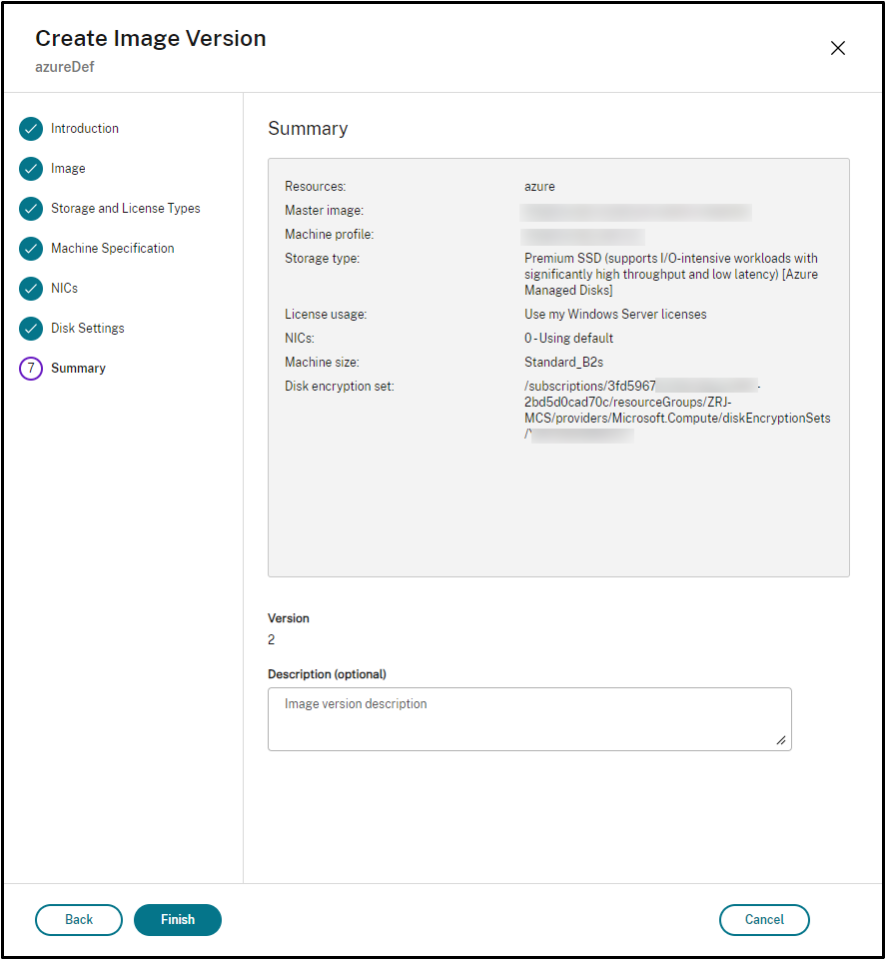
- イメージバージョンの構成を最初に構成したイメージバージョンと異なるものにする場合は、イメージバージョンの作成ダイアログのストレージとライセンスの種類、マシン仕様、NIC、およびディスク設定ページで設定を構成します。
- イメージ定義でAzure Compute Galleryにイメージバージョンを保存が有効になっている場合、イメージ共有ページでイメージバージョンを共有するリソースを選択できます。
- イメージバージョンの説明を追加します。完了をクリックします。
注:
何らかの理由でイメージバージョンの作成に失敗した場合、下部にあるトラブルシューティングタブに再試行オプションが表示されます。
準備済みイメージの共有
Azureの異なるホスティングユニット間で準備済みイメージを共有するには、次の手順に従います。
- イメージバージョンを右クリックし、イメージ共有の管理を選択します。Azure環境内のすべてのホスティングユニットが表示されます。イメージバージョンが作成されたリソースは、すべてのアクションに対して無効になっています。
- イメージを共有するホスティングユニットを選択し、保存をクリックします。共有ステータス列に進行中と表示されます。
- 共有ステータスの詳細については、リソースタブをクリックします。
注:
イメージバージョン共有のステータスが進行中の場合、イメージバージョンの削除またはイメージ共有の管理オプションは無効になります。
「イメージ」ノードからマシンカタログを作成する
「イメージ」ノードの「カタログの作成」オプションを使用して、イメージバージョンでカタログを作成します。
または、「マシンカタログ」ノードでカタログを作成する際に、カタログ作成ワークフローの準備されたイメージオプションにリンクしてバージョンを選択することもできます。「マシンカタログ」ノードからマシンカタログを作成するを参照してください(#create-a-machine-catalog-from-the-machine-catalogs-node)
「イメージ」ノードからMCSマシンカタログを作成するには、次の手順を実行します。
- イメージバージョンを選択し、「カタログの作成」をクリックします。「はじめに」ページで「次へ」をクリックします。
- 「デスクトップエクスペリエンス」ページで、必要なデスクトップエクスペリエンスを選択します。
- 「イメージ」ページから「ディスク設定」ページまで、設定は選択したイメージバージョンに基づいて事前に選択されています。
- 「リソースグループ」ページで、新しいリソースグループを作成するか、既存のリソースグループを使用してこのカタログのリソースを配置するかを選択できます。
- 次のページで設定を完了します。
- 「概要」ページで、マシンカタログの詳細を確認します。マシンカタログの名前と説明を入力します。「完了」をクリックします。
- 「マシンカタログ」ノードに移動して、作成されたマシンカタログを表示します。
「マシンカタログ」ノードからマシンカタログを作成する
「マシンカタログ」ノードからMCSマシンカタログを作成するには、次の手順を実行します。
- 左側のナビゲーションペインでマシンカタログをクリックします。
- マシンカタログの作成をクリックします。マシンカタログのセットアップページが表示されます。はじめにページとマシンタイプページで次へをクリックします。
-
マシン管理ページで、次の設定を選択します。
- 電源管理されているマシン(仮想マシンやブレードPCなど)を選択します。
- Citrixプロビジョニングテクノロジーを選択します。次に、Citrix Machine Creation Services™を選択します。
- リソースフィールドには、異なるゾーンに属するリソースが一覧表示されます。Azureネットワークリソースを選択し、次へをクリックします。
-
イメージページで、
準備済みイメージタイプの場合は、次の手順に従います。
- 準備済みイメージを選択します。
- 準備済みイメージの下で、イメージ定義のイメージバージョンを選択します。必要に応じて、選択した準備済みイメージバージョンにメモを追加します。
- イメージバージョン名をクリックします。選択したイメージバージョンの詳細を表示するには、下線が引かれているバージョン番号をクリックします。
- 選択したイメージバージョンがマシンプロファイルで構成されている場合は、マシンプロファイルを選択します。選択したイメージバージョンがマシンプロファイルで構成されていない場合、マシンプロファイルを使用することを選択できません。
- 次のページで設定を構成します。
- ディスク設定ページで、選択した準備済みイメージがディスク暗号化セットを使用している場合、その暗号化セットを削除することはできませんが、キーを別の暗号化キーに変更することはできます。
- リソースグループページで、新しいリソースグループを作成するか、既存のリソースグループを使用してこのカタログのリソースを配置するかを選択できます。
- 次のページで設定を完了します。
- 概要ページで、マシンカタログの詳細を確認します。マシンカタログの名前と説明を入力します。完了をクリックします。
PowerShell を使用する
準備済みイメージを作成する
準備済みイメージのバージョン仕様を作成するための詳細な PowerShell コマンドは次のとおりです。
-
Test-ProvImageDefinitionNameAvailable commandを使用して、利用可能なイメージ定義名を確認します。例:Test-ProvImageDefinitionNameAvailable -ImageDefinitionName <string[]> <!--NeedCopy--> -
New-ProvImageDefinitionコマンドを使用してイメージ定義を作成します。例:New-ProvImageDefinition -ImageDefinitionName image1 -OsType Windows -VdaSessionSupport MultiSession <!--NeedCopy--> -
Add-ProvImageDefinitionConnectionコマンドを使用して、指定されたホスティング接続でイメージ定義の新しい構成を作成します。Add-ProvImageDefinitionConnectionのCustomPropertiesには、次のものが含まれます。これらのパラメーターを使用しない場合、デフォルト値が使用されます。-
ResourceGroups: ベースディスクを持つリソースグループ。 -
UseSharedImageGallery: ベースディスクのタイプを示すインジケーター。ACG (イメージ共有) にはtrueを、スナップショットにはfalseを使用します。 -
ImageGallery: ベースディスクが ACG イメージバージョンである場合のギャラリー名。
例:
-
スナップショットおよび顧客が提供するリソースグループの場合:
$CustomerOwnRsourceGroupProperties = @" <CustomProperties xmlns="http:// schemas.citrix.com/2014/xd/machinecreation" xmlns:xsi="http://www.w3.org/2001/XMLSchema-instance"> <Property xsi:type="StringProperty" Name="ResourceGroups" Value="yangj_image" /> </CustomProperties> "@ <!--NeedCopy--> -
ACG および顧客が提供するリソースグループとイメージギャラリーの場合:
$CustomerOwnAllProperties = @" <CustomProperties xmlns="http://schemas.citrix.com/2014/xd/machinecreation" xmlns:xsi="http://www.w3.org/2001/XMLSchema-instance"> <Property xsi:type="StringProperty" Name="UseSharedImageGallery" Value="true" /> <Property xsi:type="StringProperty" Name="ResourceGroups" Value="rg" /> <Property xsi:type="StringProperty" Name="ImageGallery" Value="gallery" /> </CustomProperties> "@ <!--NeedCopy--> -
ACG および顧客が提供するリソースグループのみの場合:
$CustomerOwnResourceGroupProperties = @" <CustomProperties xmlns="http://schemas.citrix.com/2014/xd/machinecreation" xmlns:xsi="http://www.w3.org/2001/XMLSchema-instance"> <Property xsi:type="StringProperty" Name="UseSharedImageGallery" Value="true" /> <Property xsi:type="StringProperty" Name="ResourceGroups" Value="rg" /> </CustomProperties> "@ <!--NeedCopy--> -
ACG および Citrix が管理するリソースグループとイメージギャラリーの場合:
 $CustomerOwnResourceGroupNothingProperties = @"
 <CustomProperties xmlns="http://schemas.citrix.com/2014/xd/machinecreation" xmlns:xsi="http://www.w3.org/2001/XMLSchema-instance">
 <Property xsi:type="StringProperty" Name="UseSharedImageGallery" Value="true" />
 </CustomProperties>
 "@
 <!--NeedCopy-->
Add-ProvImageDefinitionConnection -ImageDefinitionName image1 -HypervisorConnectionName Azure28 [-CustomProperties $CustomProperties] <!--NeedCopy--> -
-
New-ProvImageVersionコマンドを使用してイメージバージョンを作成します。例:New-ProvImageVersion -ImageDefinitionName image1 -Description "version 1" <!--NeedCopy--> -
Add-ProvImageVersionSpecコマンドを使用して、イメージバージョンにマスターイメージバージョン仕様を追加します。例:Add-ProvImageVersionSpec -ImageDefinitionName image1 -ImageVersionNumber 1 -HostingUnitName azure -MasterImagePath "XDHyp:\HostingUnits\azure\image.folder\azureresourcegroup.resourcegroup\win2022-snapshot.snapshot" <!--NeedCopy-->注:
ホスティングユニットごとに、1つのイメージバージョンにマスターイメージバージョン仕様を1つのみ追加できます。
-
New-ProvImageVersionSpecコマンドを使用して、マスターイメージバージョン仕様から準備済みイメージバージョン仕様を作成します。New-ProvImageVersionSpecの CustomProperties には以下を含めることができます。パラメーターを使用しない場合、デフォルト値が使用されます。-
PreparedImageStorageType: 準備済みイメージに使用するストレージタイプ。デフォルトはStandard_LRSで、Premium_LRSまたはStandard_ZRSにすることもできます。Standard_ZRSはイメージのゾーン冗長性を提供します。
New-ProvImageVersionSpec -SourceImageVersionSpecUid c6e7384c-b2f8-46d6-9519-29a2c57ed3cb -NetworkMapping @{"0"="XDHyp:\HostingUnits\azure\virtualprivatecloud.folder\azureresourcegroup.resourcegroup\azure-vnet-eastus.virtualprivatecloud\dev.network"} -ServiceOffering"XDHyp:\HostingUnits\azure\serviceoffering.folder\Standard_B2ms.serviceoffering" -CustomProperties "<CustomProperties xmlns=`"http://schemas.citrix.com/2014/xd/machinecreation`" xmlns:xsi=`"http://www.w3.org/2001/XMLSchema-instance`"></CustomProperties>" -RunAsynchronously <!--NeedCopy--> -
-
Add-ProvImageVersionSpecHostingUnitコマンドを使用して、すべてのホスティング接続で準備済みイメージバージョン仕様を別のホスティングユニットと共有することもできます。Add-ProvImageVersionSpecHostingUnitの CustomProperties には以下を含めることができます。パラメーターを使用しない場合、ソースの準備済みイメージ仕様の値が使用されます。-
PreparedImageStorageType: 準備済みイメージに使用するストレージタイプ。
Add-ProvImageVersionSpecHostingUnit -ImageVersionSpecUid xxxxxxx -HostingUnitName AzureWest
<!--NeedCopy-->
注:
1つのホスティングユニットと準備タイプには、1つの準備済みインスタンスのみを持つことができます。
-
イメージ定義、イメージバージョン、および準備済みイメージバージョン仕様を作成するための PowerShell コマンドの完全なセットの例:
New-ProvImageDefinition -ImageDefinitionName image1 -OsType Windows -VdaSessionSupport MultiSession

$ImageDefinitionCustomProperties = @" <CustomProperties xmlns="http://schemas.citrix.com/2014/xd/machinecreation" xmlns:xsi="http://www.w3.org/2001/XMLSchema-instance"> <Property xsi:type="StringProperty" Name="UseSharedImageGallery" Value="true" /> <Property xsi:type="StringProperty" Name="ResourceGroups" Value="rg" /> <Property xsi:type="StringProperty" Name="ImageGallery" Value="gallery" /> </CustomProperties> "@

Add-ProvImageDefinitionConnection -ImageDefinitionName image1 -HypervisorConnectionName Azure28 -CustomProperties $ImageDefinitionCustomProperties

$imageVersion = New-ProvImageVersion -ImageDefinitionName image1 -Description "version 1"

$SourceImageVersionSpec = Add-ProvImageVersionSpec -ImageVersionUid $imageVersion.ImageVersionUid ` -HostingUnitUid $hostingunit.HostingUnitUid ` -MasterImagePath "XDHyp:\HostingUnits\azure28\image.folder\abc.resourcegroup\def-snapshot.snapshot"

$ImageVersionSpecCustomProperties = @'

<CustomProperties xmlns="http://schemas.citrix.com/2014/xd/machinecreation" xmlns:xsi="http://www.w3.org/2001/XMLSchema-instance">

<Property xsi:type="StringProperty" Name="PreparedImageStorageType" Value="Premium_LRS" />

<Property xsi:type="StringProperty" Name="LicenseType" Value="Windows_Client" />

</CustomProperties>

'@

New-ProvImageVersionSpec -NetworkMapping @{"0" = "XDHyp:\HostingUnits\azure28\virtualprivatecloud.folder\East US.region\virtualprivatecloud.folder\studio-mcs-infrastructure.resourcegroup\studio-mcs-vnet-eastus.virtualprivatecloud\mcs-dev.network" } -CustomProperties $ImageVersionSpecCustomProperties -ServiceOffering "XDHyp:\HostingUnits\azure28\serviceoffering.folder\Standard_B2s.serviceoffering" -SourceImageVersionSpecUid $SourceImageVersionSpec.ImageVersionSpecUid

$TargetCustomProperties = @'

<CustomProperties xmlns="http://schemas.citrix.com/2014/xd/machinecreation" xmlns:xsi="http://www.w3.org/2001/XMLSchema-instance">

<Property xsi:type="StringProperty" Name="PreparedImageStorageType" Value="Standard_ZRS" />

</CustomProperties>

'@

Add-ProvImageVersionSpecHostingUnit -ImageVersionSpecUid xxxxxxx -HostingUnitName AzureWest –TargetCustomProperties $TargetCustomProperties

$PreparedImageVersionSpec = Get-ProvImageVersionSpec -ImageVersionUid $imageVersion.ImageVersionUid | Where SourceImageVersionSpecUid-eq $SourceImageVersionSpec.ImageVersionSpecUid
<!--NeedCopy-->
注:
- イメージ定義内のすべてのイメージバージョン仕様は、同じホスティングユニットに属している必要があります。
- イメージバージョンには、マスターイメージバージョン仕様を1つと、準備済みイメージバージョン仕様を1つだけ含めることができます。
- すべてのイメージバージョン仕様は、マシンプロファイルを持つか、またはどのイメージバージョン仕様もマシンプロファイルを持たないかのいずれかでなければなりません。
準備済みイメージバージョン仕様を使用してカタログを作成する
New-ProvScheme コマンドを使用して、準備済みイメージバージョン仕様からMCSマシンカタログを作成します。例:
New-ProvScheme -ProvisioningSchemeName <string> -ImageVersionSpecUid <Guid> -HostingUnitUid <Guid> -IdentityPoolUid <Guid> [-VMCpuCount <int>] [-VMMemoryMB <int>] [-UseWriteBackCache] [-NetworkMapping <Hashtable>] [-CleanOnBoot] [-Scope <string[]>] [-Metadata <Hashtable>] [-ServiceOffering <string>] [-SecurityGroup <string[]>] [-TenancyType <string>] [-MachineProfile <string>] [-CustomProperties <string>] [-ResetAdministratorPasswords] [-UseFullDiskCloneProvisioning] [-RunAsynchronously] [-PurgeJobOnSuccess] [-ProvisioningSchemeType <ProvisioningSchemeType>]
[-ImageAssignmentNote <string>]
<!--NeedCopy-->
または、,
New-ProvScheme -ProvisioningSchemeName <string> -ImageVersionSpecUid <Guid> -HostingUnitName <string> -IdentityPoolName <string> [-VMCpuCount <int>] [-VMMemoryMB <int>] [-UseWriteBackCache] [-NetworkMapping <Hashtable>] [-CleanOnBoot] [-Scope <string[]>] [-Metadata <Hashtable>] [-ServiceOffering <string>] [-SecurityGroup <string[]>] [-TenancyType <string>] [-MachineProfile <string>] [-CustomProperties <string>] [-ResetAdministratorPasswords] [-UseFullDiskCloneProvisioning] [-RunAsynchronously] [-PurgeJobOnSuccess] [-ProvisioningSchemeType <ProvisioningSchemeType>]
[-ImageAssignmentNote <string>]
<!--NeedCopy-->
ACGイメージバージョン仕様を使用する場合は、UseSharedImageGallery を true に設定します。例:
$provSchemeCustomProperties= @"
<CustomProperties xmlns="http://schemas.citrix.com/2014/xd/machinecreation" xmlns:xsi="http://www.w3.org/2001/XMLSchema-instance">
    <Property xsi:type="StringProperty" Name="UseSharedImageGallery" Value="true" />
    <Property xsi:type="StringProperty" Name="StorageAccountType" Value="StandardSSD_LRS" />
</CustomProperties>
"@
New-ProvScheme -ProvisioningSchemeName assignimage -ImageVersionSpecUid $PreparedImageVersionSpec.ImageVersionSpecUid `
    -HostingUnitUid $hostingunit.HostingUnitUid `
    -IdentityPoolUid $IdentityPool.IdentityPoolUid `
    -CleanOnBoot -Scope @() -SecurityGroup @() `
    -ServiceOffering "XDHyp:\HostingUnits\azure28\serviceoffering.folder\Standard_B2s.serviceoffering" `
    -NetworkMapping @{"0"="XDHyp:\HostingUnits\azure28\virtualprivatecloud.folder\East US.region\virtualprivatecloud.folder\studio-mcs-infrastructure.resourcegroup\studio-mcs-vnet-eastus.virtualprivatecloud\mcs-dev.network"} `
    -CustomProperties $provSchemeCustomProperties
<!--NeedCopy-->
カタログを作成するためのPowershellコマンドの完全なセットの例:
$Catalog = New-BrokerCatalog  -AllocationType "Random"  -IsRemotePC $False  -MinimumFunctionalLevel "L7_20" -Name "azurecatalog" -PersistUserChanges "Discard" -ProvisioningType "MCS" -Scope @() -SessionSupport "MultiSession"

$IdentityPool = New-AcctIdentityPool  -AllowUnicode  -Domain "azure.local" -IdentityPoolName "azurecatalog" -IdentityType "ActiveDirectory"  -NamingScheme "azure##" -NamingSchemeType "Numeric" -Scope @()

$PreparedImageVersionSpec = Get-ProvImageVersionSpec -ImageDefinitionName image1 -ImageVersionNumber 1 -Filter "PreparationType -eq 'Mcs'"

$Task = New-ProvScheme -ProvisioningSchemeName azurecatalog -ImageVersionSpecUid $PreparedImageVersionSpec.ImageVersionSpecUid -HostingUnitName azure -IdentityPoolName azurecatalog -CleanOnBoot -Scope @() -SecurityGroup @() -ServiceOffering "XDHyp:\HostingUnits\azure\serviceoffering.folder\Standard_B2s.serviceoffering" -NetworkMapping @{"0"="XDHyp:\HostingUnits\azure\virtualprivatecloud.folder\azureresourcegroup.resourcegroup\azure-vnet-eastus.virtualprivatecloud\dev.network"} -CustomProperties "<CustomProperties xmlns=`"http://schemas.citrix.com/2014/xd/machinecreation`" xmlns:xsi=`"http://www.w3.org/2001/XMLSchema-instance`">    <Property xsi:type="StringProperty" Name="UseSharedImageGallery" Value="true" /><Property xsi:type=`"StringProperty`" Name=`"StorageAccountType`" Value=`"StandardSSD_LRS`" /></CustomProperties>" -RunAsynchronously

Get-ProvTask -TaskId $Task.TaskId
$ProvScheme = Get-ProvScheme -ProvisioningSchemeName azurecatalog

Set-BrokerCatalog -Name $Catalog.Name -ProvisioningSchemeId $ProvScheme.ProvisioningSchemeUid
<!--NeedCopy-->
準備済みイメージを使用して、Microsoft Entra参加済みおよびMicrosoft Intune登録済みカタログを作成する
準備済みイメージを使用して、Microsoft Entra参加済みおよびMicrosoft Intune登録済みカタログを作成できるようになりました。この機能は、シングルセッションおよびマルチセッションの永続的および非永続的タイプのMCSカタログに適用できます。この実装により、ストレージと時間のコストが大幅に削減され、VMの展開とイメージの更新プロセスが簡素化されます。
例
-
準備済みイメージを使用してMicrosoft Entraカタログを作成するには。
New-ProvScheme -ProvisioningSchemeName <name> -ImageVersionSpecUid <preparedVersionSpecUid> -HostingUnitUid <hostingUnitUid> -IdentityPoolUid <IdentityPoolUid> [-CleanOnBoot] -NetworkMapping @{"0"="XDHyp:\HostingUnits\<hostingunitName>\<region>.region\virtualprivatecloud.folder\<resourcegroupName>.resourcegroup\<vnetName>.virtualprivatecloud\<sunNetName>.network"} -ServiceOffering <serviceofferingPath> [-MachineProfile <machineProfilePath>] [-CustomProperties <>] <!--NeedCopy--> -
準備済みイメージを使用してMicrosoft Intuneに登録されたMicrosoft Entraカタログを作成するには:
 New-ProvScheme -ProvisioningSchemeName <name> -ImageVersionSpecUid <preparedVersionSpecUid> -HostingUnitUid <hostingUnitUid> -IdentityPoolUid <IdentityPoolUid> [-CleanOnBoot] -NetworkMapping @{"0"="XDHyp:\HostingUnits\<hostingunitName>\<region>.region\virtualprivatecloud.folder\<resourcegroupName>.resourcegroup\<vnetName>.virtualprivatecloud\<sunNetName>.network"} -ServiceOffering <serviceofferingPath> [-MachineProfile <machineProfilePath>] [-CustomProperties <>]
  <!--NeedCopy-->
Azureサブスクリプションまたはテナント間で準備済みイメージを共有する
Azureプラットフォームでサブスクリプションまたはテナント間で準備済みイメージを共有するには、次の例に従ってください。
- サービスプリンシパル: SPN 1
- サブスクリプション: Subscription 1
- テナント: Tenant 1
このイメージを以下と共有したい場合:
- サービスプリンシパル: SPN 2
- サブスクリプション: Subscription 2
- テナント: Tenant 2 (Tenant 1 と同じでも可)
イメージを正常に共有して使用するには、Subscription 1 のギャラリー、リソースグループ、またはサブスクリプションのスコープで、SPN 2 に以下の権限を付与する必要があります:
Microsoft.Resources/subscriptions/readMicrosoft.Compute/galleries/images/read-
Microsoft.Compute/galleries/images/versions/read注:
サブスクリプションまたはリソースに対する何らかの権限を持つサービスプリンシパルはすべて、
Microsoft.Resources/subscriptions/read権限を自動的に継承します。
または、SPN 2 に Compute Gallery Image Reader の組み込みロールを割り当てます。
詳細な手順については、この Microsoft の記事 を参照してください。
暗号化された準備済みイメージをリージョン、サブスクリプション、テナント間で共有する
Azure Compute Gallery (ACG) イメージは、ディスク暗号化セット (DES) で暗号化できます。ACG共有機能を使用すると、暗号化された準備済みイメージをAzureのリージョン、サブスクリプション、テナント間で共有できます。ターゲットリソースは、準備済みイメージが属するサブスクリプションから、そのリージョン内のDESを選択する必要があります。その後、暗号化された準備済みイメージが共有されているリソースにマシンカタログを作成できます。
暗号化された準備済みイメージを共有するための主要な手順は次のとおりです。
- 各リージョンでディスク暗号化セット (DES) を作成する: Microsoftのドキュメント「Azure portal を使用して、マネージド ディスクの顧客管理キーによるサーバー側暗号化を有効にする」を参照してください。
- Azureホスト接続およびAzure Compute Gallery (ACG) のイメージバージョン用のイメージ定義を作成し、準備済みイメージを暗号化するためにDESを指定する: 「イメージ定義と初期イメージバージョンを作成する」を参照してください。
- 暗号化された準備済みイメージをリージョン、サブスクリプション、テナント間で共有する: StudioまたはPowerShellコマンドを使用できます。
暗号化された準備済みイメージが共有されているリソースにマシンカタログを作成できるようになりました。カタログの作成の詳細については、「Azureで準備済みイメージマシンカタログを作成する」を参照してください。
注:
- プライマリリージョンが暗号化されていない場合、共有リージョンもDESを持つことはできません。
- 2つのホストユニットが同じリージョンをターゲットとする場合、それらは同じDESを持ちます。
Studioを使用して、暗号化されたイメージをリージョン、サブスクリプション、テナント間で共有する
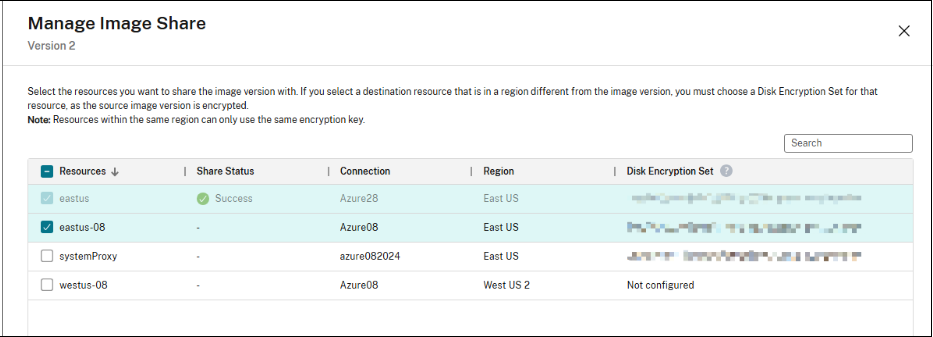
- イメージバージョンを右クリックし、イメージ共有の管理を選択します。リージョンとディスク暗号化セットを持つリソースが一覧表示されます。
-
イメージバージョンと共有したいリソースを選択します。イメージバージョンが作成されたリソースは、いかなるアクションも無効になっています。リソースにDESが構成されていない場合は、ドロップダウンメニューからDESを選択します。
注:
同じリージョン内のリソースは、同じ暗号化キーを使用する必要があります。
- 「保存」をクリックします。
-
共有ステータスの詳細については、「リソース」タブをクリックします。
「注:」:
- イメージバージョンの共有ステータスが進行中の場合、「イメージバージョンの削除」または「イメージ共有の管理」オプションは無効になります。
- リソースが正常に共有されると、DES は編集できません。
PowerShell を使用して、暗号化されたイメージをリージョン、サブスクリプション、テナント間で共有する
コマンド Add-ProvImageVersionSpecHostingUnit を使用し、パラメーター CustomProperties を追加します。CustomProperties で、ターゲットリソースの DES を構成します。準備された暗号化イメージを共有する場合、各リソースは、準備されたイメージが属するサブスクリプションから、そのリージョン内の DES を選択します。例:
$CustomProperties = "<CustomProperties xmlns=`"http://schemas.citrix.com/2014/xd/machinecreation`" xmlns:xsi=`"http://www.w3.org/2001/XMLSchema-instance`">"
 "<Property xsi:type=`"StringProperty`" Name=`"DiskEncryptionSetId`" Value=`"/subscriptions/xxxxxx-7152-46c4-b061-xxxxxx70c/resourceGroups/resourcegroup1/providers/Microsoft.Compute/diskEncryptionSets/desid1`" />"+
 "</CustomProperties>"
Add-ProvImageVersionSpecHostingUnit -ImageVersionSpecUid <Guid> -HostingUnitUid <Guid> -CustomProperties $CustomProperties
<!--NeedCopy-->