-
-
-
-
Roles and permissions
-
-
This content has been machine translated dynamically.
Dieser Inhalt ist eine maschinelle Übersetzung, die dynamisch erstellt wurde. (Haftungsausschluss)
Cet article a été traduit automatiquement de manière dynamique. (Clause de non responsabilité)
Este artículo lo ha traducido una máquina de forma dinámica. (Aviso legal)
此内容已经过机器动态翻译。 放弃
このコンテンツは動的に機械翻訳されています。免責事項
이 콘텐츠는 동적으로 기계 번역되었습니다. 책임 부인
Este texto foi traduzido automaticamente. (Aviso legal)
Questo contenuto è stato tradotto dinamicamente con traduzione automatica.(Esclusione di responsabilità))
This article has been machine translated.
Dieser Artikel wurde maschinell übersetzt. (Haftungsausschluss)
Ce article a été traduit automatiquement. (Clause de non responsabilité)
Este artículo ha sido traducido automáticamente. (Aviso legal)
この記事は機械翻訳されています.免責事項
이 기사는 기계 번역되었습니다.책임 부인
Este artigo foi traduzido automaticamente.(Aviso legal)
这篇文章已经过机器翻译.放弃
Questo articolo è stato tradotto automaticamente.(Esclusione di responsabilità))
Translation failed!
Roles and permissions
Access in Citrix SecurSpaces™ is granted through roles. A role is a named set of permissions, and every member of a project holds one. Roles are project bound, so the same person can hold different roles in different projects.
This page is the reference for what each role and permission allows. Other articles link here rather than repeating it.
Roles and permissions are shown on the People page. A project owner can create roles or change existing ones from the access control panel.
Warning:
Roles decide who can reach your source code, secrets, and security settings. Assign them on a least privilege basis.
Why a feature is hidden
SecurSpaces hides what your role cannot use rather than showing it disabled. If a page, button, or menu entry described in this documentation is not there, the usual reason is that your role does not carry the permission for it.
Some features are also hidden for reasons unrelated to your role, such as a platform setting being off or an optional integration not being configured. The article for each feature says which applies.
To see your own permissions, open the People page and look at your role.
Default roles
A new project has four roles.
| Role | Intended for |
|---|---|
| Guest | Someone who needs to look at a project without changing anything |
| Developer | Day-to-day development in their own workspaces |
| Manager | Running the project: its workspaces, resources, and members |
| Project Owner | Running the project and its security settings |
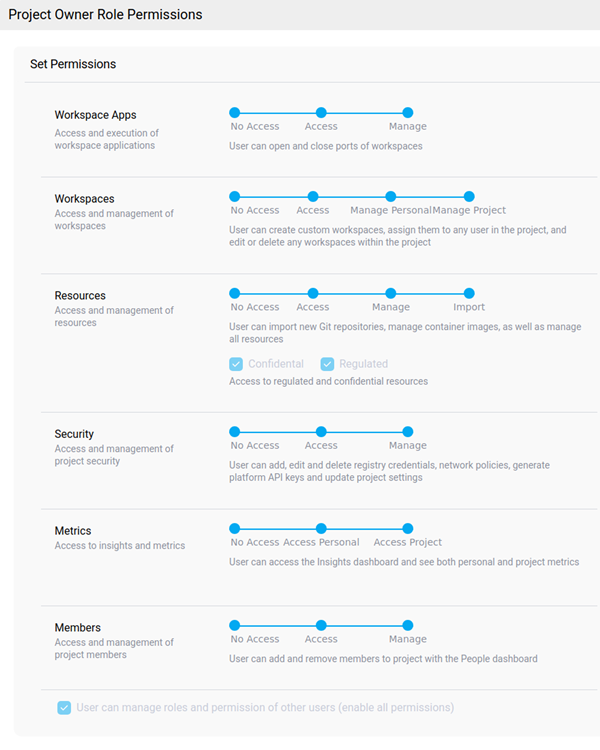
The difference between Manager and Project Owner is security. A manager can manage workspaces, resources, and members, but holds no Security permission. A project owner adds Security Manage, which covers network policies, registry credentials, platform API keys, and project settings.
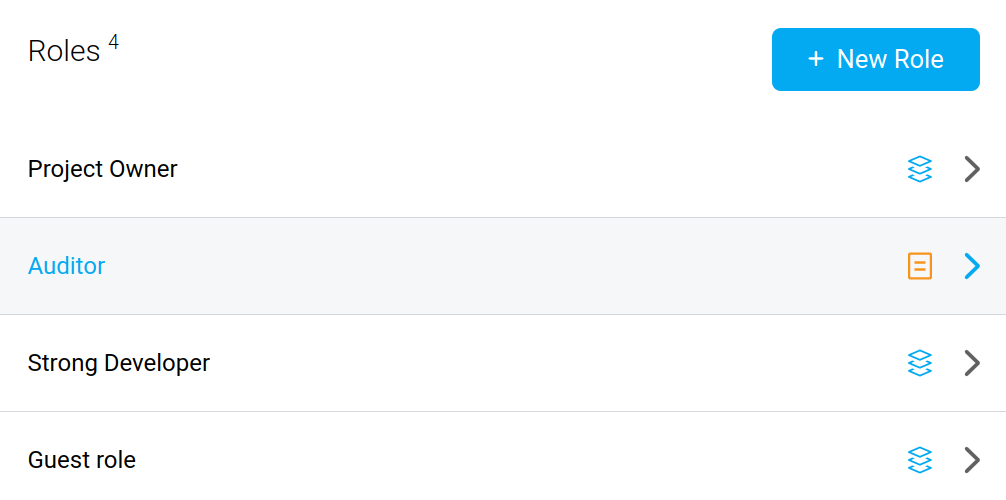
What each default role holds
| Permission | Guest | Developer | Manager | Project Owner |
|---|---|---|---|---|
| Workspace Apps | Manage | Manage | Manage | Manage |
| Workspaces | Access | Manage Personal | Manage Project | Manage Project |
| Resources | Access | Access | Import | Import |
| Regulated resources | No | Yes | Yes | Yes |
| Confidential resources | No | Yes | Yes | Yes |
| Metrics | No Access | Access Personal | Access Project | Access Project |
| Members | No Access | Access | Manage | Manage |
| Security | No Access | No Access | No Access | Manage |
Note:
A platform administrator can disable the predefined Project Owner role and nominate a replacement, so a deployment may differ from this table. Check the access control panel for your project.
Permissions
A role sets a level for each of six permissions, plus three separate settings.
Workspace Apps
Controls access to applications running inside workspaces.
| Level | The user can |
|---|---|
| No Access | Not open workspace ports to view apps, or see apps shared by others |
| Access | View apps shared with them by other users |
| Manage | Open and close ports on workspaces |
Workspaces
Controls what the user can do with workspaces.
| Level | The user can |
|---|---|
| No Access | Not access workspaces |
| Access | Use workspaces assigned to them, but not edit properties, change resource access, or delete them |
| Manage Personal | Create personal workspaces with characteristics an administrator has predefined, manage access to project resources, and delete their own workspaces |
| Manage Project | Create custom workspaces, assign them to anyone in the project, and edit or delete any workspace in the project |
Resources
Controls the Resources dashboard: repositories, secrets, connected services, data buckets, and mount points.
| Level | The user can |
|---|---|
| No Access | Not open the Resources dashboard |
| Access | See registered resources, but not edit or delete them |
| Manage | See, edit, and delete project repositories, secrets, external services, and data buckets |
| Import | Everything Manage allows, plus import Git repositories, container images, and SAML connected apps |
Security
Controls the Audit dashboard and the security configuration of the project.
| Level | The user can |
|---|---|
| No Access | Not open the Audit dashboard |
| Access | Open the Audit dashboard and see network policies, but not add, edit, or delete them |
| Manage | Add, edit, and delete registry credentials and network policies, generate platform API keys, and update project settings |
Metrics
Controls the Insights dashboard.
| Level | The user can |
|---|---|
| No Access | Not open the Insights dashboard |
| Access Personal | See their own metrics |
| Access Project | See their own and project-level metrics |
Members
Controls the People dashboard.
| Level | The user can |
|---|---|
| No Access | Not open the People dashboard |
| Access | See project members |
| Manage | Add and remove project members |
Separate settings
These are switches on the role rather than levels on a scale.
| Setting | Effect |
|---|---|
| Regulated resources | The role can access resources marked as regulated, meaning they fall under a regulation |
| Confidential resources | The role can access resources marked as confidential, such as intellectual property |
| Require templates for workspace creation | The role can create workspaces only from a template. Creating a custom workspace, or copying an existing one, is blocked. |
Create a role
Requires the Members permission set to Manage, which managers and project owners hold.
Open the access control panel from the People page, add a role, name it, and set each permission. A role created at project level is available only in that project.
Related information
Share
Share
This Preview product documentation is Citrix Confidential.
You agree to hold this documentation confidential pursuant to the terms of your Citrix Beta/Tech Preview Agreement.
The development, release and timing of any features or functionality described in the Preview documentation remains at our sole discretion and are subject to change without notice or consultation.
The documentation is for informational purposes only and is not a commitment, promise or legal obligation to deliver any material, code or functionality and should not be relied upon in making Citrix product purchase decisions.
If you do not agree, select I DO NOT AGREE to exit.