-
-
Console overview
-
-
-
This content has been machine translated dynamically.
Dieser Inhalt ist eine maschinelle Übersetzung, die dynamisch erstellt wurde. (Haftungsausschluss)
Cet article a été traduit automatiquement de manière dynamique. (Clause de non responsabilité)
Este artículo lo ha traducido una máquina de forma dinámica. (Aviso legal)
此内容已经过机器动态翻译。 放弃
このコンテンツは動的に機械翻訳されています。免責事項
이 콘텐츠는 동적으로 기계 번역되었습니다. 책임 부인
Este texto foi traduzido automaticamente. (Aviso legal)
Questo contenuto è stato tradotto dinamicamente con traduzione automatica.(Esclusione di responsabilità))
This article has been machine translated.
Dieser Artikel wurde maschinell übersetzt. (Haftungsausschluss)
Ce article a été traduit automatiquement. (Clause de non responsabilité)
Este artículo ha sido traducido automáticamente. (Aviso legal)
この記事は機械翻訳されています.免責事項
이 기사는 기계 번역되었습니다.책임 부인
Este artigo foi traduzido automaticamente.(Aviso legal)
这篇文章已经过机器翻译.放弃
Questo articolo è stato tradotto automaticamente.(Esclusione di responsabilità))
Translation failed!
Console overview
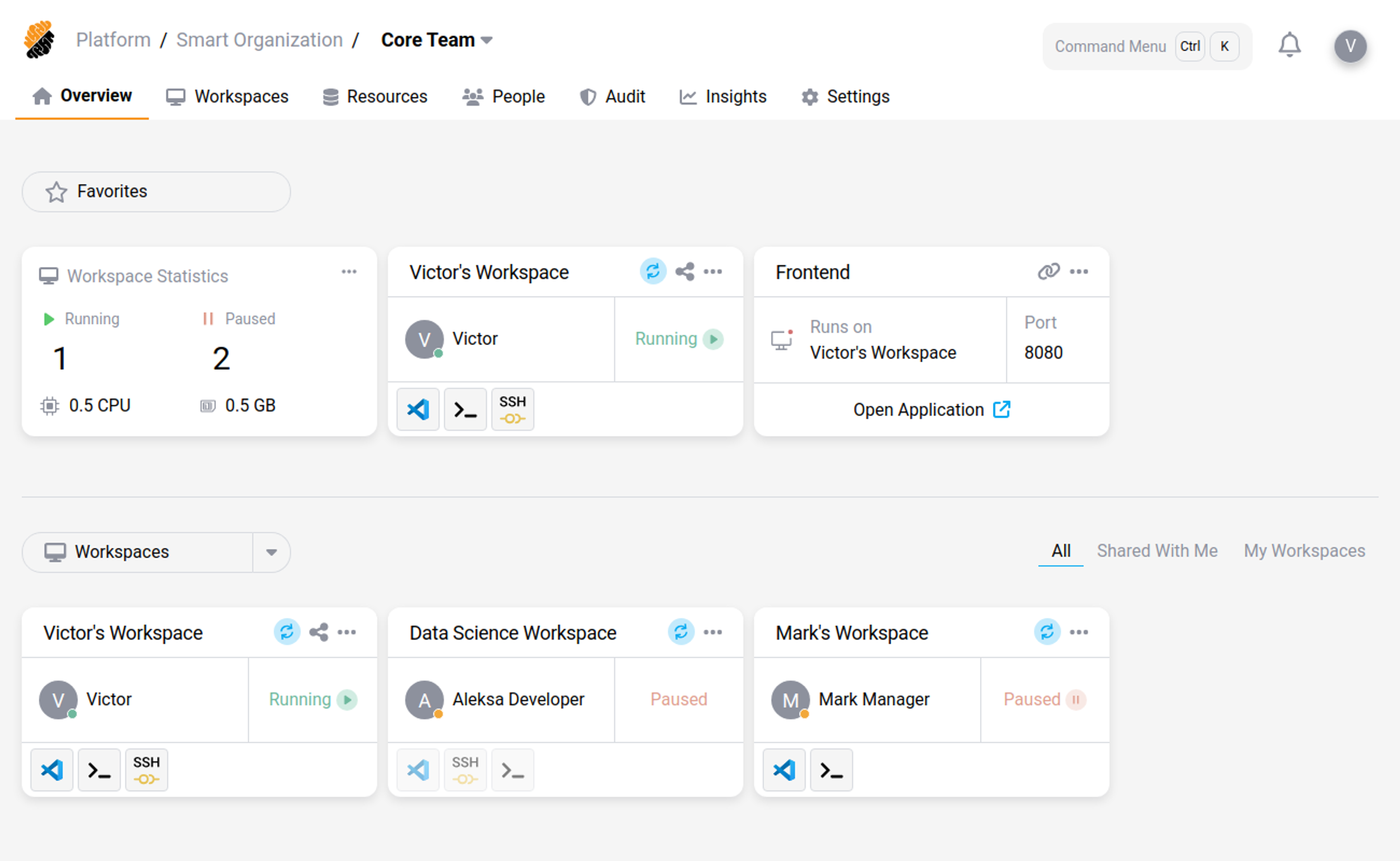
The Overview page is the first page displayed when you access the platform’s user interface. It contains the essential components to allow quick access to resources such as workspaces, apps, secure web apps and metrics.
The Overview Page is customizable. All components can be reordered according to your preferences.
Command Menu
The Command Menu is a keyboard-driven way to move around the console. It is in the header on every page, and opens with Ctrl+K, or Cmd+K on macOS. You can also select it.
Type into What do you want to do? to filter, or browse the three groups:
| Group | What it offers |
|---|---|
| Navigation | Go to Organizations, Projects, or Project Settings |
| Profile | Go to your profile |
| Workspaces | Open one of your workspaces by name |
Opening a workspace by name is the most useful of these, because it does not depend on finding the workspace in a list first.
The menu is hierarchical, and the keys are shown along the bottom: Enter selects, the arrow keys move, Backspace goes back up a level, and Esc closes it.
Note
This is not the same as the Command Palette inside a workspace IDE, which runs commands against the workspace itself. See Connect over SSH.
Display Sections
Favorites
The Favorites section displays your personal favorite list of components, from any section of the Overview Page.
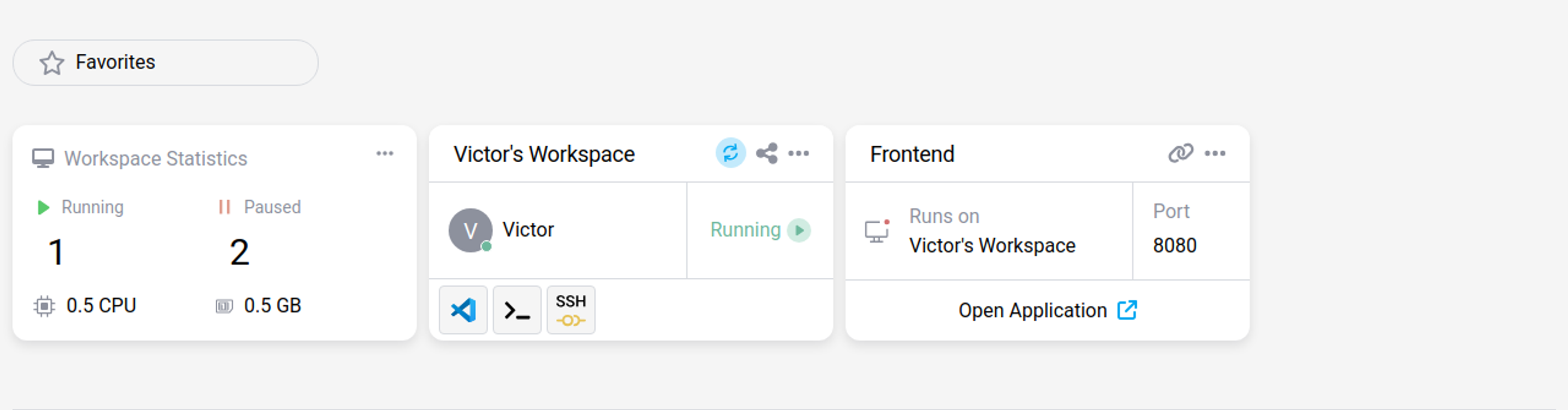
- To add an element to your list, click its “…” button and “Add to Favorites”.
- To remove an element from your list, click its “…” button and “Remove from Favorites”.
Tip:
Entries in the list of favorite components can only be components on the Overview Page.
Workspaces
The Workspaces section displays all the project’s Workspaces to which you have access.
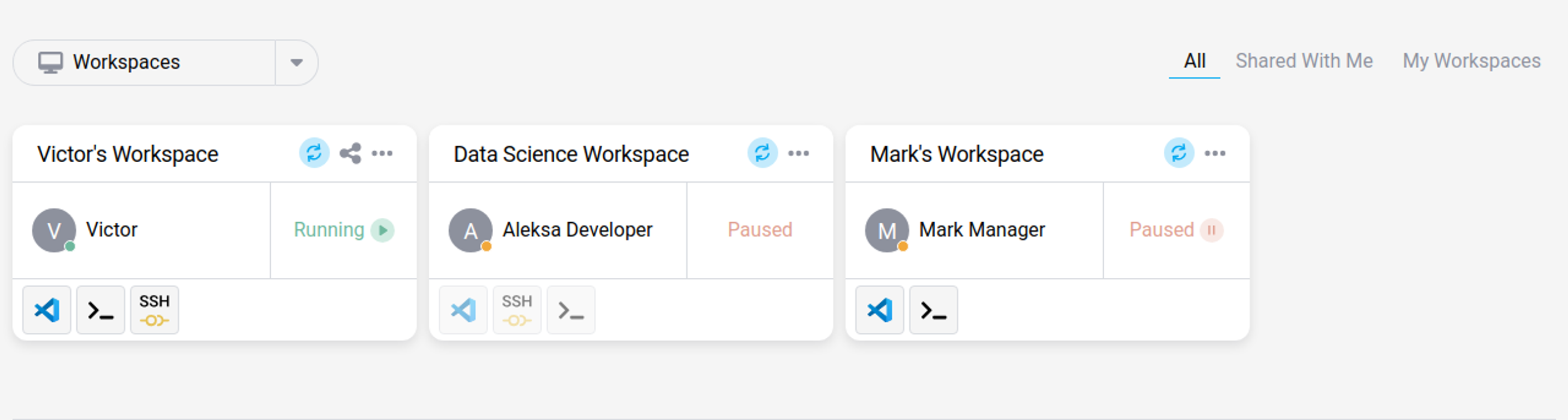
Filter the list with All, Shared With Me, or My Workspaces.
- To create a new workspace click on the “Workspaces” drop-down menu.
- To manage workspaces, view Manage Workspaces.
Workspace Apps
The Workspace Apps section displays all the project’s workspace apps to which you have access.
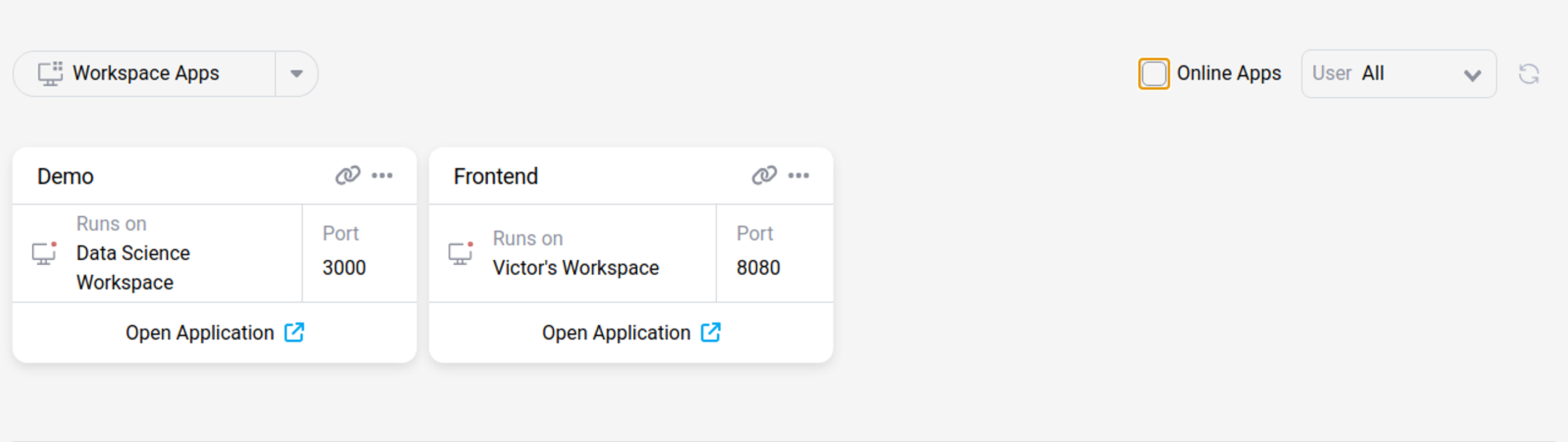
Turn on Online Apps to show only apps that are currently running, and use the User filter to show the apps of one user instead of All.
- To create a new workspace app click the “Workspace Apps” drop-down menu.
- To manage a workspace app click its “…” button.
People & Metrics
The People & Metrics section displays statistics about the users in the project and metrics about resources’ utilization.
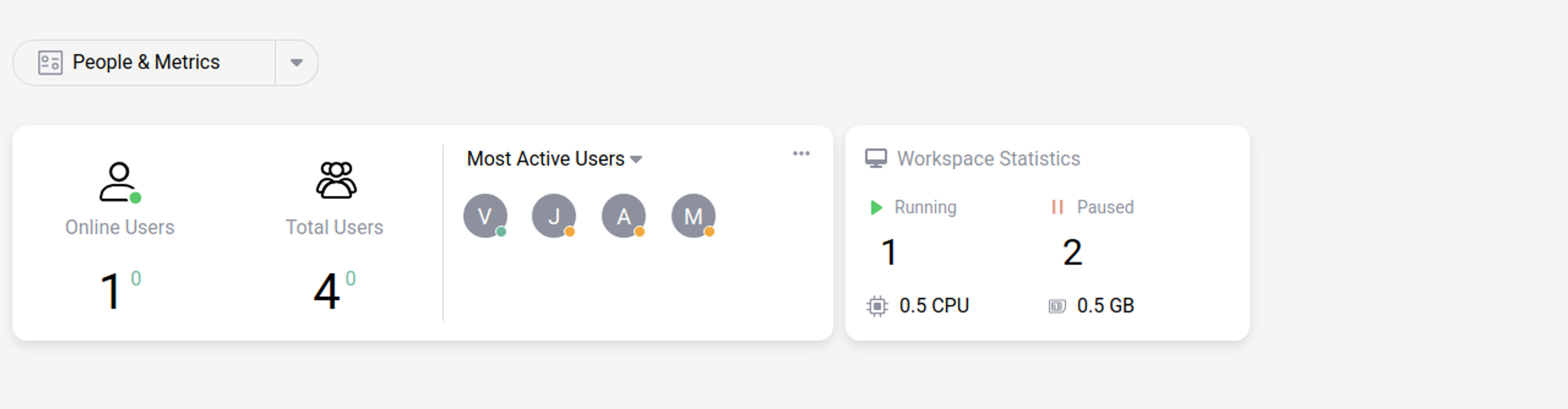
People metrics display:
- The amount of project users online.
- The total amount of project users.
- Statistics about the amount of users online over the past seven days.
Workspace metrics displays:
- How many workspaces are running or paused.
- The current total CPU and RAM usage for your Project.
Check the Insights Page for more detailed metrics.
Citrix DaaS Resources
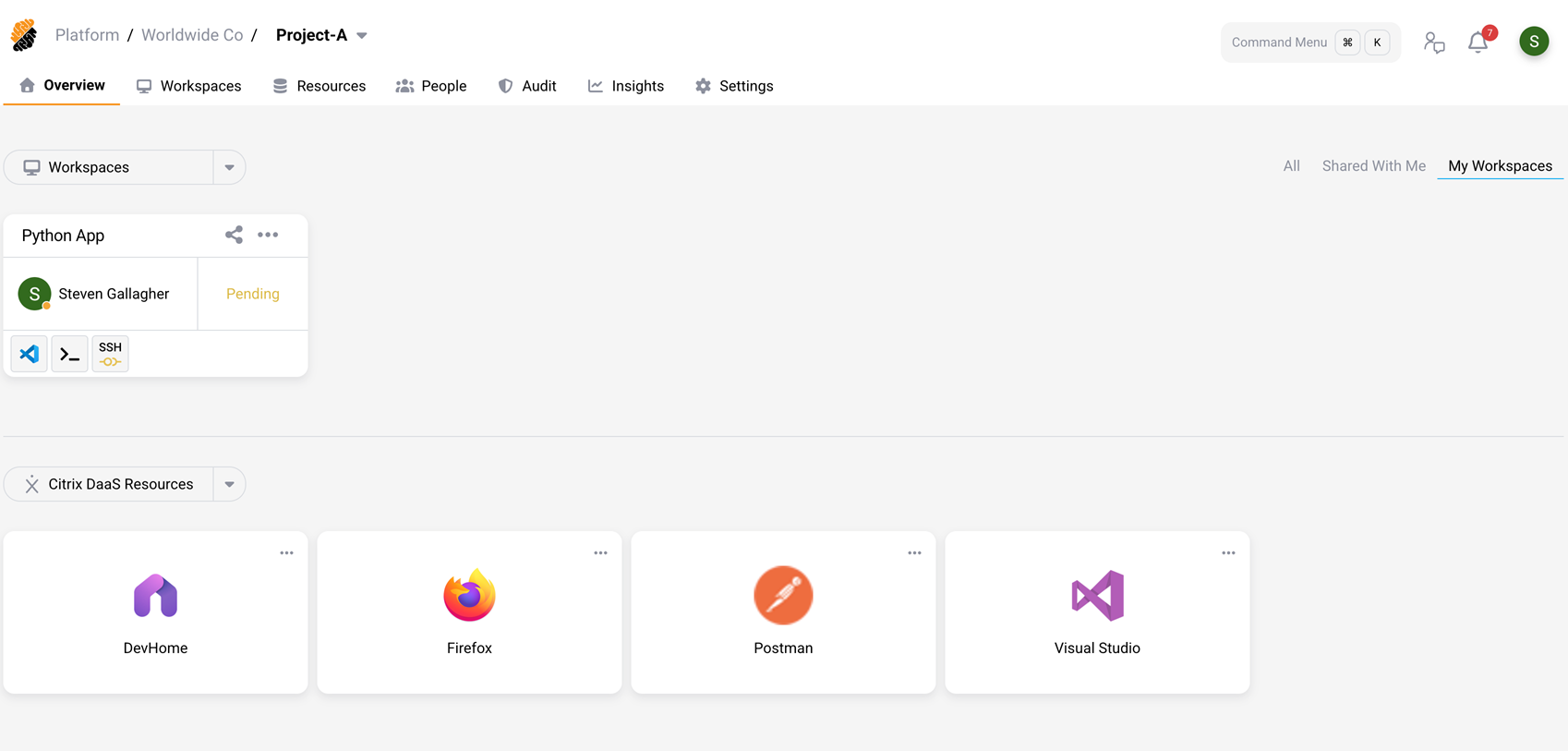
The project Overview page now includes a Citrix DaaS Resources section alongside the existing Workspaces and Workspace Apps sections. This section displays the Citrix virtual apps and desktops assigned to you in Citrix DaaS, giving you unified access to both Kubernetes-based Citrix SecurSpaces™ workspaces and Citrix-based resources from a single console.
Prerequisites
Before Citrix DaaS resources appear on the Overview page:
- A platform administrator must configure the Citrix DaaS integration. See Citrix DaaS Integration.
- You must sign in to your Citrix account from Profile > Integrations > Citrix Integration. See Citrix Integration.
- You must select the Citrix resources you want to access. See Select DaaS resources.
View and launch Citrix resources
When the prerequisites are met, the Citrix DaaS Resources section on the project Overview page displays the virtual apps and desktops you selected in your profile. Select a resource to launch it directly from the SecurSpaces console.
If the section displays “No Citrix DaaS Resources,” verify that:
- You have signed in to your Citrix account in Profile > Integrations > Citrix Integration.
- You have selected at least one resource using the Edit button in the Selected DaaS Resources section of your profile.
- An administrator configures the platform Citrix DaaS integration.
Share
Share
This Preview product documentation is Citrix Confidential.
You agree to hold this documentation confidential pursuant to the terms of your Citrix Beta/Tech Preview Agreement.
The development, release and timing of any features or functionality described in the Preview documentation remains at our sole discretion and are subject to change without notice or consultation.
The documentation is for informational purposes only and is not a commitment, promise or legal obligation to deliver any material, code or functionality and should not be relied upon in making Citrix product purchase decisions.
If you do not agree, select I DO NOT AGREE to exit.