SIEM integration
SecurSpaces can forward platform audit events to an external Security Information and Event Management (SIEM) system using the Common Event Format (CEF). You can use any log-shipping tool that supports CEF to collect and forward these events. The walkthrough below uses Filebeat deployed as a Kubernetes DaemonSet as an example.
Setting up the SIEM integration requires two phases: a backend deployment performed by the platform operator, followed by activation in the management console by a platform administrator.
Prerequisites
- Access to the Citrix SecurSpaces™ Helm chart and
values.yamlconfiguration file - Permission to deploy updates to the Kubernetes cluster hosting SecurSpaces
- Platform administrator or security officer role in the SecurSpaces management console
- A target SIEM system that accepts CEF-formatted events (for example, Elastic SIEM)
Phase 1: Configure the backend
Complete these steps in your deployment environment before activating the integration in the management console.
Step 1 — Enable syslog in the Helm values
Open the values.yaml file for your SecurSpaces deployment and uncomment the configuration block under ninja.clusterConfig.syslog. Update the values to match your environment:
syslog:
  volumeName: "syslog-volume"
  volume:
    name: "syslog-volume"
    hostPath:
      path: "/strong-network/siem"
      type: DirectoryOrCreate
  mountPath: "/var/strong-network/"
  hostPath: "/strong-network/siem"
<!--NeedCopy-->
| Parameter | Description |
|---|---|
volumeName |
Name identifier for the Kubernetes volume. |
volume |
Kubernetes volume definition. The hostPath type maps a directory on the node’s filesystem into the pod. DirectoryOrCreate tells Kubernetes to create the directory if it does not already exist. |
mountPath |
Path inside the platform service containers where the volume is mounted. The application writes .log files here (for example, /var/strong-network/<name>.log). |
hostPath |
Path on the host node where log files are persisted. Your log-shipping tool (for example, Filebeat) reads from this same path. |
The net effect: platform pods mount the host directory /strong-network/siem at /var/strong-network/ inside the container and write .log files there. Filebeat (or your chosen tool) reads those same files via the host path.
Step 2 — Prepare the Filebeat YAML
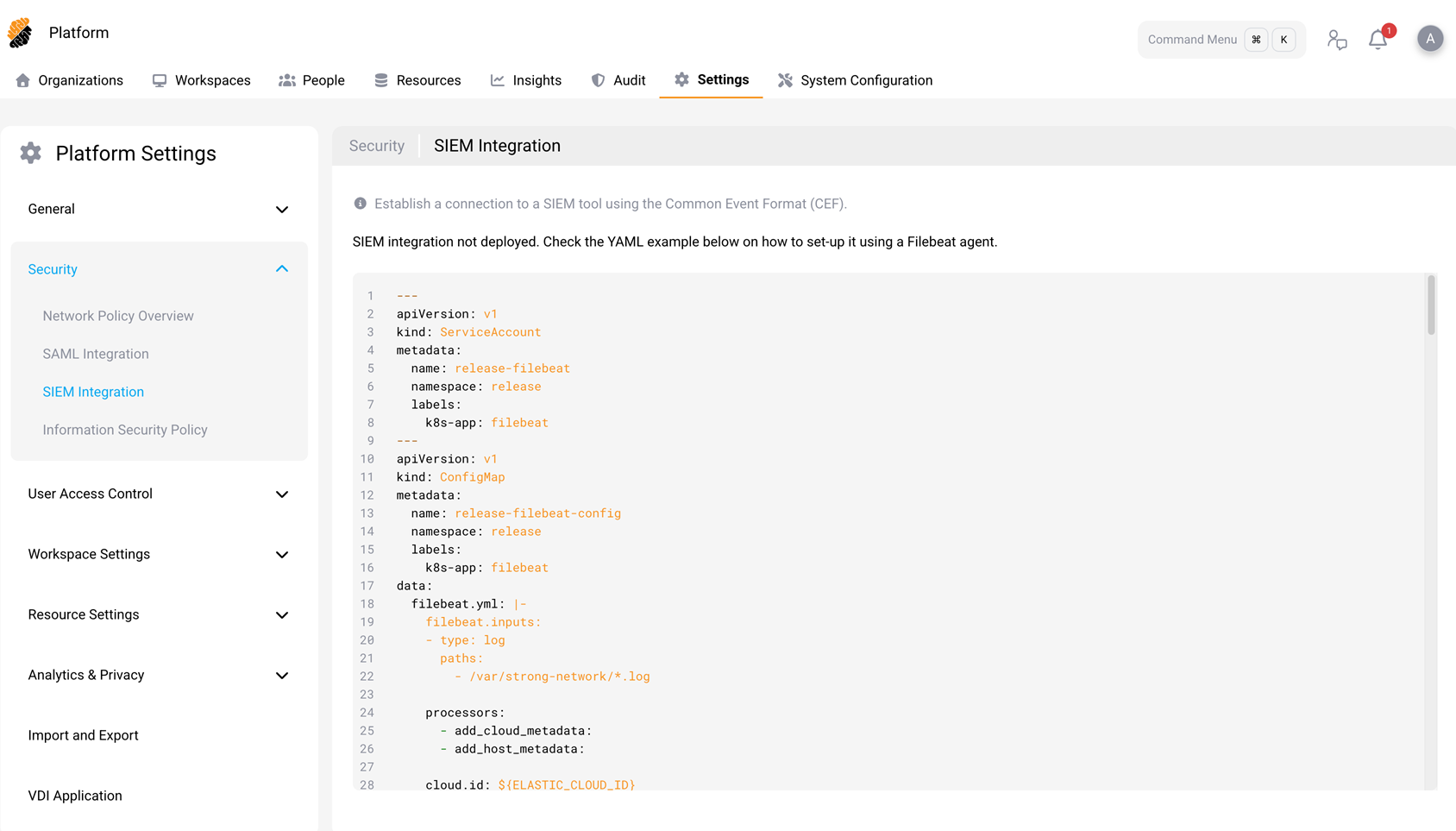
- In the SecurSpaces management console, go to Platform > Settings > Security > SIEM Integration.
- Copy the YAML example displayed on the page. This YAML defines a Filebeat deployment comprising a
ServiceAccount, aConfigMap(containing the Filebeat pipeline configuration), and aDaemonSet. - In the copied YAML, replace every instance of
releasewith your actual deployment namespace. - Fill in the Elasticsearch connection credentials in the environment variables section of the DaemonSet spec. For production deployments, store these credentials in a Kubernetes Secret and reference the Secret in the env vars rather than placing plain-text values in the YAML.
Step 3 — Deploy
Place the updated YAML into your Helm charts and run a fresh deployment to apply the updated Helm configuration and the Filebeat DaemonSet to the cluster.
Phase 2: Activate in the management console
- Sign in to the SecurSpaces management console as a platform administrator or security officer.
- Go to Platform > Settings > Security > SIEM Integration.
- If the DaemonSet is healthy and the volume is correctly mounted, a toggle appears to activate the integration. Enable the toggle.
Once activated, the platform begins forwarding audit events to the configured SIEM target.
How it works
- SecurSpaces platform services write audit events as
.logfiles in CEF format to the container mount path (/var/strong-network/), which maps to/strong-network/siemon the host node. - The Filebeat DaemonSet running on each cluster node reads log files from the host path (
/strong-network/siem). - Filebeat ships the events to the configured SIEM target (for example, Elasticsearch).
Audit events
The platform forwards events across eight categories. Every event is assigned a ClassID that identifies its category in the CEF payload.
For every event and its attributes, see Audit event catalog.
Common extensions
All events include the following CEF extensions:
| Extension | Description |
|---|---|
timestamp |
Time the event was generated. |
suid |
User ID of the actor. |
suser |
Username of the actor. |
wsid |
Workspace ID (when applicable). |
wsname |
Workspace name (when applicable). |
projectId |
Project ID. |
projectName |
Project name. |
eventId |
Unique identifier for the event. |
Event categories
Authentication (ClassID 1)
Login, Logout, SessionStart, SessionEnd, SessionInterrupt
Authorization (ClassID 2)
- User: UserBlocked, UserUnblocked, ProjectManagerSeat
- Workspace: SharedWithUser, UnsharedWithUser
Data Security (ClassID 3)
Copy, Paste, Cut, Upload, UploadLargeFile, Download, DownloadLargeFile, SupervisedCopy
Data security events include additional extensions: data, isSecret, isCode.
System (ClassID 4)
WorkspaceSpecsUpdated
User Activity (ClassID 5)
VSCodeExtensionInstalled
Extension-install events include additional extensions: extensionName, extensionId, extensionUUID.
Account Management (ClassID 6)
UserAddedToProject, UserRemovedFromProject, RoleChanged, UserCreated, UserDeleted, UserAddedAsSecurityOfficer, UserRemovedAsSecurityOfficer, UserAddedAsOrganizationOwner, UserRemovedAsOrganizationOwner, UserPasswordUpdated
Network Traffic (ClassID 7)
SSH Commands, External SSH Commands, HTTP Requests, Git-over-HTTP, TCP Forwarding, DNS Resolution
Resource Access (ClassID 8)
Actions: Created, Imported, ManuallyImported, Updated, SharedWithUsers, SharedPublicly, WorkspaceAttached, WorkspaceDetached, Deleted
Resources: repos, buckets, secrets, connectedServices, securityPolicy, images, credentials, mountPoints, workspaceApp, startupScript, workspaces, apiToken, personalSSH, vscodeVersions
Severity mapping
Each event carries a CEF severity value (0–10). The platform maps severity to syslog priority as follows:
| CEF severity | Syslog priority |
|---|---|
| 0–3 | LOG_INFO |
| 4–6 | LOG_ALERT |
| 7–10 | LOG_CRIT |
Event filtering
You can control which events the platform forwards using two filters on the SIEM Integration settings page:
- Severity filter — Sets a minimum severity threshold. Events below the threshold are not forwarded.
- Event type filter — Selects specific event categories or individual event types to forward.
Verify the integration
After deployment, confirm that the pipeline is working end-to-end:
- Verify that the Filebeat pods are running:
   kubectl get pods -n <namespace>
   <!--NeedCopy-->
- Confirm that
.logfiles exist on the host path:
   ls /strong-network/siem/
   <!--NeedCopy-->
- Check the SIEM Integration page in the management console — the status should indicate that the integration is active.
- Perform an auditable action in SecurSpaces (for example, sign in or create a workspace) and verify that the corresponding event appears in your SIEM tool.