Roles and permissions
Access in Citrix SecurSpaces™ is granted through roles. A role is a named set of permissions, and every member of a project holds one. Roles are project bound, so the same person can hold different roles in different projects.
This page is the reference for what each role and permission allows. Other articles link here rather than repeating it.
Roles and permissions are shown on the People page. A project owner can create roles or change existing ones from the access control panel.
Warning:
Roles decide who can reach your source code, secrets, and security settings. Assign them on a least privilege basis.
Why a feature is hidden
SecurSpaces hides what your role cannot use rather than showing it disabled. If a page, button, or menu entry described in this documentation is not there, the usual reason is that your role does not carry the permission for it.
Some features are also hidden for reasons unrelated to your role, such as a platform setting being off or an optional integration not being configured. The article for each feature says which applies.
To see your own permissions, open the People page and look at your role.
Default roles
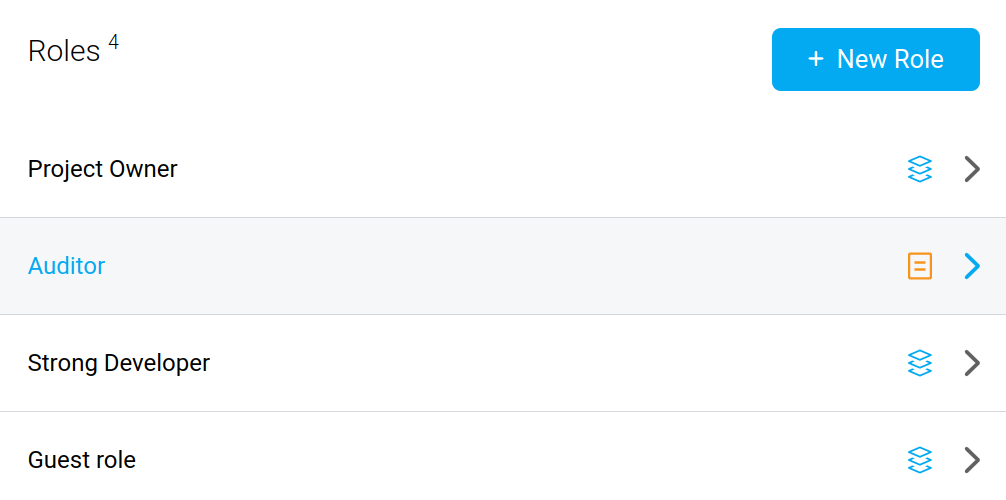
A new project has four roles.
| Role | Intended for |
|---|---|
| Guest | Someone who needs to look at a project without changing anything |
| Developer | Day-to-day development in their own workspaces |
| Manager | Running the project: its workspaces, resources, and members |
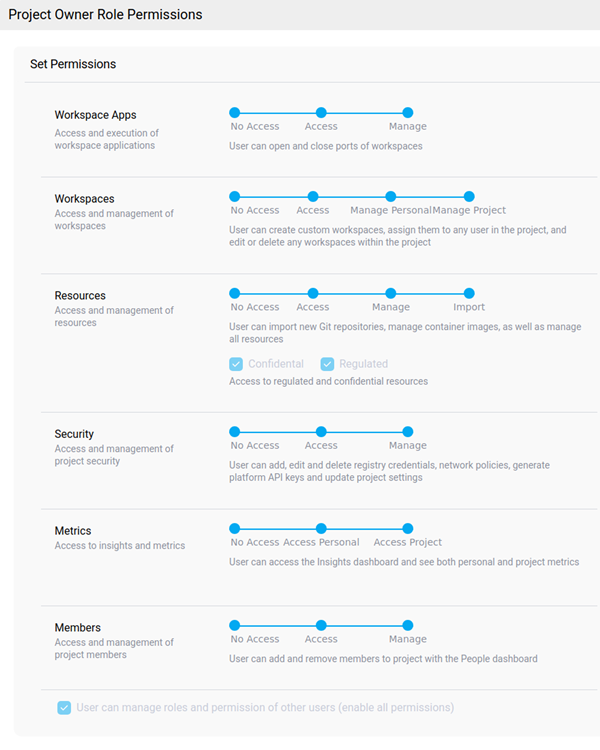
| Project Owner | Running the project and its security settings |
A project owner differs from a manager in two ways. A manager holds no Security permission, so network policies, registry credentials, platform API keys, and project settings are out of reach. A manager also cannot manage roles, so they cannot create or edit roles, or transfer ownership. A manager can still manage workspaces, resources, and members.
What each default role holds
| Permission | Guest | Developer | Manager | Project Owner |
|---|---|---|---|---|
| Workspace Apps | Manage | Manage | Manage | Manage |
| Workspaces | Access | Manage Personal | Manage Project | Manage Project |
| Resources | Access | Access | Import | Import |
| Regulated resources | No | Yes | Yes | Yes |
| Confidential resources | No | Yes | Yes | Yes |
| Metrics | No Access | Access Personal | Access Project | Access Project |
| Members | No Access | Access | Manage | Manage |
| Security | No Access | No Access | No Access | Manage |
| Manage roles and permissions | No | No | No | Yes |
Note:
A platform administrator can disable the predefined Project Owner role and nominate a replacement, so a deployment may differ from this table. A disabled role cannot be assigned to anyone, although members who already hold it keep it. Check the access control panel for your project.
Permissions
A role sets a level for each of six permissions, plus three separate settings and one checkbox that allows role management.
Workspace Apps
Controls access to applications running inside workspaces.
| Level | The user can |
|---|---|
| No Access | Not open workspace ports to view apps, or see apps shared by others |
| Access | View apps shared with them by other users |
| Manage | Open and close ports on workspaces |
Workspaces
Controls what the user can do with workspaces.
| Level | The user can |
|---|---|
| No Access | Not access workspaces |
| Access | Use workspaces assigned to them, but not edit properties, change resource access, or delete them |
| Manage Personal | Create personal workspaces with characteristics an administrator has predefined, manage access to project resources, and delete their own workspaces |
| Manage Project | Create custom workspaces, assign them to anyone in the project, and edit or delete any workspace in the project |
Resources
Controls the Resources dashboard: repositories, secrets, connected services, data buckets, and mount points.
| Level | The user can |
|---|---|
| No Access | Not open the Resources dashboard |
| Access | See registered resources, but not edit or delete them |
| Manage | See, edit, and delete project repositories, secrets, external services, and data buckets |
| Import | Everything Manage allows, plus import Git repositories, container images, and SAML connected apps |
Security
Controls the Audit dashboard and the security configuration of the project.
| Level | The user can |
|---|---|
| No Access | Not open the Audit dashboard |
| Access | Open the Audit dashboard and see network policies, but not add, edit, or delete them |
| Manage | Add, edit, and delete registry credentials and network policies, generate platform API keys, and update project settings |
Metrics
Controls the Insights dashboard.
| Level | The user can |
|---|---|
| No Access | Not open the Insights dashboard |
| Access Personal | See their own metrics |
| Access Project | See their own and project-level metrics |
Members
Controls the People dashboard.
| Level | The user can |
|---|---|
| No Access | Not open the People dashboard |
| Access | See project members |
| Manage | Add and remove project members, and assign or change their roles, up to the level of the role the user holds themselves |
Manage roles and permissions
A checkbox at the foot of the role editor rather than a level on a scale, labelled User can manage roles and permission of other users (enable all permissions). It allows project administration: creating, editing, and deleting roles, transferring project ownership, and restoring deleted workspaces.
| Setting | The user can |
|---|---|
| User can manage roles and permission of other users | Create, edit, and delete roles, transfer project ownership, and restore deleted workspaces |
Only the Project Owner role has it selected by default. It is separate from the Members permission: a manager can add members and set their roles, but cannot create or edit the roles themselves.
Important:
Selecting this checkbox also raises every other permission on the role to its highest level, which is what “enable all permissions” in the label means. Workspace Apps, Workspaces, Resources, Security, Metrics, and Members all move to their maximum, and the regulated and confidential settings are switched on. Clearing the checkbox again restores the levels the role had before. Treat it as granting everything in the project, not only role management.
Separate settings
These are switches on the role rather than levels on a scale.
| Setting | Effect |
|---|---|
| Regulated resources | The role can access resources marked as regulated, meaning they fall under a regulation |
| Confidential resources | The role can access resources marked as confidential, such as intellectual property |
| Require templates for workspace creation | The role can create workspaces only from a template. Creating a custom workspace, or copying an existing one, is blocked. |
Limits on delegating access
A user with the Members permission set to Manage can bring people into the project and set their roles, but not use that to escalate. Four rules apply, and the platform enforces all of them.
- You cannot grant a role above your own. When you assign a role, it is compared against your own role in that project, permission by permission. If the role you are assigning is higher on any single permission — including role management and the regulated and confidential settings — the assignment is refused, even if it is lower on every other one.
- The limit applies to the role you grant, not the person you act on. It stops you creating someone more powerful than yourself. It does not stop you acting on a member who already holds more than you: a member manager can still change a manager’s role to a lower one, or remove them from the project.
- You cannot change your own role, and you cannot remove yourself from a project.
- You cannot remove the project owner. Ownership has to be transferred first, which requires the role-management checkbox.
Note:
These limits apply to project roles. A platform administrator, a security officer, or the owner of the project’s organization is not bound by them.
Create a role
Requires a role with User can manage roles and permission of other users selected, which the Project Owner role has. A manager cannot create or edit roles: role management is separate from the Members permission that governs adding and removing members.
Open the access control panel from the People page, add a role, name it, and set each permission. A role created at project level is available only in that project.