-
-
-
-
-
-
Workspace lifecycle and idle detection
This content has been machine translated dynamically.
Dieser Inhalt ist eine maschinelle Übersetzung, die dynamisch erstellt wurde. (Haftungsausschluss)
Cet article a été traduit automatiquement de manière dynamique. (Clause de non responsabilité)
Este artículo lo ha traducido una máquina de forma dinámica. (Aviso legal)
此内容已经过机器动态翻译。 放弃
このコンテンツは動的に機械翻訳されています。免責事項
이 콘텐츠는 동적으로 기계 번역되었습니다. 책임 부인
Este texto foi traduzido automaticamente. (Aviso legal)
Questo contenuto è stato tradotto dinamicamente con traduzione automatica.(Esclusione di responsabilità))
This article has been machine translated.
Dieser Artikel wurde maschinell übersetzt. (Haftungsausschluss)
Ce article a été traduit automatiquement. (Clause de non responsabilité)
Este artículo ha sido traducido automáticamente. (Aviso legal)
この記事は機械翻訳されています.免責事項
이 기사는 기계 번역되었습니다.책임 부인
Este artigo foi traduzido automaticamente.(Aviso legal)
这篇文章已经过机器翻译.放弃
Questo articolo è stato tradotto automaticamente.(Esclusione di responsabilità))
Translation failed!
Workspace lifecycle and idle detection
Citrix SecurSpaces™ 2026.4 introduces a hybrid idle detection engine that uses multiple signals to determine whether a workspace is truly idle before pausing it. This replaces the previous approach, in which an open SSH connection alone was sufficient to keep a workspace running indefinitely.
How it works
The idle detection engine uses a priority-based approach with three layers:
IDE activity signals (primary)
When the SecurSpaces IDE extension is active in the developer’s IDE, the system uses granular input signals such as keyboard and mouse activity to determine whether a user is present. An open but unused SSH connection alone no longer prevents a workspace from pausing.
This applies to IDEs that support the SecurSpaces extension, including VS Code Desktop, Cursor, Windsurf, and Kiro.
SSH fallback (secondary)
For developers using IDEs that do not support the SecurSpaces extension, the system falls back to the previous SSH-based logic. An active SSH connection continues to signal that the workspace is in use, so active work is not interrupted.
Note
Starting a workspace is not an activity signal. A workspace that is started and then left alone is paused normally once the idle timeout is reached. Starting a workspace does, however, count as use for the Inactive Workspace condition that automatically deletes unused workspaces. See Custom Actions.
Bypass Schedule (manual override)
Security officers and platform administrators can deactivate idle detection for individual workspaces. When Bypass Schedule is enabled for a workspace, the scheduler is bypassed, and the workspace keeps running regardless of detected user activity.
This is intended for long-running services such as shared development tooling or infrastructure components that must remain available continuously.
Bypass Schedule in the Workspace Update Center
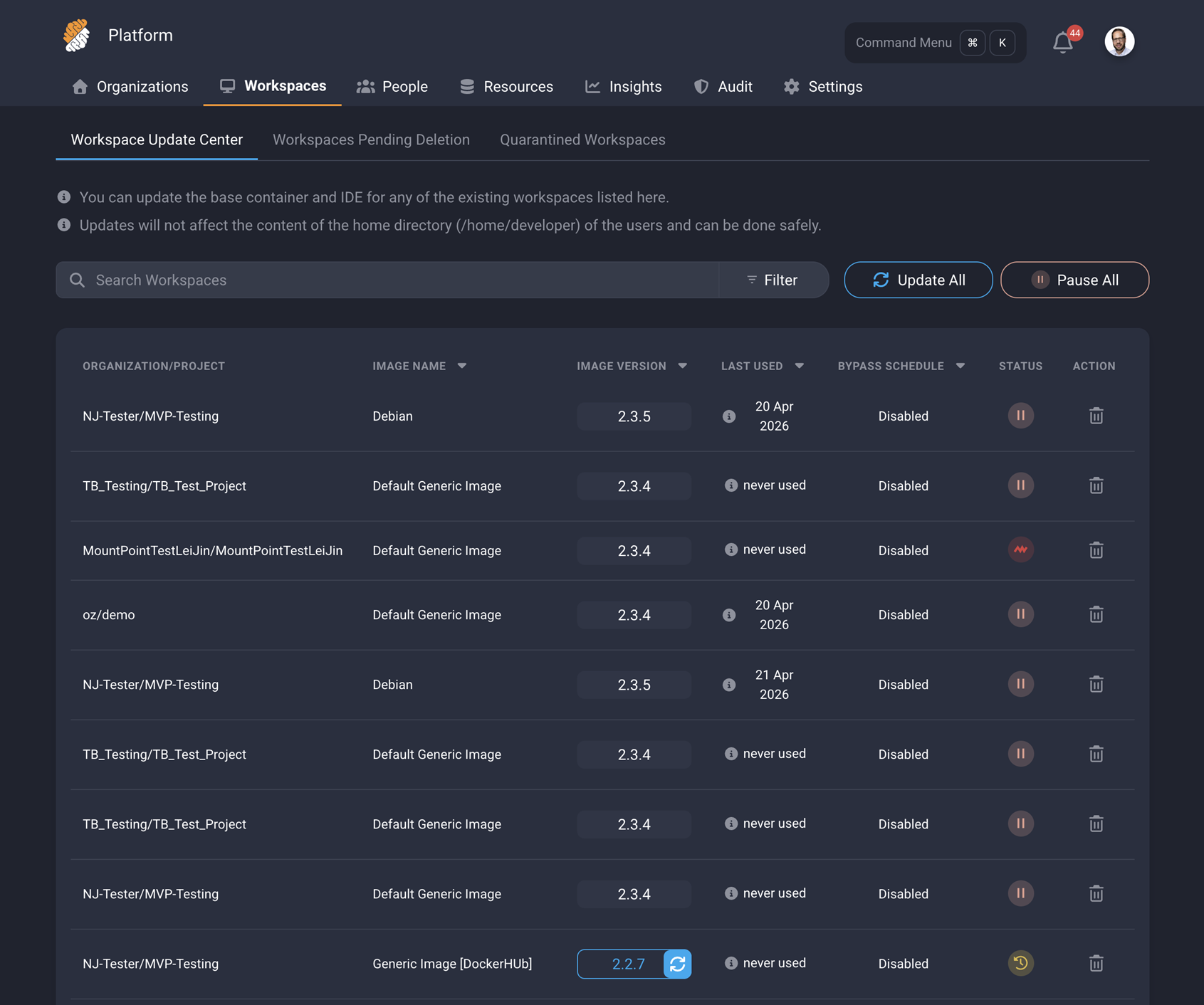
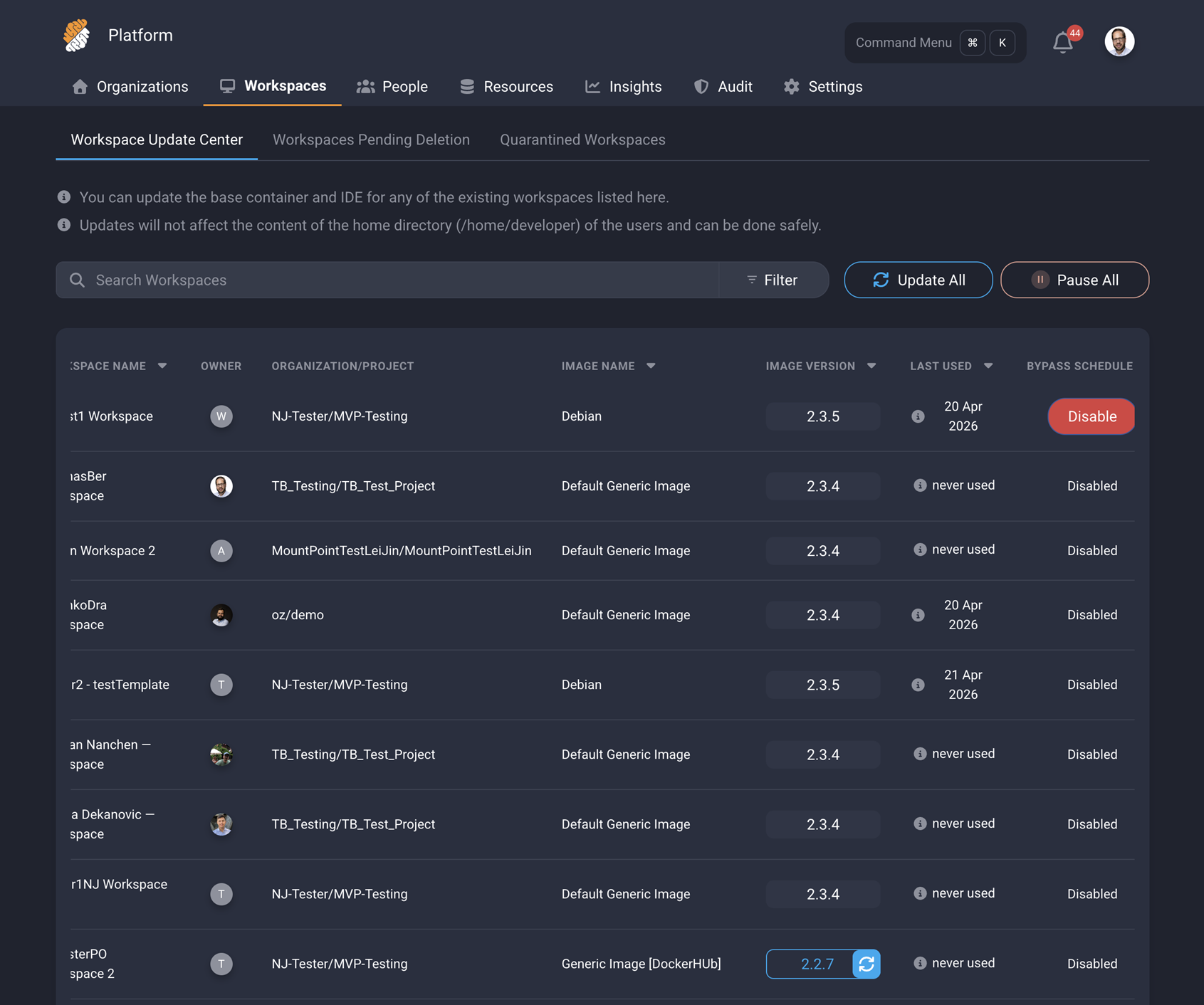
The Bypass Schedule column is visible in the platform-level Workspace Update Center (Platform > Workspaces > Workspace Update Center). Each workspace row displays one of two states:
- Disabled (default) — The workspace follows the normal idle detection schedule. The workspace pauses automatically after the configured timeout if no activity is detected.
- Enabled — The workspace bypasses the schedule and keeps running. A red Disable button appears, allowing administrators to revert.
To enable Bypass Schedule for a workspace, select Enable in the Bypass Schedule column for that workspace.
Permissions
Only security officers and platform administrators can turn Bypass Schedule on or off. This restriction exists because bypassing the schedule directly impacts infrastructure costs.
Share
Share
This Preview product documentation is Citrix Confidential.
You agree to hold this documentation confidential pursuant to the terms of your Citrix Beta/Tech Preview Agreement.
The development, release and timing of any features or functionality described in the Preview documentation remains at our sole discretion and are subject to change without notice or consultation.
The documentation is for informational purposes only and is not a commitment, promise or legal obligation to deliver any material, code or functionality and should not be relied upon in making Citrix product purchase decisions.
If you do not agree, select I DO NOT AGREE to exit.