-
-
Work from a virtual desktop
-
-
-
This content has been machine translated dynamically.
Dieser Inhalt ist eine maschinelle Übersetzung, die dynamisch erstellt wurde. (Haftungsausschluss)
Cet article a été traduit automatiquement de manière dynamique. (Clause de non responsabilité)
Este artículo lo ha traducido una máquina de forma dinámica. (Aviso legal)
此内容已经过机器动态翻译。 放弃
このコンテンツは動的に機械翻訳されています。免責事項
이 콘텐츠는 동적으로 기계 번역되었습니다. 책임 부인
Este texto foi traduzido automaticamente. (Aviso legal)
Questo contenuto è stato tradotto dinamicamente con traduzione automatica.(Esclusione di responsabilità))
This article has been machine translated.
Dieser Artikel wurde maschinell übersetzt. (Haftungsausschluss)
Ce article a été traduit automatiquement. (Clause de non responsabilité)
Este artículo ha sido traducido automáticamente. (Aviso legal)
この記事は機械翻訳されています.免責事項
이 기사는 기계 번역되었습니다.책임 부인
Este artigo foi traduzido automaticamente.(Aviso legal)
这篇文章已经过机器翻译.放弃
Questo articolo è stato tradotto automaticamente.(Esclusione di responsabilità))
Translation failed!
Work from a virtual desktop
Developer
Citrix SecurSpaces™ supports proxy mode, which lets you keep working on an existing virtual desktop instead of in a workspace. You install the Strong Agent on the VDA, and all source code access is routed through it.
The point of this is credentials. The agent uses the source credentials and keys already held by the platform, so you never create or hold a personal SSH key to reach the repository, and the same access rules apply as they would inside a workspace.
Note:
This procedure applies to Windows VDA, Linux VDA, and the Citrix VDA for macOS.
Set up your profile
-
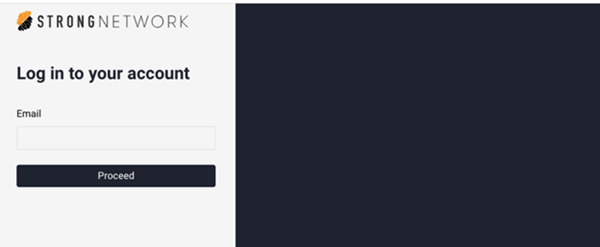
If you have not used the cloud-native environment before, activate your SecurSpaces account with your organization’s SecurSpaces instance URL.
-
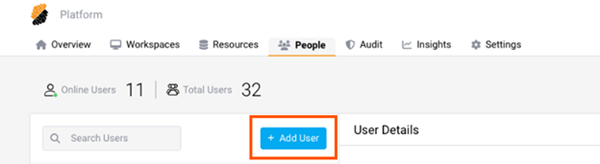
Ask your project owner to add you to a project.
-
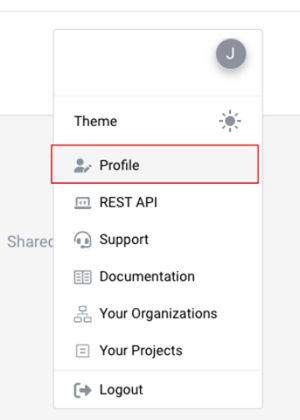
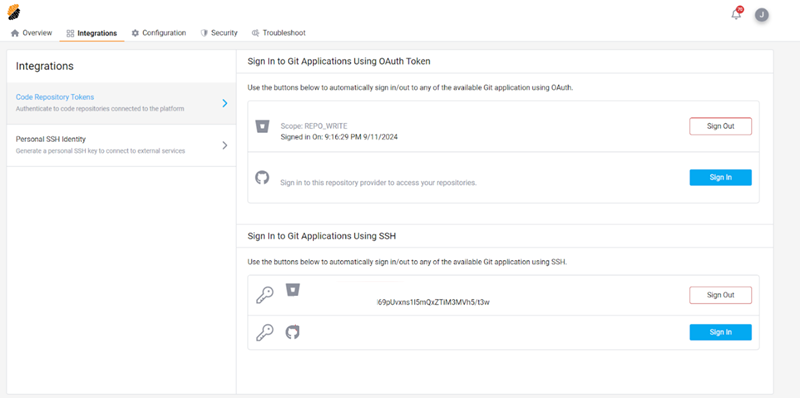
Configure your profile to set up source code access permission.
Install the agent
-
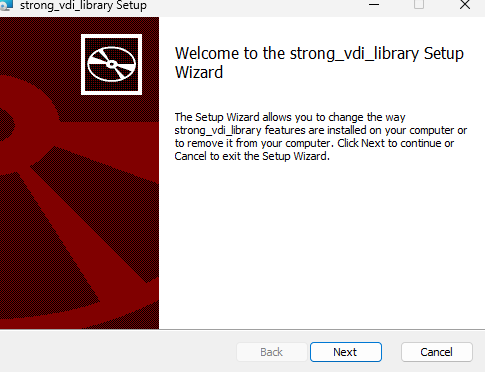
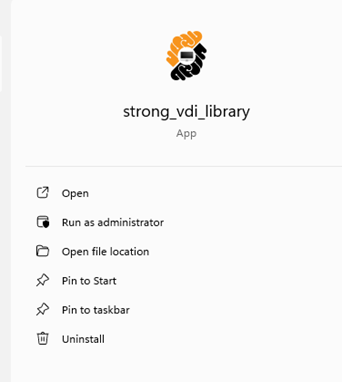
Install the Strong Agent, then run the Strong VDI library.
Configure the agent
-
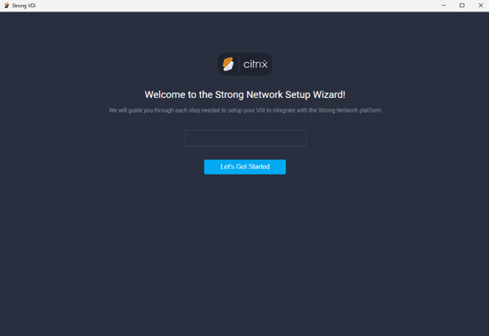
Run the binary and enter your SecurSpaces workspace URL.
-
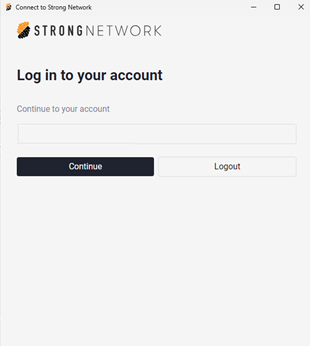
Select Let’s Get Started and sign in to your account.
-
Authorize the connection to SecurSpaces.
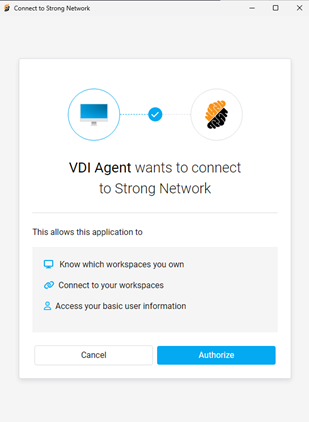
-
Configure the environment and complete the setup.
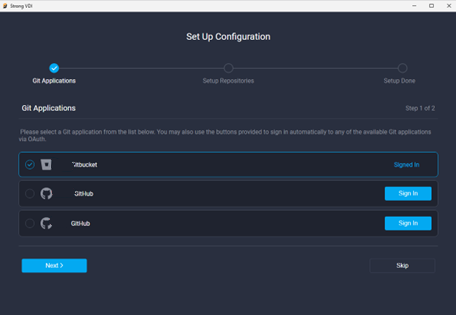
You can now use any terminal to clone your source code, and a local IDE such as Visual Studio or Xcode for day-to-day work. SecurSpaces manages the credentials centrally in the background.
Related information
Share
Share
In this article
This Preview product documentation is Citrix Confidential.
You agree to hold this documentation confidential pursuant to the terms of your Citrix Beta/Tech Preview Agreement.
The development, release and timing of any features or functionality described in the Preview documentation remains at our sole discretion and are subject to change without notice or consultation.
The documentation is for informational purposes only and is not a commitment, promise or legal obligation to deliver any material, code or functionality and should not be relied upon in making Citrix product purchase decisions.
If you do not agree, select I DO NOT AGREE to exit.