-
-
-
Security
-
-
-
This content has been machine translated dynamically.
Dieser Inhalt ist eine maschinelle Übersetzung, die dynamisch erstellt wurde. (Haftungsausschluss)
Cet article a été traduit automatiquement de manière dynamique. (Clause de non responsabilité)
Este artículo lo ha traducido una máquina de forma dinámica. (Aviso legal)
此内容已经过机器动态翻译。 放弃
このコンテンツは動的に機械翻訳されています。免責事項
이 콘텐츠는 동적으로 기계 번역되었습니다. 책임 부인
Este texto foi traduzido automaticamente. (Aviso legal)
Questo contenuto è stato tradotto dinamicamente con traduzione automatica.(Esclusione di responsabilità))
This article has been machine translated.
Dieser Artikel wurde maschinell übersetzt. (Haftungsausschluss)
Ce article a été traduit automatiquement. (Clause de non responsabilité)
Este artículo ha sido traducido automáticamente. (Aviso legal)
この記事は機械翻訳されています.免責事項
이 기사는 기계 번역되었습니다.책임 부인
Este artigo foi traduzido automaticamente.(Aviso legal)
这篇文章已经过机器翻译.放弃
Questo articolo è stato tradotto automaticamente.(Esclusione di responsabilità))
Translation failed!
Security
The Security page of your profile is where you manage the keys, secrets, and tokens tied to your user account, and where you review what has access to your account.
Managing them in one place makes it easy to see what exists, what it is for, and to revoke or replace it.
| Section | What it is for | Shown when |
|---|---|---|
| Personal Secrets | Inject personal secrets into every workspace you own | Always |
| Remote Access Over SSH | Upload SSH keys to connect to workspaces from local IDEs | SSH to workspaces is enabled for you and allowed at platform level |
| Platform Access | Revoke access granted to external tools | Always |
| API Keys | Authenticate to the SecurSpaces REST API | The REST API is enabled |
| Account Security | Set up two-factor authentication or reset your password | You have two-factor authentication enabled, or you sign in with a local account rather than an identity provider |
Note:
GPG keys are not on this page. You manage them under Integration, alongside your repository tokens and personal SSH identity, because they are used to sign commits to your Git provider.
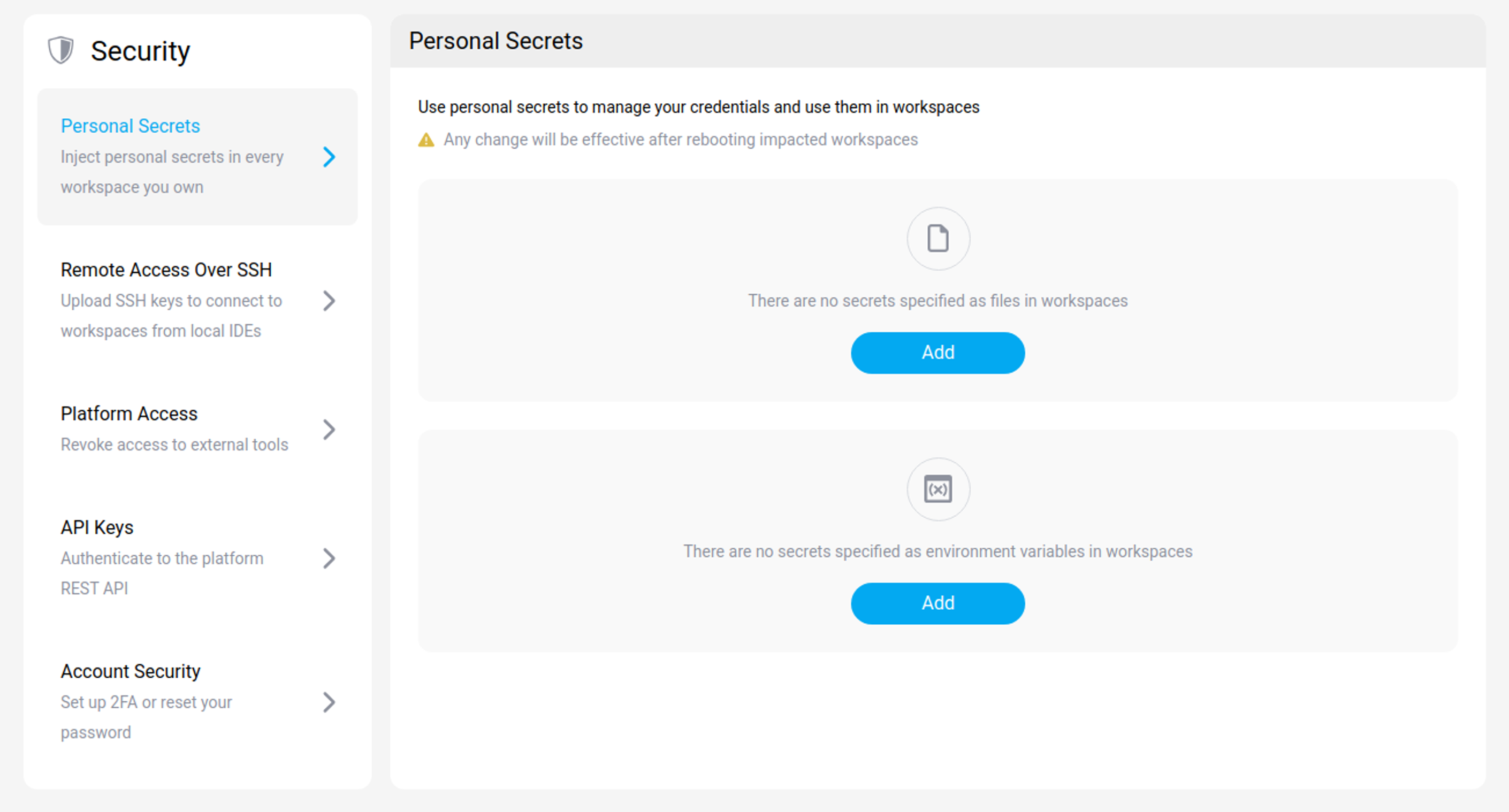
Personal Secrets
Under Personal Secrets, you manage the secrets that are injected into every workspace you own. You can add a secret as a file in the workspace, or as an environment variable.
Remote Access Over SSH
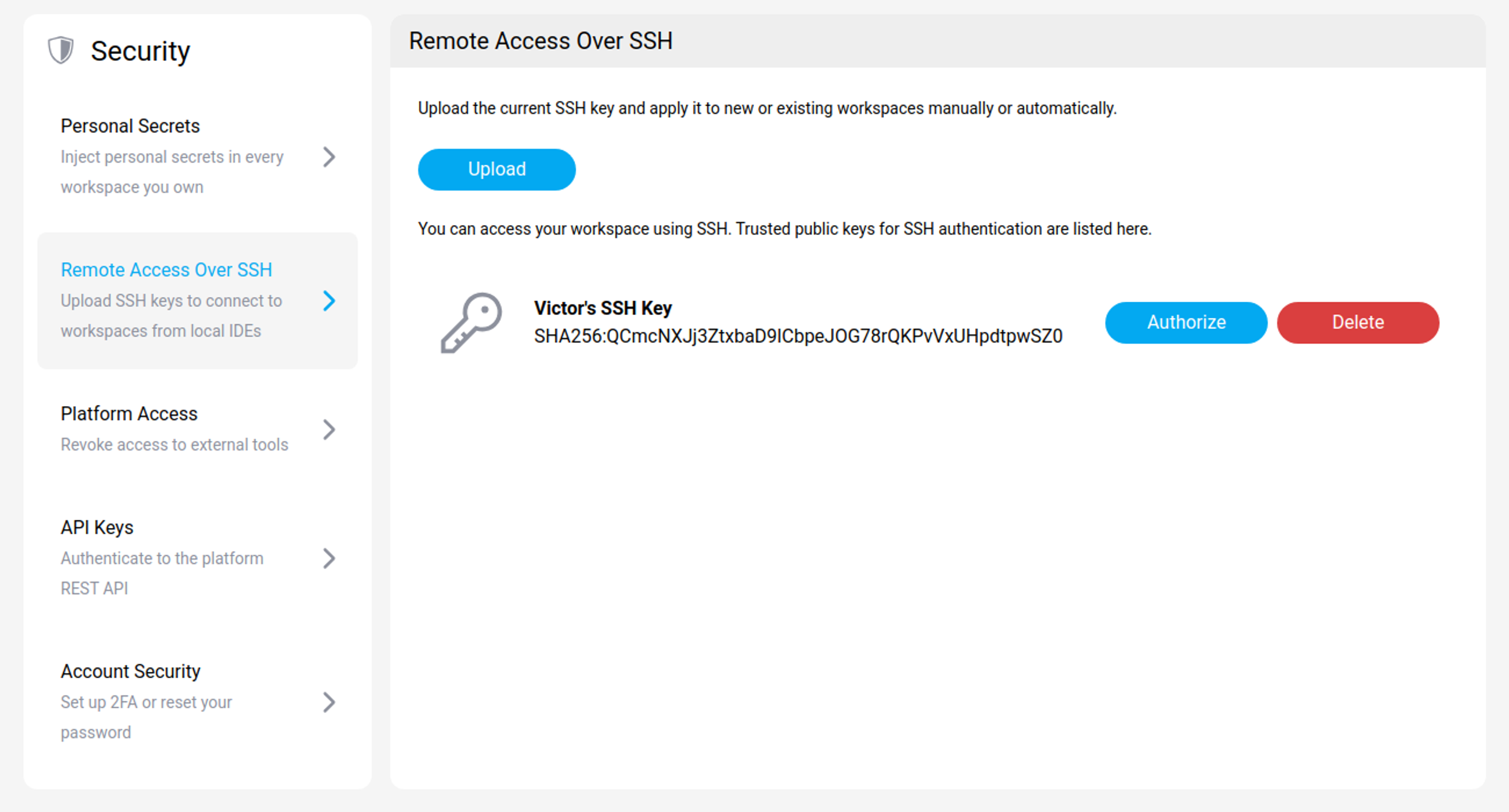
Trusted public keys for SSH authentication are listed here, each linked to your profile. Upload a key to connect to a workspace from a local IDE.
A registration expires after a period your platform administrator sets, 7 days by default. The SecurSpaces IDE integrations renew it for you; with any other SSH client you re-register the key yourself. See Key expiry and renewal.
Running your IDE locally over SSH lets you keep your familiar local setup while the code and the compute stay on the remote workspace. To set it up, see Connect over SSH.
This section appears only when SSH to workspaces is enabled for your account and allowed at the platform level. If you cannot see it, ask a platform administrator whether remote development over SSH is turned on.
Platform Access
Platform Access lists the external tools you have granted access to your SecurSpaces account, and lets you revoke that access.
The IDE extension appears here after you sign in from a local IDE. Revoking an entry ends that tool’s access and it must be authorized again before it can be used.
API Keys
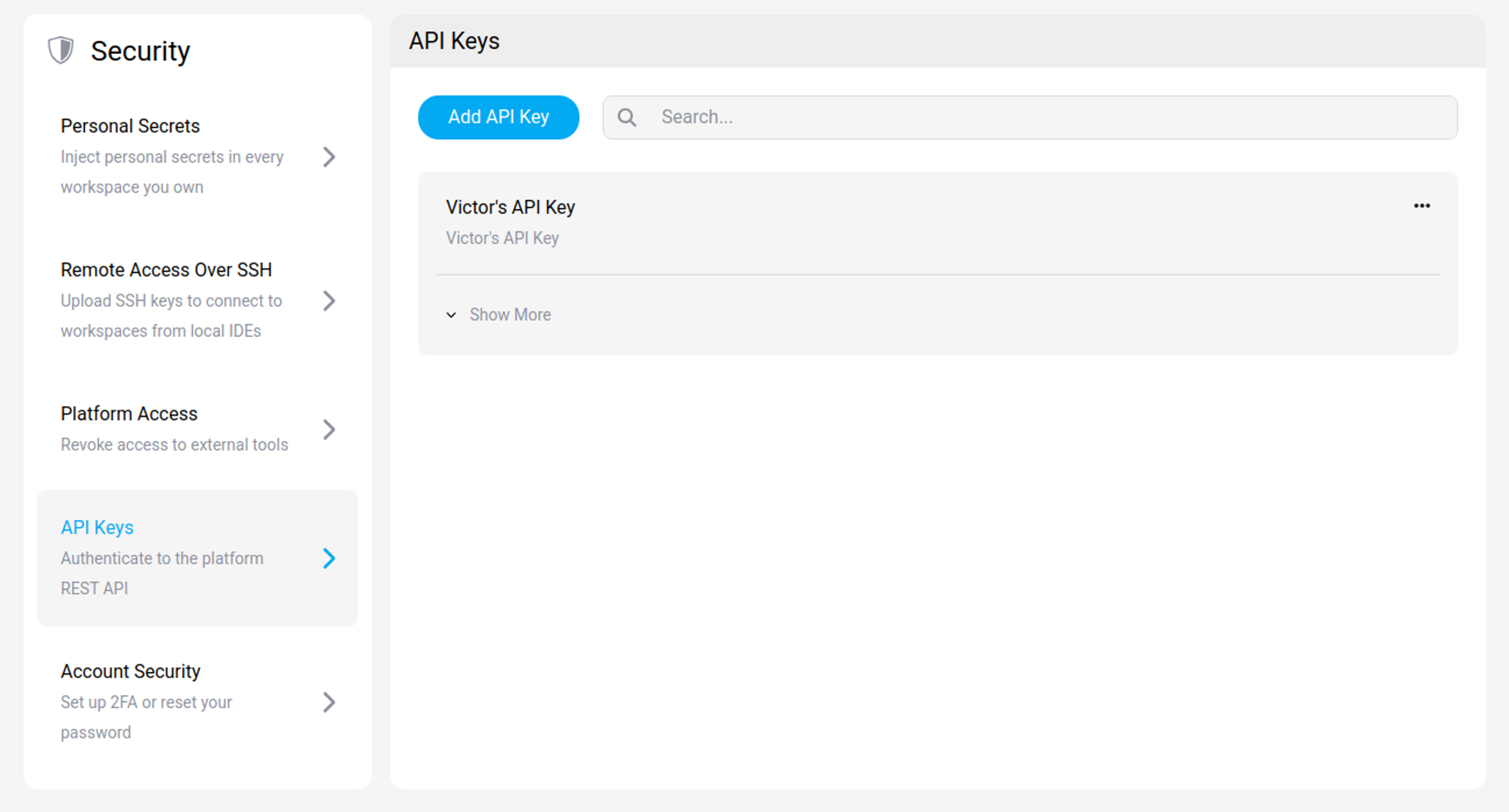
An API key authenticates you to the SecurSpaces REST API. Use one when a script or an external system needs to call the API on your behalf.
An API key carries your identity, so treat it like a password: keep it secret, and revoke it here if it is exposed or no longer needed.
This section appears only when the REST API is enabled for your account.
Account Security
Account Security is where you set up two-factor authentication or reset your password.
It appears only if you already have two-factor authentication enabled, or if you sign in with a local SecurSpaces account. If your organization uses an identity provider such as SAML or OIDC, your password and multi-factor authentication are managed there instead, and this section is not shown.
Related information
- Integration — repository tokens, personal SSH identity, and GPG keys
- Connect over SSH
- REST API
Share
Share
This Preview product documentation is Citrix Confidential.
You agree to hold this documentation confidential pursuant to the terms of your Citrix Beta/Tech Preview Agreement.
The development, release and timing of any features or functionality described in the Preview documentation remains at our sole discretion and are subject to change without notice or consultation.
The documentation is for informational purposes only and is not a commitment, promise or legal obligation to deliver any material, code or functionality and should not be relied upon in making Citrix product purchase decisions.
If you do not agree, select I DO NOT AGREE to exit.