管理交付组
注意:
从版本 2511 开始,Citrix Web Studio(基于 Web)是 Citrix Virtual Apps and Desktops™ 唯一的管理控制台。Citrix Studio(基于 MMC)已从安装程序中删除。本文仅适用于 Web Studio。有关 Citrix Studio 的信息,请参阅 Citrix Virtual Apps and Desktops 7 2212 或更早版本中的等效文章。
简介
本文介绍了通过管理控制台管理交付组的步骤。除了更改创建组时指定的设置外,您还可以配置创建交付组时不可用的其他设置。
过程类别包括:常规、用户、计算机和会话。某些任务跨越多个类别。例如,“阻止用户连接到计算机”在计算机类别中描述,但它也影响用户。如果您在一个类别中找不到某个任务,请检查相关类别。
其他文章还包含相关信息:
常规
查看组详细信息
- 使用搜索功能查找特定的交付组。有关说明,请参阅搜索实例。
- 在搜索结果中,根据需要选择一个组。
- 请参阅下表了解组列的说明。
- 单击底部详细信息窗格中的选项卡,以获取有关此组的更多信息。
| 列 | 说明 |
|---|---|
| 交付组 | 组名称和会话类型。会话类型包括单会话操作系统和多会话操作系统。 |
| 交付内容 | 从此组交付的资源类型。可能的值包括应用程序、桌面以及应用程序和桌面。如果交付组包含专用计算机,则显示“静态计算机分配”。 |
| 会话使用中 | 已设置的计算机数量以及处于“已断开连接”状态的计算机数量。 |
| 已分配计数 | 分配给交付组的目录中的计算机数量。 |
| 文件夹 | 组在“交付组”树中的位置。它显示组所在的文件夹名称(包括尾随反斜杠),如果组位于根级别,则显示 -。 |
更改首选属性
首选属性控制用户如何从交付组访问和启动资源。要更改交付组的首选属性,请执行以下步骤:
- 在 Studio 中,选择左侧窗格中的“交付组”。
- 选择一个组,然后在操作栏中选择“编辑”。
- 在“首选项”页面上,更改下表中的任何设置。
- 选择“应用”以应用所做的任何更改并保持窗口打开。或者,选择“确定”以应用更改并关闭窗口。
| 设置 | 说明 |
|---|---|
| 说明 | Citrix Workspace™(或 StoreFront)使用的以及用户看到的文本。 |
| 启用交付组 | 交付组是否已启用。 |
| 时区
|
此交付组中的计算机所在的时区。对于新创建的交付组,此设置会自动显示在设置 > 日期和时间中设置的时区。如果需要,您可以为交付组选择不同的时区。下拉菜单列出了站点支持的时区。
注意:更改交付组上的时区可能会重新启动该交付组中的计算机。为避免这种情况,请务必在非生产时间更改时区设置。 |
| 启用 Secure ICA® | 使用 SecureICA 保护交付组中计算机之间的通信,SecureICA 会加密 ICA 协议。默认级别为 128 位。可以使用 SDK 更改级别。Citrix® 建议在遍历公共网络时使用更多加密方法,例如 TLS 加密。此外,SecureICA 不会检查数据完整性。 |
更改交付组的交付类型
交付类型指示组可以交付的内容:应用程序、桌面或两者。
在将仅应用程序或桌面和应用程序类型更改为仅桌面类型之前,请从组中删除所有应用程序。
- 在左侧窗格中选择交付组。
- 选择一个组,然后单击操作栏中的编辑。
- 在交付类型页面上,选择所需的交付类型。
- 点击 应用 以应用所做的任何更改并保持窗口打开。或者,点击 保存 以应用更改并关闭窗口。
更改 StoreFront 地址
- 在左侧窗格中选择 交付组。
- 选择一个组,然后点击操作栏中的 编辑。
- 在 StoreFront 页面上,选择或添加 StoreFront URL。这些 URL 由安装在交付组中每台计算机上的 Citrix Workspace™ 应用程序使用。
- 点击 应用 以应用所做的任何更改并保持窗口打开。或者,点击 保存 以应用更改并关闭窗口。
您还可以通过在左侧窗格中选择 StoreFront 来指定 StoreFront 服务器地址。
更改功能级别
在升级交付组中计算机上的 VDA 以及包含交付组中所用计算机的计算机目录后,更改交付组的功能级别。
开始之前:
- 如果您使用 Citrix Provisioning™(以前称为 Provisioning Services),请在 Citrix Provisioning 控制台中升级 VDA 版本。
- 启动包含已升级 VDA 的计算机,以便它们可以向 Delivery Controller 注册。此过程会告知控制台交付组中需要升级的内容。
- 如果您必须继续使用较早的 VDA 版本,则无法使用较新的产品功能。有关详细信息,请参阅升级文档。
要更改交付组的功能级别:
- 在左侧窗格中选择 交付组。
- 选择一个组,然后单击操作栏中的“更改功能级别”。仅当检测到已升级的 VDA 时,才会显示“更改功能级别”操作。
- 单击“更改”。
显示屏会指示您哪些计算机(如果有)无法更改为该功能级别以及原因。然后,您可以取消更改操作,解决计算机问题,然后再次执行更改操作。
更改完成后,您可以将计算机恢复到以前的状态。选择交付组,然后选择操作栏中的“撤消功能级别更改”。
管理远程电脑访问交付组
如果远程电脑访问计算机目录中的计算机未分配,则该计算机将临时分配给与该目录关联的交付组。此临时分配允许稍后将计算机分配给用户。
交付组到计算机目录关联具有优先级值。优先级决定了计算机在向系统注册时或用户需要计算机分配时所分配的交付组。值越低,优先级越高。如果远程电脑访问计算机目录具有多个交付组分配,则软件会选择优先级最高的匹配项。使用 PowerShell SDK 设置此优先级值。
首次创建时,远程电脑访问计算机目录与交付组关联。稍后添加到目录的计算机帐户或组织单位可以添加到交付组。此关联可以关闭或打开。
要添加或删除远程电脑访问计算机目录与交付组的关联:
- 在左侧窗格中选择“交付组”。
- 选择一个远程电脑访问组。
- 在“详细信息”部分中,单击“计算机目录”选项卡,然后选择一个远程电脑访问目录。
- 要添加或恢复关联,请单击“添加桌面”。要删除关联,请单击“删除关联”。
使用文件夹组织交付组
您可以创建文件夹来组织交付组,以便于访问。
提示:
您可以通过单击操作栏右上角的“文件夹”图标,为“交付组”节点设置首选默认视图(文件夹视图或列表视图)。
所需角色
默认情况下,您需要拥有以下内置角色才能创建和管理交付组文件夹:云管理员、完全管理员或交付组管理员。如有必要,您可以自定义用于创建和管理交付组文件夹的角色。有关详细信息,请参阅所需权限。
创建交付组文件夹
开始之前,请规划如何组织交付组。请考虑以下事项:
- 最多可嵌套五级文件夹(不包括默认根文件夹)。
- 一个文件夹可以包含交付组和子文件夹。
-
Web Studio 中的所有节点(例如“计算机目录”、“交付组”、“应用程序”和“应用程序组”)在后端共享相同的文件夹树。为避免在重命名或移动文件夹时出现名称冲突,请对不同节点中的一级文件夹使用唯一的名称。
如果您使用
New-BrokerAdminFolderSDK cmdlet 创建文件夹,并希望它显示在“交付组”节点下,则必须使用Set-BrokerAdminFolderMetadatacmdlet 添加ContainsDeliveryGroups元数据。示例:
 Set-BrokerAdminFolderMetadata -AdminFolderId {adminFolderUid} -Name ContainsDeliveryGroups -Value true
 <!--NeedCopy-->
要创建交付组文件夹,请执行以下步骤:
- 在左侧窗格中选择“交付组”。
- 在文件夹层次结构中,选择一个文件夹,然后在“操作”栏中选择“创建文件夹”。
- 输入新文件夹的名称,然后单击“完成”。
提示:
如果您在意外位置创建了文件夹,可以将其拖动到正确位置。
移动交付组
您可以在文件夹之间移动交付组。详细步骤如下:
-
在左侧窗格中选择 交付组。
-
按文件夹查看组。您还可以打开文件夹层次结构上方的“查看所有”以一次性查看所有组。
-
右键单击一个组,然后选择“移动交付组”。
-
选择要将组移动到的文件夹,然后单击“完成”。
提示:
您可以将组拖动到文件夹。
管理交付组文件夹
您可以删除、重命名和移动交付组文件夹。
请注意,只有当文件夹及其子文件夹不包含交付组时,才能删除该文件夹。
要管理文件夹,请执行以下步骤:
-
在左侧窗格中选择 交付组。
-
在文件夹层次结构中,选择一个文件夹,然后根据需要选择操作栏中的一个操作:
- 要重命名文件夹,请选择重命名文件夹。
- 要删除文件夹,请选择删除文件夹。
- 要移动文件夹,请选择移动文件夹。
-
按照屏幕上的说明完成剩余步骤。
所需权限
下表列出了对交付组文件夹执行操作所需的权限。
| 操作 | 所需权限 |
|---|---|
| 创建交付组文件夹 | 创建交付组文件夹 |
| 删除交付组文件夹 | 删除交付组文件夹 |
| 移动交付组文件夹 | 移动交付组文件夹 |
| 重命名交付组文件夹 | 编辑交付组文件夹 |
| 将交付组移动到文件夹 | 编辑交付组文件夹和编辑交付组属性 |
管理应用程序保护
以下信息是对 应用程序保护 的补充。请注意以下详细信息:
-
您必须拥有有效的应用程序保护授权。要购买应用程序保护功能,请联系您的 Citrix 销售代表。
-
应用程序保护需要 XML 信任。要启用 XML 信任,请转到 设置 > 启用 XML 信任。
-
关于防屏幕捕获:
- 在 Windows 和 macOS 上,只有受保护内容的窗口是空白的。当受保护的窗口未最小化时,应用程序保护处于活动状态。
- 在 Linux 上,整个捕获是空白的。无论受保护的窗口是否最小化,应用程序保护都处于活动状态。
要为交付组选择应用程序保护方法,请按照以下步骤操作:
-
在左侧窗格中选择 交付组。
-
选择一个组,然后在操作栏中选择 编辑。
-
在 应用程序保护 页面上,您可以看到以下选项:
选项 说明 不应用 选择此选项不应用该设置。 应用于此交付组 选择防键盘记录和/或防屏幕截图选项。将鼠标悬停在每个设置上可阅读工具提示中的详细信息。 按上下文应用
要应用此设置,请在“访问策略设置”页面中配置访问策略。 - 在左侧窗格中单击“访问策略”,然后单击“添加”。
- 在“添加策略”页面上,执行以下操作
- i. 输入策略名称并根据需要配置设置。
- ii. 在“筛选器”和“值”字段中,输入详细信息,然后单击“完成”。新策略将列在“应用程序保护”页面中。为此策略启用所需设置。
- iii. 单击“保存”。
- i. 输入策略名称并根据需要配置设置。
- 在左侧窗格中单击“访问策略”,然后单击“添加”。
-
在“交付组”页面上,选择“交付组”,然后单击底部的“详细信息”选项卡。将显示已应用的新“应用程序保护”设置。
更改交付组的挂起功能
将交付组的挂起功能设置为必需或可选:
-
必需 - 交付组只能包含那些支持挂起的 VM。
-
可选 - 交付组可以包含支持或不支持挂起的 VM。
开始之前
只有当交付组中存在的所有 VM 都支持挂起时,才能将交付组的挂起功能更改为 Required。
要更改交付组的挂起功能:
- 在 Web Studio 中,转至左侧窗格中的“交付组”。
- 选择一个组,然后在操作栏中单击“更改挂起功能”。
- 单击“是”以确认您的操作。
用户
本节涵盖以下主题:
在交付组中添加或删除用户
有关用户的详细信息,请参阅用户。
- 在左侧窗格中选择 交付组。
- 选择一个组,然后在操作栏中单击 编辑。
-
在 用户 页面上:
- 要添加用户,请单击 添加,然后指定要添加的用户。
- 要删除用户,请选择一个或多个用户,然后单击 删除。
- 选中或清除此复选框以允许未经身份验证的用户访问。
- 单击 应用 以应用所做的任何更改并保持窗口打开。或者,单击 保存 以应用更改并关闭窗口。
导入或导出用户列表
对于包含物理单会话操作系统计算机的交付组,您可以在创建交付组后从 .csv 文件导入用户信息。您还可以将用户信息导出到 .csv 文件。该 .csv 文件可以包含来自以前产品版本的数据。
CSV 文件中的第一行必须包含两个列标题,以逗号分隔。请确保第一个标题是 Machine Account,第二个标题是 User Names。(您可以包含其他标题,但不支持。)文件中的后续行包含逗号分隔的数据。Machine Account 条目可以是计算机 SID、FQDN 或域与计算机名称对。
要导入或导出用户信息:
- 在左侧窗格中选择“交付组”。
- 选择一个组,然后单击操作栏中的“编辑”。
- 在“计算机分配”页面上,选择“导入”列表或“导出”列表,然后浏览到文件位置。
- 单击“应用”以应用所做的任何更改并保持窗口打开。或者,单击“保存”以应用更改并关闭窗口。
限制对交付组中桌面和应用程序的访问
您可以通过执行以下任务来管理用户对交付组中资源的访问:
将桌面访问权限限制为特定用户
同时满足以下 两个 条件的用户可以访问交付组中的桌面:
-
具有对此交付组中资源(应用程序和桌面)的访问权限。
默认情况下,访问权限由部署的用户访问列表决定,该列表不是通过 Studio 配置的。您可以从默认用户范围中添加或删除用户。请参阅 在交付组中添加或删除用户。
-
具有此组中桌面的访问权限。
有关详细信息,请参阅 步骤 8. 桌面(或桌面分配规则)。
要将桌面访问权限限制为特定用户,请参阅 创建和编辑交付组时限制桌面使用。
将应用程序访问权限限制为特定用户
满足以下所有条件的用户可以访问交付组中的应用程序:
-
具有此交付组中资源(应用程序和桌面)的访问权限。
默认情况下,访问权限由部署的用户访问列表决定,该列表不是通过 Studio 配置的。您可以从默认用户范围中添加或删除用户。请参阅 在交付组中添加或删除用户。
-
具有此组中应用程序的访问权限。
默认情况下,应用程序授权策略规则包括所有人。有关详细信息,请参阅 PowerShell SDK
BrokerAppEntitlementPolicyRulecmdlet。如果需要,您可以使用本节中描述的步骤限制用户对交付组中应用程序的访问。 -
具有包含此应用程序的应用程序组的访问权限。
要在交付组级别将应用程序访问权限限制为特定用户,请执行以下步骤:
- 在 Studio 中,在左侧窗格中选择 交付组。
- 选择一个交付组,然后在操作栏中选择 编辑。
-
要限制应用程序访问,请执行以下步骤:
-
在左侧窗格中,单击应用程序分配规则。
-
要允许特定用户访问应用程序,请选择限制应用程序使用,然后在允许列表区域中单击添加并指定要包括的用户或用户组。
-
要阻止特定用户访问应用程序,请在阻止列表区域中单击添加并指定要排除的用户或用户组。
-
注意:
- 如果选择限制应用程序使用但将允许列表和阻止列表都留空,则此组中的任何用户都无法使用应用程序。
- 如果选择限制应用程序使用并留空允许列表,则阻止列表中的用户除外,所有用户都可以使用应用程序。
限制对交付组中资源的访问
无论您使用何种方法,对限制用户访问交付组中资源所做的任何更改都将取代以前的设置。您可以:
-
使用委派管理范围限制管理员访问: 您可以创建并分配一个允许管理员访问所有应用程序的范围,以及另一个仅提供对某些应用程序访问权限的范围。有关详细信息,请参阅委派管理。
-
通过智能访问策略表达式限制用户访问: 您可以配置访问策略规则来控制用户对特定交付组的访问。示例包括:
- 限制对部分用户的访问并指定允许的用户设备。
- 限制通过 Workspace(而非 StoreFront)连接的用户的访问。
- 限制通过特定 Workspace URL 连接的用户的访问。
本节将指导您如何通过访问策略规则限制用户对交付组的访问:
关于访问策略规则
您可以为交付组配置多个访问策略规则。当用户的连接与您为交付组定义的任何访问策略规则匹配时(无论顺序如何),交付组中的应用程序和桌面都会显示在用户的 StoreFront 或 Workspace 中。
每个规则都可以单独启用或禁用。评估访问策略时,禁用的规则将被忽略。
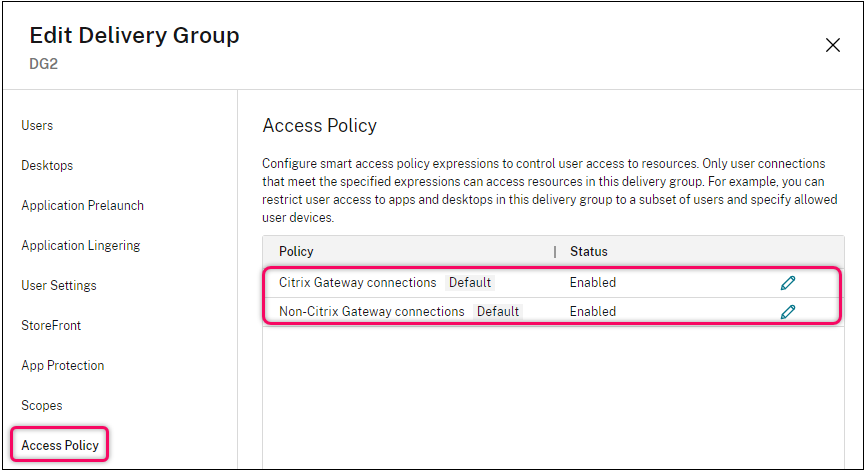
在 Web Studio 中,“访问策略”列表包含以下默认 SmartAccess 策略规则。您可以根据需要添加更多规则。
- Citrix Gateway 连接。此策略仅允许通过 Citrix Gateway 建立的用户连接访问交付组内的资源。当启用设备姿态或网络位置功能时,通过 Workspace 建立的用户连接也被视为通过 Citrix Gateway 建立的连接。
- 非 Citrix Gateway 连接。此策略仅允许非通过 Citrix Gateway 建立的用户连接访问交付组内的资源。
注意:
- 为防止默认规则覆盖新配置的规则,您必须禁用默认规则,或对其进行优化以排除新策略中使用的筛选器。
- 默认策略无法删除,但可以禁用。要禁用策略,请单击编辑图标,然后将策略状态更改为已禁用。
- 策略列表还显示使用 PowerShell 命令添加的规则。这些策略可以删除,但不能在 Web Studio 中编辑。
使用 Web Studio 添加访问策略规则
访问策略规则包含一组筛选器。有关筛选器的详细信息,请参阅本文。添加访问策略规则时,您可以根据需要向规则添加多个条件筛选器。
要使用 Web Studio 为交付组添加策略,请执行以下步骤:
- 在控制台中,选择左侧窗格中的交付组。
- 选择一个组,然后在操作栏中单击编辑。
-
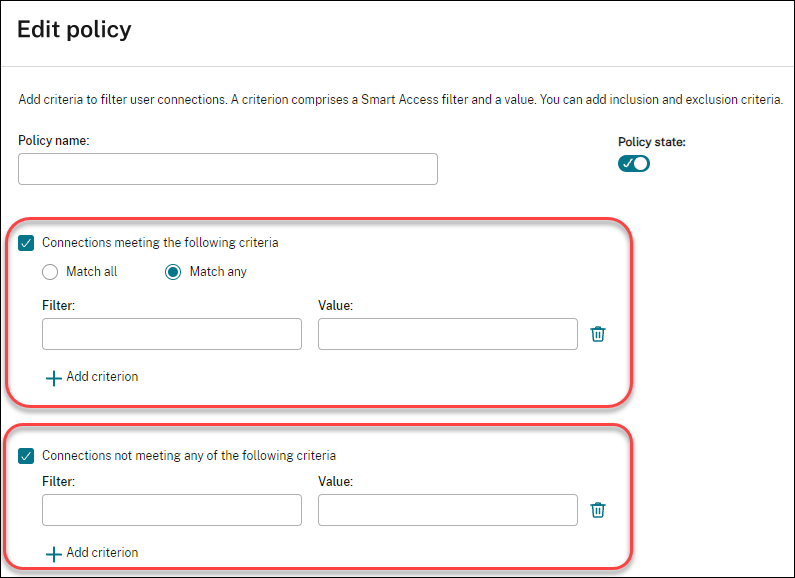
在访问策略页面上,单击添加。此时将显示添加策略页面。
-
在策略名称字段中,键入策略的描述性名称。该名称在您的部署中必须是唯一的。
-
要定义允许的用户连接条件,请执行以下步骤:
- 选择符合以下条件的连接。
- 单击添加条件。
- 在筛选器字段中,键入要使用的筛选器的名称。在值字段中,键入筛选器的所需值。例如,要仅允许通过 Workspace(而不是 StoreFront)连接的用户访问此交付组中的资源,请为筛选器键入
Citrix-Via-Workspace,为值键入True。 - 要添加更多条件,请重复步骤 b-c。
-
选择条件之间的关系:
- 匹配任意。仅当传入的用户连接符合任何配置的筛选器条件时才允许访问。
- 匹配所有。仅当传入的用户连接符合所有配置的筛选器条件时才允许访问。
-
要定义禁止用户连接的标准,请按照以下步骤操作:
- 选择 不符合以下任何条件的连接。
- 单击 添加条件。
- 在 筛选器 字段中,键入要使用的筛选器的名称。在 值 字段中,键入筛选器的所需值。例如,要禁止通过
example.cloud.comWorkspace URL 连接的用户访问此交付组中的资源。在 筛选器 中键入Citrix.Workspace.UsingDomain,在 值 中键入example.cloud.com。 -
要添加更多条件,请重复步骤 b-c。
注意:
符合任何已配置条件的用户连接将被禁止访问此交付组中的资源。
-
单击 完成。
新策略将显示在策略列表中。
-
审查并优化默认策略规则,以避免与此新策略涵盖的连接发生意外重叠。要优化现有策略,请使用以下方法:
- 禁用默认策略规则。
- 配置默认策略规则以排除您添加到新策略包含条件中的 SmartAccess 筛选器。有关详细信息,请参阅 使用 Web Studio 管理策略规则 和 使用 PowerShell 添加和管理访问策略规则。
重要提示:
如 关于访问策略规则 中所述,当用户的连接与交付组中的一个或多个策略规则匹配时,用户将获得对其资源的访问权限。因此,在创建规则后,您必须仔细审查并优化现有规则,以避免与新规则涵盖的连接发生任何意外重叠。
使用 Web Studio 管理访问策略规则
您可以使用包含和排除条件来优化默认策略。例如,要限制对这些连接子集的访问,请执行以下步骤:
- 编辑默认策略。
- 选择 符合以下任一条件的连接。
- 添加、编辑或删除允许的用户访问场景的 SmartAccess 策略表达式。
有关详细信息,请参阅 Citrix Gateway 文档。
使用 PowerShell 添加和管理访问策略规则
您可以使用以下 PowerShell cmdlet 为交付组添加和管理访问策略规则:
- New-BrokerAccessPolicyRule
- Get-BrokerAccessPolicyRule
- Set-BrokerAccessPolicyRule
- 重命名-代理访问策略规则
- 移除-代理访问策略规则
有关详细信息,请参阅 Citrix Developer Documentation 中的相关文章。
限制用户访问所有交付组中的资源
您可以配置资源筛选规则,以控制用户对所有交付组中的应用程序和桌面的访问。这些规则允许您指定资源类型、应用基于标签的限制,并根据网络位置和 Store 连接上下文等因素强制执行访问条件。
所需权限
要执行此任务,您必须是具有“管理资源筛选器”权限的管理员角色。
添加资源筛选规则
要添加资源筛选规则,请完成以下步骤:
- 转到“交付组 > 设置”。
- 在“资源筛选器”磁贴中选择“管理”。
- 在“管理资源筛选规则”对话框中,单击“添加”。
- 输入规则的“名称”和“描述”。
- 选择规则适用的资源类型:
- 应用程序
- 桌面
- 两者
-
选择标识规则所适用资源的标签。
注意:
如果选择“两者”作为资源类型,则必须选择一个标签。
-
配置 智能访问筛选器 以定义筛选资源的条件。
- 单击 添加 以保存规则。
配置用于访问策略的用户范围
默认情况下,交付组中的所有访问策略都适用于同一组用户。您可以使用 Studio、PowerShell 或 Rest API 配置访问策略以应用于特定用户。
要使用 Studio 将访问策略应用于指定用户,请执行以下步骤:
- 在 Studio 中,在左侧窗格中选择 交付组。
- 选择一个组,然后在操作栏中选择 编辑交付组。
- 在 用户 页面上,选择 使用上下文访问。
- 选择要配置的访问策略,然后单击 用户访问范围。用户访问范围 页面随即显示。
- 要定义此策略适用于哪些经过身份验证的用户:
- 要将此策略应用于 任何 经过身份验证的用户,请选择 允许任何经过身份验证的用户使用资源。
- 要将此策略应用于特定用户,请保持选中 限制资源使用。然后,使用允许列表和阻止列表为此策略添加或删除用户。
- 要将此访问策略应用于不提供凭据的用户,请选择 授予对未经身份验证(匿名)用户的访问权限;无需凭据。
计算机
- 管理计算机的用户分配
- 更改计算机对用户的分配(#change-assignments-of-machines-to-users-in-a-delivery-group)
- 为电源管理的单会话池化 VDA 启用本地主机缓存(#enable-local-host-cache-for-power-managed-single-session-pooled-vdas)
- 更改每个用户的最大计算机数(#change-the-maximum-number-of-machines-per-user-in-a-delivery-group)
- 更新计算机(#update-a-machine-in-a-delivery-group)
- 添加、更改或删除桌面的标签限制(#add-change-or-remove-a-tag-restriction-for-a-desktop)
- 删除计算机(#remove-a-machine-from-a-delivery-group)
- 阻止用户连接到计算机(维护模式)(#prevent-users-from-connecting-to-a-machine-maintenance-mode-in-a-delivery-group)
- 关闭并重新启动计算机(#shut-down-and-restart-machines-in-a-delivery-group)
- 创建和管理计算机的重新启动计划(#create-and-manage-restart-schedules-for-machines-in-a-delivery-group)
- 启用一次性重新启动计划(#enable-one-time-restart-schedule)
- 电源管理计算机(#power-manage-machines-in-a-delivery-group)
管理计算机的用户分配
管理交付组中计算机的用户分配。为交付组配置桌面分配规则后,计算机将在首次启动桌面时随机分配给用户,并保持分配给这些用户,除非其用户分配被修改。如果要手动将未分配的计算机分配给特定用户,或更改计算机的现有用户分配,请按照本主题中描述的步骤进行更改。使用这些步骤,您还可以修改 Citrix Workspace App 中为分配给用户的计算机显示的名称。
详细步骤如下:
- 在 Studio 中,从左侧窗格中选择 交付组。
- 选择一个组,然后在操作栏中选择 编辑。
-
在左侧窗格中,选择 计算机分配。组中每台计算机的以下详细信息将显示:
- 计算机名称: 显示计算机的名称。
- 显示名称: 显示计算机在 Citrix Workspace 应用程序中的显示名称。
- 用户: 显示分配给此计算机的用户。如果配置了桌面分配规则,则计算机在用户首次启动桌面时会随机分配给用户,并且除非修改其用户分配,否则会一直分配给他们。
-
找到一台计算机,然后为其分配用户或更改其用户分配:
- 单击 浏览 以浏览用户。
- 在 用户 列中,输入以分号分隔的用户名列表。
- 单击 从 CSV 文件导入 以使用 CSV 文件导入设置详细信息。
- 单击 更改 以更新计算机的桌面图标。浏览以从本地计算机或 VDA 计算机中选择一个
.ico或一个.exe文件。指定的图标仅在计算机级别覆盖默认图标集。
-
(可选)如果计算机已分配给用户,请根据需要修改其显示名称。
注意:
“显示名称”字段仅在计算机分配给用户时启用:
- 如果计算机根据桌面分配规则分配给用户,则此字段显示在该规则中配置的显示名称。
- 如果计算机是手动分配给用户的,并且该字段留空,则交付组的发布名称(如果已指定)将用作计算机的显示名称。如果未指定发布名称,则使用交付组的名称。请注意,您只能通过 PowerShell 为交付组指定发布名称。
- 选择“应用”以应用更改并保持窗口打开。或者,选择“确定”以应用更改并关闭窗口。
更改交付组中计算机对用户的分配
您可以更改使用 MCS 预配的单会话操作系统计算机的分配。您无法更改多会话操作系统计算机或使用 Citrix Provisioning 预配的计算机的分配。
- 在左侧窗格中选择“交付组”。
- 选择一个组,然后在操作栏中单击“编辑”。
- 在“桌面”或“桌面分配规则”页面上(页面标题取决于交付组使用的计算机目录类型),指定新用户。
- 单击“应用”以应用所做的任何更改并保持窗口打开。或者,单击“保存”以应用更改并关闭窗口。
为电源管理的单会话池式 VDA 启用本地主机缓存
默认情况下,电源管理的单会话池式计算机在本地主机缓存模式下不可用。您可以按交付组覆盖默认行为。详细步骤如下:
-
在 Studio 中,选择左侧窗格中的“交付组”。
在组列表中,包含由 MCS 或 Citrix Provisioning 预配的单会话池式计算机的组会显示警告图标。
- 根据需要选择一个组,然后在操作栏中选择“编辑”。
- 在“本地主机缓存”页面上,选择“保持资源可用”。
- 选择“应用”以应用所做的任何更改并保持窗口打开。或者,选择“确定”以应用更改并关闭窗口。
或者,您可以使用 PowerShell 命令覆盖默认行为。有关详细信息,请参阅应用程序和桌面支持。
重要提示:
启用对电源管理的单会话池化计算机的访问可能会导致来自先前用户会话的数据和更改出现在后续会话中。
更改交付组中每个用户的最大计算机数
- 在左侧窗格中选择 交付组。
- 选择一个组,然后在操作栏中单击 编辑。
- 在 桌面分配规则 页面上,设置每个用户的最大桌面数。
- 单击 应用 以应用所做的任何更改并保持窗口打开。或者,单击 保存 以应用更改并关闭窗口。
更新交付组中的计算机
- 在左侧窗格中选择 交付组。
- 选择一个组,然后在操作栏中单击 查看计算机。
- 选择一台计算机,然后在操作栏中单击 更新计算机。
要选择不同的映像,请选择 映像,然后选择一个快照。
要应用更改并通知计算机用户,请选择 向最终用户推出通知。然后指定:
- 何时更新主映像:立即或在下次重新启动时
- 重新启动分发时间(开始更新组中所有计算机的总时间)
- 用户是否收到重启通知
- 用户收到的消息
添加、更改或删除桌面的标签限制
添加、更改和删除标签限制可能会对哪些桌面被考虑启动产生意想不到的影响。请查看 (/zh-cn/citrix-virtual-apps-desktops/manage-deployment/tags.html) 中的注意事项和警告。
- 在左侧窗格中选择 交付组。
- 选择一个组,然后在操作栏中单击 编辑。
- 在 桌面 页面上,选择桌面并单击 编辑。
- 要添加标签限制,请选择 将启动限制到具有该标签的计算机,然后选择该标签。
-
要更改或删除标签限制,请执行以下操作之一:
- 选择其他标签。
- 通过清除 将启动限制到具有此标签的计算机 来删除标签限制。
- 单击 应用 以应用所做的任何更改并保持窗口打开。或者,单击 保存 以应用更改并关闭窗口。
从交付组中删除计算机
删除计算机会将其从交付组中删除。但不会将其从交付组使用的计算机目录中删除。因此,该计算机可用于分配给另一个交付组。
必须先关闭计算机,然后才能将其删除。要在删除计算机时暂时阻止用户连接到该计算机,请在关闭计算机之前将其置于维护模式。
机器可能包含个人数据,因此在将机器分配给其他用户之前请务必谨慎。考虑重新映像该机器。
- 在左侧窗格中选择“交付组”。
- 选择一个组,然后单击操作栏中的“查看计算机”。
- 确保机器已关机。
- 选择机器,然后单击操作栏中的“从交付组中移除”。
您还可以通过机器使用的连接从交付组中移除机器。
阻止用户连接到交付组中的机器(维护模式)
当您需要暂时停止与机器建立新连接时,可以为交付组中的一台或所有机器开启维护模式。您可以在应用补丁或使用管理工具之前执行此操作。
- 当多会话操作系统机器处于维护模式时,用户可以连接到现有会话,但无法启动新会话。
- 当单会话操作系统机器(或使用远程电脑访问的电脑)处于维护模式时,用户无法连接或重新连接。当前连接将保持连接状态,直到用户断开连接或注销。
要开启或关闭维护模式:
- 在左侧窗格中选择“交付组”。
- 选择一个组。
-
要为交付组中的所有机器开启维护模式,请单击操作栏中的“开启维护模式”。
要为一台机器开启维护模式,请单击操作栏中的“查看计算机”。选择一台机器,然后单击操作栏中的“开启维护模式”。
- 要关闭交付组中一台或所有计算机的维护模式,请按照之前的说明操作,但点击操作栏中的关闭维护模式。
Windows 远程桌面连接 (RDC) 设置也会影响多会话操作系统计算机是否处于维护模式。在以下任何情况下,维护模式都会开启:
- 维护模式设置为开启,如前所述。
- RDC 设置为不允许连接到此计算机。
- RDC 未设置为不允许连接到此计算机。远程主机配置用户登录模式设置是允许重新连接,但阻止新登录或允许重新连接,但阻止新登录直到服务器重新启动。
您还可以为以下项开启或关闭维护模式:
- 连接,这会影响使用该连接的计算机。
- 计算机目录,这会影响该目录中的计算机。
关闭并重新启动交付组中的计算机
远程电脑访问计算机不支持此过程。
- 在左侧窗格中选择交付组。
- 选择一个组,然后点击操作栏中的查看计算机。
-
选择计算机,然后点击操作栏中的以下条目之一:
- 强制关机:强制关闭计算机电源并刷新计算机列表。
- 重新启动:请求操作系统关闭然后再次启动计算机。如果操作系统无法执行,计算机将保持其当前状态。
- 强制重启: 强制关闭操作系统,然后重启计算机。
- 挂起: 暂停计算机而不关闭它,并刷新计算机列表。
- 关机: 请求操作系统关机。
对于非强制操作,如果计算机在 10 分钟内未关机,则会断电。如果 Windows 在关机期间尝试安装更新,则存在更新完成前计算机断电的风险。
Citrix 建议您阻止单会话操作系统计算机用户在会话中选择关机。有关详细信息,请参阅 Microsoft 策略文档。
您还可以在连接上关闭并重新启动计算机。
创建和管理交付组中计算机的重新启动计划
注意:
- 当重新启动计划应用于启用了 Autoscale™ 的交付组时,其计算机将仅断电,并留待 Autoscale 开启。
- 当重新启动计划应用于随机单会话计算机时,这些计算机将断电而不是重新启动,以节省成本。我们建议您使用 Autoscale 开启计算机。
- 更改交付组的时区可能会重新启动该交付组中的计算机。为避免这种情况,请务必在非生产时间更改时区设置。
重新启动计划指定交付组中的计算机何时定期重新启动。您可以为一个交付组创建一个或多个计划。一个计划可以影响:
- 组中的所有计算机。
- 组中的一台或多台(但不是全部)计算机。这些计算机通过您应用于计算机的标签进行标识。这称为标签限制,因为标签将操作限制为仅具有该标签的项目。
例如,假设您的所有计算机都在一个交付组中。您希望每周重启每台计算机一次,并希望会计团队使用的计算机每天重启。为此,请为所有计算机设置一个计划,并为仅会计部门的计算机设置另一个计划。
计划包括重新启动开始的日期、时间和持续时间。
您可以启用或禁用计划。在测试期间、特殊时间间隔内或在需要之前准备计划时,禁用计划会很有帮助。
您不能使用计划从管理控制台自动开机或关机,只能用于重新启动。
计划重叠
多个计划可以重叠。在上面的示例中,这两个计划都影响会计计算机。这些计算机可能会在周日重新启动两次。调度代码旨在避免比预期更频繁地重新启动同一台计算机,但这无法保证。
- 如果计划的开始时间和持续时间精确一致,则计算机更有可能只重新启动一次。
- 计划的开始时间和持续时间差异越大,发生多次重新启动的可能性就越大。
- 受计划影响的计算机数量也会影响重叠的可能性。在此示例中,影响所有计算机的每周计划可能会比会计计算机的每日计划更快地启动重新启动,具体取决于为每个计划指定的持续时间。
有关重新启动计划的深入了解,请参阅 Reboot schedule internals。
查看重新启动计划
- 在左侧窗格中选择 Delivery Groups。
- 选择一个组,然后在操作栏中单击 Edit。
- 选择 Restart Schedule 页面。
Restart Schedule 页面包含每个已配置计划的以下信息:
- 计划名称
- 如果存在,则使用标签限制
- 计算机重启的频率
- 计算机用户是否收到通知
- 计划是否已启用
添加(应用)标签
配置使用标签限制的重启计划时,请确保已将标签添加到受该计划影响的计算机。在上面的示例中,会计团队使用的每台计算机都应用了一个标签。有关详细信息,请参阅标签。
尽管您可以将多个标签应用于一台计算机,但重启计划只能指定一个标签。
- 在左侧窗格中选择 交付组。
- 选择包含由计划控制的计算机的组。
- 单击 查看计算机,然后选择要添加标签的计算机。
- 在操作栏中单击 管理标签。
- 如果标签存在,请启用标签名称旁边的复选框。如果标签不存在,请单击 创建,然后指定标签的名称。创建标签后,启用新创建的标签名称旁边的复选框。
- 在 管理标签 对话框中单击 保存。
创建重启计划
注意:
重启计划可应用于所有电源管理和非电源管理的多会话计算机。
- 在左侧窗格中选择 交付组。
- 选择一个组,然后在操作栏中单击 编辑。
- 在 重启计划 页面上,单击 添加。
-
在 添加重启计划 页面上:
- 要启用计划,请选择 是。要禁用计划,请选择 否。
- 键入计划名称和描述。
- 对于 限制为标签,应用标签限制。
- 对于 包括维护模式下的计算机,选择是否在此计划中包括处于维护模式的计算机。要改用 PowerShell,请参阅 维护模式下计算机的计划重启。
- 对于 重启频率,选择重启发生的频率:每日、每周、每月或一次。如果选择 每周 或 每月,可以指定一个或多个特定日期。
- 对于 重复周期,指定您希望计划运行的频率。
- 对于 开始日期,指定计划首次发生的开始日期。
-
对于 开始重启时间,以 24 小时制格式指定开始重启的时间。
- 对于 重启持续时间:
- 要强制重启具有无响应会话的计算机,请选择 强制重启,然后选择以下选项之一:
- 一次性重新启动所有计算机
- 在某个时间段内重新启动所有计算机,并按小时或分钟指定时间。
-
要在重新启动前等待所有会话耗尽,请选择平稳重新启动。
启动配置为使用平稳重新启动的重新启动计划时:
- 属于交付组的所有空闲计算机将立即重新启动。
- 属于具有一个或多个活动会话的交付组的每台计算机将在所有会话注销后重新启动。
注意:
平稳重新启动计划只能重新启动电源管理的计算机。
- 在向用户发送通知中,确定是否在重新启动开始前在适用的计算机上显示通知消息。默认情况下,不显示任何消息。
- 如果您选择在重新启动开始前 15 分钟显示消息,则可以选择在初始消息后每五分钟重复一次该消息。默认情况下,该消息不重复。
-
输入通知标题和文本。没有默认文本。
如果您希望消息包含重新启动倒计时,请包含变量 %m%。除非您选择同时重新启动所有计算机,否则消息将在重新启动前的适当时间显示在每台计算机上。
- 单击完成以应用更改并关闭添加重新启动计划窗口。
- 单击应用以应用所做的更改并保持窗口打开。或者,单击保存以应用更改并关闭窗口。
耗尽后重新启动
使用 PowerShell 创建或更新计算机重新启动计划时(New-BrokerRebootSchedulev2 或 Set-BrokerRebootSchedulev2),可以使用另一个重新启动持续时间值。
当您使用 -UseNaturalReboot <Boolean> 参数启用排空后重新启动功能时,所有计算机在排空所有会话后重新启动。当达到重新启动时间时,计算机将进入排空状态,并在所有会话注销后重新启动。
此功能支持包含单会话或多会话计算机的交付组。您可以将此选项用于电源管理的计算机以及未进行电源管理的计算机。
在本地环境中,此功能仅在使用 PowerShell 时受支持。Web Studio 中不提供此功能。
编辑、删除、启用或禁用重新启动计划
- 在左侧窗格中选择 交付组。
- 选择一个组,然后在操作栏中单击 编辑。
- 在 重新启动计划 页面上,选中相应计划的复选框。
- 要编辑计划,请单击 编辑。根据 创建重新启动计划 中的指导更新计划配置。
- 要启用或禁用计划,请单击 编辑。选中或清除 启用重新启动计划 复选框。
- 要删除计划,请单击 删除。确认删除。删除计划不会影响应用于受影响计算机中的任何标记。
由于数据库中断而延迟的计划重新启动
注意:
此功能仅在 PowerShell 中可用。
如果在交付组中计算机 (VDA) 的计划重新启动开始之前发生站点数据库中断,则重新启动将在中断结束时开始。这可能会导致意外结果。
例如,假设您已将交付组的重新启动安排在非生产时间(从 03:00 开始)。在计划重新启动开始前一小时(02:00)发生站点数据库中断。中断持续六小时(直到 08:00)。当 Delivery Controller 与站点数据库之间的连接恢复时,重新启动计划开始。VDA 重新启动现在比原始计划晚五小时开始,导致 VDA 在生产时间内重新启动。
为避免出现这种情况,您可以将 MaxOvertimeStartMins 参数用于 New-BrokerRebootScheduleV2 和 Set-BrokerRebootScheduleV2 cmdlet。该值指定重新启动计划可以开始的超出计划开始时间的最大分钟数。
-
如果在此时间内(计划时间 +
MaxOvertimeStartMins)恢复数据库连接,则 VDA 重新启动开始。 -
如果在此时间内未恢复数据库连接,则 VDA 重新启动不会开始。
-
如果省略此参数或其值为零,则无论中断持续时间如何,计划的重新启动都会在与数据库的连接恢复时开始。
有关详细信息,请参阅 cmdlet 帮助。此功能仅在 PowerShell 中可用。在 Web Studio 中配置重新启动计划时,无法设置此值。
维护模式下计算机的计划重新启动
注意:
此功能仅在 PowerShell 中可用。Citrix Virtual Apps™ and Desktops 7 2006 及更高版本支持
IgnoreMaintenanceMode选项。
要指示重新启动计划是否影响处于维护模式的计算机,请将 IgnoreMaintenanceMode 选项与 BrokerRebootScheduleV2 cmdlet 结合使用。
例如,以下 cmdlet 创建一个计划,该计划重新启动处于维护模式的计算机(以及不处于维护模式的计算机)。
New-Brokerrebootschedulev2 rebootSchedule1 -DesktopGroupName <myDesktopGroup> -IgnoreMaintenanceMode $true
以下 cmdlet 修改现有重新启动计划。
Set-Brokerrebootschedulev2 rebootSchedule1 -IgnoreMaintenanceMode $true
有关详细信息,请参阅 cmdlet 帮助。此功能仅在 PowerShell 中可用。
启用一次性重启计划
如果要使用 PowerShell 启用一次性重启计划,请使用以下 BrokerCatalogRebootSchedule PowerShell 命令来创建、修改和删除重启计划:
- Get-BrokerCatalogRebootSchedule
- New-BrokerCatalogRebootSchedule
- Set-BrokerCatalogRebootSchedule
- 删除 Broker 目录重启计划
- 重命名 Broker 目录重启计划
限制:
- 与未配置时区的目录关联的目录重启计划已创建,但不会启动。
- 创建目录重启计划后,该重启计划仅在属于交付组的目录 VM 上运行。
示例,
-
创建名为 BankTellers 的目录中 VM 的重启计划,使其于 Feb 3, 2022,在凌晨 2 点至凌晨 4 点之间开始。
C:\PS> New-BrokerCatalogRebootSchedule -Name BankTellers -CatalogName BankTellers -StartDate "2022-02-03" -StartTime "02:00" -Enabled $true -RebootDuration 120 <!--NeedCopy--> -
创建 UID 为 17 的目录中 VM 的重启计划,使其于 Feb 3, 2022,在凌晨 1 点至凌晨 5 点之间开始。重启前十分钟,每个 VM 都将设置为在每个用户会话中显示一个消息框,标题为 WARNING: Reboot pending,消息为 Save your work。
C:\PS> New-BrokerCatalogRebootSchedule -Name 'Update reboot' -CatalogUid 17 -StartDate "2022-02-03" -StartTime "01:00" -Enabled $true -RebootDuration 240 -WarningTitle "WARNING: Reboot pending" -WarningMessage "Save your work" -WarningDuration 10 <!--NeedCopy--> -
将名为 Old Name 的目录重启计划重命名为 New Name。
C:\PS> Rename-BrokerCatalogRebootSchedule -Name "Old Name" -NewName "New Name" <!--NeedCopy--> -
显示所有 UID 为 1 的目录重启计划,然后将 UID 为 1 的目录重启计划重命名为 New Name。
C:\PS> Get-BrokerCatalogRebootSchedule -Uid 1 | Rename-BrokerCatalogRebootSchedule -NewName "New Name" -PassThru <!--NeedCopy--> -
设置名为 Accounting 的目录重启计划,使其在每台 VM 重启前十分钟显示一条消息,标题为 WARNING: Reboot pending,消息内容为 Save your work。该消息将显示在该 VM 上的每个用户会话中。
``` C:\PS> Set-BrokerCatalogRebootSchedule -Name Accounting -WarningMessage “Save your work” -WarningDuration 10 -WarningTitle “WARNING: Reboot pending”
-
显示所有已禁用的重启计划,然后启用所有已禁用的重启计划。
C:\PS> Get-BrokerCatalogRebootSchedule -Enabled $false | Set-BrokerCatalogRebootSchedule -Enabled $true -
设置 UID 为 17 的目录重启计划,使其在每台 VM 重启前十五分钟、十分钟和五分钟显示消息 Rebooting in %m% minutes。
C:\PS> Set-BrokerCatalogRebootSchedule 17 -WarningMessage "Rebooting in %m% minutes." -WarningDuration 15 -WarningRepeatInterval 5 -
配置名为 MyCatalog 的目录的时区。
C:\PS> Set-BrokerCatalog -Name "MyCatalog" -TimeZone <TimeZone>
管理交付组中的计算机电源
您只能管理虚拟单会话操作系统计算机的电源,不能管理物理计算机(包括远程电脑访问计算机)的电源。具有 GPU 功能的单会话操作系统计算机无法暂停,因此关机操作会失败。对于多会话操作系统计算机,您可以创建重启计划。
在包含池化计算机的交付组中,虚拟单会话操作系统计算机可以处于以下状态之一:
- 随机分配且正在使用
- 未分配且未连接
在包含静态计算机的交付组中,虚拟单会话操作系统计算机可以处于以下状态:
- 永久分配且正在使用
- 永久分配且未连接(但已就绪)
- 未分配且未连接
在正常使用期间,静态交付组通常包含永久分配和未分配的计算机。最初,所有计算机都未分配,除了创建交付组时手动分配的计算机。随着用户连接,计算机将变为永久分配。您可以完全管理这些交付组中未分配计算机的电源,但只能部分管理永久分配计算机的电源。
-
池和缓冲区: 对于池化交付组和包含未分配计算机的静态交付组,池(在此情况下)是一组未分配或临时分配的计算机,它们保持开机状态,随时可供用户连接。用户登录后会立即获得一台计算机。池大小(保持开机状态的计算机数量)可按一天中的时间进行配置。对于静态交付组,请使用 SDK 配置池。
缓冲区是额外的备用未分配计算机集,当池中的计算机数量低于阈值时,这些计算机将开启。阈值是交付组大小的百分比。对于大型交付组,当超过阈值时,可能会开启大量计算机。因此,请仔细规划交付组大小,或使用 SDK 调整默认缓冲区大小。
-
电源状态计时器: 您可以使用电源状态计时器在用户断开连接指定时间后暂停计算机。例如,如果用户断开连接至少 10 分钟,则计算机在办公时间之外会自动暂停。
您可以为工作日和周末以及高峰和非高峰时段配置计时器。
-
永久分配计算机的部分电源管理: 对于永久分配的计算机,您可以设置电源状态计时器,但不能设置池或缓冲区。计算机在每个高峰期开始时开启,并在每个非高峰期开始时关闭。您无法像对未分配计算机那样,对可用于补偿已用计算机的可用计算机数量进行精细控制。
电源管理虚拟单会话操作系统计算机
- 在左侧窗格中选择 交付组。
- 选择一个组,然后在操作栏中单击 编辑交付组。
- 在 电源管理 页面上,在 电源管理计算机 中选择 工作日。默认情况下,工作日为星期一至星期五。
- 对于随机交付组,在 要开启的计算机 中,单击 编辑,然后指定工作日期间的池大小。然后,选择要开启的计算机数量。
- 在 高峰时段 中,设置每天的高峰和非高峰时段。
- 设置工作日期间高峰和非高峰时段的电源状态计时器:在 高峰时段 > 断开连接时 中,指定在暂停交付组中任何断开连接的计算机之前的延迟(以分钟为单位),然后选择 暂停。在 非高峰时段 > 断开连接时 中,指定在关闭交付组中任何已注销的计算机之前的延迟,然后选择 关机。此计时器不适用于包含随机计算机的交付组。
- 在 电源管理计算机 中选择 周末,然后配置周末的高峰时段和电源状态计时器。
- 单击 应用 以应用所做的任何更改并保持窗口打开。或者,单击 保存 以应用更改并关闭窗口。
使用 SDK 执行以下操作:
- 响应电源状态计时器时关闭(而不是暂停)计算机,或者如果您希望计时器基于注销而不是断开连接。
- 更改默认的工作日和周末定义。
- 禁用电源管理。请参阅 CTX217289。
对会话已断开连接并转换到不同时间段的 VDI 计算机进行电源管理
重要:
此增强功能仅适用于会话已断开连接的 VDI 计算机。它不适用于会话已注销的 VDI 计算机。
在早期版本中,VDI 计算机在转换到需要执行操作(断开连接操作为“挂起”或“关机”)的时间段时仍保持开机状态。如果计算机在不需要执行任何操作(断开连接操作为“无”)的时间段(高峰或非高峰时段)断开连接,则会出现此情况。
从 Citrix Virtual Apps and Desktops 7 1909 开始,当指定的断开连接时间过去后,计算机将根据为目标时间段配置的断开连接操作挂起或关机。
例如,您可以为 VDI 交付组配置以下电源策略:
- 将
PeakDisconnectAction设置为“Nothing” - 将
OffPeakDisconnectAction设置为“Shutdown” - 将
OffPeakDisconnectTimeout设置为“10”
有关电源策略中断开连接操作的详细信息,请参阅 https://developer-docs.citrix.com/projects/delivery-controller-sdk/en/latest/Broker/about_Broker_PowerManagement/#power-policy 和 https://developer-docs.citrix.com/projects/delivery-controller-sdk/en/latest/Broker/Get-BrokerDesktopGroup/。
在早期版本中,会话在高峰时段断开连接的 VDI 计算机在从高峰时段转换到非高峰时段时仍保持开机状态。从 Citrix Virtual Apps and Desktops 7 1909 开始,OffPeakDisconnectAction 和 OffPeakDisconnectTimeout 策略操作在时间段转换时应用于 VDI 计算机。因此,计算机在转换到非高峰时段 10 分钟后关机。
如果您想恢复到以前的行为(即,对从高峰时段转换到非高峰时段或从非高峰时段转换到高峰时段且会话已断开连接的计算机不执行任何操作),请执行以下操作之一:
- 将
LegacyPeakTransitionDisconnectedBehaviour注册表值设置为1,这等同于 true,可启用以前的行为。默认情况下,该值为0或 false,这会在时间段转换时触发断开连接电源策略操作。- 路径:
HKEY_LOCAL_MACHINE\SOFTWARE\Citrix\DesktopServer - 名称:
LegacyPeakTransitionDisconnectedBehaviour - 类型:
REG_DWORD - 数据:
0x00000001 (1)
- 路径:
- 使用
Set-BrokerServiceConfigurationDataPowerShell 命令配置设置。例如:PS C:\> Set-BrokerServiceConfigurationData HostingManagement.LegacyPeakTransitionDisconnectedBehaviour -SettingValue $true
在周期转换时对其应用电源策略操作之前,计算机必须满足以下条件:
- 具有断开连接的会话。
- 没有待处理的电源操作。
- 属于转换为不同时间段的 VDI(单会话)交付组。
- 会话在特定时间段(高峰或非高峰时段)断开连接,并转换为分配了电源操作的时间段。
更改目录中处于开机状态的 VDA 百分比
- 从交付组的“电源管理”部分调整交付组的高峰时段。
- 记下桌面组名称。
-
使用管理员权限启动 PowerShell 并运行以下命令。将“Desktop Group Name”替换为已更改 VDA 运行百分比的桌面组的名称。
asnp Citrix*# Set-BrokerDesktopGroup "Desktop Group Name" -PeakBufferSizePercent 100值为 100 表示 100% 的 VDA 处于就绪状态。
-
通过运行以下命令验证解决方案:
#Get-BrokerDesktopGroup "Desktop Group Name"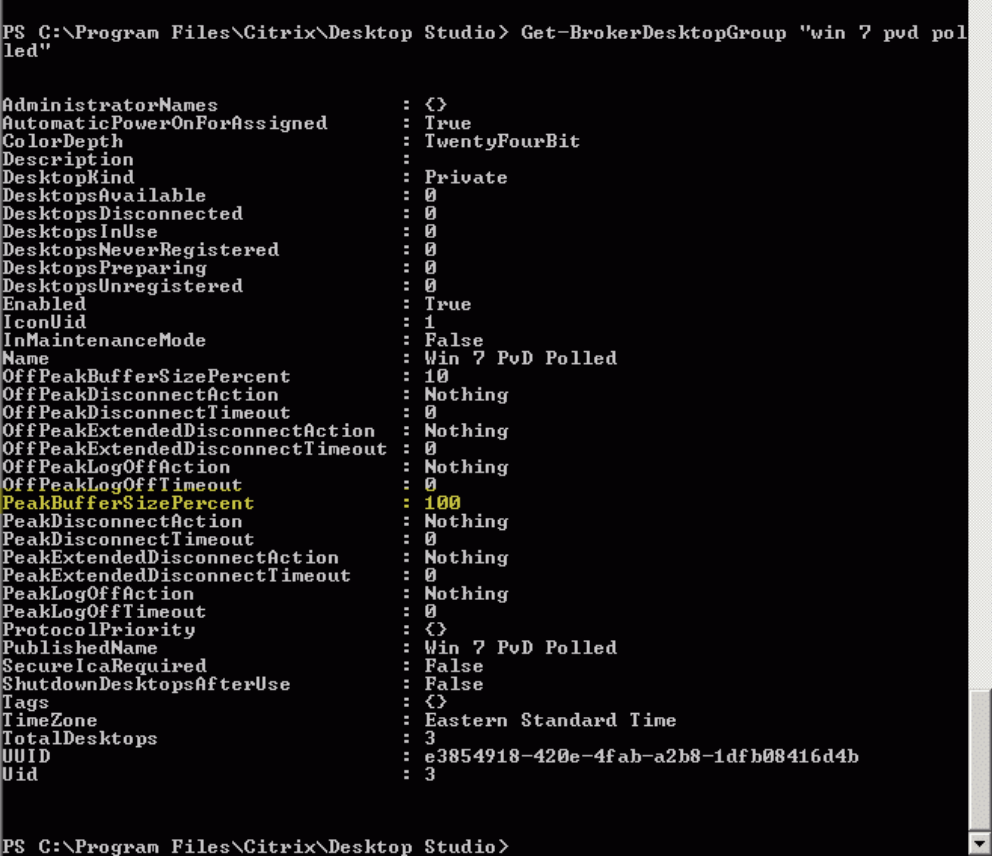
更改可能需要长达一小时才能生效。
要在用户注销后关闭 VDA,请输入:
# Set-BrokerDesktopGroup "Desktop Group Name" -ShutDownDesktopsAfterUse $True
要在高峰时段重新启动 VDA,以便用户注销后它们即可供用户使用,请输入:
# Set-BrokerDesktopGroup "Desktop Group Name" -AutomaticPowerOnForAssignedDuringPeak $True
会话
注销或断开会话
- 在左侧窗格中选择交付组。
- 选择一个交付组,然后在操作栏中选择查看计算机。
- 在中间窗格中,选择计算机,然后在操作栏中选择查看会话,再选择一个会话。
- 或者,在中间窗格中,选择会话选项卡,然后选择一个会话。
- 要注销会话,请在操作栏中选择注销。会话将关闭,用户将注销。除非计算机分配给特定用户,否则它将可供其他用户使用。
- 要断开会话,请在操作栏中选择断开连接。应用程序将继续在该会话中运行,并且计算机仍分配给该用户。用户可以重新连接到同一台计算机。
您可以为单会话操作系统计算机配置电源状态计时器,以自动处理未使用的会话。有关详细信息,请参阅电源管理计算机。
向交付组发送消息
- 在左侧窗格中选择交付组。
- 选择一个交付组,然后在操作栏中选择查看计算机。
- 在中间窗格中,选择要向其发送消息的计算机。
- 在操作栏中,选择查看会话。
- 在中间窗格中,选择所有会话,然后在操作栏中选择发送消息。
- 输入您的消息并单击“确定”。如果需要,可以指定严重性级别。选项包括“严重”、“问题”、“警告”和“信息”。
此外,您还可以使用 Citrix Director 发送消息。有关详细信息,请参阅向用户发送消息。
在交付组中配置会话预启动和会话保持
这些功能仅在多会话操作系统计算机上受支持。
会话预启动和会话保持功能通过在用户请求会话之前启动会话(会话预启动)以及在用户关闭所有应用程序后保持应用程序会话处于活动状态(会话保持)来帮助指定用户快速访问应用程序。
默认情况下,不使用会话预启动和会话保持。会话在用户启动应用程序时开始(启动),并保持活动状态,直到会话中最后一个打开的应用程序关闭。
注意事项:
- 交付组必须支持应用程序,并且计算机必须运行适用于多会话操作系统的 VDA,最低版本为 7.6。
- 这些功能仅在使用适用于 Windows 的 Citrix Workspace 应用程序时受支持,并且还需要额外的 Citrix Workspace 应用程序配置。有关说明,请在适用于您的 Windows 版 Citrix Workspace 应用程序的产品文档中搜索“会话预启动”。
- 不支持适用于 HTML5 的 Citrix Workspace 应用程序。
- 使用会话预启动时,如果用户的计算机进入挂起或休眠模式,则预启动不起作用(无论会话预启动设置如何)。用户可以锁定其计算机/会话。但是,如果用户从 Citrix Workspace 应用程序注销,则会话将结束,并且预启动不再适用。
- 使用会话预启动时,物理客户端计算机无法使用挂起或休眠电源管理功能。客户端计算机用户可以锁定其会话,但不得注销。
- 预启动和保持会话会占用并发许可证,但仅在连接时。如果使用用户/设备许可证,则许可证有效期为 90 天。默认情况下,未使用的预启动和保持会话会在 15 分钟后断开连接。可以在 PowerShell 中配置此值(
New/Set-BrokerSessionPreLaunchcmdlet)。 - 精心规划和监控用户活动模式对于使这些功能相互补充至关重要。最佳配置需要在为用户提供更早的应用程序可用性所带来的好处与保持许可证使用和资源分配的成本之间取得平衡。
- 您还可以在 Citrix Workspace 应用程序中为一天中的某个预定时间配置会话预启动。
未使用的预启动会话和滞留会话保持活动状态的时长
如果用户未启动应用程序,可以通过多种方式指定未使用的会话保持活动状态的时长:配置的超时和服务器负载阈值。您可以配置所有这些选项。首先发生的事件将导致未使用的会话结束。
-
超时: 配置的超时指定未使用的预启动会话或滞留会话保持活动状态的分钟数、小时数或天数。如果配置的超时时间过短,预启动会话将在为用户提供更快的应用程序访问优势之前结束。如果配置的超时时间过长,则传入的用户连接可能会被拒绝,因为服务器没有足够的资源。
您只能通过 SDK 启用此超时(
New/Set-BrokerSessionPreLaunchcmdlet),而不能通过管理控制台启用。如果禁用此超时,它将不会显示在该交付组的控制台显示中或“编辑交付组”页面中。 -
阈值: 根据服务器负载自动结束预启动会话和滞留会话可确保会话尽可能长时间地保持打开状态,前提是服务器资源可用。未使用的预启动会话和滞留会话不会导致连接被拒绝,因为当新用户会话需要资源时,它们会自动结束。
您可以配置两个阈值:交付组中所有服务器的平均负载百分比,以及组中单个服务器的最大负载百分比。当超过某个阈值时,处于预启动或滞留状态时间最长的会话将结束。会话将以分钟为间隔逐个结束,直到负载降至阈值以下。当超过阈值时,不会启动新的预启动会话。
未向 Controller 注册 VDA 的服务器以及处于维护模式的服务器被视为已满载。计划外中断会导致预启动会话和滞留会话自动结束以释放容量。
启用会话预启动
- 选择一个组,然后在操作栏中单击“编辑交付组”。
-
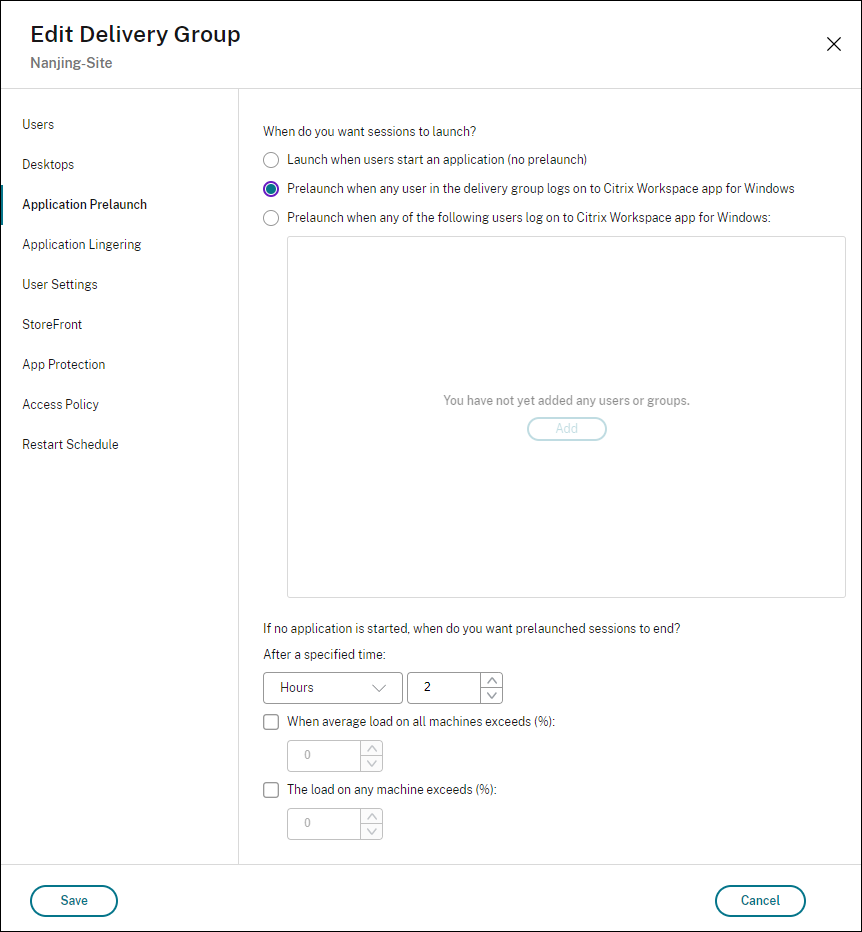
在“应用程序预启动”页面上,通过选择会话启动时间来启用会话预启动:
- 当用户启动应用程序时。这是默认设置。会话预启动已禁用。
- 当交付组中的任何用户登录到适用于 Windows 的 Citrix Workspace 应用程序时。
- 当用户和用户组列表中的任何人登录到适用于 Windows 的 Citrix Workspace 应用程序时。如果选择此选项,请务必同时指定用户或用户组。
-
当用户启动应用程序时,预启动会话将替换为常规会话。如果用户未启动应用程序(预启动会话未使用),则以下设置会影响该会话保持活动状态的时长。
- 当指定的时间间隔过去时。您可以更改时间间隔(1-99 天、1-2376 小时或 1-142,560 分钟)
- 当交付组中所有计算机的平均负载超过指定百分比(1-99%)时
- 当交付组中任何计算机的负载超过指定百分比(1-99%)时
总结:预启动会话将保持活动状态,直到发生以下事件之一:用户启动应用程序、指定时间过去或超过指定的负载阈值。
启用会话延迟
- 在左侧窗格中选择 交付组。
- 选择一个组,然后单击操作栏中的 编辑交付组。
-
在 应用程序延迟 页面上,通过选择 保持会话活动直到 来启用会话延迟。
应用程序延迟会话页面(/en-us/citrix-virtual-apps-desktops/media/dws-session-3.png)
-
如果用户不启动其他应用程序,多个设置会影响延迟会话保持活动状态的时间。
- 当指定的时间间隔过去时。您可以更改时间间隔:1-99 天、1-2376 小时或 1-142,560 分钟。
- 当交付组中所有计算机的平均负载超过指定百分比时:1-99%。
- 当交付组中任何计算机的负载超过指定百分比时:1-99%。
总结:延迟会话将保持活动状态,直到发生以下事件之一:用户启动应用程序、指定时间过去或超过指定的负载阈值。
控制从维护模式下的计算机断开连接时的会话重新连接
注意:
此功能仅在 PowerShell 中可用。
您可以控制在维护模式下从计算机断开连接的会话是否允许重新连接到交付组中的计算机。
在版本 2106 之前,不允许单会话池桌面会话重新连接到处于维护模式的计算机。从版本 2106 开始,您可以配置交付组以允许或禁止在从处于维护模式的计算机断开连接后重新连接(无论会话类型如何)。
创建或编辑交付组时 (New-BrokerDesktopGroup, Set-BrokerDesktopGroup),请使用 -AllowReconnectInMaintenanceMode <boolean> 参数以允许或禁止从处于维护模式的计算机断开连接的计算机重新连接。
- 设置为 true 时,会话可以重新连接到组中的计算机。
- 设置为 false 时,会话无法重新连接到组中的计算机。
默认值:
- 单会话:已禁用
- 多会话:已启用
配置会话漫游
默认情况下,交付组已启用会话漫游。会话随用户在客户端设备之间漫游。当用户启动会话然后移动到另一台设备时,将使用相同的会话,并且应用程序可同时在两台设备上使用。您可以在多台设备上查看应用程序。无论设备如何或是否存在当前会话,应用程序都会随之移动。通常,分配给应用程序的打印机和其他资源也会随之移动。或者,您可以使用 PowerShell。有关详细信息,请参阅会话漫游。
配置应用程序的会话漫游
要配置应用程序的会话漫游,请执行以下步骤:
-
在控制台中,选择左侧窗格中的 交付组。
-
选择一个组,然后在操作栏中选择 编辑交付组。
-
在 用户 页面上,通过选中 会话随用户在设备之间漫游 复选框来启用会话漫游。
- 启用后,如果用户启动应用程序会话然后移动到另一台设备,则会使用相同的会话,并且该会话在两台设备上都可用。禁用后,会话不再在设备之间漫游。
-
选择 确定 以应用更改并关闭窗口。
配置桌面会话漫游
要为桌面配置会话漫游,请执行以下步骤:
-
在控制台中,在左侧窗格中选择 交付组。
-
选择一个组,然后在操作栏中选择 编辑。
-
在 桌面 页面上,选择桌面并选择 编辑。
-
通过选中 会话漫游 复选框来启用会话漫游。
- 启用后,如果用户启动桌面然后移动到另一台设备,则会使用相同的会话,并且应用程序在两台设备上都可用。禁用后,会话不再在设备之间漫游。
选择 确定 以应用更改并关闭窗口。
应用程序
查看应用程序并将其添加到交付组。
- 在控制台中,在左侧窗格中选择 交付组。
- 选择一个组。如果此组包含应用程序,查看应用程序将显示在操作栏中。
- 选择查看应用程序。您将被定向到应用程序节点,其中显示此组中所有可用的应用程序。
- 要向此组添加更多应用程序,请转到交付组节点,选择该组,然后在操作栏中选择添加应用程序。
从 VDA 上的 Citrix Secure Access™ 客户端无缝登录
您可以从 VDA 上的 Citrix Secure Access (CSA) 客户端使用单点登录 (SSO) 无缝登录到 Citrix Workspace,以访问 Citrix Secure Private Access。此功能适用于单会话和多会话 VDA。
实现此目的的步骤如下:
-
编辑现有交付组以启用 SPA SSO。例如,
Set-BrokerDesktopGroup -Name <String> -SpaSsoEnabled 1 -
使用 Get -BrokerDesktopGroup PowerShell 命令检查交付组的 SPA SSO 状态。例如:
Get-BrokerDesktopGroup -Name <String> -property 'SpaSsoEnabled' - 在 SPA 中,创建应用程序和策略。请参阅配置 TCP/UDP 应用程序和配置应用程序访问策略。
- RDP 到单会话或多会话 VDA 并安装最新的 CSA 代理。
- 打开 Citrix Workspace 并登录到单会话或多会话 VDA。
故障排除
-
未向交付控制器注册的 VDA 在启动代理会话时不会被考虑在内。这会导致原本可用的资源利用不足。VDA 未注册的原因有很多,其中许多问题管理员都可以进行故障排除。详细信息显示在目录创建向导中以及将目录添加到交付组后提供故障排除信息。
创建交付组后,交付组的详细信息窗格会显示可以注册但未注册的计算机数量。例如,一台或多台计算机已开机且未处于维护模式,但当前未向控制器注册。查看“未注册但应注册”的计算机时,请查看详细信息窗格中的故障排除选项卡,以了解可能的原因和建议的纠正措施。
有关功能级别消息,请参阅VDA 版本和功能级别。
有关 VDA 注册故障排除的信息,请参阅CTX136668。
- 在交付组显示中,详细信息窗格中的已安装的 VDA 版本可能与计算机上安装的实际版本不同。计算机的 Windows“程序和功能”显示屏会显示实际的 VDA 版本。
- 对于状态为电源状态未知的计算机,请参阅CTX131267 以获取指导。 ```