Troubleshoot
Introduction
Resource locations contain the machines that deliver desktops and apps. Those machines are created in catalogs, so the catalogs are considered part of the resource location. Each resource location also contains Cloud Connectors. Cloud Connectors enable Citrix Cloud to communicate with the resource location. Citrix installs and updates the Cloud Connectors.
Optionally, you can initiate several Cloud Connector and resource location actions. See Resource locations
Citrix DaaS Flex has troubleshooting and supportability tools that can help resolve configuration and communication issues with VDAs. For example, creating a catalog might fail, or users might be unable to start their desktop or apps.
This troubleshooting includes gaining access to your Citrix DaaS Flex subscription through a bastion machine or direct RDP. After gaining access to the subscription, you can use Citrix supportability tools to locate and resolve issues.
For details, see:
- Troubleshooting catalog using UI
- VDA troubleshooting using a bastion or direct RDP
- Bastion access
- Direct RDP access
Troubleshooting catalog using UI
In the event the customer experiences problems with the catalog in Citrix DaaS Flex, the first option is to use the troubleshooting tool that enables customer administrators to diagnose and resolve issues in Flex catalogs directly from the Quick Deploy console.
Notes:
This feature is currently available for Windows machines only.
To use this option the machines must be able to resolve *.blob.core.windows.net to upload the resultant logs.
The feature provides machine level troubleshooting actions, secure access options, and execution history in a single, guided workflow.
- Sign in to the Quick Deploy console.
- Navigate to Microsoft Azure catalogs.
- Select a Flex catalog that needs to troubleshoot, and select Machines tab.
-
Select the relevant machine, and click on Troubleshooting actions.
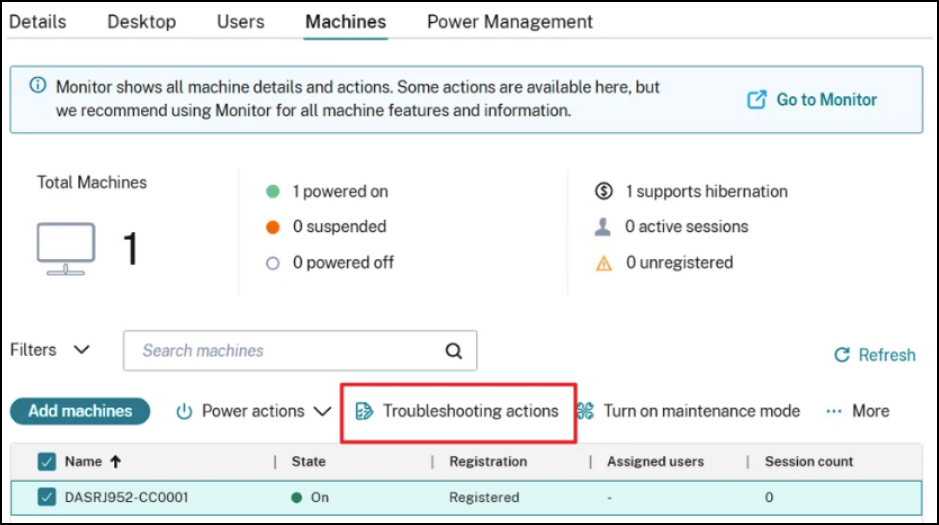
-
Click Run action and specify the action.
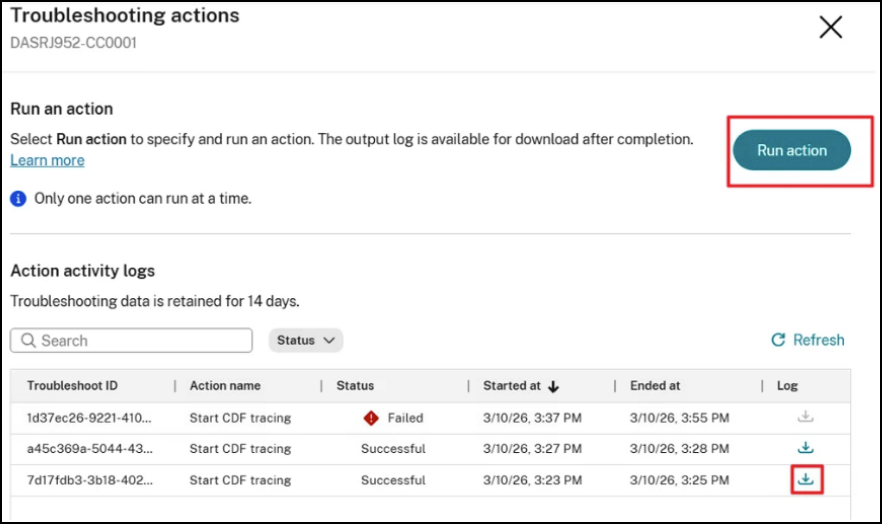
After running an action, a new activity entry appears in the logs with Running status, which updates to Successful or Failed upon completion, then you can download the output log.
Troubleshooting and Support page
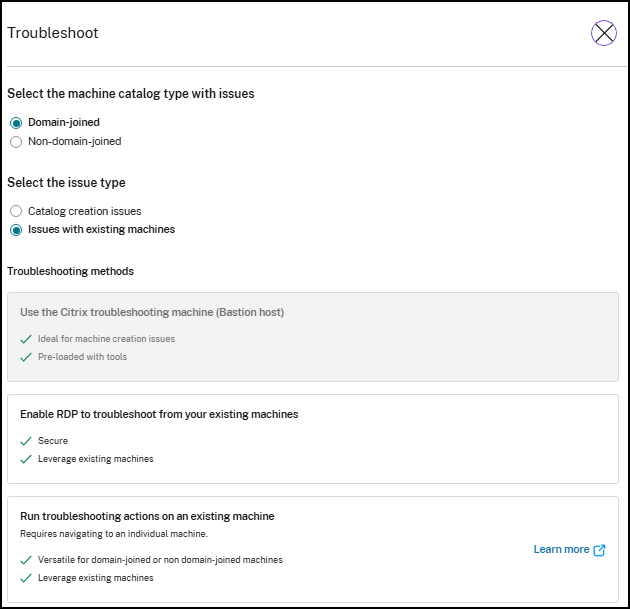
There are two additional options for troubleshooting:
- Using bastions
- Enabling RDP access
Both options require the opening of the RDP port, 3389, to perform troubleshooting actions. You must consent to opening these ports prior to the port being opened. Citrix automates the opening and closing of the necessary ports to carry out troubleshooting operations and restricting the machines that can be accessed during these operations.
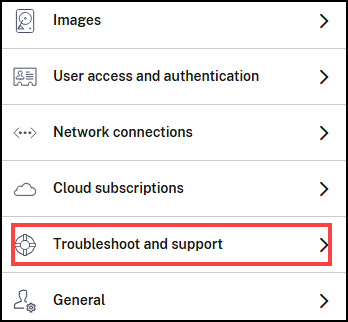
Navigate to Troubleshoot and support > View troubleshooting options to access the troubleshooting options page.
VDA troubleshooting using a bastion or direct RDP
Note:
These supportability features are valid only for domain-joined machines. If the machines in your catalogs are not domain joined, request troubleshooting help from Citrix Support.
Access methods
Two supportability access methods are provided:
-
Access your resources through a bastion machine in the Citrix DaaS Flex subscription. The bastion is a single point of entry that allows access to the machines in the subscription. It provides a secure connection to those resources by allowing remote traffic from IP addresses in a specified range. The bastion machine is intended for short-term use. This method is intended for issues involving the creation of catalogs or image machines.
To access a bastion machine:
- Create the bastion machine.
- Download an RDP file.
- RDP to the bastion machine.
- Connect from the bastion machine to the other Citrix machines in your subscription.
-
Direct RDP access to the machines in the customer’s dedicated Citrix DaaS Flex subscription. To permit RDP traffic, port 3389 must be defined in the Network Security Group.
This method is intended for catalog issues other than creation, such as users unable to start their desktops.
Note:
As an alternative to these two access methods, contact Citrix Support for assistance.
Bastion access
- From the Citrix DaaS Flex dashboard, expand Troubleshoot and Support.
- Click View troubleshooting options.
- On the Troubleshoot page, select Catalog creation issues.
- Select Use the Citrix troubleshooting machine (Bastion host) as the Troubleshooting method.
-
On the Troubleshoot with Bastion Machine page, select the catalog.
- If the machines in the selected catalog are not domain joined, you’re instructed to contact Citrix Support.
- If a bastion machine has already been created with RDP access to the selected catalog’s network connection, then select Download RDP File.
- Type a username and password that you will use to log in when you RDP to the bastion machine. See Microsoft’s Password requirements for more information. Do not use Unicode characters in the username.
-
The Bastion access duration is displayed. Citrix requires restricting Bastion access to a specific time-based duration. You can choose between 2, 4, and 8-hour durations. Once the time expires, any open Bastion sessions, firewall rules, and network routes will be closed.
- The remaining time for your Bastion session will be displayed within the active Bastion troubleshooting configuration pane.
- The RDP access range is displayed. Citrix requires restricting RDP access to a smaller range than permitted by the network connection. Select Add IP ranges and then enter the desired range (max /24). You can create up to 5 unique ranges.
-
Select an IP address range for the bastion machine. This controls which subnet the bastion’s network interface is placed in, so that it can reach the machines you need to troubleshoot in a segmented network.
The IP address range dropdown lists every CIDR block in the selected network connection’s address space. Each entry shows its available capacity, for example “231 of 251 free”. Choose the range that can reach the subnet you want to troubleshoot.
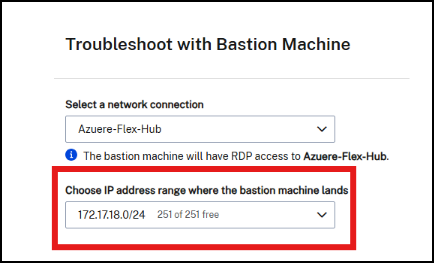
Keep the following behaviors in mind:
- If you leave the field empty: Citrix omits the placement preference, and Azure allocates an address dynamically. This is the default behavior that applied before this option was available.
- If the range shows no free addresses: A range reporting 0 free addresses remains selectable but displays a warning. The count is advisory, because the address is allocated when the bastion is created. If allocation fails, an error naming the rejected CIDR block appears under the dropdown. Select a different range and try again.
- If you change the network connection: Citrix clears your IP address range selection and reloads the list for the new connection.
- After the bastion is created: The bastion details blade shows the Bastion IP address range and Bastion private IP address, confirming the range used and the exact address assigned.
-
Click Create Bastion Machine.
- When the bastion machine is successfully created, the page title changes to Bastion – connection.
- If the bastion machine creation fails, click Delete at the bottom of the failure notification page and try to create the bastion machine again.
- Click Edit to change the RDP range restriction after the bastion machine is created. Enter the new value and then click the check mark to save the change.
- Click Download RDP File.
- Open the RDP file to RDP to the bastion, using the credentials you specified when creating the bastion.
- Connect from the bastion machine to the other Citrix machines in the subscription. You can then collect logs and run diagnostics.
Bastion machines are powered on when they are created. Bastion machines are powered off automatically if they remain idle after startup. The machines are deleted automatically after several hours. You can power manage or delete a bastion machine, using the buttons at the bottom of the page. If you choose to delete a bastion machine, you must acknowledge that any active sessions on the machine will end automatically. Also, any data and files that were saved on the machine will be deleted.
Direct RDP access
- From the Citrix DaaS Flex dashboard, expand Troubleshoot and Support.
- Click View troubleshooting options.
- On the Troubleshoot page, select Issues with existing machines.
- Select Enable RDP to troubleshoot from your existing machines as the troubleshooting method.
-
On the Troubleshoot with RDP Access page, select the catalog’s network connection.
- If RDP has already been enabled for the selected catalog’s network connection, then connect to machines using your Active Directory administrator credentials. You can then collect logs and run diagnostics.
-
The RDP access duration is displayed. Citrix requires restricting RDP access to a specific time-based duration. You can choose between 2, 4, and 8-hour durations. Once the time expires, any open RDP sessions, firewall rules, and network routes will be closed.
- The remaining time for your RDP session will be displayed within the active RDP troubleshooting configuration pane.
- The RDP access range is displayed. Citrix requires restricting RDP access to a smaller range than permitted by the network connection. Select Add IP ranges and then enter the desired range. (max /24). You can create up to 5 unique ranges.
-
Click Enable RDP Access.
- When RDP access is successfully enabled, the page title changes to RDP Access – connection name.
- If RDP access is not successfully enabled, click Retry Enabling RDP at the bottom of the failure notification page.
- Connect to machines using your Active Directory administrator credentials. You can then collect logs and run diagnostics.
Get help
If you still have problems, open a ticket by following the instructions in How to Get Help and Support.