Delegated administration
A new built-in Quick Deploy Administrator role for enabling organizations to grant specific permissions to Flex administrators without requiring them to have full administrative access across the entire Citrix Cloud platform, thereby enhancing security and operational efficiency.
The benefits for Citrix Cloud Full Administrators are:
- Ability to securely delegate DaaS Flex-specific tasks to other team members.
- Improved organizational security and compliance.
The benefits for designated Flex Admins are:
- Gain the necessary administrative control over DaaS Flex-related operations (for example, provisioning, monitoring, reporting) without being overwhelmed by unrelated permissions.
- Empowerment to manage their specific area effectively.
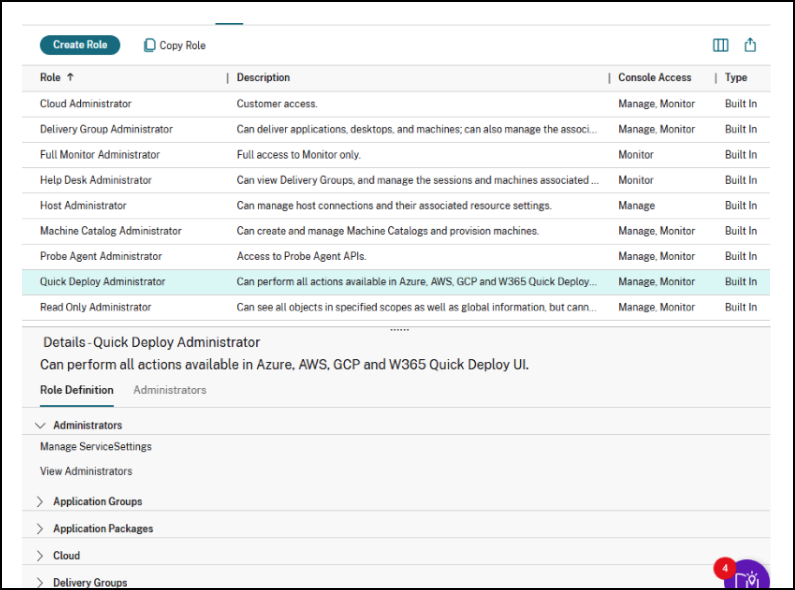
The new Quick Deploy Administrator role is accessible through Identity and access management.
Permission differences between full DaaS Cloud Administrator and Quick Deploy Administrator:
| Node | Cloud Admin Access | Quick Deploy Admin Access |
|---|---|---|
| StoreFronts | Yes | Read-only |
| Administrators | Yes | Read-only |
| Cost Management | Yes | No |
| Director/Monitor | Yes | No |
| SecureBrowser | Yes | No |
| Advisor | Yes | No |
| Download | Yes | Yes |
| Backup and restore | Yes | No |
| Quick Deploy | Yes | Yes |
| Home | Yes | Yes |
| Search | Yes | Yes |
| Application Groups | Yes | Yes |
| Application Packages | Yes | Yes |
| Delivery Group | Yes | Yes |
| Entitlement Policy Rules | Yes | Yes |
| Hosting | Yes | Yes |
| Images | Yes | Yes |
| Logging | Yes | Yes |
| Machine Catalogs | Yes | Yes |
| Policies | Yes | Yes |
| Service Accounts | Yes | Yes |
| Settings | Yes | Yes |
| UPM | Yes | Yes |
| Zone | Yes | Yes |
Custom role and granular permissions in Quick Deploy
In a custom role of Quick Deploy for Azure, the granular permissions appear under the Quick Deploy — Microsoft Azure group. The group contains five permission categories. For each category, choose No Access, Read Only, or Manage. When you choose Manage, you can then select the individual actions to allow.
| Category | Read Only allows | Manage actions |
|---|---|---|
| Catalogs | View Quick Deploy catalogs | Create catalogs, Edit catalogs, Delete catalogs, Troubleshoot catalogs |
| Images | View Quick Deploy images | Build images, Import images, Edit images, Delete images |
| Network connections | View Quick Deploy network connections | Create network connections, Edit network connections, Delete network connections, Troubleshoot network connections |
| Subscriptions | View Quick Deploy subscriptions | Link subscriptions, Edit subscriptions, Rotate subscription credentials, Delete subscriptions |
| Troubleshoot and support | View Quick Deploy bastions and RDP access | Create bastions and RDP access, Edit bastions and RDP access, Delete bastions and RDP access |
Note:
Read access is inclusive. Granting a broader permission automatically includes the read access it depends on, so you do not need to grant every read individually. For example, the ability to view catalogs also grants read access to the related images, network connections, and subscriptions, and every Manage action includes its own read access (for example, Edit catalogs includes View catalogs).
How to create a read-only Quick Deploy administrator
For a read-only reviewer across both standard DaaS Studio console and Quick Deploy, you can assign the built-in Read-only Administrator role, which already includes Quick Deploy read access.
In some situations, your company may have the policy to limit administrators to review Quick Deploy resources and settings only. Follow the steps below to create a custom dedicated Quick Deploy read-only role:
- Sign in to Citrix Cloud and open Web Studio.
- Select Administrators, and then select the Roles tab.
- Select Create Role.
- Enter a Name (for example, XYZ Company Read-only Quick Deploy Admin) and a Description for the role.
- Under Console Access, select Manage.
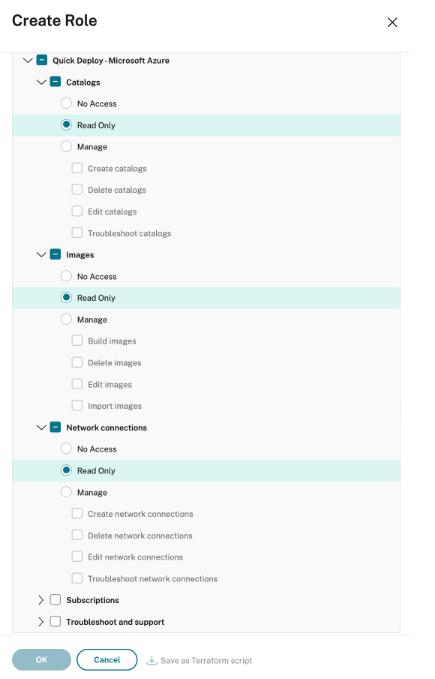
- Under Permissions, expand Quick Deploy — Microsoft Azure.
- Expand and set each subcategory — Catalogs, Images, Network connections, Subscriptions, and Troubleshoot and support — to Read Only.
- Select OK to save the role.
Tip:
Select Save as Terraform script in the role wizard to capture the role as infrastructure-as-code.
Create a Quick Deploy custom role with granular permissions
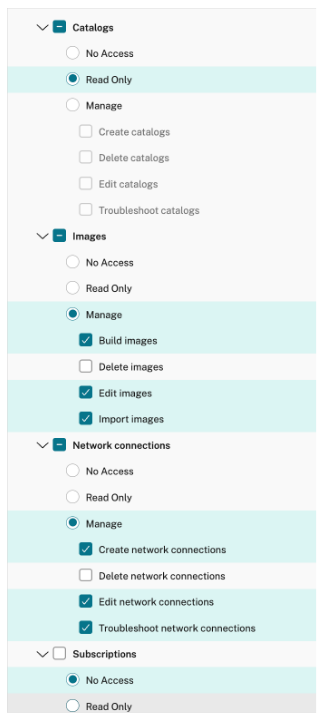
Use a custom role to grant a precise subset of permissions. The following example creates an image-and-network operator role that can manage images and network connections, view catalogs, and has no access to subscriptions.
- In Web Studio, select Administrators > Roles, and then select Create Role.
- Enter a Name and a Description for the role.
- Under Console Access, select Manage.
-
Under Permissions, expand Quick Deploy — Microsoft Azure, and then configure each subcategory:
- Catalogs: select Read Only.
- Images: select Manage, and then select the actions to allow (for example, Build images, Import images, and Edit images).
- Network connections: select Manage, and then select the actions to allow (for example, Create network connections, Edit network connections, and Troubleshoot network connections).
- Subscriptions: select No Access.
- Troubleshoot and support: select Read Only or Manage, as required.
- Select OK to save the role.
Note:
The individual action check boxes for a subcategory become available only after you select Manage for that subcategory.
To review or change an existing role:
- Select Administrators > Roles.
- Select the role. Its Quick Deploy permissions appear on the Role Definition tab in the lower panel.
- Select Edit Role to change the permissions, or Copy Role to base a new role on it.
Assign a custom Quick Deploy role to an administrator
To assign a Quick Deploy role to an administrator:
- In the Citrix Cloud console, navigate to Identity and access management > Administrators.
- Add an administrator, or select an existing administrator and select Edit access.
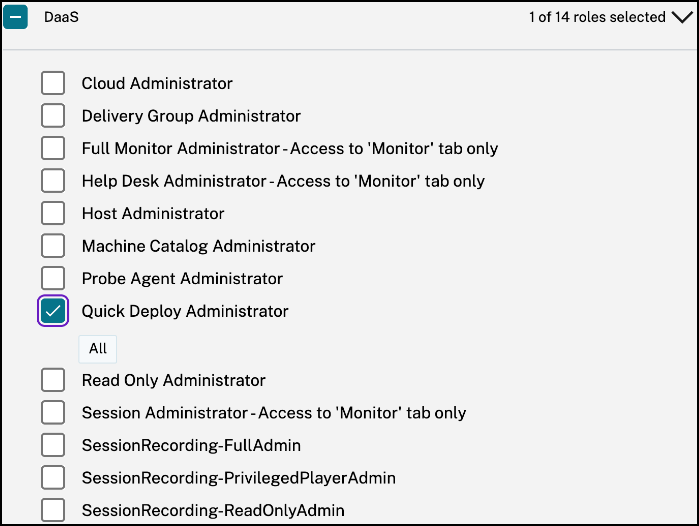
- Select the Custom access radio button, and then expand the DaaS section.
- Assign the role you created, paired with the All scope.
- Save your changes.
Review the Quick Deploy delegated administrator experience
When a delegated administrator signs in, the console reflects their permissions:
- The navigation shows only the nodes they can use — typically Home, Quick Deploy, and Settings for personal preferences.
- Under Quick Deploy > Microsoft Azure, the Catalogs and dashboard menu (Images, Network connections, Cloud subscriptions, Troubleshooting, and General) reflects the subcategories the administrator holds.
- With read-only access, resources are visible, but change actions such as Create catalog, Edit, Delete, and Add machines are hidden or unavailable.
- Actions the administrator cannot perform do not appear. A button, tab, or menu item is shown only when the service accepts the corresponding request.
Functions reserved for full administrators
Some tenant-wide functions are not delegated through granular Quick Deploy permissions. They continue to require a Cloud Administrator or Quick Deploy Administrator, or, where noted, a full Citrix Cloud administrator:
- User profiles (profile management, the dashboard panel, and the catalog profile-store step).
- User access and authentication (the panel and workspace authentication settings).
- Consumption (consumption status, panel, and alerts).
- Global site settings (editing; other administrators see these settings as read-only).
- Cancel subscription — requires a full Citrix Cloud administrator.
Limitations
- Object scopes are not supported for Quick Deploy in this release. Always pair Quick Deploy custom roles with the All scope.
- Granular Quick Deploy permissions are available only to DaaS Flex for Azure customers.
In this article
- Custom role and granular permissions in Quick Deploy
- How to create a read-only Quick Deploy administrator
- Create a Quick Deploy custom role with granular permissions
- Assign a custom Quick Deploy role to an administrator
- Review the Quick Deploy delegated administrator experience
- Functions reserved for full administrators
- Limitations