View and Use Logs
| Method | Best For |
|---|---|
| Citrix Director UI | Day-to-day monitoring, searching by user/machine/event |
| CLI scripts (Log Server) | Bulk downloads, automated workflows, support escalations |
Configure the LOCAL_DOWN_ONLY Setting
The LOCAL_DOWN_ONLY setting controls whether Citrix Director/Monitor can retrieve AOT logs remotely from the Log Server. The way this setting is configured depends on your deployment type.
-
Windows — Edit the
StartLogServer.batfile. This file contains all configuration parameters used to start the AOT Log Server container, includingLOCAL_DOWN_ONLY. -
Linux — Edit the
StartLogServer.shfile. The sameLOCAL_DOWN_ONLYvariable applies with identical behavior. -
Connector Appliance — The Connector Appliance does not use a start script.
LOCAL_DOWN_ONLYdefaults tofalse, enabling Citrix Director and Monitor to retrieve logs remotely without additional configuration.
Regardless of deployment type, the behavior of this setting is the same:
- When
LOCAL_DOWN_ONLY=false, the Log Server accepts remote log-viewing requests. This allows Citrix Director/Monitor to connect to the Log Server and display AOT logs directly in the Monitor UI. - When
LOCAL_DOWN_ONLY=true, the Log Server restricts log access to local-only connections. In this mode, you must connect directly to the Log Server machine to view logs, and Citrix Director/Monitor will not be able to retrieve or display logs.
Method 1 — Citrix Director
Prerequisites
-
LOCAL_DOWN_ONLY=falsemust be set in the Log Server start script. - Web Studio must be configured with the Log Server address, port, and AuthKey.
- Once Web Studio is saved, Director automatically receives the Log Server connection details.
Accessing the Logs Page
- Open Citrix Director.
- A new Logs item appears in the left navigation panel.
- Click Logs. If a Get Started screen appears, click Close.
Searching and Filtering
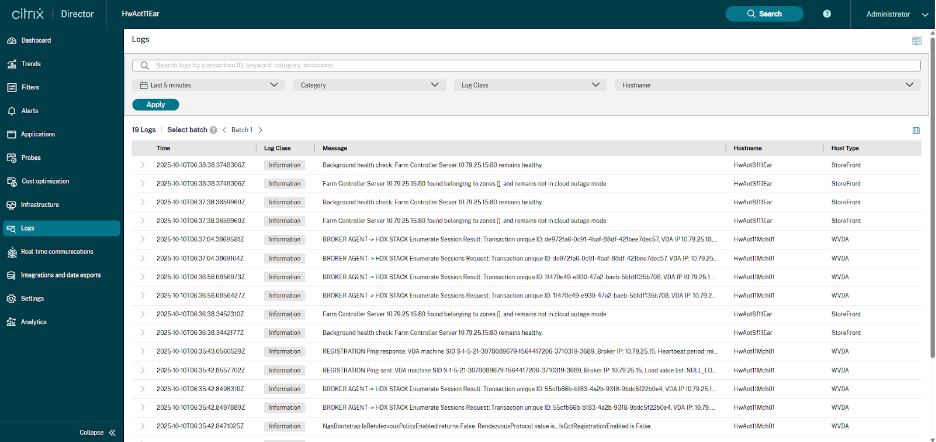
Free-text search — type any keyword: username, machine name (VDAWIN01), event keyword (registration, authentication), transaction IDs, or error message strings.
Time filter — narrow results to Last 5 minutes, Last 1 hour, Last 24 hours, or a custom range.
Category filter — filter by subsystem: Application launch, Registration, VDA configuration, Graphics, HDX™ Direct, ICA connection.
Log Class filter — filter by severity: Information, Warning, Error, Failure.
Hostname filter — drill into logs for a single specific machine.
Method 2 — CLI Scripts
Step 1 — Generate an AuthKey
# Linux
./GetAuthKey.sh <role-name>

# Windows
GetAuthKey.bat <role-name>
<!--NeedCopy-->
Replace <role-name> with any label (e.g., admin, support). The output is a long 32-bit hex string — copy and save it.
Step 2 — List Machines That Have Sent Logs
# Linux
./ListMachines.sh <AuthKey>

# Windows
ListMachines.bat <AuthKey>

# Remote (PowerShell)
Invoke-WebRequest -Uri "https://logserver_fqdn:8443/ctxlogserver/Download/ListMachine" `
  -Headers @{ AuthKey = "<AuthKey>" }
<!--NeedCopy-->
Step 3 — Download Logs by Time Range
# Linux
./DownloadLogsByTime.sh <AuthKey> <MachineName> <StartTime> <EndTime> <OutputFile>

# Example
./DownloadLogsByTime.sh ebac9b77... VDAWIN01 2025-01-01T00:00:00Z 2025-01-02T00:00:00Z logs.csv

# Windows
DownloadLogsByTime.bat <AuthKey> <MachineName> <StartTime> <EndTime> <OutputFile>
<!--NeedCopy-->
Note:
Time values must be in UTC format:
YYYY-mm-ddTHH:MM:SSZ
Step 4 — Download Logs by Keyword
# Linux
./DownloadLogsByWords.sh <AuthKey> <StartTime> <EndTime> "session launch" logs.csv

# Windows
DownloadLogsByWords.bat <AuthKey> <StartTime> <EndTime> "failed vda" logs.csv
<!--NeedCopy-->
Managing Auth Keys
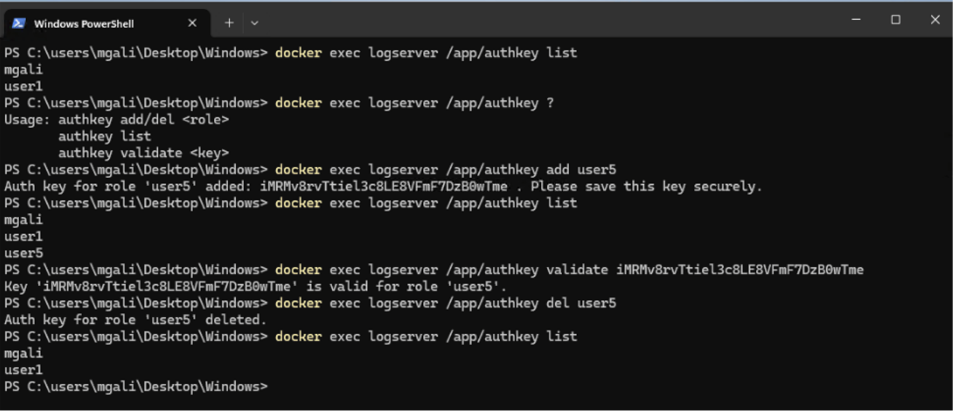
The AOT Log Server provides commands to manage authentication keys associated with different roles or users. These commands allow administrators to add, list, validate, and delete auth keys directly from the container. Use the available docker exec commands directly on the Log Server container.
| Action | Command |
|---|---|
| Add a new key | docker exec logserver /app/authkey add <RoleName> |
| List all keys | docker exec logserver /app/authkey list |
| Validate a key | docker exec logserver /app/authkey validate <key> |
| Delete a key | docker exec logserver /app/authkey del <RoleName> |
| View help | docker exec logserver /app/authkey ?? |
Log Server API Response Codes
| Code | Status | Meaning |
|---|---|---|
200 |
OK | Request succeeded |
400 |
Bad Request | Missing parameters, malformed headers, or missing required fields |
401 |
Not Authorized | IP address or AuthKey is not permitted to access the Log Server |
404 |
Not Found | API endpoint path is invalid or mistyped |
500 |
Internal Error | Server-side issue — commonly disk space exhaustion or memory pressure |