Configure Components to Forward Logs
AOT Configuration Methods
Beginning with CVAD 2507 CU1 and CVAD 2511, AOT is configured using one of three methods depending on the component. CWA is a special hybrid case — it requires Web Studio to set the log server address (propagated via StoreFront™) and a native registry key to enable the collection switch.
| Configuration Method | Target Component Type | Upload Path | Applicable Components |
|---|---|---|---|
| Web Studio (Centralized) | CVAD Core Components | Web Studio → Component → Telemetry Service → Log Server | DDC, StoreFront, VDA, Director |
| Telemetry PowerShell Cmdlets (Local) | Standalone CVAD Components That Rely on Telemetry Service | Component → Telemetry Service → Log Server | PVS, Session Recording Server, FAS, WEM |
| Component Native (Direct Upload) | Other Components That Do Not Rely on Telemetry Service | Component → Log Server (direct) | License Server, NetScaler® / Citrix Gateway |
| Web Studio + Component Native (Hybrid) | Citrix Workspace App (Special Case) | Web Studio → StoreFront → CWA → Log Server (direct) | CWA for Windows / HTML5 / Chrome OS |
Citrix Web Studio for on-premises and Citrix DaaS™ Settings for cloud provide a centralized location for configuring, centralizing, and forwarding Always On Tracing (AOT) logs across the site or sites. This setting defines where AOT logs are sent and automatically propagates the configuration to relevant components in the environment.
When you configure the log server in Web Studio:
- The configuration is written in the Site database.
- Delivery Controllers retrieve the updated settings and distribute them to the VDAs in the selected delivery groups.
- VDAs use the received configuration to forward their AOT logs to the specified log server.
- StoreFront that participates in AOT logging receives the necessary details through the same centralized mechanism.
- Director uses the provided AuthKey and log server details to query and display AOT logs for monitoring and troubleshooting.
This centralized approach removes the need to configure each component individually. You set up the log server details once in Web Studio, and Citrix automatically propagates the configuration across the site.
Configuring Web Studio propagates Log Server details automatically to DDC, VDA, StoreFront, Director, and CWA. You set this once. Citrix distributes it automatically.
On-Premises CVAD — Citrix Web Studio
- Sign in to Citrix Web Studio.
- Select Settings in the left pane.
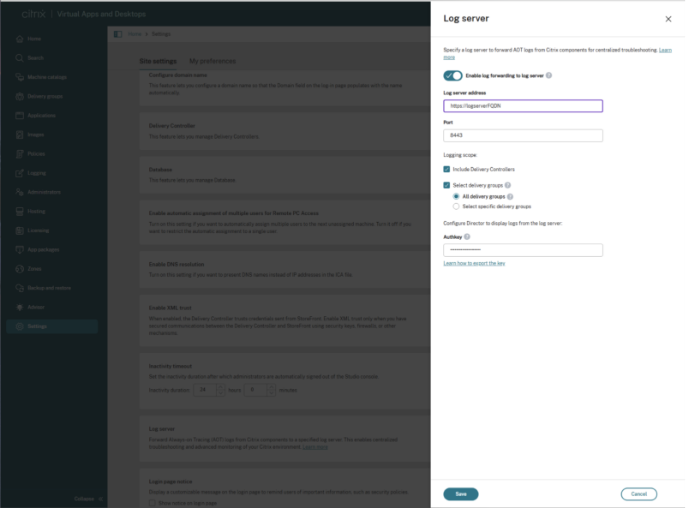
- In the Log server tile, click Add (or Edit if already configured).
- Turn on Enable log forwarding to log server.
- Enter the Log server address (FQDN) and Port. If using the Connector Appliance, enter port 443 only.
- Under Logging scope, choose which components forward logs.
- Enter the AuthKey generated from the Log Server (see Step 7 for Connector Appliance, Linux, or Windows).
- Click Save.
Warning:
Known Issue (fixed in 2603 / Web Studio 73): If you modify the Log Server address or port without re-entering the AuthKey, the key placeholder is cleared after saving — even though the save appears successful. This causes Director/Monitor to fail silently. Always re-enter and validate the AuthKey whenever editing Log Server settings.
Citrix DaaS — Cloud Environment
Note:
Citrix DaaS control plane components (Cloud DDC) do not forward logs to your customer-managed Log Server. Only components in your resource location (VDAs, StoreFront, Gateway) forward logs to your Log Server.
- Sign in to Citrix Web Studio for DaaS.
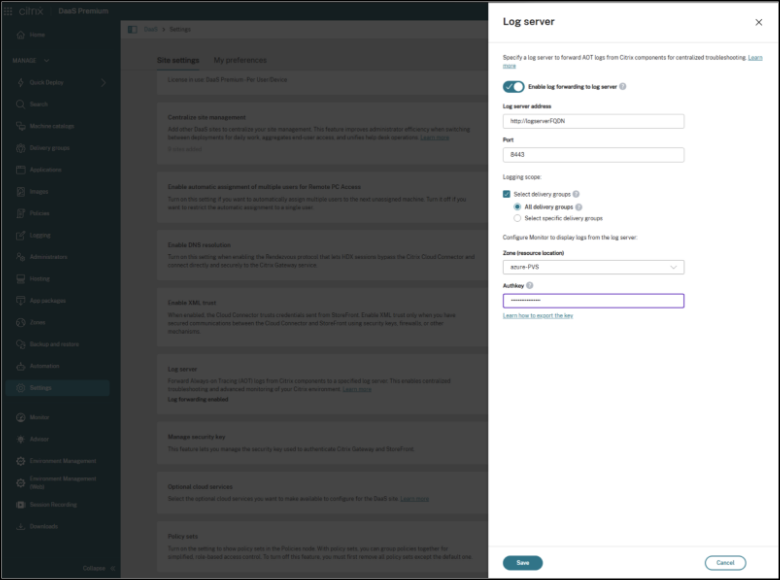
- Select Settings → Log server tile → click Add.
- Enter the Log server address and Port.
- Under Logging scope, select delivery groups.
- Select the Zone (resource location) where the Log Server is deployed.
- Enter the AuthKey generated from the Log Server (see Step 7 for Connector Appliance, Linux, or Windows).
- Click Save.
Log Forwarding Configuration for Other Components
Not all Citrix components receive Log Server configuration automatically through Web Studio or the Site database. Components such as Session Recording Server, FAS, PVS, License Server, NetScaler, and Cloud Connector (with on-prem DDC) operate independently and must be configured separately on each server. The steps below cover how to enable AOT log forwarding for each of these components.
Configure AOT Log Upload for StoreFront in Citrix Cloud Deployments
For Citrix Cloud (hybrid) deployments, when on-prem StoreFront is used (instead of Citrix Workspace) with Cloud DDC, StoreFront does not automatically receive the AOT Log Server configuration from the Cloud Connector. Run the following PowerShell command on the StoreFront server to manually configure the AOT Log Server endpoint.
Run the following command in StoreFront PowerShell:
# Enable
Enable-CitrixAOTUpload -AoTDataStoreEndpoint https://FQDNofLogServer:8443 -Role StoreFront

# Disable
Disable-CitrixAOTUpload
<!--NeedCopy-->
Note:
Execute this command only for Citrix Cloud (hybrid) deployments that use Cloud DDCs. Do not run this command for on-premises CVAD deployments where StoreFront is paired with on-premises Delivery Controllers, as the Log Server configuration is automatically synchronized and no manual configuration is required.
Session Recording Server
Enable-CitrixAOTUpload -AotDataStoreEndpoint https://YourLogServerFQDN:8443 -Role SessionRecording
Disable-CitrixAOTUpload
<!--NeedCopy-->
Federated Authentication Service (FAS)
Enable-CitrixAOTUpload -AotDataStoreEndpoint https://YourLogServerFQDN:8443 -Role FAS
Disable-CitrixAOTUpload
<!--NeedCopy-->
Provisioning Services (PVS)
Enable-CitrixAOTUpload -AotDataStoreEndpoint https://YourLogServerFQDN:8443 -Role PVS
Disable-CitrixAOTUpload
<!--NeedCopy-->
Note:
- If you have multiple servers, run this command on each one individually.
- Replace your Log Server FQDN with the actual FQDN of your Log Server, and port number 8443 with the actual port number that you have selected. This is just for example purposes.
Workspace Environment Management (WEM)
Enable-CitrixAOTUpload -AotDataStoreEndpoint https://YourLogServerFQDN:8443 -Role WEM
Disable-CitrixAOTUpload
<!--NeedCopy-->
License Server
Uploading AOT Logs for License Server
The Log Server URL needs to be updated inside the SLS config file, which can be found at the location C:\Program Files (x86)\Citrix\Licensing\WebServicesForLicensing\SimpleLicenseServiceConfig.xml with XML tag AotServerURL.
Example:
<AotServerURL>https://FQDNofLogServer:443/ctxlogserver/UploadCitrixLogStream</AotServerURL>
<!--NeedCopy-->
Note:
- When are logs generated in License Server? License Server AOT logs are generated only during specific events such as: License Server installation or upgrade, WSL (Citrix Web Services for Licensing) service restart, license activation failure, dark site activation failures, and clock-related licensing issues.
- If none of these events occurred recently, the absence of logs does not necessarily indicate a problem.
Quick Checks
- Confirm whether a qualifying event (restart, upgrade, activation issue, etc.) occurred recently.
- Restart the Citrix Web Services for Licensing service and allow up to one hour for upload processing.
- Verify the AOT Log Server URL is configured correctly.
- Confirm the Citrix Web Services for Licensing service is running.
- Check:
C:\Program Files (x86)\Citrix\Licensing\LS\resource\aot— if the file contains data, logs may be waiting for upload.
Note:
- License Server AOT logging is event-driven, not continuous. It is normal to see no logs when no qualifying events have occurred.
- The License Server periodically uploads the logs to the AOT Log Server automatically.
Cloud Connector
Configure AOT Logs Upload for Citrix Connector
To collect Cloud Connector logs in the AOT Log Server, the following requirements apply:
- Cloud Connector must be on version 6.169.0.22492 or later.
- In Cloud DDC deployments, Log Server configuration details are automatically synchronized to the registry with the May release, and no manual configuration is required.
- In hybrid deployments (on-prem DDC), manual registry configuration is required to enable log collection. Create the following registry entries on the Cloud Connector machine:
- Path:
HKLM\Software\Citrix\ConfigSyncService - Entries:
-
LogServerEnabled(REG_DWORD) =1 -
LogServerEndpoint(REG_SZ) =https://<logserver-fqdn>:<port>
-
- Path:
NetScaler Gateway
Step 1 — SSH into NetScaler and Enter Shell
shell
<!--NeedCopy-->
Step 2 — Navigate to the Analytics Config Directory
cd /var/analytics_conf
<!--NeedCopy-->
Step 3 — Generate the Schema File
Run the interactive Python script to define HTTP headers and payload attributes:
python auditlog_schema_generator_for_hec_export.py
<!--NeedCopy-->
The script prompts for fields like Auth-Token, Content-type, User-agent, Role, HostName, and MachineIP. Each can be included or excluded and given aliases.
Snippet of the output generated by this script
root@Raju-adc2# python auditlog_schema_generator_for_hec_export.py
Schema Builder: Follow the prompts to define your schema.
Include 'Auth-Token'? (Y/n):
Enter the display name (alias) for 'Auth-Token' (press Enter to keep as is): Authkey
'Auth-Token' can only go in 'header'. Automatically selected.
Include 'HostName'? (Y/n): n
Include 'Content-type'? (Y/n): y
Enter the display name (alias) for 'Content-type' (press Enter to keep as is):
'Content-type' can only go in 'header'. Automatically selected.
Default value for 'Content-type' is 'application/json'.
Do you want to change it? (y/N):
Include 'User-agent'? (Y/n):
Enter the display name (alias) for 'User-agent' (press Enter to keep as is):
'User-agent' can only go in 'header'. Automatically selected.
Default value for 'User-agent' is 'AUDITLOGS/1.0'.
Do you want to change it? (y/N):
Include 'Role'? (Y/n): y
Enter the display name (alias) for 'Role' (press Enter to keep as is):
Where should 'Role' be included? (HEADER/payload): HEADER
Default value for 'Role' is 'GW'.
Do you want to change it? (y/N): y
Enter new default value for 'Role': Gateway
<!--NeedCopy-->
Sample schema file generated:
{
    "Header": {
        "Auth-Token": {
            "name": "AuthKey"
        },
        "Content-type": {
            "name": "Content-type",
            "value": "application/json"
        },
        "User-agent": {
            "name": "User-agent",
            "value": "AUDITLOGS/1.0"
        },
        "Role": {
            "name": "Role",
            "value": "Gateway"
        },
        "MachineIP": {
            "name": "MachineIP"
        },
        "MachineName": {
            "name": "MachineName"
        }
    },
    "Payload": {
        "LogLevel": "Level",
        "MessageContent": "Message",
        "ModuleName": "Module",
        "Time": "TimeStamp"
    },
    "Format": {
        "delimiter": ""
    }
}
<!--NeedCopy-->
Step 4 — Exit Shell and Return to NetScaler CLI
exit
<!--NeedCopy-->
Step 5 — Create a Syslog Action which defines the Syslog Server, Ports and the schema file (created in the previous step) etc
add audit syslogAction {Action Name} {AOT Server IP/FQDN} -serverPort {Destination Port} -logLevel {Log Level} -transport HTTP -httpAuthToken {Auth Token} -httpEndpointUrl {AOT Server URL} -httpSchemaFile {Schema File}
<!--NeedCopy-->
Example:
add audit syslogAction act1 10.102.154.196 -serverPort 8088 -logLevel ALL -transport HTTP -httpAuthToken fbb94d5b234d86a6cb155e3f808dd33c -httpEndpointUrl "/services/collector/event" -httpSchemaFile sample.json
<!--NeedCopy-->
Step 6 — Bind the syslogAction to the Audit Syslog Policy
add audit syslogPolicy {PolicyName} True {SyslogActionName}
<!--NeedCopy-->
Example:
add audit syslogPolicy pol1 true act1
<!--NeedCopy-->
Citrix Workspace App (CWA)
System Requirements
Ensure the required version of the selected Citrix Workspace App (CWA) is installed. For more information, see Supported versions.
CWA log upload is automatic in the on-prem setup with Direct access to StoreFront, and via Citrix Gateway — no manual configuration is required on individual clients. When AOT is enabled via Web Studio or DaaS Settings, CWA automatically uploads client-side AOT logs when a user launches a resource.
CWA logs upload in fully cloud and hybrid cloud scenarios will be supported in future releases.
Note:
CWA HTML5 and ChromeOS clients require the
CORS_ORIGINSsetting to be configured on the Log Server. Add the allowed origin URLs to theCORS_ORIGINSvariable in the start script.
Citrix Workspace App Web Launches
For Citrix Workspace App web launches (including WebHelper, direct ICA file download, and web browser extension launch methods), StoreFront must be configured to use the modern User Interface (UI Experience). For instructions on enabling the modern UI experience, see the StoreFront documentation.
Configuration Best Practices
Warning:
Do Not Mix Configuration Methods on the Same Machine
- Never run Telemetry PowerShell Cmdlets on machines that host CVAD Core Components (DDC, Director, StoreFront, or VDA). Doing so can cause incorrect or overwritten
Roleregistry values, configuration drift between components, and broken synchronization paths between DDC and StoreFront.- Always use Web Studio as the single source of truth for AOT configuration on any machine hosting a CVAD Core Component. Warning:
Always Re-Enter AuthKey When Modifying Log Server Settings
- Whenever the log server address or port is changed in Web Studio, the AuthKey must be re-entered. If saved without re-entering, the value becomes empty — causing Director and Monitor to lose the ability to authenticate against the log server. Warning:
PVS Multi-Node Environments Require Per-Machine Configuration
- PVS does not support centralized propagation.
Enable-CitrixAOTUploadmust be run individually on every PVS server in the environment. Note:CWA AOT Upload Requires Both Web Studio and Registry Key Configuration
- CWA AOT log upload depends on two independent conditions both being satisfied: Web Studio is configured with a valid log server address and the address is propagated to StoreFront, and the
AotLogCollectionEnabledregistry key is set toTrueon the CWA client machine.- A user must also actively launch a resource to trigger the upload.
- Always complete the Web Studio and StoreFront configuration before enabling the CWA registry key. Note:
Verify Minimum Version Requirements Before Deployment
- Full cross-component AOT log collection requires CVAD 2511 or CVAD 2507 CU1 or later.
- The License Server-specific AOT upload issue was resolved in version 2603. Ensure your License Server is updated accordingly.
In this article
- AOT Configuration Methods
- On-Premises CVAD — Citrix Web Studio
- Citrix DaaS — Cloud Environment
- Log Forwarding Configuration for Other Components
- Configure AOT Log Upload for StoreFront in Citrix Cloud Deployments
- Session Recording Server
- Federated Authentication Service (FAS)
- Provisioning Services (PVS)
- Workspace Environment Management (WEM)
- License Server
- Cloud Connector
- NetScaler Gateway
- Citrix Workspace App (CWA)
- Configuration Best Practices