Multiple cloud store support
Administrators can apply distinct device posture policies to different cloud stores, offering granular control and simplified security management.
Previously, the Device Posture service was enabled globally across all cloud stores, preventing administrators from applying specific requirements on a per-URL basis.
With multiple store support, you can now do the following:
- Apply distinct device posture checks for specific stores.
- Enforce varying levels of device compliance based on the store that users access.
- Create and test device posture checks on test stores before deploying to stores.
Important considerations
Before implementing different rules per store, note the following:
- Multi-workspace URL support is not available with Chrome Extension Premium (CEP).
- Multi-workspace URLs are not supported with NetScaler Gateway URLs.
- When you switch to multi-workspace mode, the existing device posture configuration is cloned for each workspace URL.
- Existing customers can set up a test URL and then enable multiworkspace URL support for the Device Posture service. They can trial changes on the test URL while keeping the Device Posture service active on their production URLs. This approach allows you to validate the changes in posture check without disrupting the broader user base.
Note:
Service continuity for Device Posture service in multi-workspace deployments is supported from Delivery Controller™ (DDC) version 26.03.
Prerequisites
-
Supported platforms: Windows, macOS and iOS
-
Multi-workspace URLs support is available in the following EPA clients:
- Windows: Version 25.7.1.11 and later. Download link.
- macOS: Version 25.11.19 and later. Download link.
- iOS: Citrix Workspace app (CWA) version 25.5.0 and later (installed from App Store).
Note:
Users accessing from devices running platforms other than Windows, macOS, or iOS are treated as using unsupported devices and follow the default behavior configured by the administrator in the Device Posture service console. This is applicable only when Skip check is configured. Otherwise, users are prompted to download the latest client.
- Devices on non-supported platforms are marked as Non-compliant by default.
- You can change the classification from Non-compliant to Denied login from the Settings tab on the Device Posture page.
- For the definitions of “compliant” and “non-compliant,” see Definitions.
The EPA clients on endpoints must use the versions specified in the prerequisites section. If clients use older versions, device scans fail to start. For Windows administrators, this requirement is simplified because the EPA client is bundled with Citrix Secure Access™ Client for Windows 2505.
You can also skip device posture checks for non-supported devices. For details, see Skip device posture checks.
Configure store URLs
-
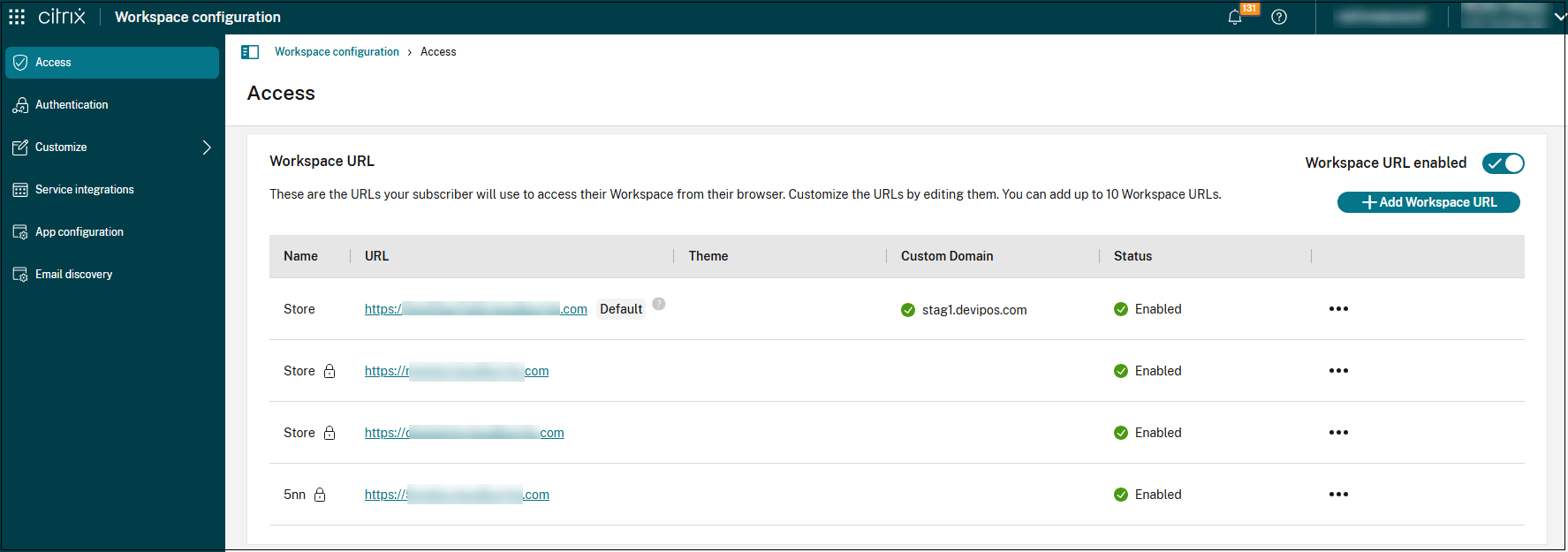
Ensure workspace URLs are configured via StoreFront Cloud > Access.
-
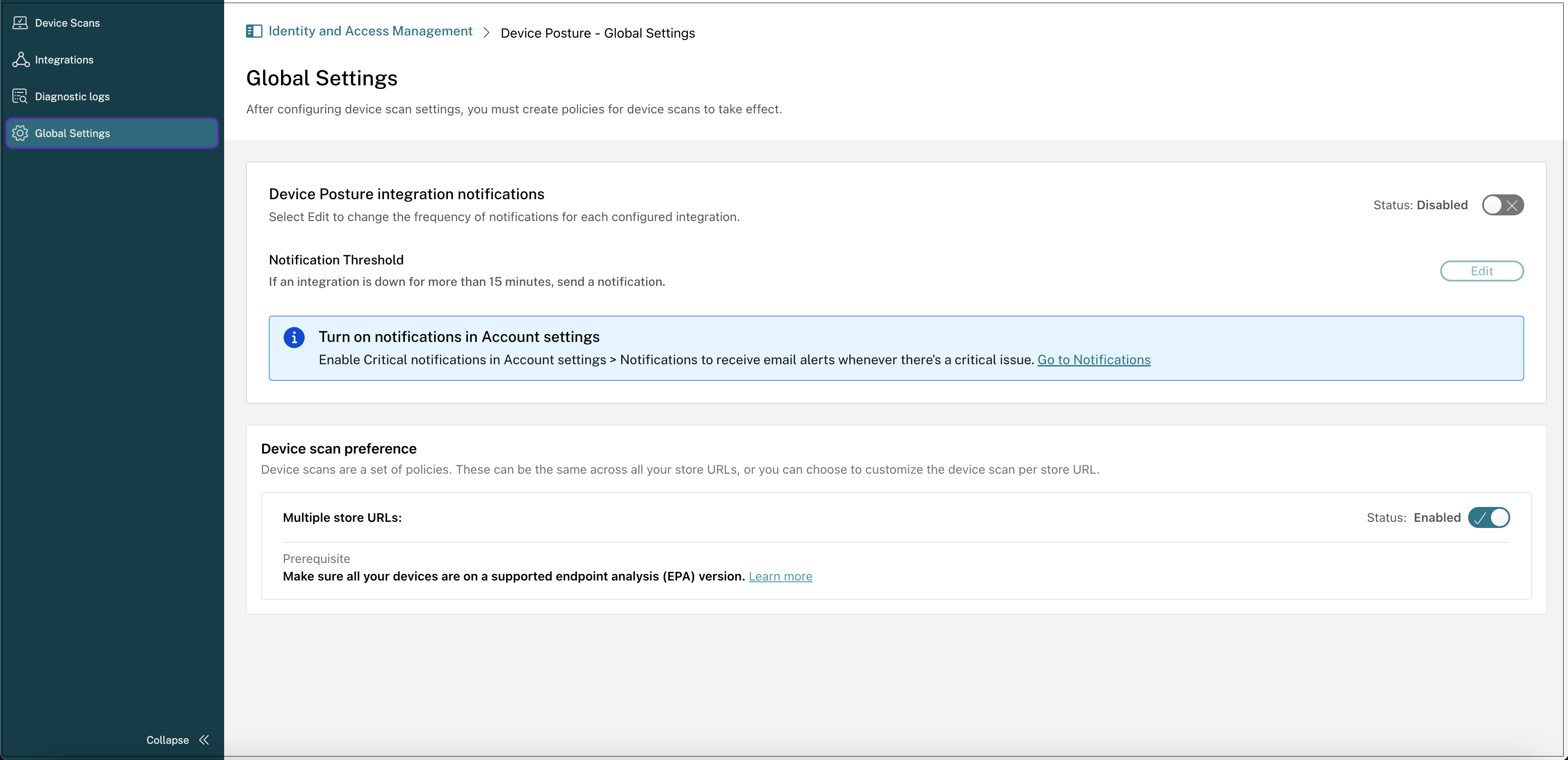
To access Device Posture, log in to Citrix Cloud™ and navigate to Identity and Access Management > Device Posture > Global Settings in the Device Posture navigation bar.
-
Click Configure Device Posture and then click Settings.
-
Select Use different device scans per Workspace URL.
-
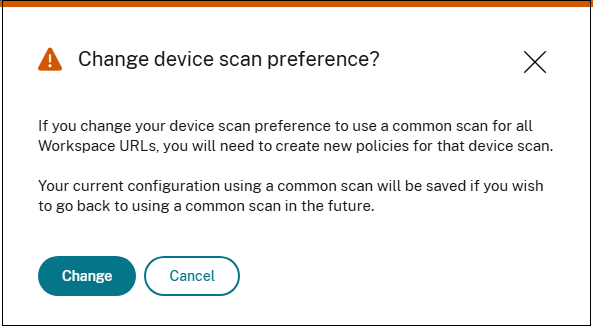
To modify the device posture preference, click Change.
Note:
- When the Use different device scans per Workspace URL option is enabled, you must configure new scans individually for each workspace URL.
- After configuring the new scans, users are prompted to re-authenticate within 1-2 hours to ensure that their login sessions are evaluated using the new configuration.