Manage Citrix Secure Access Endpoint Analysis (EPA) client versions by setting minimum supported versions
Note:
In this topic, EPA refers to the Citrix Secure Access Endpoint Analysis client. The two terms are used interchangeably.
Administrators can manage the Citrix Secure Access Endpoint Analysis (EPA) client versions through the Device Posture service by maintaining a minimum supported EPA version.
Previously, Device Posture service required a single fixed EPA client version across all endpoints.
Benefits:
EPA client version management through Device Posture service solution offers the following benefits:
- Streamlined version control
- Reduced support overhead
- Ensured endpoint compliance with Device Posture service requirements
How it works
Device Posture service prompts the users to either install or upgrade the client versions based on the platform-specific settings in the Device Posture admin console.
-
Minimum supported version: When an administrator sets the minimum supported version, the Device Posture service behaves as follows:
Client devices Device Posture service behavior Devices with no client installed The users are prompted to install the latest EPA client. Devices with client version lower than the minimum The portal presents a download option. The end users install or upgrade the client manually. Install with administrator privileges. Otherwise the install runs in user mode and some features might not be available. Devices with version equal to or greater than the minimum version No changes. -
Always use latest version: When an administrator sets the Always use latest version option, all endpoints run the latest available EPA client version.
In case where the EPA client is not installed or is outdated, the Device Posture service behaves as follows:
Client devices Device Posture service behavior Devices with no client installed The users are prompted to install the latest EPA client. Devices with older versions The portal presents a download option. The end users install or upgrade the client manually. Install with administrator privileges. Otherwise the install runs in user mode and some features might not be available.
Example:
Consider the following example for a specific platform where the minimum supported version is 24.8 and the latest version is 25.8.
The following table summarizes the Device Posture service behavior based on the settings configured in the admin console:
| Client devices | Minimum supported version selected as 24.8 | Always use the latest version selected |
|---|---|---|
| No EPA client installed | Prompted to install the latest EPA client. | Prompted to install the latest EPA client. |
| EPA version < 24.8 | Prompted to upgrade to latest | Prompted to upgrade to latest |
| EPA version ≥ 24.8 (but not latest) | Remains as is | Prompted to upgrade to latest |
| EPA version == latest | Remains as is | Remains as is |
Note:
When the Device Posture service introduces a new feature requiring an updated EPA client, administrators must revise the minimum supported version to ensure compatibility and optimal functionality.
Set the EPA client version management option
- Navigate to Device Posture > Device Scans and click Settings.
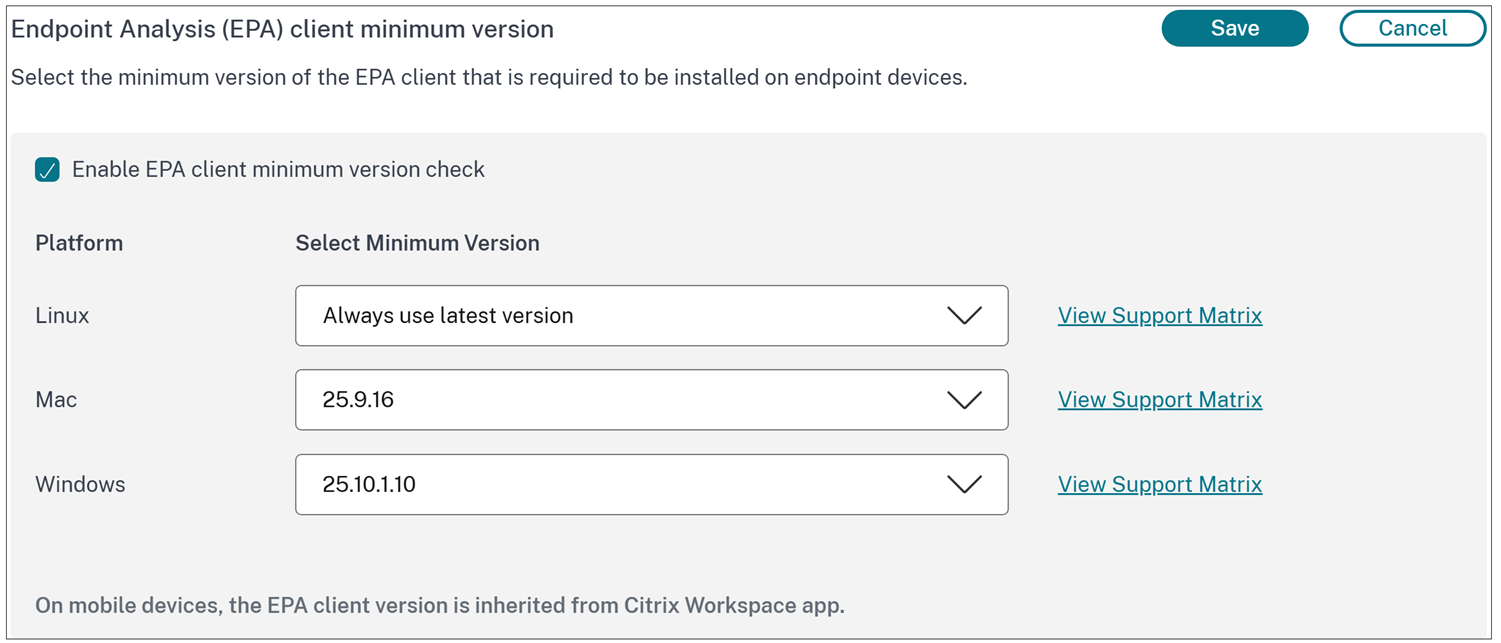
- Enable the EPA client minimum version toggle and click Edit.
-
For each platform, choose one of the following options for client version management:
- Always use latest version
- Minimum version listed (for example 24.8.1.19 for Windows)
- Click Save.
Important:
- EPA client version management supports the versions listed in the drop-down list. We recommend that your end users use these or higher versions. Any version not listed in the drop-down menu is not recommended for a production environment.
- For the latest client versions, see Citrix Endpoint Analysis.
EPA client distribution and version management considerations
Consider the following points for EPA client distribution and version management:
- Distribution strategy: Use standard Endpoint Management tools (for example, SCCM for Windows, Jamf for macOS) to deploy or patch the EPA client.
- Standardized rollouts: Gradually roll out client updates by setting a minimum supported version aligned with your deployment schedule.
- Immediate feature rollout: Ensure that the Always use latest version setting is enabled so that all users receive the latest EPA version when it is released.
- Compatibility assurance: Update the minimum supported version whenever new Device Posture service dependent features are released to avoid unsupported client versions.