Recovery, Troubleshooting, and Uninstalling
If installation fails
All checks — UEFI/GPT, free space, and BitLocker state — run before any change to the disk.
- If a check fails, the installer stops (exit code 1603) and the Windows partition is untouched.
- If a carve is cancelled or fails after it has started, the installer automatically rolls back the partial install and returns the disk to Windows-only (a user cancel reports exit code 1602).
- Windows itself is never modified beyond the partition shrink, and its boot entry is left in place — Windows always remains bootable.
If power is lost during the image write, boot back into Windows and either re-run the installer or run UniconOSDualBoot.exe uninstall to clear the partial partition and reclaim the space.
Common issues
The table below covers the most frequent symptoms and how to resolve them:
| Symptom | Cause and resolution |
|---|---|
| Install is disabled on the System Requirements page | Preflight failed a required gate. The host must be UEFI + GPT with enough free space (partition size + ~20 GB reserve). Secure Boot, TPM, and BitLocker are informational, not gates. |
| The branded boot entry might be missing after a Windows feature update | Expected — a startup task restores it automatically on the next Windows boot. No action needed. |
| A BitLocker recovery-key prompt appears | Not expected from installing UniconOS (formerly eLux 7). It usually follows a firmware Secure Boot change — enter the escrowed 48-digit key. |
| The device did not onboard to Scout automatically | Automatic onboarding happens only on a silent install with SETTINGS=. For an interactive install, onboard manually on the first UniconOS boot — see Managing dual-boot devices with Scout. |
| Collecting logs for support | Gather %ProgramData%\UniconOSDualBoot\logs. |
Uninstalling
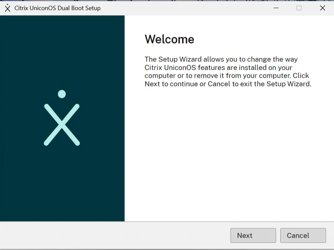
Uninstall UniconOS Dual Boot like any other program, or run the installer with /uninstall. On the welcome screen, click Next.
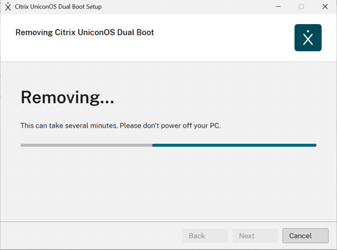
The device reverts to booting Windows only: the UniconOS partitions are deleted and the freed space is returned to the Windows partition.
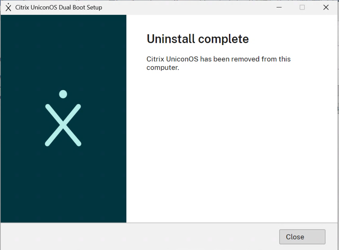
When removal finishes, click Close.
Recovery, Troubleshooting, and Uninstalling
Copied!
Failed!