Installing
Install using the wizard
- Save the installer and the UniconOS (formerly eLux 7) Dual Boot image file on the Windows device.
-
Double-click
UniconOSDualBootSetup.exeand confirm the Windows prompt to allow the app to make changes. On the welcome screen, select I understand the risks and want to continue, then click Next.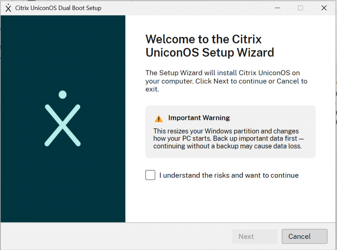
-
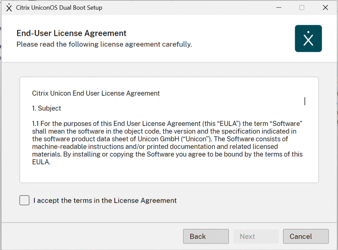
Read and accept the license agreement, then click Next.
-
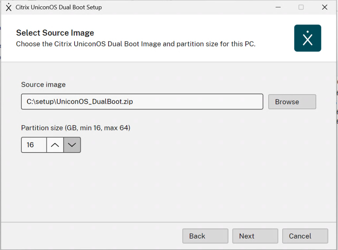
Provide the two installation details, then click Next:
-
Source image — click Browse and select the UniconOS Dual Boot image
.zip/.dd. - Partition size — the UniconOS partition size in GB (minimum 16, maximum 64, default 16).
The branded boot menu is shown by default, so no boot-menu option appears here. Scout onboarding is configured only via silent installation — see Managing dual-boot devices with Scout.
-
Source image — click Browse and select the UniconOS Dual Boot image
-
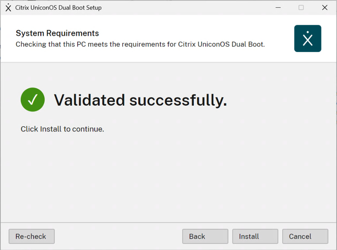
The installer verifies that the PC meets the system requirements. When it shows Validated successfully, click Install.
-
The installer carves the partition and writes the image.
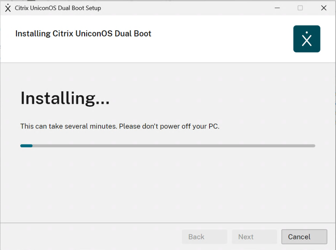
-
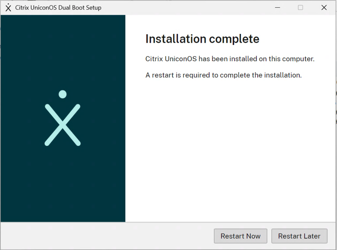
When installation completes, click Restart Now to reboot immediately (a restart is required to finish) or Restart Later. After the restart, the device boots into the default operating system.
Install using the command line
To install unattended (silently), run the installer from the command line with the options and NAME=value properties below.
Options
| Option | Description |
|---|---|
/quiet |
Silent, no user interface. |
/passive |
Non-interactive with a progress display; drives the MSI headless just like /quiet. |
/norestart |
Accepted for compatibility. A silent install never restarts automatically — it returns 3010 and leaves the restart to you. |
/log <file> |
Write a verbose log file. |
/uninstall |
Remove UniconOS Dual Boot. |
Properties
| Property | Default | Description |
|---|---|---|
IMAGE |
(required) | Path to the UniconOS image .zip/.dd. |
PARTITION_SIZE |
16 |
UniconOS partition size in GB (16–64). |
ACCEPT_EULA |
(not set) | Set to 1 to accept the license agreement — required for silent installation. |
DEFAULT_OS |
windows |
Persistent default operating system: uniconos or windows. |
SETTINGS |
(none) | UniconOS settings file for automatic Scout onboarding — see Managing dual-boot devices with Scout. |
BOOT_MODE |
BOOTMENU |
Boot model: BOOTMENU shows the branded boot menu, NOMENU boots the default operating system directly. |
MENU_TIMEOUT |
(image default) | Seconds the boot menu is shown before it starts the default operating system. |
DISK |
0 |
Target physical disk number — set this on a machine with more than one disk. |
PROFILES |
(none) | Wi-Fi (WPA2-PSK) profiles file applied on first boot; used together with SETTINGS. |
TRAYAPP |
0 |
Set to 1 to install the system-tray boot-control app. |
The branded boot menu is shown by default — no property is needed to enable it.
Only the properties listed above are passed to the installer. Any other NAME=value is ignored without an error, so a misspelt property silently installs the defaults — check spelling before a wide rollout.
Examples
UniconOSDualBootSetup.exe /quiet IMAGE="C:\temp\UniconOS_DualBoot.zip" PARTITION_SIZE=32 ACCEPT_EULA=1
<!--NeedCopy-->
UniconOSDualBootSetup.exe /quiet IMAGE="C:\temp\UniconOS_DualBoot.zip" ACCEPT_EULA=1 DEFAULT_OS=uniconos SETTINGS="C:\temp\terminal.ini"
<!--NeedCopy-->
To run the MSI directly with the same properties:
msiexec /i UniconOSDualBoot.msi /qn IMAGE="C:\temp\UniconOS_DualBoot.zip" PARTITION_SIZE=32 ACCEPT_EULA=1
<!--NeedCopy-->
A restart is required to complete installation. In a silent deployment the installer returns 3010 to signal restart required; a failure returns 1603.