Features in Technical Preview
Features in Technical Preview are available to use in non-production or limited production environments, and to give customers an opportunity to share feedback. Citrix® does not accept support cases for features in technical preview but welcomes feedback for improving them. Citrix might act on feedback based on its severity, criticality, and importance.
Interested in trying a Technical Preview feature? Send an email to citrixappios@citrix.com and let us know which feature you would like to evaluate.
List of features in Technical Preview
Derived credentials and Apple Token Extension support
Citrix Workspace app for iOS 26.7.0 supports Apple Token Extension (CryptoTokenKit) in both the app and active HDX sessions. This enables a third-party derived-credential application on the device to supply digital certificates for following usecases:
- Citrix Gateway or StoreFront authentication: Authenticates users to the Citrix environment using a derived certificate, without a physical smart card reader.
- Virtual app and desktop logon: The user principal name is read from the certificate and passed to the VDA at launch, so the session signs on without prompting again.
- In-session cryptographic redirection: Extends credentials into the HDX session so virtualized apps (for example, browsers, mail clients, PDF signing tools, and enterprise apps) can make cryptographic requests through the client token extension.
A derived credential is a client certificate issued to a mobile device after identity proofing with an existing PIV or CAC card during enrollment. It provides smart-card-equivalent assurance on devices without card readers.
Improved session reconnection experience
Starting with version 26.3.0, the following enhancements are made to the Improved session timeout experience (Technical Preview) feature announced in the 25.11.0 release:
- Displaying specific reasons for session timeouts, such as Device Lock or App background, or Network disruption.
- Session Reconnection setting configurable either through GACS by enabling Manual session reconnect option found at Session experience > Connectivity or through MDM.
System and infrastructure requirements
| Component | Requirement |
|---|---|
| Client OS | iOS or iPadOS 17.0 or later |
| Citrix client | Citrix Workspace app for iOS 26.7.0 or later |
| Virtual Delivery Agent | Citrix VDA for Windows, with smart card redirection policies enabled |
| Third-party provider | Enrolled credential app implementing an iOS CryptoTokenKit token extension |
| Infrastructure | Citrix Gateway or StoreFront configured for client-certificate authentication |
| Certificate | Must contain a UPN in the Subject Alternative Name (SAN) for session logon and in-session use |
This feature is enabled per customer. Contact Citrix Support to enable it for your stores.
Configuration steps
- Install the derived-credential provider app and complete enrollment.
- In Citrix Workspace app, go to Settings > Derived Credentials, and enable Use Derived Credentials.
- Add the store. If client-certificate authentication is configured, Citrix Workspace app presents the available credential.
- Launch a desktop or app and authorize when prompted.
Administrators can lock this setting through the MDM advanced-settings policy.
Support for single sign-on for Microsoft Entra ID joined VMs
| Technical Preview from 24.5.0 version | Enablement form | Feedback form |
Starting with the 24.5.0 version, Citrix Workspace app for iOS supports users signing in to Azure AD-joined VM devices using single sign-on authentication. You need to provide Microsoft credentials when signing in to an Azure AD-joined VM device for the first time. For subsequent sign-ins, credentials are not required until the token expires.
Note:
- If the user does not use WKwebview for authentication, the credentials must be entered for the first time.
- This feature is applicable only for cloud stores.
Add multiple stores using Unified Endpoint Management (UEM)
| Technical Preview from 23.12.0 version | Enablement form | Feedback form |
Admins can use Unified Endpoint Management solutions to configure and add multiple stores for managed iOS devices. The details for each store can be added to an XML file. This XML file can then be uploaded while configuring the app configuration policy.
Note:
The XML file must be in a key-value format.
| Configuration key | Value type | Description |
|---|---|---|
| url | String | The store URL. For example, example.cloud.com |
| storeType (optional) | Integer | If set to 1, users can view the native or the default store loading. If set to 2, users can view the store inside a web interface. |
| displayName (optional) | String | The name of the store. |
| restrict_user_store_modification (optional) | Boolean | If set to true, users can’t modify that is, add, delete, or edit the store. If set to false, users can modify that is, add, delete, or edit the store. |
Important
- If the restrict_user_store_modification flag is set to true, all the existing stores are deleted before adding a new UEM configured store.
- If storeType is not provided, the default interface is treated as native.
Sample XML Configuration to add stores
Refer to this sample XML file for more information.
    <dict>
        <key>stores</key>
        <array>
            <dict>
                <key>url</key>
                <string>test.cloud.com</string>
                <key>storeType</key>
                <integer>1</integer>
                <key>displayName</key>
                <string>Cloud Store </string>
            </dict>
            <dict>
                <key>url</key>
                <string>test.citrix.com</string>
                <key>storeType</key>
                <integer>2</integer>
                <key>displayName</key>
                <string>StoreFront</string>
            </dict>
        </array>
            <key>restrict_user_store_modification</key>
        <true/>
    </dict>

<!--NeedCopy-->
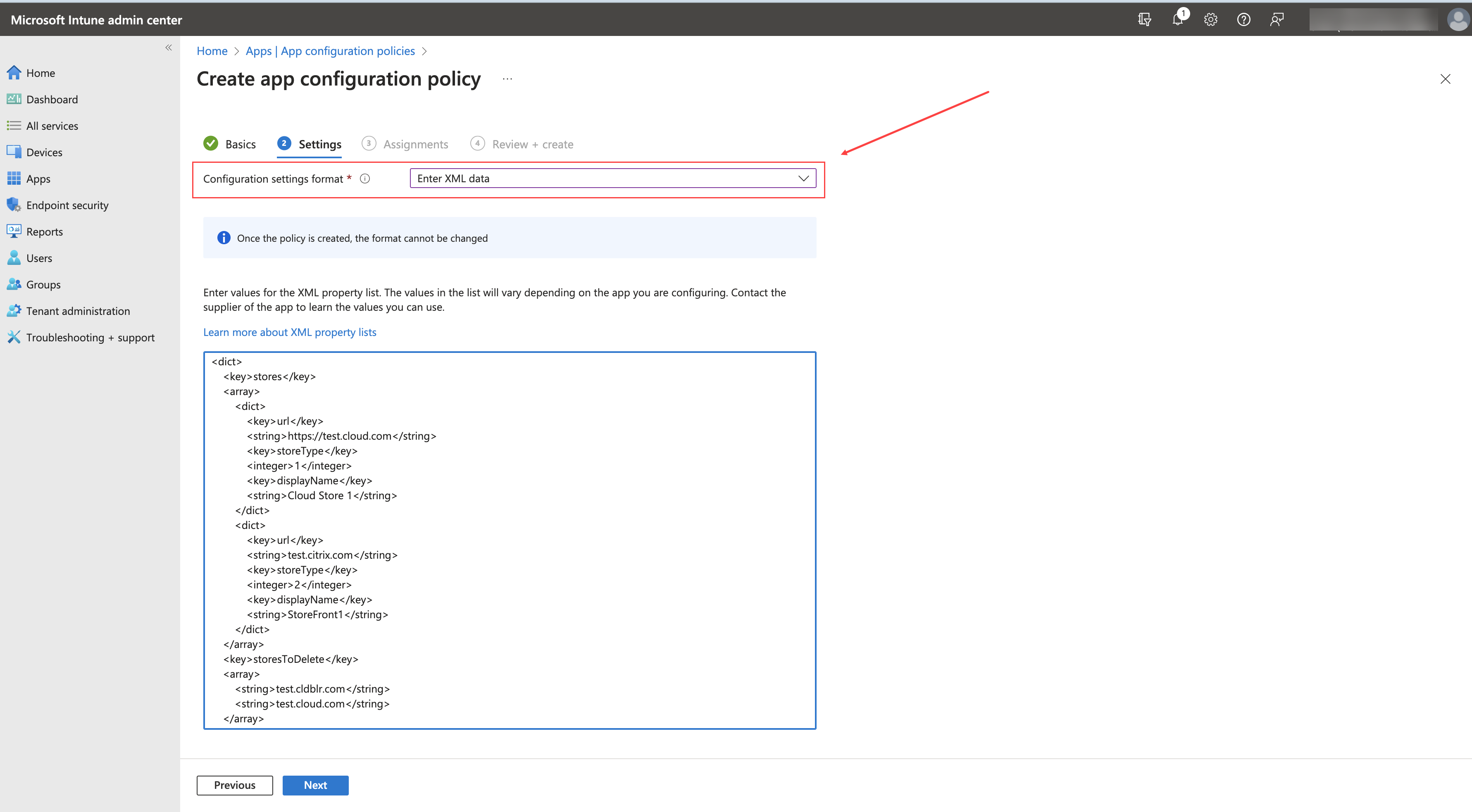
Once the XML file is ready with the store configuration, admins can upload the file to the Create app configuration policy page. For example, in Microsoft Intune, admins need to select Enter xml data option from the Configuration settings format dropdown.
Delete multiple stores using Unified Endpoint Management (UEM)
| Technical Preview from 23.12.0 version | Enablement form | Feedback form |
Admins need to add a list of stores to be deleted to an XML file with the key name storesToDelete to delete one or more stores.
Sample XML configuration to delete stores
Refer to this sample XML file for more information.
    <dict>
        <key>storesToDelete</key>
    <array>
        <string>test.cldblr.com</string>
        <string>test.onprem.com</string>
    </array>
   </dict>

<!--NeedCopy-->
The following is a sample XML configuration file containing configuration for addition and deletion of stores.
        <dict>
        <key>stores</key>
        <array>
            <dict>
                <key>url</key>
                <string>test.cloud.com</string>
                <key>storeType</key>
                <integer>1</integer>
                <key>displayName</key>
                <string>Cloud Store </string>
            </dict>
            <dict>
                <key>url</key>
                <string>test.citrix.com</string>
                <key>storeType</key>
                <integer>2</integer>
                <key>displayName</key>
                <string>StoreFront</string>
            </dict>
        </array>
        <key>storesToDelete</key>
        <array>
            <string>test.cldblr.com</string>
            <string>test.onprem.com</string>
        </array>
        <key>restrict_user_store_modification</key>
        <true/>
    </dict>

<!--NeedCopy-->
Enhanced web store experience
| Technical Preview from 23.8.0 version | Enablement form | Feedback form |
End users can now stay signed-in to a web interface store until they sign out or the session times out. End users can also access the settings option without signing out of the current store. Click the ellipses icon to access the following options:
- Settings: Use this option to add and manage your stores.
- Sign Out: Use this option to sign out of your current web interface store.
Support for an enhanced Single sign-on (SSO) experience for web and SaaS apps
| Technical Preview from 22.3.5 version | Enablement form | Feedback form |
This feature simplifies the configuration of SSO for internal web apps and SaaS apps while using third-party identity providers (IdPs). The enhanced SSO experience reduces the entire process to a few commands. It eliminates the mandatory prerequisite to configure Citrix Secure Private Access™ in the IdP chain to set up SSO. It also improves the user experience, provided the same IdP is used for authentication to both the Workspace app and the particular web or SaaS app being launched.
Technical Preview to General Availability (GA)
| Service or feature | General availability version |
|---|---|
| Support for enforcing biometric authentication to access Citrix Workspace app | 24.9.0 |
| Support for rapid scan | 24.9.0 |
| Support for app protection | 24.9.0 |
| Support for authentication using FIDO2 when connecting to an on-premises store | 24.9.0 |
| Support for multiple audio devices | 24.9.0 |
| Support for adaptive audio | 24.5.0 |
| Support for Accessibility and VoiceOver | 24.9.0 |
| External Webcam support | 24.9.0 |
| Support for configuring Citrix Workspace app settings through UEM | 24.7.0 |
| Support for document scanner | 24.5.0 |
| Support for FIDO2-based authentication | 23.9.0 |
| Support for Apple’s native non-mirror mode | 23.3.0 |