Directory synchronization
The following sections provide more information about the directory synchronization.
Microsoft Entra ID using G Suite connector
You must synchronize your Microsoft Entra ID with the Google Cloud user directory for user and group management across both Google and Microsoft cloud platforms. For details, see the following topics:
- Microsoft Entra ID (formerly Azure AD) user provisioning and single sign-on
- Configure Google Cloud / G Suite Connector by Microsoft for Single sign-on with Microsoft Entra ID
The email address field must be populated for all users and groups. The email domain must match the one configured in Google Directory. Implicitly, this means that Security Groups without an email address or groups with an @onmicrosoft.com email domain are currently not supported.
Single sign-on: Single sign-on (SSO) configuration is optional. You might configure a separate password in the Google directory. See To configure SSO with Open ID Connect profile to use NetScaler Gateway as the IdP.
Google Cloud Directory Sync (GCDS) tool
With Google Cloud Directory Sync (GCDS), you can synchronize the data in your Google Account with your Microsoft Active Directory or LDAP server. GCDS doesn’t migrate any content (such as email messages, calendar events, or files) to your Google Account. You use GCDS to synchronize your Google users, groups, and shared contacts to match the information in your LDAP server.
For details, see About Google Cloud Directory Sync.
Install and prepare GCDS:
Notes:
- For POC purposes, the GCDS tool can be installed on an AD machine.
- Run the installer with Administrator permissions.
- Configuration can be saved in a file (File\Save As) and opened next time when you want to synchronize.
Active Directory
As a prerequisite, ensure that you have users and groups created on Active Directory. Users and groups must have the email attribute.
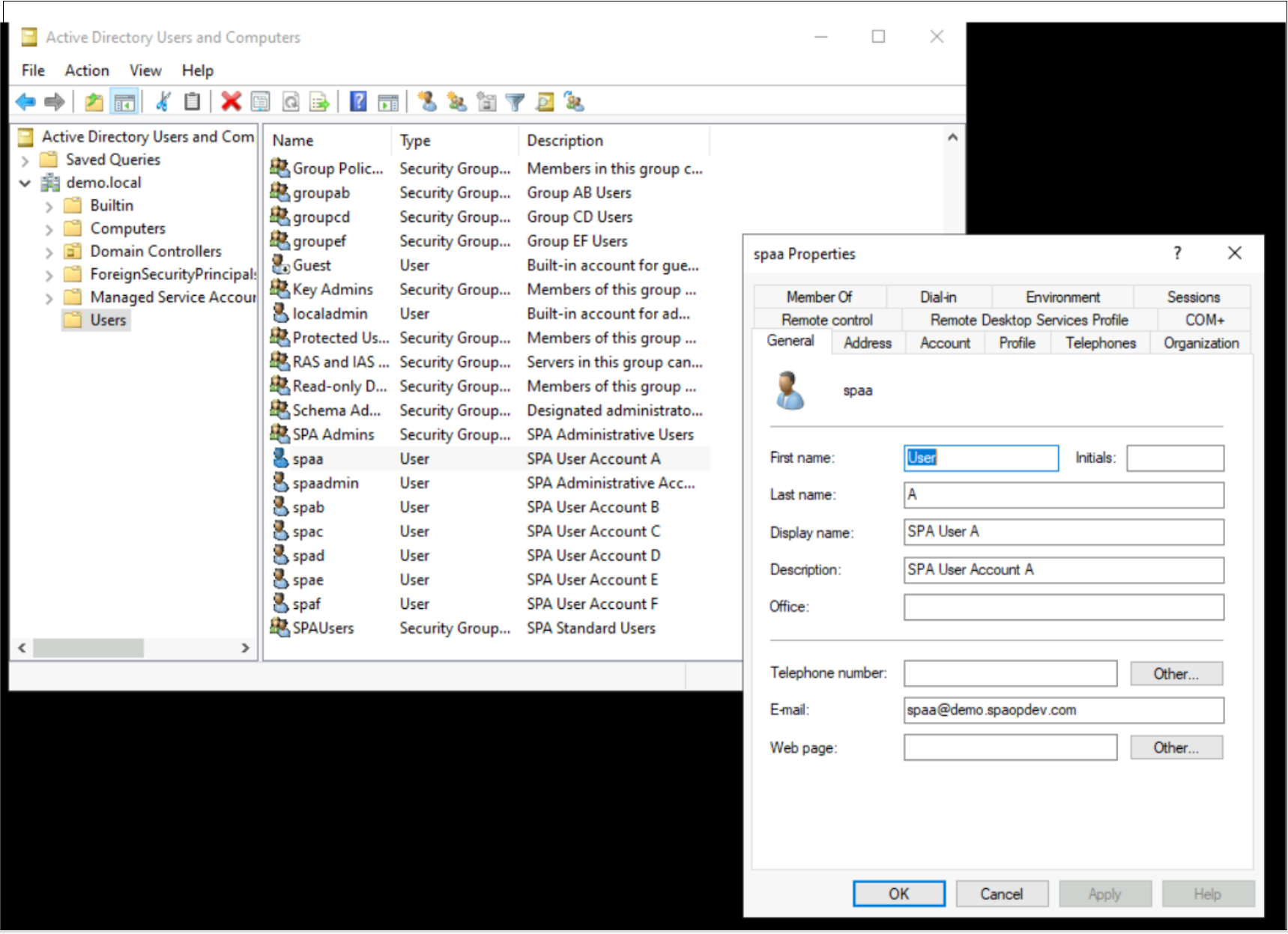
Google Cloud Directory Sync configuration
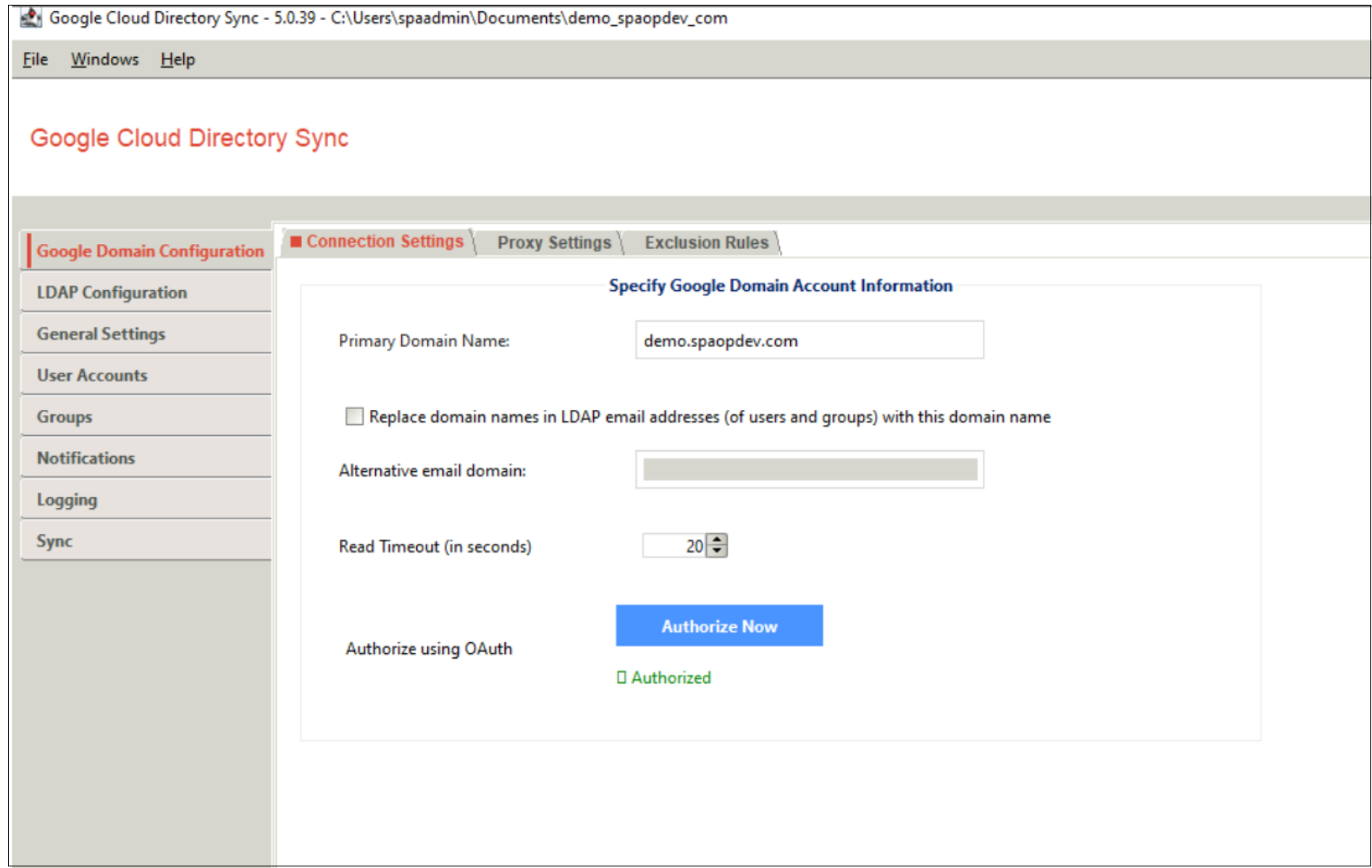
Google domain configuration:
- Enter the primary domain name.
- Authorize using OAuth. Click Authorize Now. You are prompted to enter your Google Workspace admin credentials and asked to allow access to Google Workspace Directory.
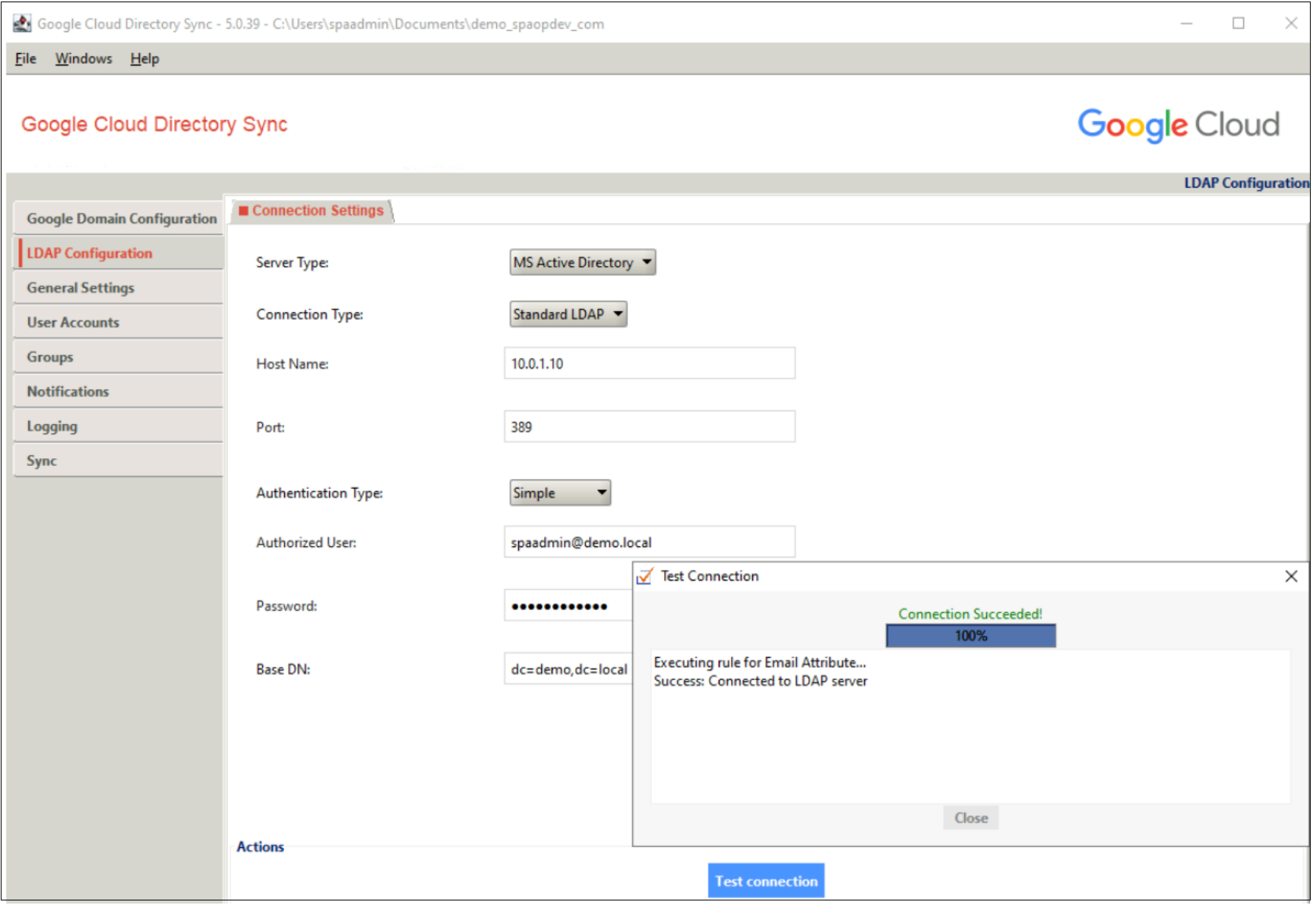
LDAP configuration:
- Enter the host name, port, authorized user, and password.
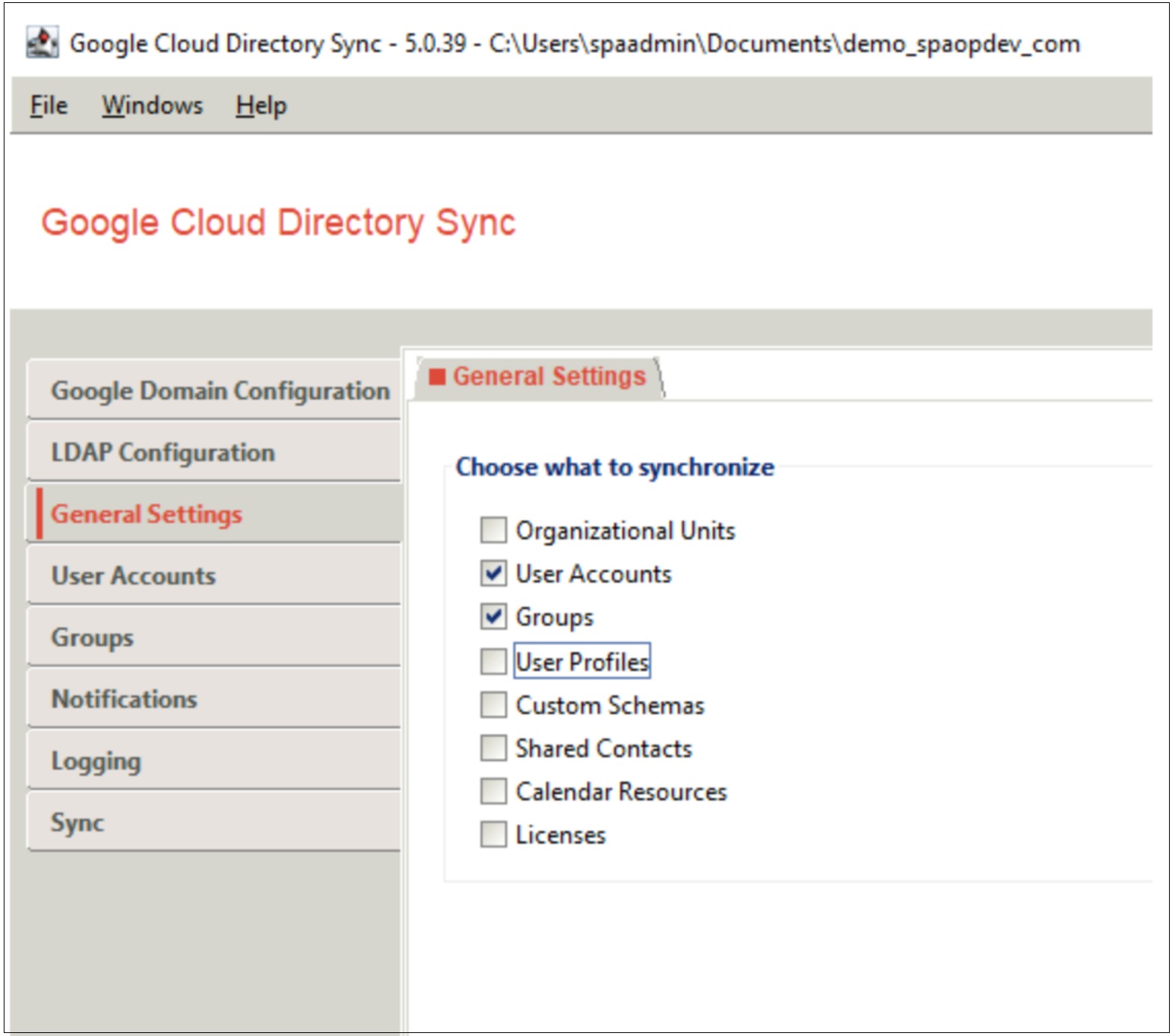
General settings:
Select the items for the synchronization.
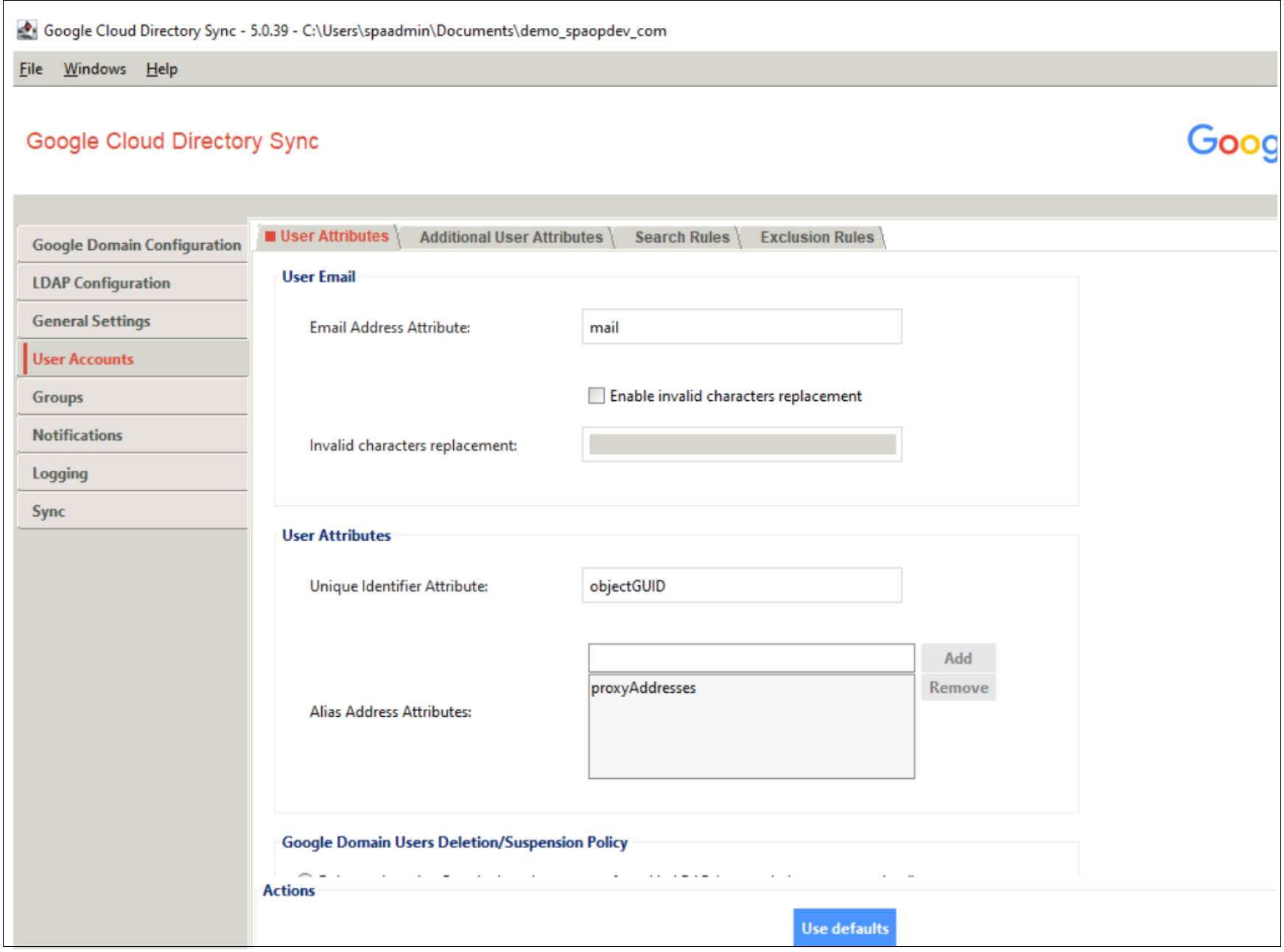
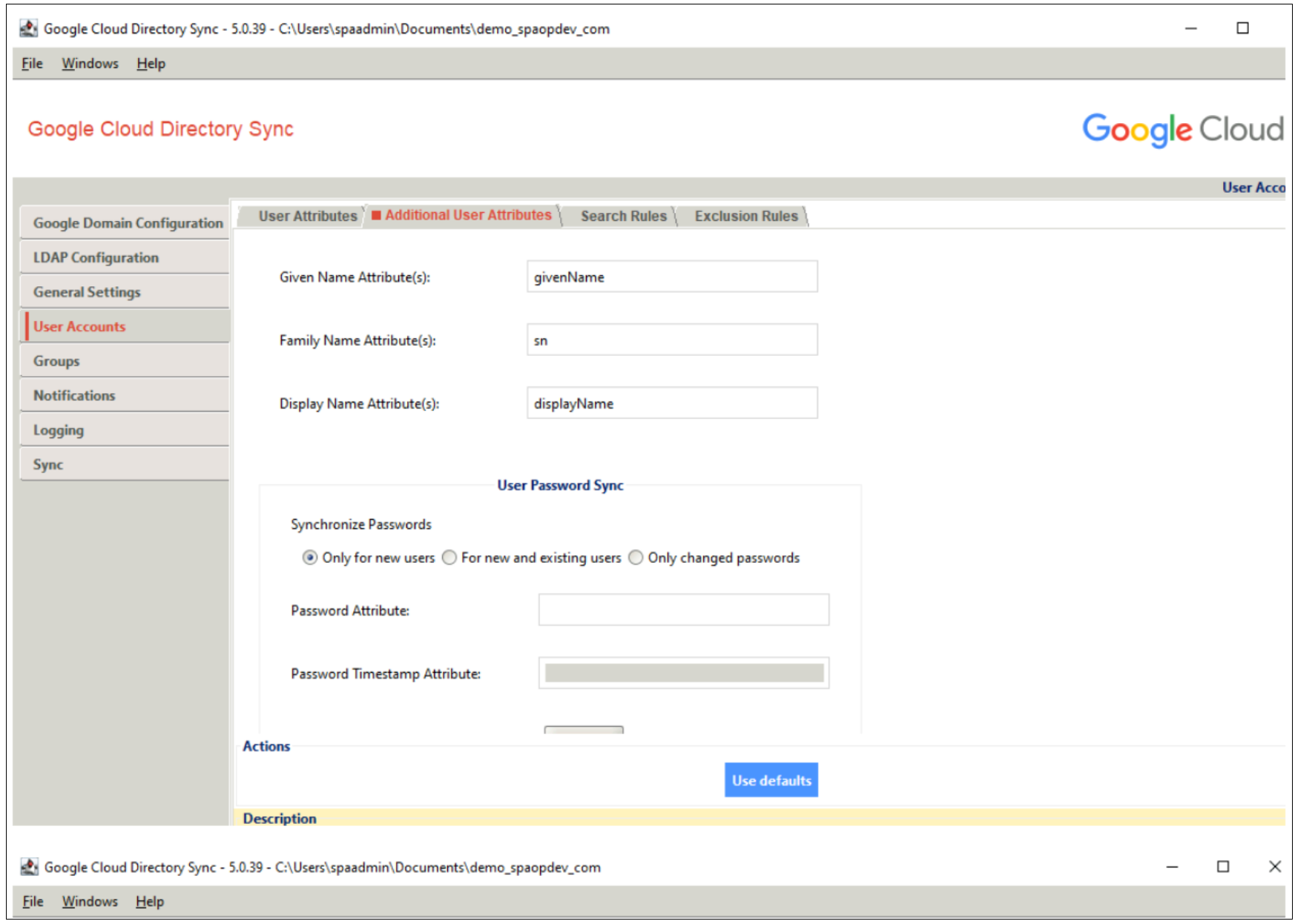
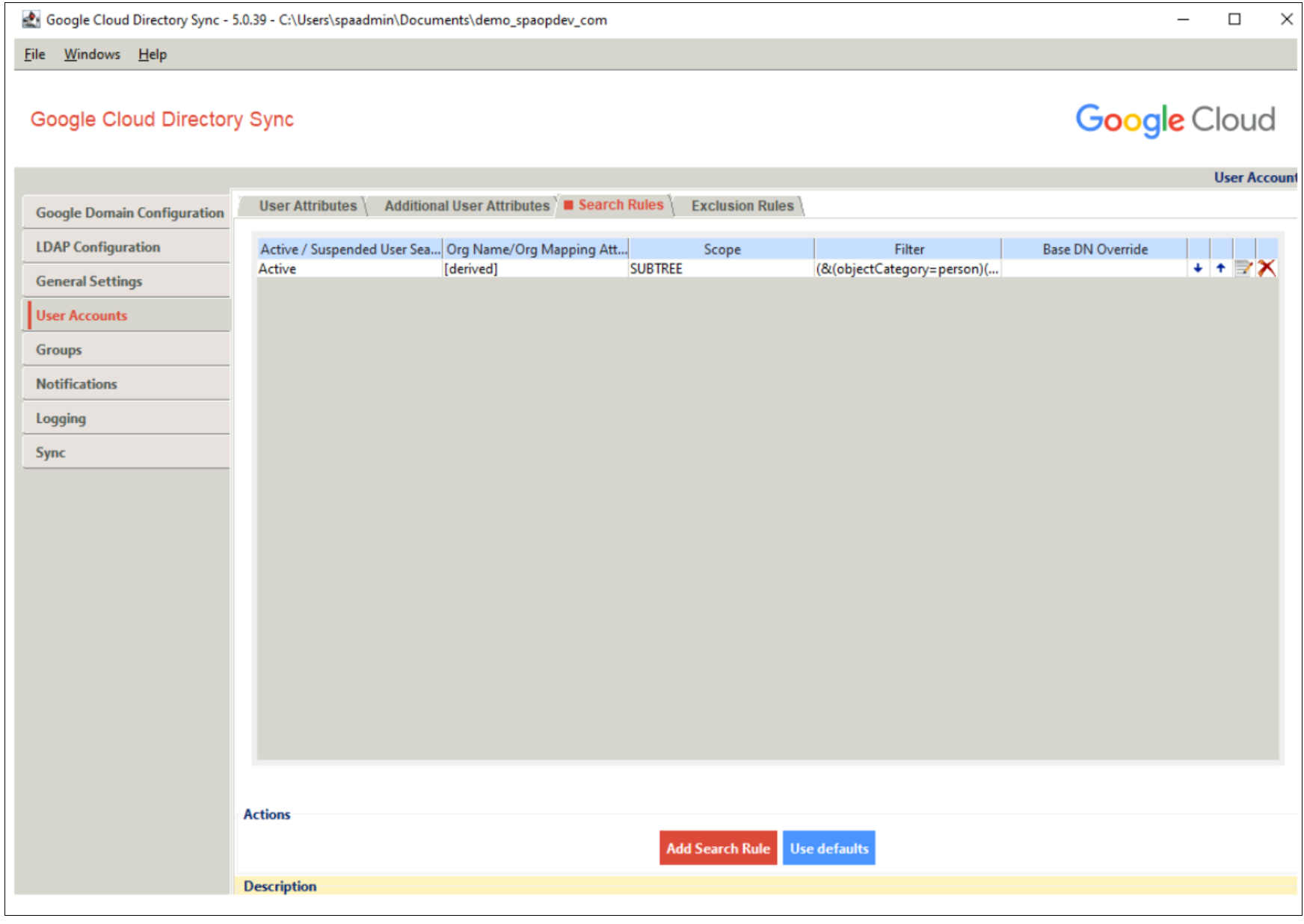
User Accounts:
- Specify which users to import and synchronize.
- Click Use defaults for User Attributes, Additional User Attributes, and Search Rules.
Groups:
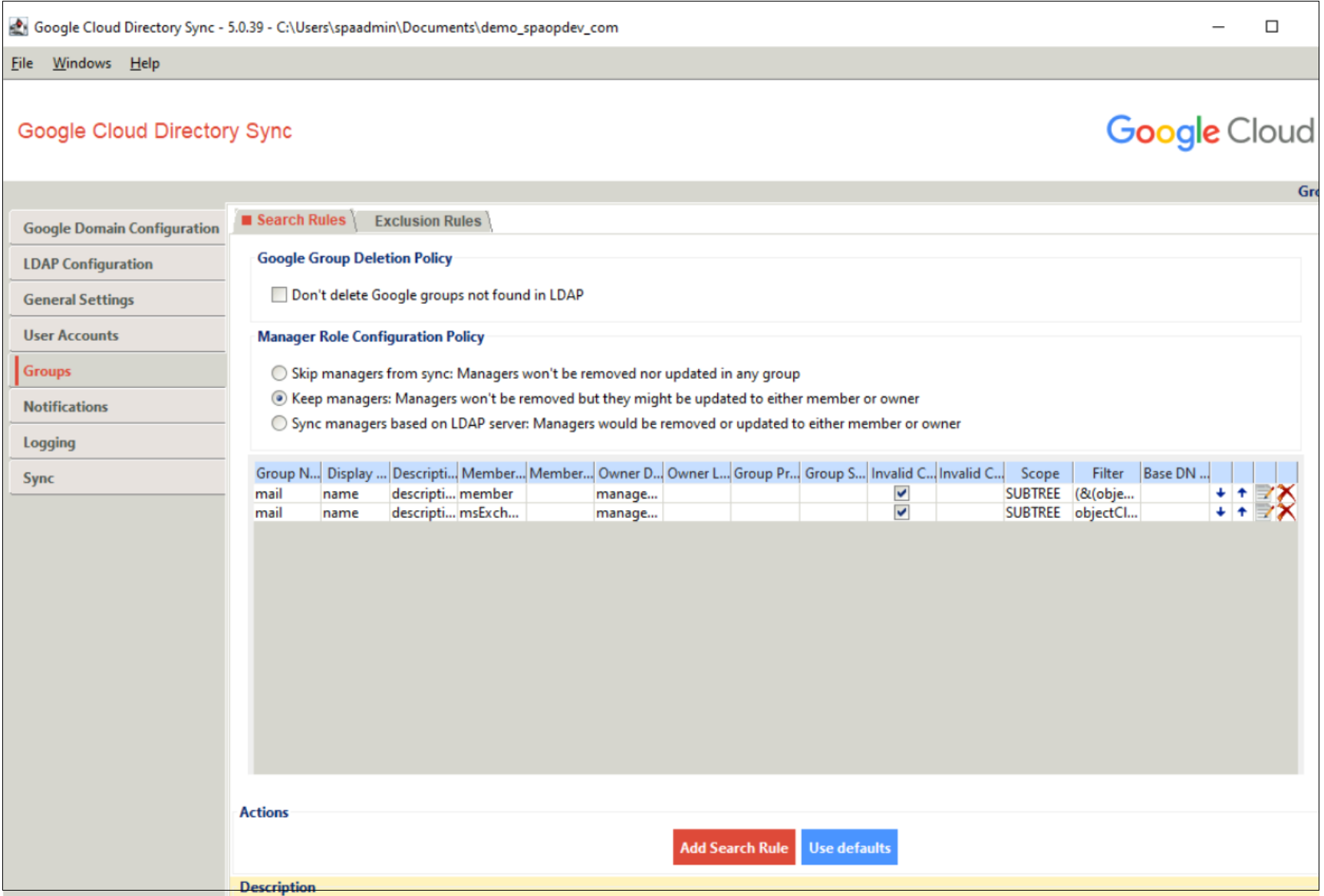
- Specify which groups to import and synchronize.
- Click Use defaults for groups Search Rules.
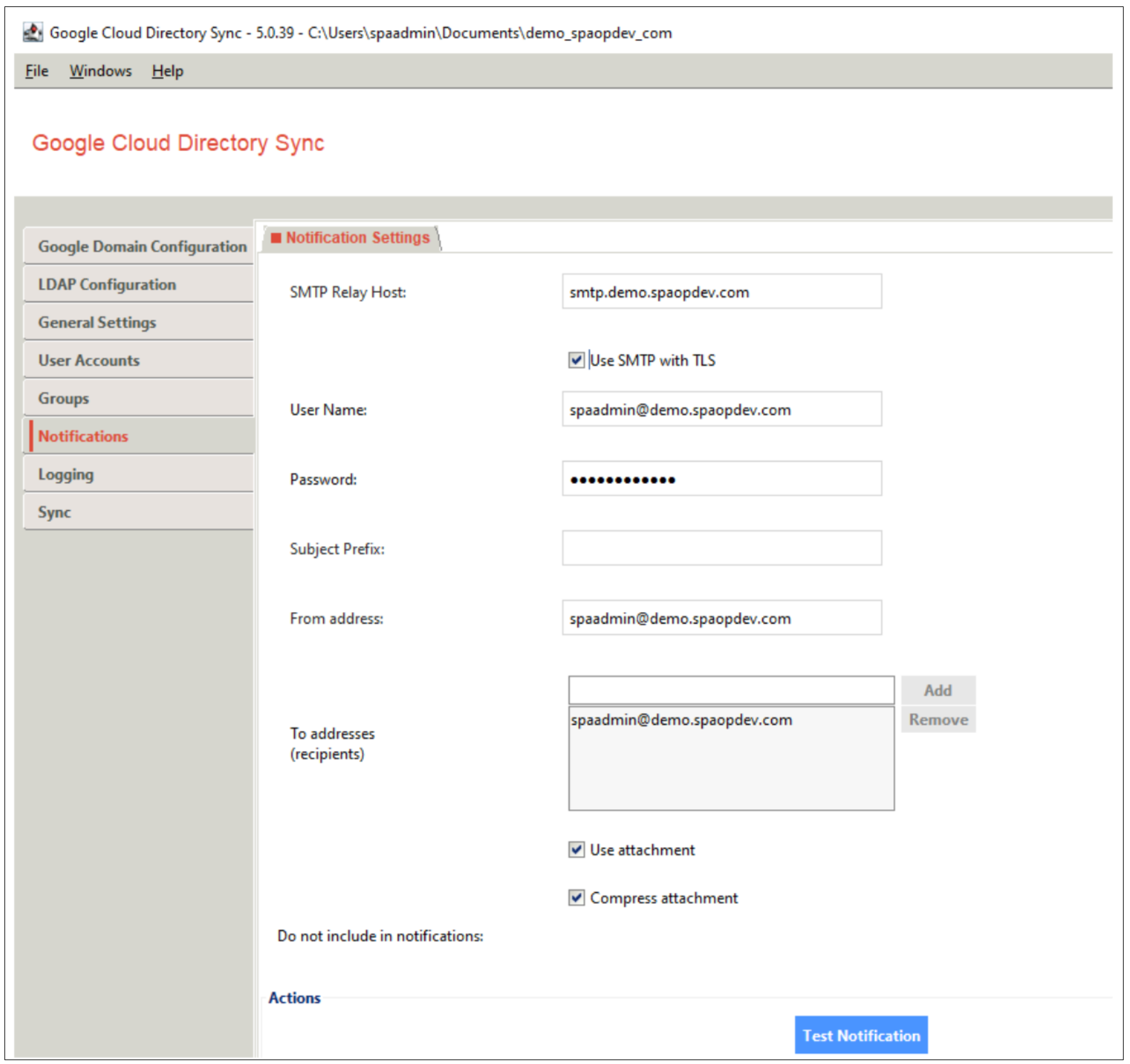
Notifications:
This step is optional.
After synchronization, Google Cloud Directory Sync connects to your SMTP relay host and sends a notification with synchronization details.
- Specify the senders address that you want to appear in the notification header.
- Enter the recipient email addresses one at a time and click the Add button for each address.
If the synchronization report exceeds 24 MB, it is compressed and sent as a ZIP attachment.
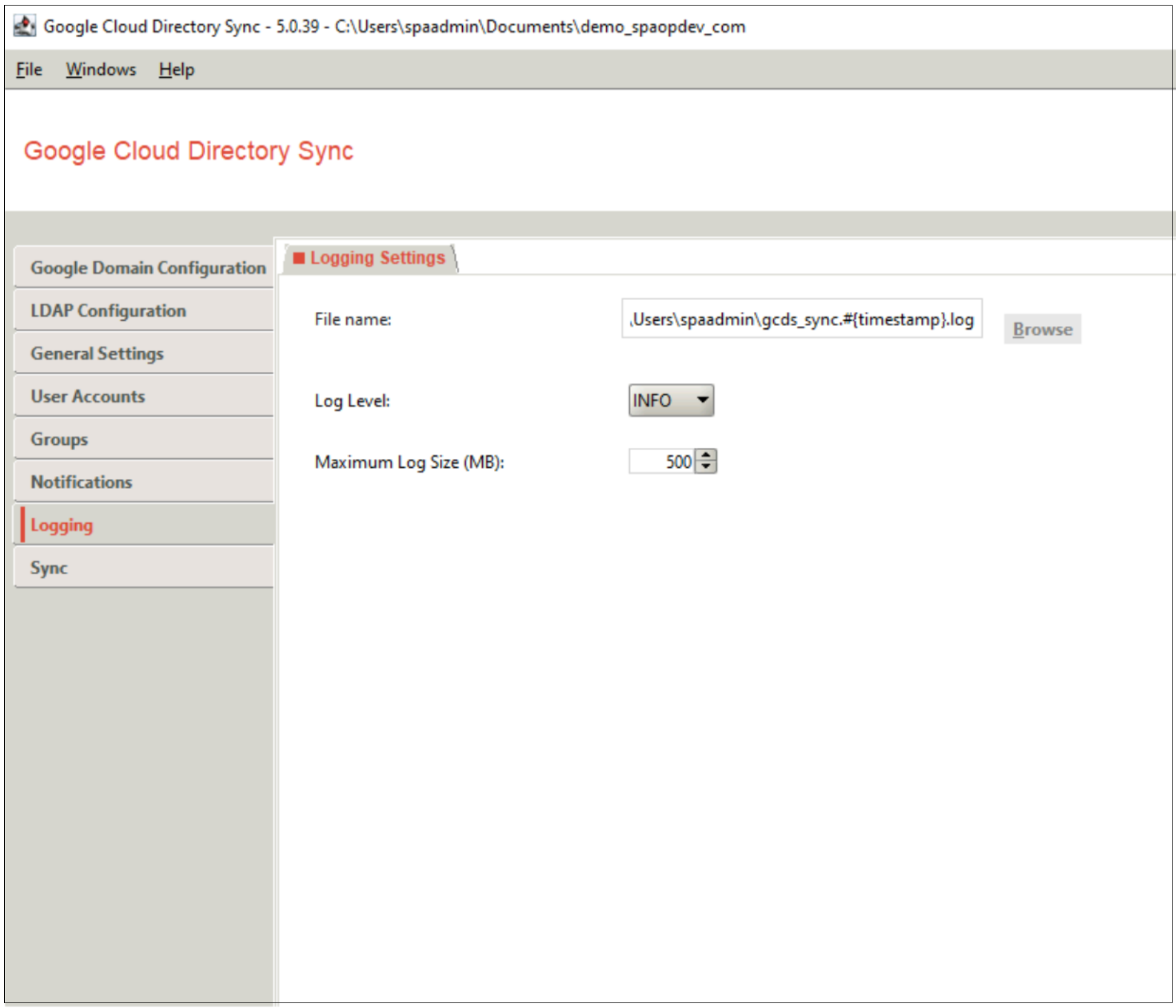
Logging:
Specify where to write the log file information, the level of detail, and the maximum log file size.
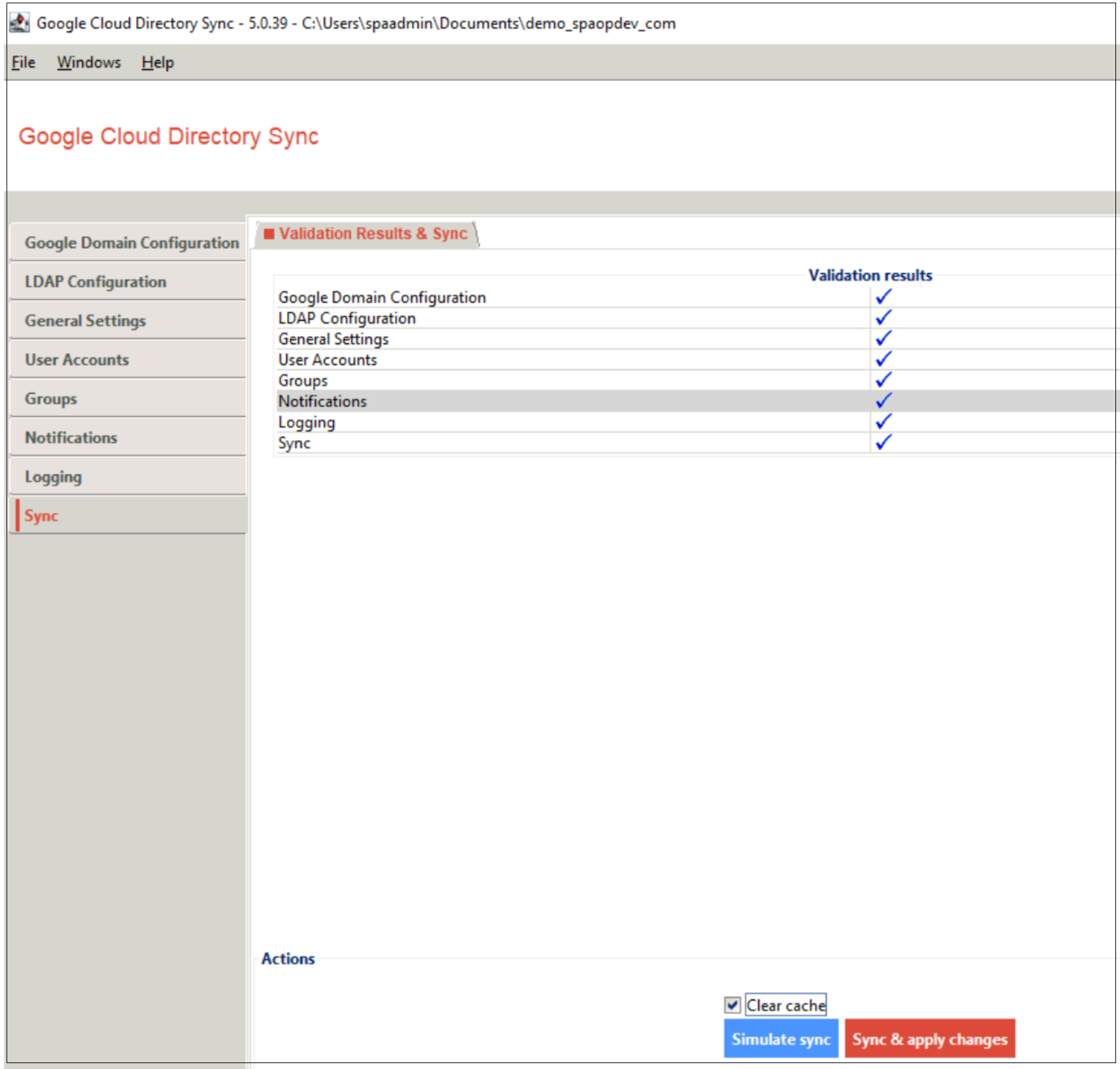
Synchronization:
Review your settings and correct any problems before you synchronize.
- Once your settings are correct, click Simulate sync to connect to both servers and generate a list of changes for the simulated synchronization.
- To commit changes, save the configuration file and click Sync and apply changes or run
sync-cmdfrom the command line.
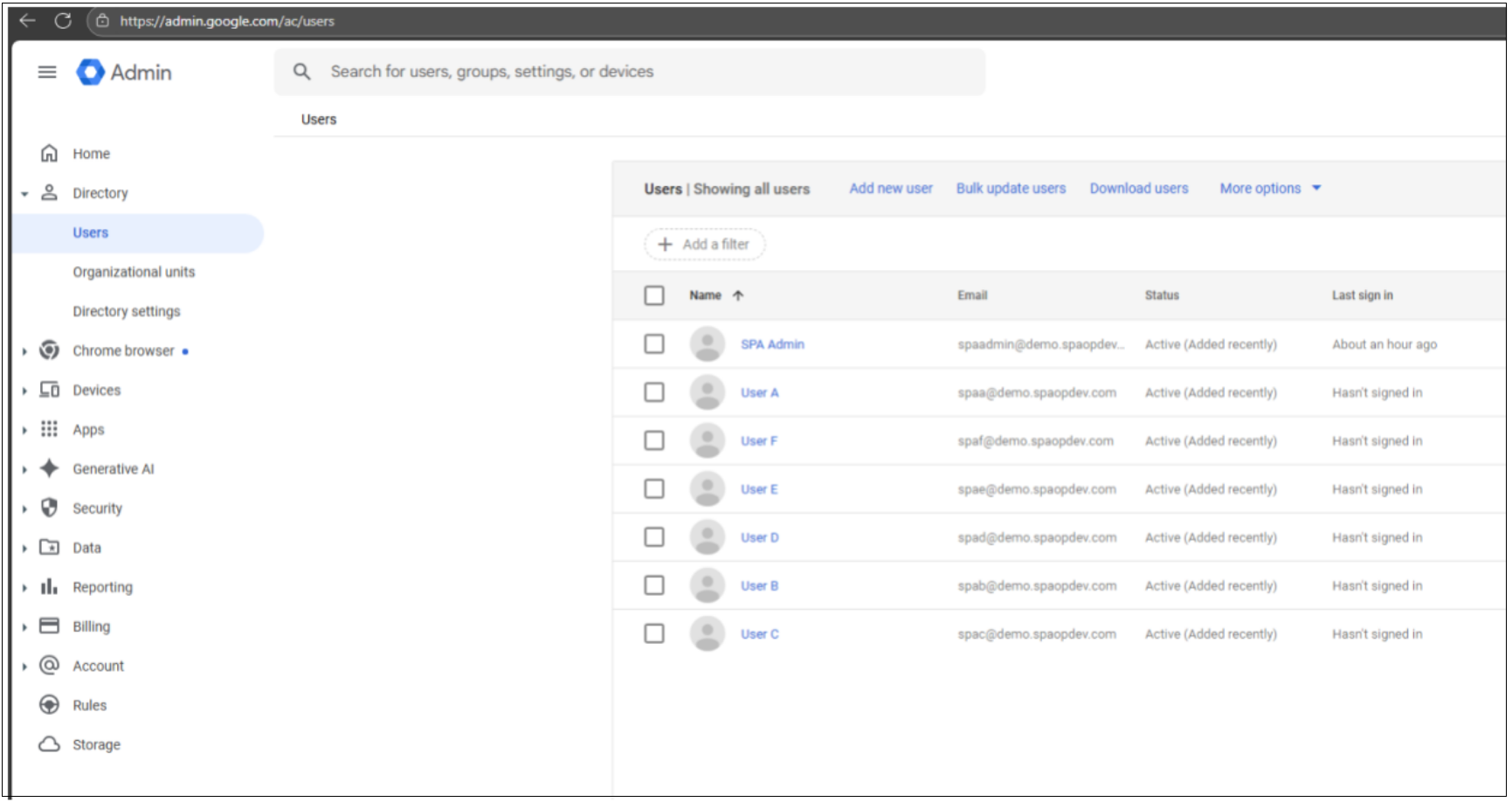
Google Workspace Directory:
New users are created during the synchronization.
Synchronize using CLI: