Enable the Citrix Connector™ for Windows 365
Enable the Citrix® partner connector for Windows 365 in the Microsoft Intune console:
Note:
This is not related to Citrix Cloud™ Connectors used as part of the Citrix Cloud infrastructure.
- Go to
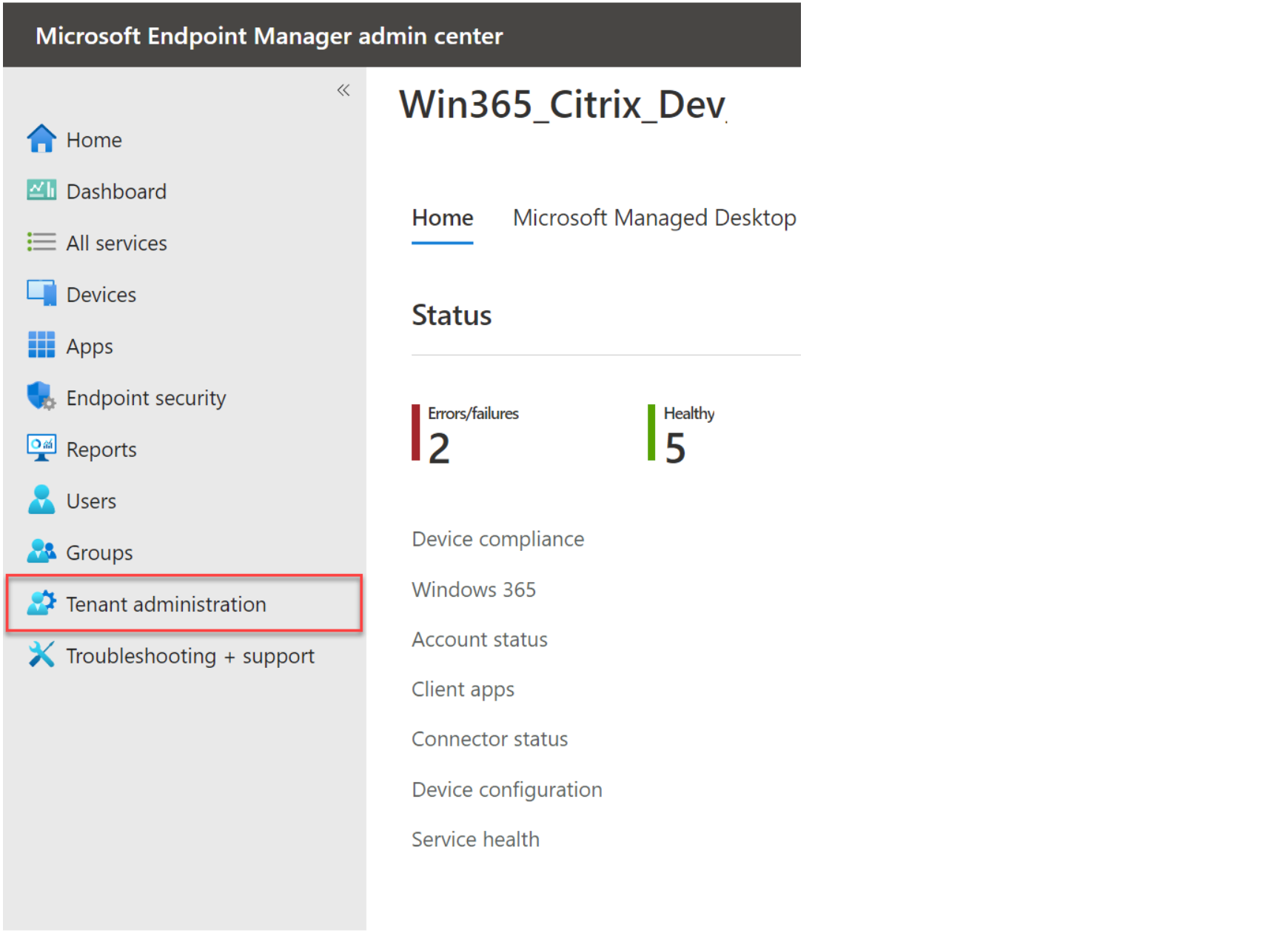
endpoint.microsoft.comand log in with an account that has Global Administrator privileges in MEM. - Select Tenant administration.
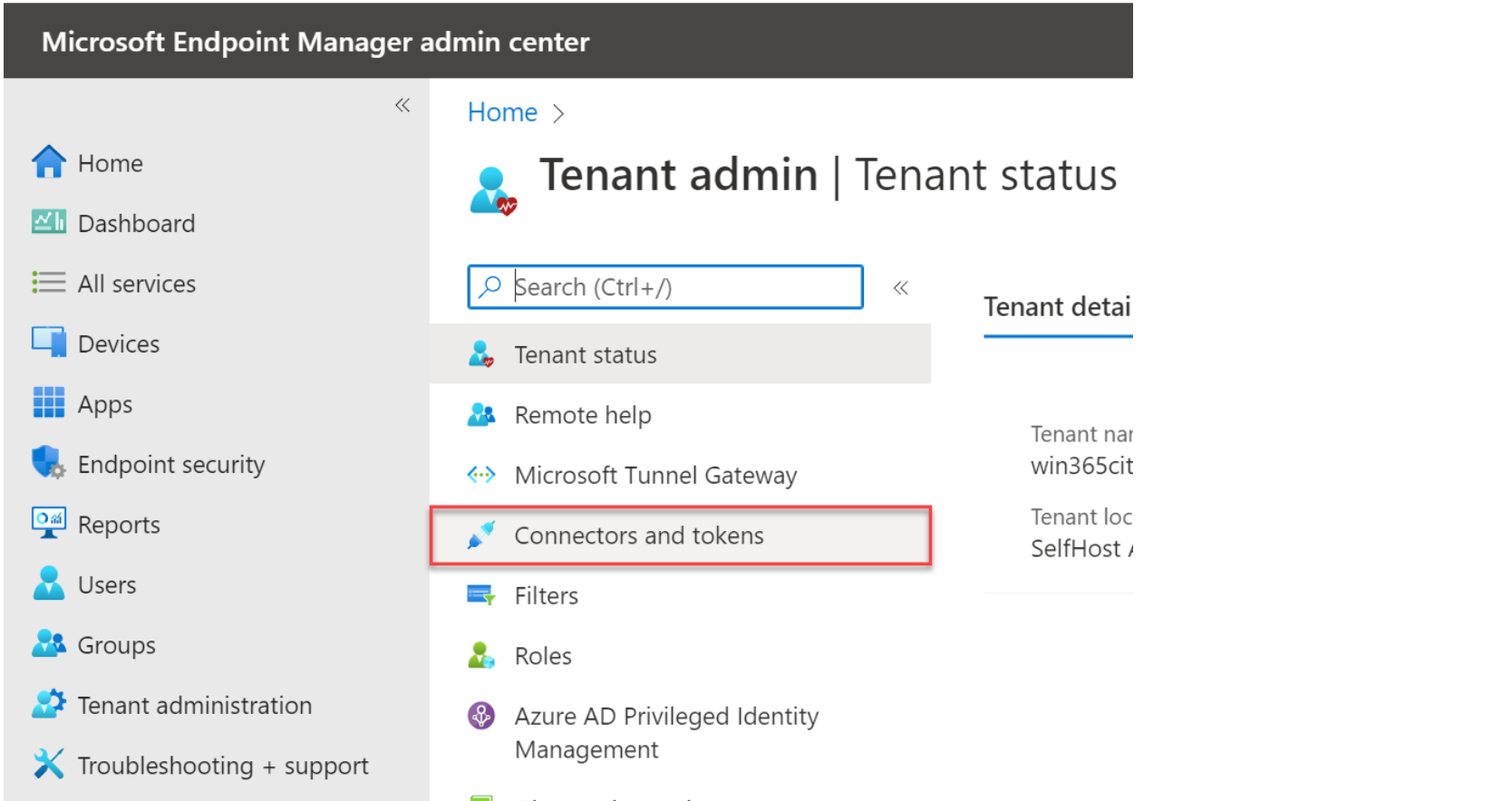
- Select Connectors and tokens.
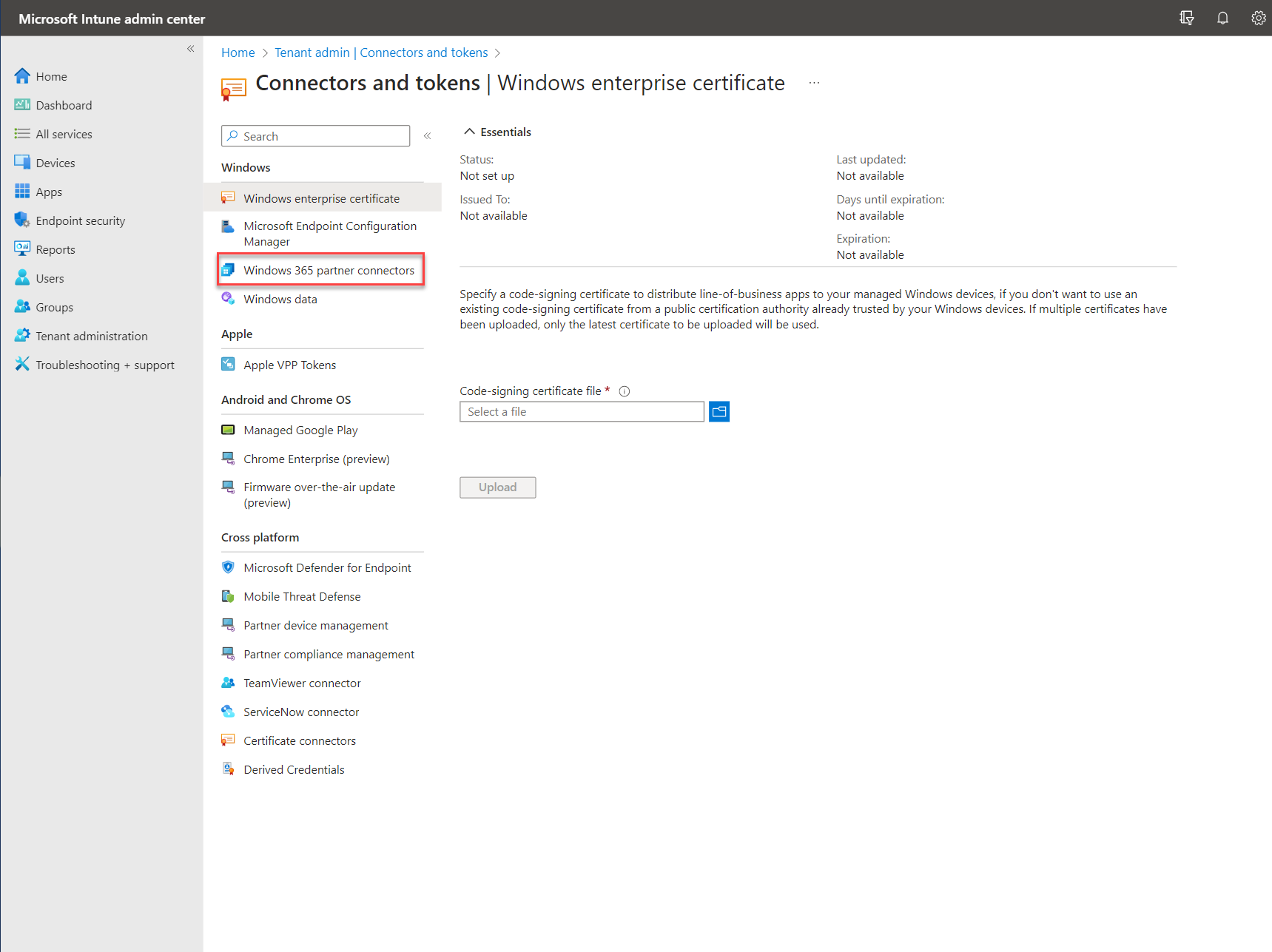
- Select Windows 365 partner connectors.
- Click Add, select Citrix from the list, set the toggle to On and click Add.
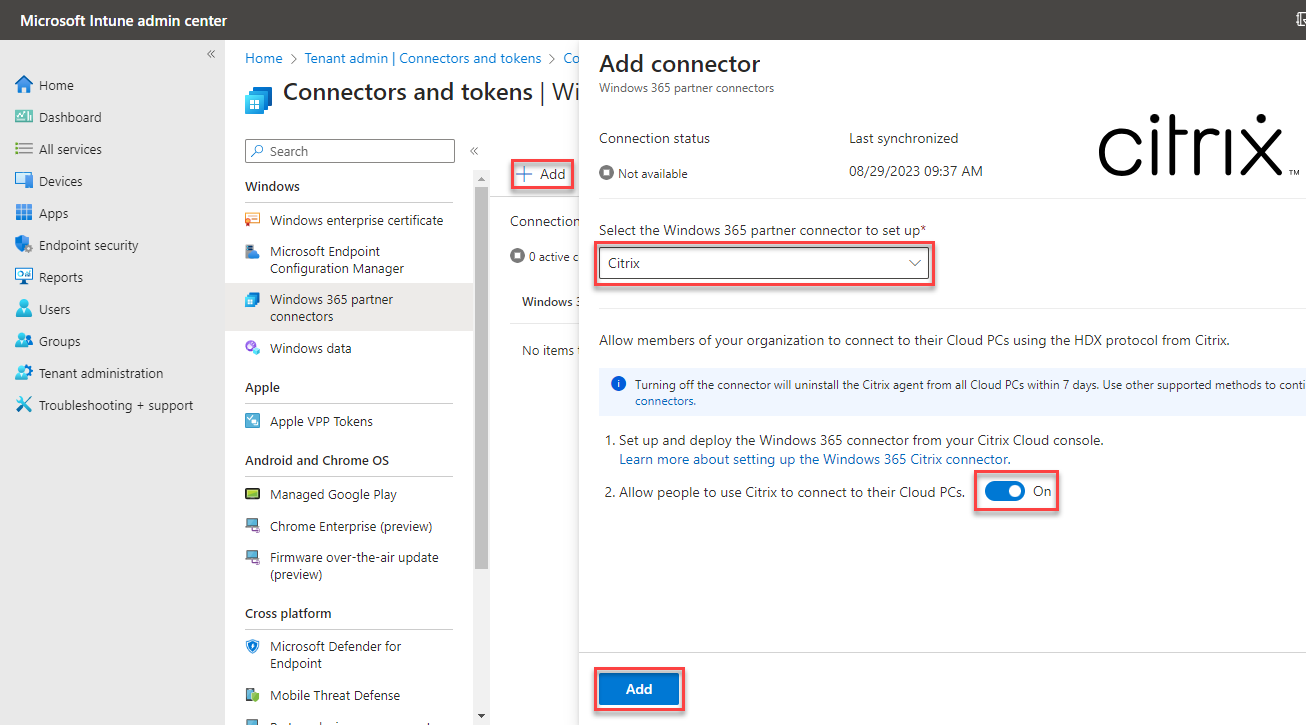 The Citrix connector is now enabled.
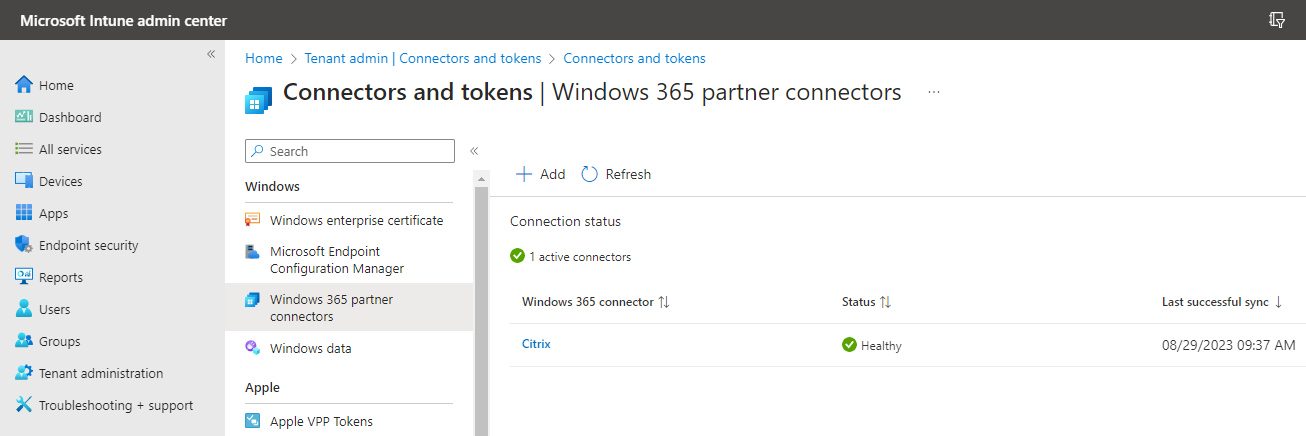
- Proceed to connect Active Directory to Citrix Cloud.
Note:
Disabling the connector removes all Windows 365 configuration.
If you disable the Citrix Connector for Windows 365 in Microsoft Intune, you have 7 days to re-enable it before the automatic cleanup begins. After 7 days, the Citrix VDA is uninstalled from all Windows 365 Cloud PCs and all associated delivery groups, machine catalogs, and resource locations are deleted in Citrix DaaS.
Do not disable the connector as a troubleshooting step. If you are experience issues, see Troubleshooting. If you must disable the connector, re-enable it within 7 days to prevent data loss.