AI-powered insights for session recording
Overview
The AI-powered insights feature enhances the value of session recordings by leveraging Multimodal Large Language Models. This capability enables automated analysis of session recordings, providing actionable summaries, key highlights, and statistical insights to support both security auditing and productivity monitoring.
Prerequisites
To enable and use AI-powered insights, ensure the following requirements are met:
- Citrix Session recording server version 2511 or later is installed.
- Session recording media task service version 2511 or later is installed. Refer to the official setup guide.
- Session recording is properly configured and operational.
- Access to an OpenAI-compatible API endpoint (e.g., Azure OpenAI) is available for AI analysis.
Get Started
Follow below steps to configure and use AI-powered insights:
Configure AI-Powered Insights in Site Settings
- Open the Session Recording Console and navigate to Site management.
- Select the target site to configure.
-
In the Site Settings panel, locate the AI-powered insights section.
-
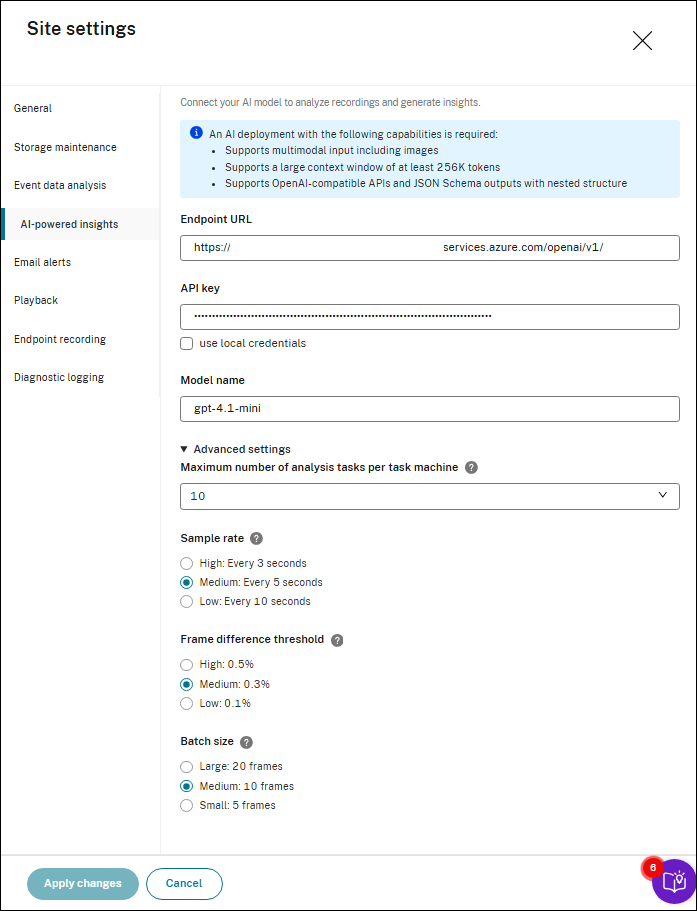
Provide the following parameters:
- Endpoint URL: The API endpoint of your AI model (e.g., https://example.azure.com/openai/v1/).
-
API Key: The authentication key for your AI service.
Note:
If you want to use Google Gemini series model from Vertex AI, refer to the following guidance:
-
The endpoint URL, e.g., “https://aiplatform.googleapis.com”.
-
Model name, e.g., “gemini-2.5-flash”.
-
Check the “use local credentials” checkbox and leave the API key as empty.
-
Go to the machine where you installed the Session Recording media task service and modify the registry:
-
Change the value of HKEY_LOCAL_MACHINE\SOFTWARE\Citrix\SmartAuditor\SRTaskService\SRAIModelAPIType to 3.
-
Add a string value HKEY_LOCAL_MACHINE\SOFTWARE\Citrix\SmartAuditor\SRTaskService\SRAIModelProjectId , set the value to your project id in Vertex AI.
-
Add a string value HKEY_LOCAL_MACHINE\SOFTWARE\Citrix\SmartAuditor\SRTaskService\SRAIModelLocation , set the value to your Vertex AI region. E.g., “global” for Global endpoint, other regions e.g. “us-east5” (refer to https://docs.cloud.google.com/vertex-ai/generative-ai/docs/learn/locations#google_model_endpoint_locations)
-
Add an environment variable GOOGLE_APPLICATION_CREDENTIALS at System level, set its value to the path of your Vertex AI private key file.
-
-
-
(Optional) Configure Advanced Settings:
-
Maximum number of analysis tasks per media server: Defines how many AI analysis tasks can run simultaneously on a single media server (e.g., set to
2). - Sample rate: Determines how frequently video frames are analyzed.
- Frame difference threshold: Sets the percentage of pixel changes required to consider a frame as “changed.”
- Batch size: The number of frames sent to the AI model per batch.
-
Maximum number of analysis tasks per media server: Defines how many AI analysis tasks can run simultaneously on a single media server (e.g., set to
-
Click Apply changes to save the configuration.
Note:
Session Recording will not collect your data that is sent to AI models.
Configure Prompt Templates
-
Go to the Resource library.
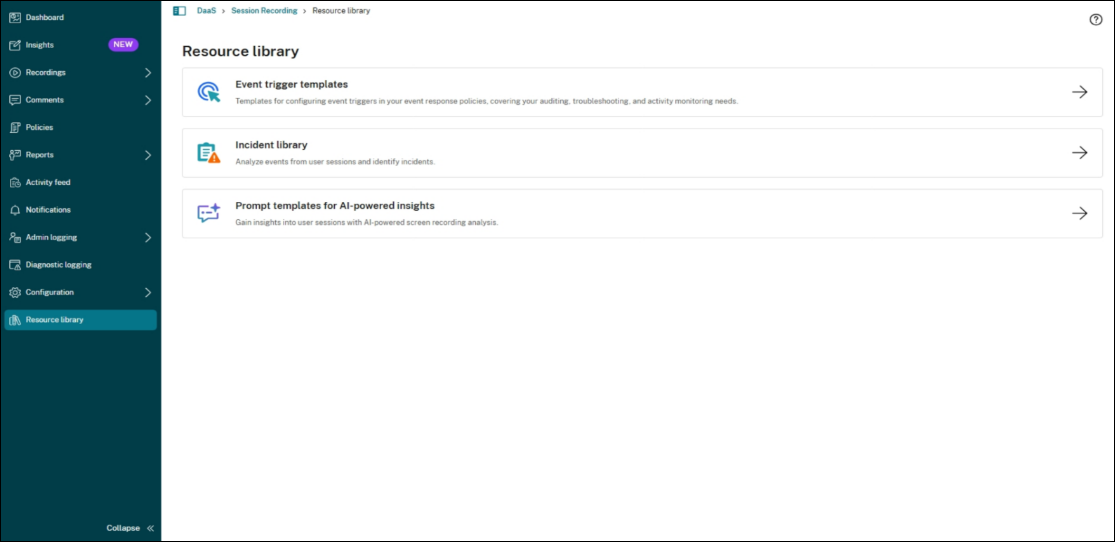
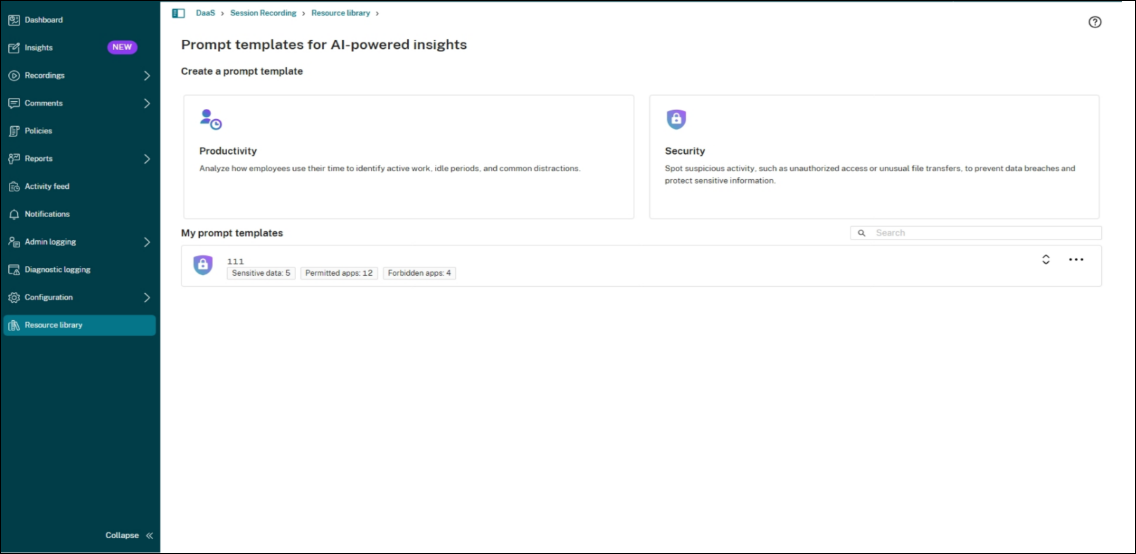
- Under Prompt templates for AI-powered insights, define or customize prompt templates to guide AI analysis.
-
Templates can be tailored for different goals (e.g., Productivity, Security).
Productivity Prompt Template
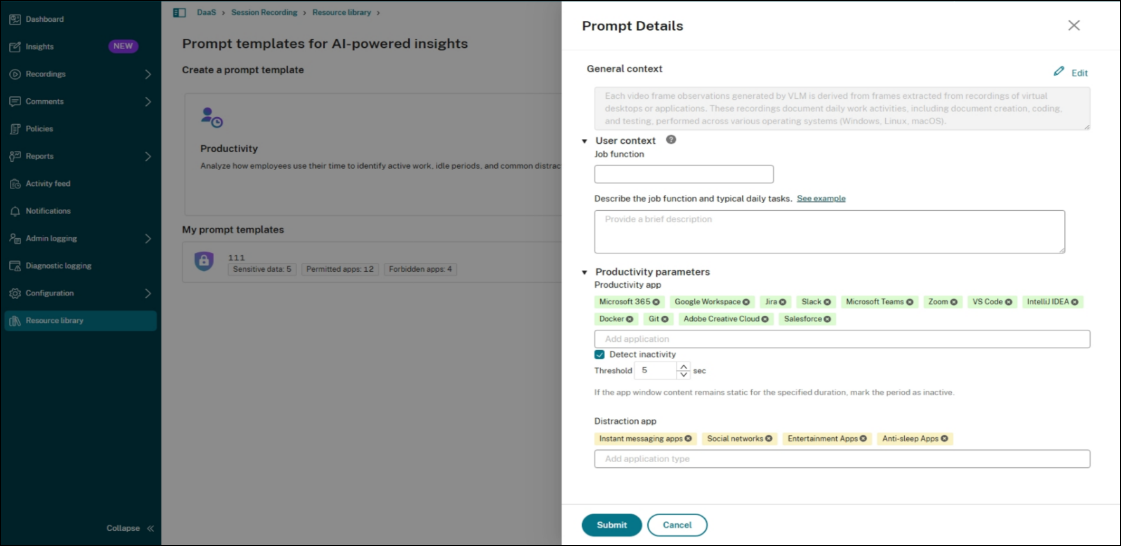
When creating or editing a productivity prompt template, configure:
-
General context: Explains the overall purpose of the template.
-
User context
-
Job function: Enter the user’s role (e.g., Accountant, Software Engineer).
-
Describe the role and typical daily tasks: Provide a short description of the responsibilities (e.g., Responsible for financial reconciliation, preparing reports, and reviewing compliance with accounting standards).
-
-
Productivity parameters
-
Productivity apps: List applications considered productive for this role.
-
Detect inactivity: Enable and set a threshold (in seconds).
-
Distraction Apps: Define app types considered non-productive (e.g., Instant messaging apps , Social networks).
-
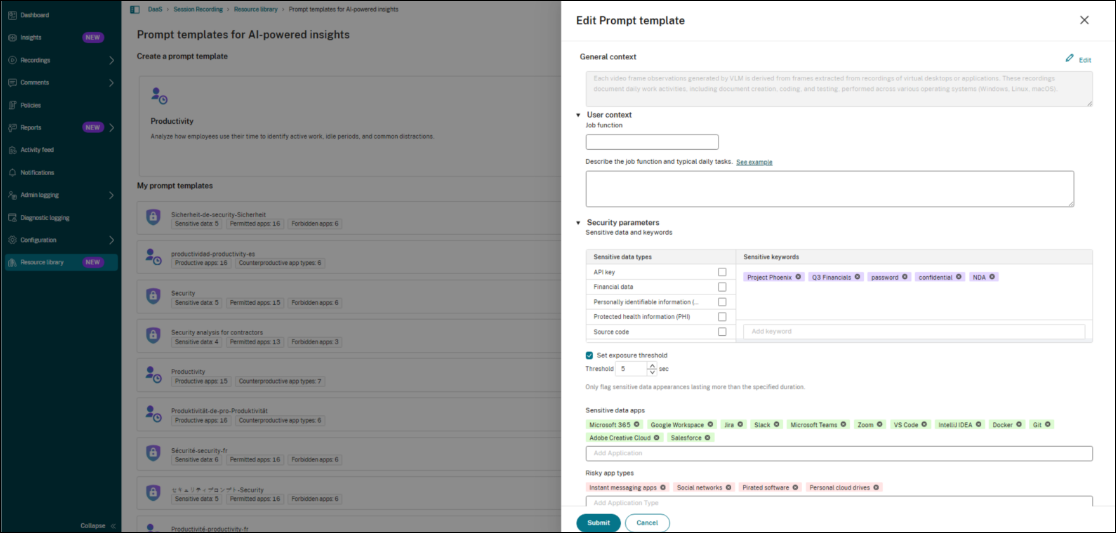
Security prompt template
When creating or editing a security prompt template, configure:
-
General context: Explains the overall purpose of the template.
-
User context
-
Job function: Enter the user’s role.
-
Describe the role and typical daily tasks: Provide a short description of the responsibilities.
-
-
Security parameters
-
Sensitive datatypes: Categories beyond keywords (e.g., Source code, Financial data).
-
Sensitive Keywords: Define keywords indicating sensitive data (e.g., password, credit card).
-
Set exposure threshold: Minimum duration (in seconds) sensitive data must remain visible on screen before being flagged.
-
Sensitive data apps: Apps where sensitive data is likely to appear (e.g., Microsoft Excel, Dynamics 365).
-
Risky app types: High-risk categories (e.g., Social networks, Personal cloud drives).
-
Security Templates and Sensitive Data Definitions
Session Recording utilizes pre-defined security templates to identify sensitive information within recorded sessions. The AI model analyzes screen content based on the following standard categories.
Pre-defined Sensitive Data Categories
The system detects five primary categories of sensitive data by default:
-
PII (Personally Identifiable Information)
Detects personal data points that can identify an individual, including:
-
Identity & Demographics: Name, ID Number, Social Security Number (SSN), Passport Number, Driver’s License Number, Vehicle Class, Gender, Religion, Race, Nationality.
-
Contact Information: Phone Number, Email Address, Home Address, Zip Code.
-
Dates: Date of Birth, Date of Issue, Date of Expiry.
-
Employment: Job Title, Company, Business Contact Information.
-
-
Financial Information
Detects banking and payment-related data, including:
-
Card Data: Card Number, Cardholder Name, Expiry Date, CVV Code.
-
Account Details: Account Number, Tax ID, Payee Information.
-
Transaction Details: Transaction Records, Amounts, Financial Amounts, Payment Date, Invoice Number.
-
Document Context: Document Title, Signature Area, Company Information.
-
-
PHI (Protected Health Information)
Detects medical and health-related records, including:
-
Patient Identity: Patient Name, Medical Record Number, Insured Person’s Name, Insurance Policy Number.
-
Medical Details: Diagnosis Results, Medication Name, Dosage Information.
-
Documentation: Document Title, Doctor’s Signature.
-
-
Source Code
Detects programming code snippets, scripts, and syntax typical of software development.
-
API Keys
Detects strings and patterns resembling Application Programming Interface authentication keys and tokens.
-
IP (Internet Protocol address)
Detects strings and patterns resembling IPs in both IPv4 and IPv6 formats, The specific IP string will be shown in the reports.
Note on AI Contextual Analysis:
In addition to keyword matching, the AI model leverages contextual information to improve judgment accuracy. This helps distinguish between sensitive data and non-sensitive text that may share similar formats.
Customizing Definitions
If your organization requires specific adjustments to these definitions (e.g., specific internal terminology or excluding certain fields), you can provide custom detection rules in an additional context field.
Select Recordings for Analysis
- Navigate to Recordings in the Session Recording Console.
- Use filters or search to locate the session(s) for analysis.
-
Select one or more video recordings, then click Analyze.
-
In the dialog:
- Select a prompt template from the Resource Library or Create new.
- Choose the analysis scope based on the session type:
- Analyze the selected recording – analyzes only the selected recording file.
- Analyze the entire session — for rollover sessions (sessions that span multiple recording files).
- Analyze all recordings of the user on this day — for a daily insight summary covering all recordings of the selected user on that day.
Note:
The Analyze the entire session and Analyze all recordings of the user on this day options require Session Recording media task service version 2603 or later.
-
(Optional) Provide additional context before submitting.
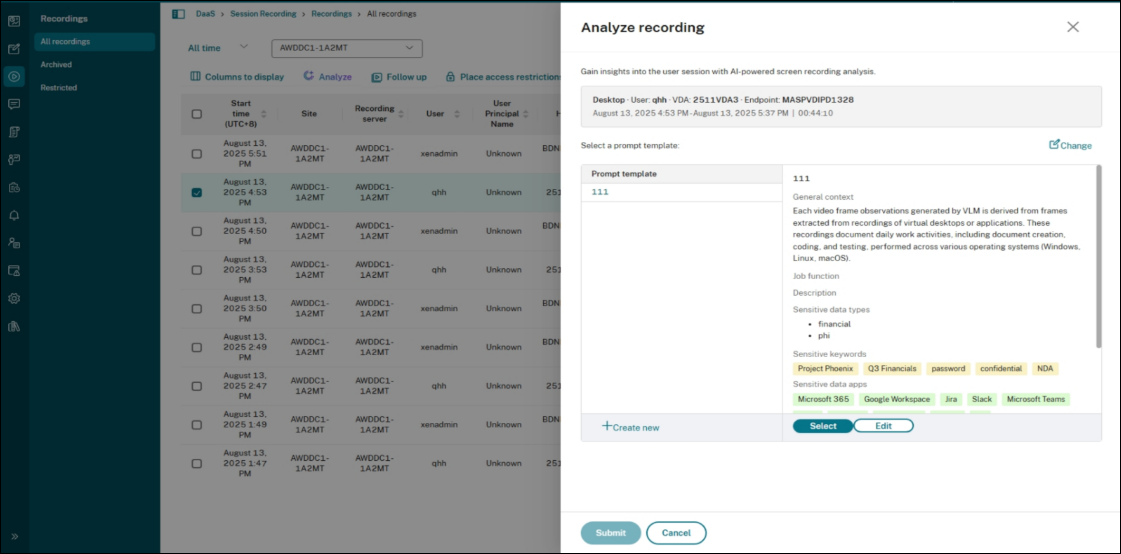
- Click Submit to start the analysis task.
Monitor Task Progress
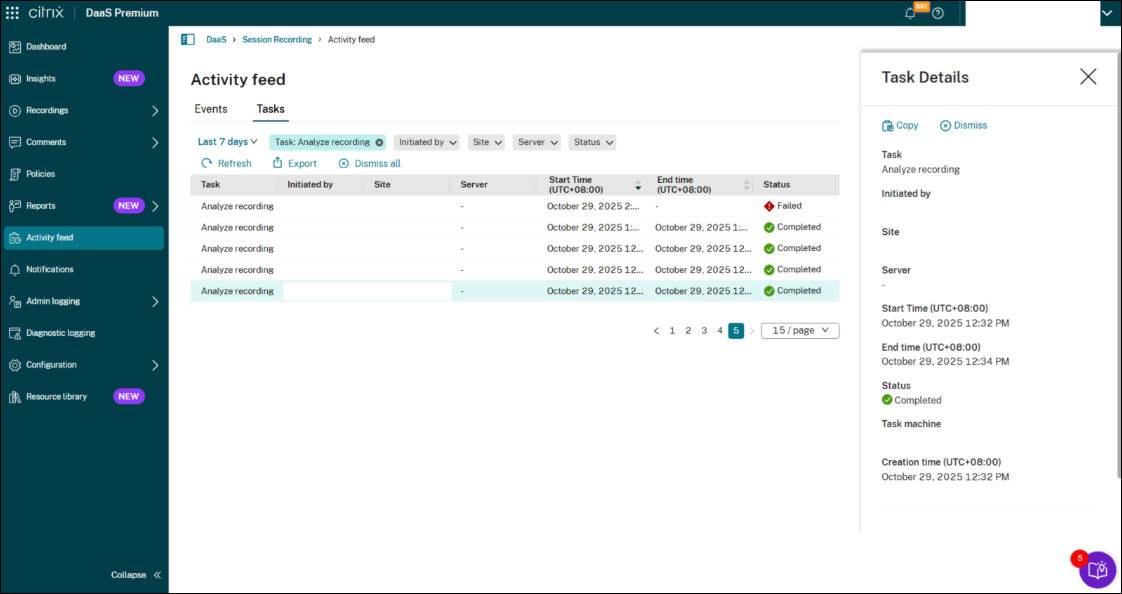
- Go to Activity feed > Tasks to track analysis status (Pending, In Progress, Completed, Failed).
-
Each task includes recording file details.
Review AI-Powered Insights
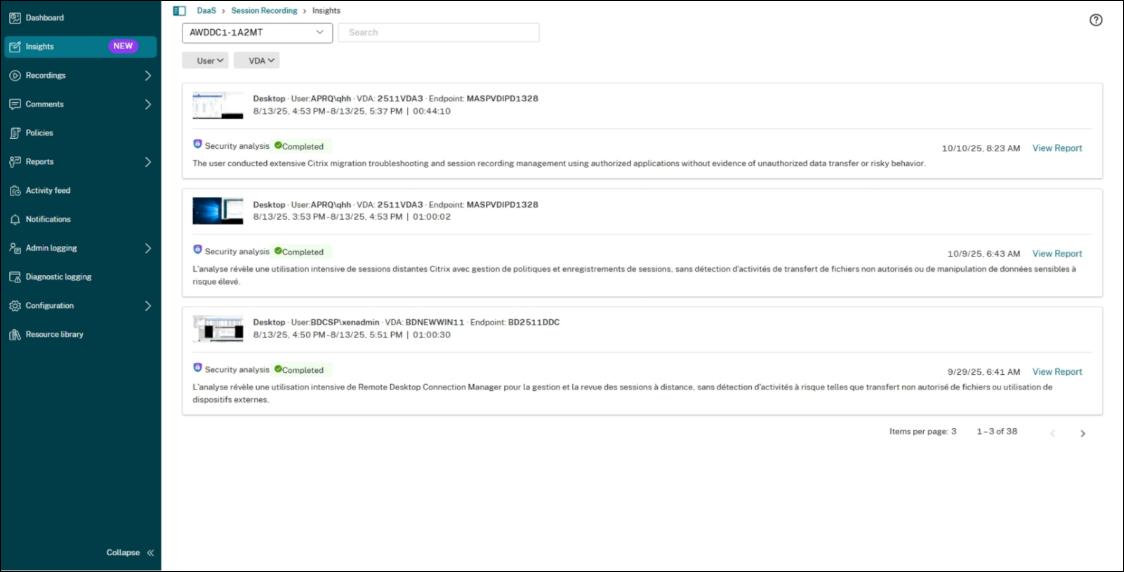
- Navigate to the Insights page to view completed analyses.
- Use filters (Site, User, VDA) and search bar for quick access.
-
Each session card displays:
- AI-generated summary.
- Analysis type and status.
- A View Report link for detailed insights.
Detailed Reports
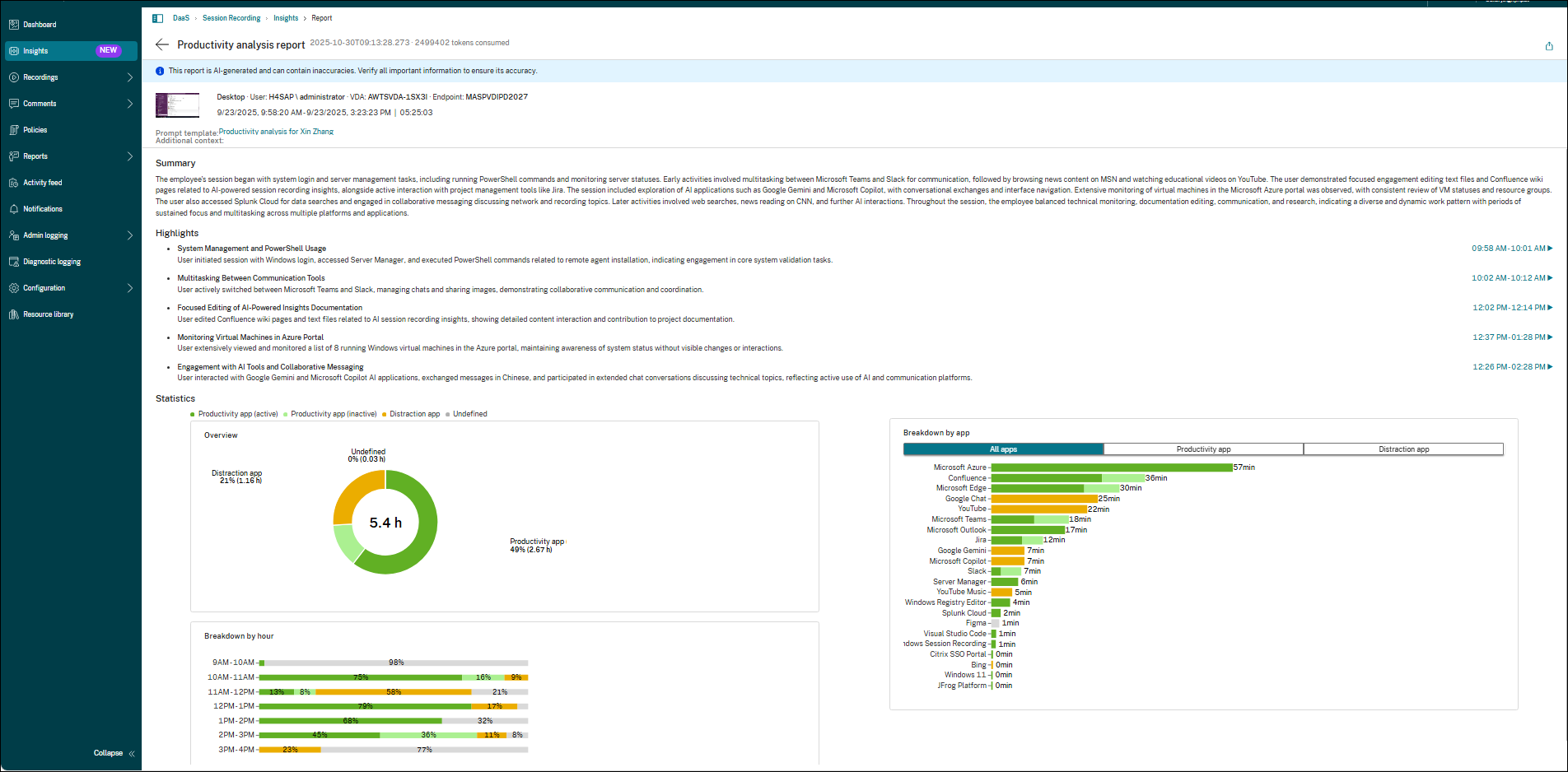
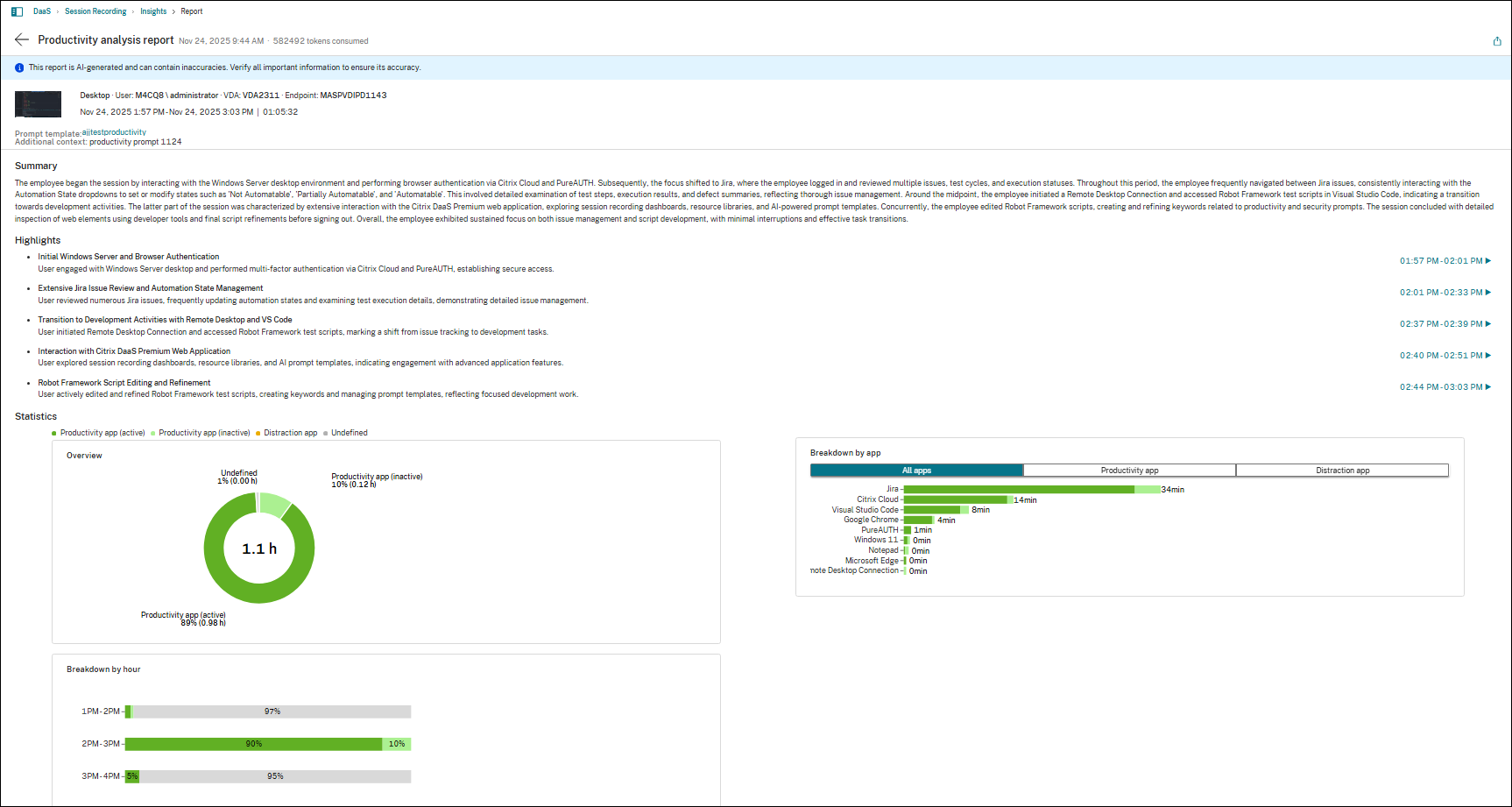
Productivity Analysis Report
Includes:
-
Summary: Proportion of time spent on productive vs. non-productive activities.
-
Highlights: Key time blocks, with clickable timestamps.
-
Statistics:
-
Overview Chart: Breakdown of active work, idle time, and distractions.
-
Breakdown by App: Time spent in productivity app vs. distraction app.
-
Hourly Pattern: Shows productivity trends throughout the day.
-
-
Security Analysis Report
Includes:
-
Summary: Overview of session’s security posture, highlighting risky behaviors and sensitive data exposure.
-
Highlights: Key security events with clickable timestamps.
-
Statistics:
-
Sensitive Data Exposure:
-
by data types or keyword: Shows which sensitive terms appeared most often.
-
by app: Highlights apps where sensitive data appeared.
-
-
Timeline View: Lists sensitive keywords with timestamps and associated apps.
-
Limitations
- Virtual App Support: Insights may be limited for virtual application sessions.
-
Short Sessions:
- Sessions shorter than 15 minutes generate only a basic summary.
- Sessions shorter than 30 minutes omit statistical charts.
Legal and Privacy Disclaimer
The AI Insights in Session Recording feature and its provided prompt templates as well as the outputs, reports and/or information that may be generated from utilizing this feature (“AI Insights”) are not intended to provide, legal, security, regulatory and/or technical advice or judgement to you in any form and all information created and derived from utilizing AI Insights is provided “As-Is”, with no warranties or representations, whether express or implied, regarding the AI Insights, including, without limitation, that the information is accurate, error-free or meets any conditions of merchantability or fitness for a particular purpose.
Customer is solely responsible for the legal and regulatory compliance of processing any personal data or sensitive information through utilizing this feature, including but not limited to balancing your internal data classification obligations, global data and/or AI regulatory compliance as well as industry related compliance obligations related to your business or customer market. Customer is advised to consult their own designated subject matter expert before utilizing AI-Insights.
Customers acknowledges and understands that utilizing AI Insights involves transmitting all VDA session data to their configured AI model endpoint. This data may include Personal Data or sensitive and/or confidential information captured during VDA session recordings. All VDA session data generated, as well as the AI Insights output, is considered Customer Content.