Workspace
You can sign in to your Citrix Cloud account and access Client app management from the main menu. Before proceeding, verify if you have the following permissions:
-
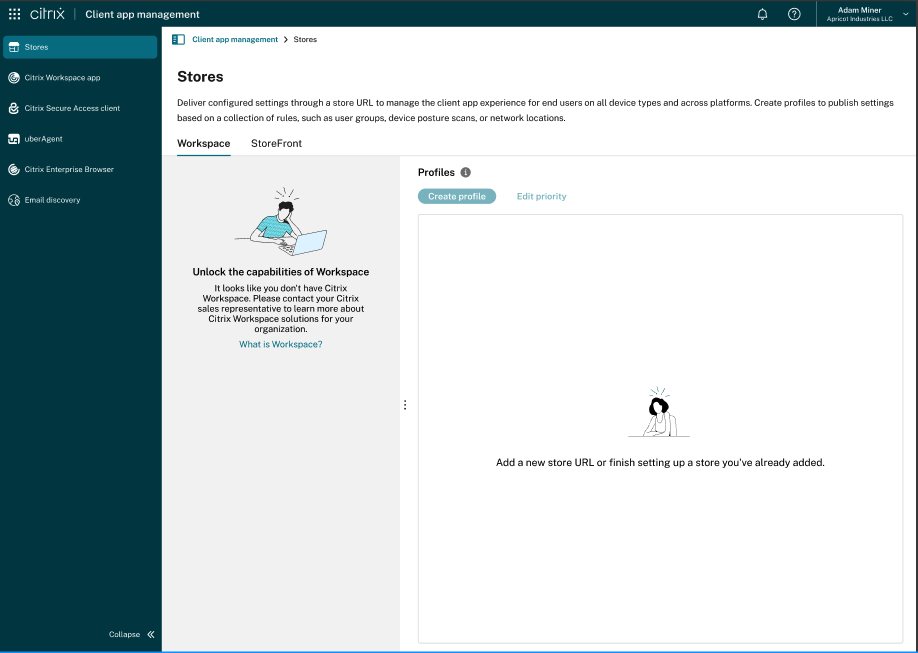
Workspace subscription: The Workspace subscription is required to create a Workspace URL. If you don’t have a subscription, you can’t add and configure cloud stores.
-
Workspace URL: If you have a Workspace subscription but haven’t added your URL yet, you must set up the store to get started.
-
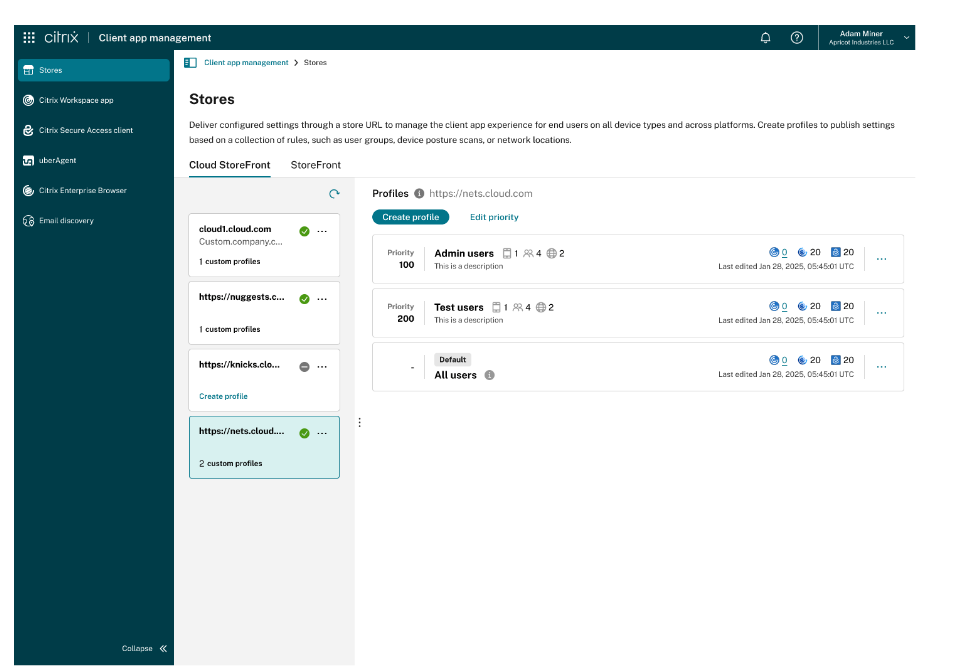
If you have a Workspace URL already configured, you see the list of cloud store URLs. This means that you are good to get started with the configuration.
Configure settings for custom domains
You can apply the Client app management settings to custom domain URLs in addition to cloud.com domain URLs. After you enable this mapping in the UI, any user accessing the store through a custom domain receives settings configured for the corresponding cloud.com based store.
For more information about custom domains, see Configure a custom domain.
Workflow to enable settings for custom domain
To enable Client app management settings for custom domains, perform the following:
-
Navigate to Client app management > Stores > Workspace.
-
Locate the three dots next to each Workspace URL.
-
Click Refresh custom domain, if a custom domain is configured for the Workspace URL.
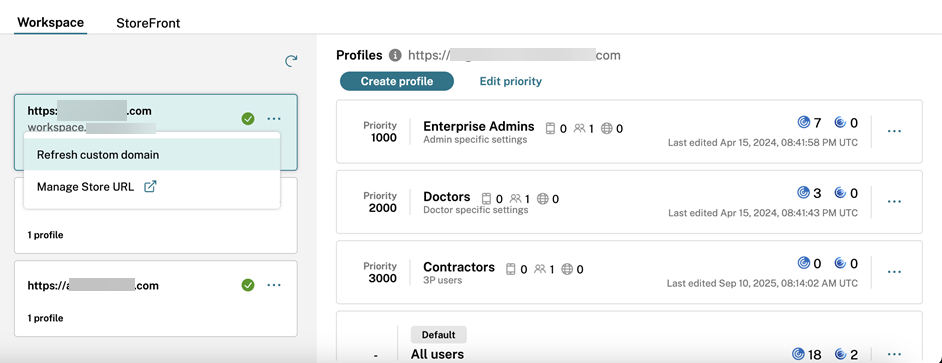
The system fetches and populates the mapping between your custom domain and the cloud.com URL in the column.
Points to remember
For settings to take effect on custom domains:
-
Settings might take up to 24 hours to apply for already logged-in users on the Citrix Workspace™ app.
-
Wait for 30 minutes after mapping the custom domain to the cloud.com URL in Client app management.
Compatibility
The following Citrix Workspace app versions support this feature:
Windows: Version 2503.10 or later
macOS: Version 2503 or later